SEARCH
  • [:en]Recent Posts[:af]Onlangse bydraes

  • [:en]Categories[:af]Kategorieë

  • [:en]Archives[:af]Argiewe

Communication

Want to read a novel in 90 minutes?Wil jy `n boek binne 90 minute lees?

Friday, September 26th, 2014

Too much to do, not enough time! Sounds familiar? No wonder we feel frustrated when we have to read large amounts of material in limited time.

Due to our dwindling attention span caused by technology and the emergence of e-books, rapid serial visual presentation technology, or RSVP is becoming more popular. It’s not new technology, and in fact, has been around for almost a decade now. (*see below for alternative speed readers)

spritzThe latest of these applications is Spritz. The Boston-based company specialises in text streaming technology and how it can be integrated into our daily communication. When Samsung released the Gear S Smartwatch Spritz even came pre-installed with it.

According to Spritz, when we read, we only use 20% of our time to actually process what we’re reading. The other 80% is spent wasted moving your eyes around and scanning for the “Optimal Recognition Point” (ORP)

The ORP is a specific section of a word your brain needs to process to understand the written text. It then assembles each word into an understandable sentence. Spritz does this thinking for you by highlighting the OPR in red and aligning them all at the same place on your screen. Subsequently your eyes focus on only one spot, which in turn causes you to read faster.

Spritz allows you to choose your own reading speed ranging from 250 words per minute to 1000 words per minute. With practice your reading speed will increase and you’ll be able to not only read efficiently, but also comprehend what you’ve read.

We’ve tested Spritz and it does enable you to read much faster than you normally would. If you need to read documentation for work or research, Spritz might well be the answer. But do you really want to read a novel in an hour and a half? (Quite possible according to Spritz)

This way of reading might however be beneficial for people suffering from dyslexia, a short attention span or other reading disabilities.

Spritz is available in both an application format for your phone or e-reader, but also as an add-on called Spritzlet for your web browser. Both can be downloaded for free at www.spritzinc.com.

*Alternatively also try SpreederQuickreaderRead Quick or Firefox’s RSVP reader.

[SOURCES: www.cbsnews.com, www.time.com, www.globalnews.com, www.abcnews.com]

Te veel om te doen, te min tyd! Klink dit bekend? Dis geen wonder ons raak gefrustreerd as ons skielik opgesaal word met `n stapel leesstof waardeur ons moet werk nie.

Te danke aan die geleidelike afname van ons aandagspan te danke aan tegnologie en die toename van e-boeke, word “rapid serial visual presentation technology”, of te wel RSVP, word al meer populêr. Dis nie nuwe tegnologie nie, inteendeel, dis alreeds vir `n dekade in die rondte. (*sien onder vir alternatiewe spoedlesers)

spritzDie nuutste van hierdie toepassings, is Spritz. Die Boston-gebaseerde spesialiseer in teksstroom tegnologie en hoe dit geintegreer kan word in ons daaglikse kommunikasie. Die Samsung Gear S slimhorlosie is selfs vrygestel met Spritz reeds daarop geinstalleer.

Wanneer ons lees, gebruik ons slegs 20% van die tyd om dit wat ons lees te verwerk, beweer Spritz. Die orige 80% word vermors omdat ons oë heen-en-weer moet beweeg en soek na die “Optimale Herkenningspunt”(ORP).

Die ORP is `n spesifieke gedeelte van `n woord wat jou brein moet verwerk om die geskrewe teks te kan vertsaan. Dit voeg dan elke woord saam om `n logiese sin te vorm. Spritz doen hierdie verwerking vir jou deur die OPR in rooi uit te lig en elke keer op dieselfde plek op die skerm te posisioneer. Gevolglik fokus jou oë net op een plek en jy kan vinniger lees.

Met Spritz kan jy jou eie leesspoed kies – van 250 woorde per minuut tot 1000 woorde per minute. Met oefening kan jy jou leesspoed verhoog en sal jy nie net vinniger ees nie, maar ook meer effektief en verstaan wat jy lees.

Ons het Spritz getoets en dit laat jou wel toe om baie vinniger te lees as wat jy normaalweg sou. As jy dokumentasie vir werk of navorsing moet lees, kan Spritz moontlik jou lewe makliker maak. Maar wil jy regtig `n roman binne `n uur en `n half klaarlees? (Heeltemal moontlik volgens Spritz)

Hierdie leesmetode kan wel tot voordeel strek vir persone wat ly aan disleksie, `n kort aandagspan of enige ander leesgebreke.

Spritz is beskikbaar in beide `n toepassing vir jou foon of e-leser, maar kan ook geinstalleer word as `n webblaaier-ekstra. Beide kan gratis afgelaai word by www.spritzinc.com.

*Alternatiewelik kan jy ook SpreederQuickreaderRead Quick or Firefox se RSVP -leser, probeer.

[BRONNE: www.cbsnews.com, www.time.com, www.globalnews.com, www.abcnews.com]

Confused by fault reporting?Verwar deur foutrapportering?

Friday, September 5th, 2014

There are various ways to contact IT if your PC is giving you a hard time. Most of you know you can contact the IT Service desk at 808 4367 to report a technical error, but you can also send an e-mail to help@sun.ac.za.

To successfully log a call, the Service Desk needs the following information:

1. A description of the problem
2. Phone number
3. Room number
4. Department and building
5. Asset number of the PC, laptop, printer, etc.

A request will automatically be logged in the IT request system and a reference number will be sent to you via e-mail. This reference number can be used if you need to make an inquiry about the status of your call.

If you’d like to check the status of your request, you can go to https://iheat.sun.ac.za/hss and log on with your username and password.

Click on the relevant CallID displayed on the list.

Status will indicate the progress of the request.

Solved and Closed statuses indicates that the request has been completed.*

Responded indicates an IT technician is aware of the request and has contacted the user by phone or e-mail.

Acknowledged indicates an IT technician is aware of the request, but the user hasn’t been contacted yet.

*If the technician has already contacted the user unsuccessfully three times, whether by phone or e-mail or if a call has been open for at least a week, it will be automatically closed. In this case an e-mail will be sent to notify the user.

Take note that a second e-mail, helpinfo@sun.ac.za can ONLY be used for general IT related inquiries. This e-mail address does not automatically log your call on the system and therefore, you’re not guaranteed your problem will receive the urgent attention you require. Rather send mail to help@sun.ac.za in this case.

IT can also be contacted via Skype (handle = ITStellenUni) for inquiries.

Inquiries such as “How do I apply for an IT service?”, “What are the purchasing procedures?”, etc. can be sent to helpinfo@sun.ac.za. Questions will be answered by e-mail.

Alternatively you can log your fault at https://iheat.sun.ac.za/webheat.

More information on the various options can be found on the IT wiki.Daar is vele maniere om IT te kontak as jou rekenaar jou `n moeilike tyd gee. Almal weet hulle kan die IT Dienstoonbank by 808 4367 skakel om `n rekenaarfout te rapporteer, maar jy kan ook `n e-pos stuur help@sun.ac.za.

Om `n fout suksesvol aan te meld, benodig die Dienstoonbank die volgende inligting:

1.’n Beskrywing van die probleem
2. Telefoonnommer
3. Kamernommer
4. Departement en gebou
5. Batenommer van rekenaar, skootrekenaar en drukker, ens.

‘n Versoek word outomaties aangeteken in die IT versoekstelsel en ‘n verwysingsnommer word aan jou gestuur per e-pos. Dié verwysingsnommer kan gebruik word indien navraag gedoen word ivm die status van die versoek.

Indien jy wil kontroleer wat die status van jou versoek is, gaan na  https://iheat.sun.ac.za/hss en teken aan met jou gebruikersnaam en wagwoord.

Kliek op die betrokke CallID in die lys wat op die skerm vertoon word.

Status sal aandui wat die vorderingstatus van die versoek is.

Solved en Closed statuse dui aan dat die versoek afgehandel is.*

Responded dui aan dat ‘n IT tegnikus bewus is van die versoek en die gebruiker, telefonies of per e-pos, gekontak het.

Acknowledged dui aan dat ‘n IT tegnikus bewus is van die versoek, maar nog nie noodwendig die gebruiker gekontak het nie.

*Oproepe sal ook gesluit word as tegnici die gebruiker reeds drie keer onsuksesvol probeer kontak het d.m.v. e-pos of telefonies of as die fout reeds vir `n week oop is. In hierdie geval sal `n e-pos outomaties aan jou gestuur word.

Neem kennis dat daar `n tweede e-posadres is, naamlik helpinfo@sun.ac.za. Hierdie e-pos is SLEGS vir algemene IT-verwante navrae. Dit teken nie outomaties jou fout aan op die stelsel nie en jy is dus nie verseker dat jou probleem dringend aandag sal kry nie. IT kan ook via Skype (handle = ITStellenUni) gekontak word vir navrae.

Navrae soos byvoorbeeld “Hoe doen ek aansoek vir ‘n IT diens?”, “Wat is die IT aankoop prosedure?”, ens. Antwoorde op navrae sal per e-pos gedoen word.

Alternatiewelik kan jy ook self jou probleem gaan aanmeld by https://iheat.sun.ac.za/webheat.

Meer inligting oor die verskillende opsies, kan gekry word op IT se wiki.

Useful, free web apps you should know aboutNuttige, gratis web apps waarvan almal behoort te weet

Friday, August 8th, 2014

As part of the expansion of the web, the last decade has seen the rise of thousands —if not millions —of web apps: often-simple tools that allow users to complete specific tasks via a web page from any computer connected to the internet.

The possibilities are almost endless: think of a task you need to complete and you can be nearly certain that there will be a useful web app that fits the job. The key, however, is to know where to look. And that’s where this guide comes in.

Below, you’ll find a list of a few tried-and-tested web apps that —if used correctly —can make your life much, much easier. Try them. Use them. Share them.

NOTE TAKING AND STUDY AIDS

Evernote: A very popular note management solution, allowing you to pull in notes from your tablet, computer, phone and elsewhere. The web app lets you create, edit, manage and search your notes library. www.evernote.com

Mindmap: An easy-to-use tool that lets you create your own mind maps quickly and efficiently. Great for summarising course notes, articles and books. www.mindmup.com

Gliffy and LucidChart: Both great apps for illustrating a concept with diagrams. Both include many useful shapes and tools. However, both have some limits on the free account. Still, they are great for occasional diagramming. www.gliffy.com and www.lucidchart.com

Google Drive Documents: Google’s web-based word processor. It’s perfect for summaries, essays and more and you and other people can type in the same document at the same time. This makes it perfect for team planning, agendas and taking minutes in a meeting. Google Drive Documents is part of — you guessed it — Google Drive, so you’ll need to create an account there. drive.google.com

Cram: A lightweight flashcard tool that lets you create your own flashcards (having one word/phrase on the front and one on the back) and then review them alphabetically or randomly. Very useful for any content for which you have to remember a key point for a specific concept, e.g. in learning a language. www.cram.com

PRESENTATIONS

Prezi: Tired of slideshows with sparkling text and way too many bullet points? Do your next presentation with Prezi. It’s a great way to illustrate how your ideas fit into one another because all your content is displayed on a single canvas, with the ‘view’ simply panning and zooming from one area to another. www.prezi.com

Google Drive Presentations: If you prefer a more traditional ‘slideshow’, or if Prezi isn’t suitable for communicating your message, you can use Google’s PowerPoint alternative for free. While it’s not as feature-packed as PowerPoint, it’s still a great way to do presentations if you don’t want to dish out money for the aforementioned duo. drive.google.com

 RESEARCH

Google Scholar: This app brings the power of Google search to research. By letting you search thousands of academic databases (including those used by EBSCOHost, JSTOR, etc.) quickly and easily, it cuts down the time necessary to find the articles you need for projects, essays and theses. As a bonus, it also lets you import article metadata into a citation manager (see Zotero below) directly from the search results page. When accessing Google Scholar from outside the Stellenbosch University, use scholar.google.com.ez.sun.ac.za to get access to the journals to which the university subscribes. Otherwise: scholar.google.com

[Special mention] Zotero: While Zotero isn’t strictly speaking a web app (although it also runs in your browser), it’s just too good and relevant not to include here. For a full Zotero guide, check out the previous article  in this series.

ORGANISATION AND COMMUNICATION

Google Calendar: This app is the gold standard in free calendar tools. It helps you keep track of your appointments, events, deadlines and general planning — all while still being very easy to use. It can also keep in sync with all your devices, so that you can have access to your calendar on your tablet, phone and computer. calendar.google.com

Gmail: This e-mail service has ever-expanding storage space and great search functionality. Gmail is different from Microsoft Outlook, Yahoo Mail and other services, in that it uses ‘labels’ instead of traditional folders. You can tag any e-mail with one or more labels and subsequently search by that label. Also, because you have such a large amount of space (15 GB as of early 2014), you never have to delete e-mails and lose them forever. Consequently, because you have access to all e-mails you ever sent or received, Gmail includes powerful searching capabilities (think: Google for your inbox) that allow you to delve into your tons and tons of messages effortlessly. www.gmail.com

Wunderlist: task management made easy — and beautiful. Keep track of your daily to-do list, priorities, shopping list and more. You can also share task lists with friends — a great tool for group projects. www.wunderlist.com

FILE SHARING

Google Drive: Install Google Drive on your computer and then simply drop a file in the assigned folder to upload it. Once uploaded, you can share files with friends. Google Drive has a range of web-based editors that are included by default —two of which were previously mentioned —that make collaboration easy. You can also share specific folders in your Drive with your friends, which works really well to keep all the files for a group project stored in one place. drive.google.com

Dropbox: simple and easy file sharing. While it works in the same way as Google Drive, it doesn’t include the online editors built into the latter. However, Dropbox remains one of the simplest ways to share files between devices and people. Dropbox is particularly useful when you need to send a large file via e-mail and don’t want to clog up the recipient’s mail storage: simply upload the file to your Dropbox and then share the link in an e-mail. www.dropbox.com

[ARTICLE BY JOHANNES JONKER]

As deel van die uitbreiding van die web het die afgelope dekade die opkoms van duisende – indien nie miljoene nie – web apps gesien: in baie gevalle eenvoudige gereedskap wat gebruikers toelaat om spesifieke take via ’n webblad te voltooi, vanaf enige rekenaar wat aan die internet gekoppel is. Dit is egter belangrik om te weet waar om te kyk. En dít is waar hierdie gids jou kan help. Hieronder sal jy ’n lys vind van ’n paar bewese webtoepassings (apps) wat – indien hulle reg gebruik word – jou lewe baie makliker kan maak. Probeer hulle. Gebruik hulle. Deel hulle.

AANTEKENINGE NEEM EN STUDIEHULPMIDDELS

Evernote: ’n Baie gewilde nota-bestuurstelsel, wat jou toelaat om notas van jou tablet, rekenaar, foon en elders in te trek. Die web app laat jou toe om ’n nota-biblioteek te skep, verander, bestuur en te deursoek. www.evernote.com

Mindmap: ’n Stuk gereedskap wat maklik is om te gebruik en jou toelaat om jou eie breinkaarte vinnig en doeltreffend te skep. Wonderlik om kursusnotas, artikels en boeke op te som. www.mindmup.com

Gliffy en LucidChart: Albei wonderlike apps om ’n konsep d.m.v. diagramme te illustreer. Albei sluit baie bruikbare vorms en gereedskap in. Albei het egter ’n paar beperkings op die gratis rekening. Tog is hulle goed as jy net nou en dan diagramme wil skep. www.gliffy.com en www.lucidchart.com

Google Drive Documents: Google se webgebaseerde woordverwerker. Dis perfek vir opsommings, opstelle en dies meer en jy en ander mense kan terselfdertyd in dieselfde dokument tik. Dít maak hierdie eienskap dus perfek vir beplanning in spanverband, agendas en om die notule in ’n vergadering te neem. Google Drive Documents is deel van – ja, jy’t reg geraai – Google Drive, dus is dit nie nodig om ’n nuwe rekening daar te skep nie. drive.google.com

Cram: ’n Liggewig flitskaart hulpmiddel wat jou toelaat om jou eie flitskaarte te skep (met een woord/frase voorop en een agterop) en hulle dan alfabeties of lukraak te hersien. Baie nuttig vir enige inhoud m.b.t. waarmee jy ’n spesifieke sleutelpunt vir ’n spesifieke konsep moet onthou, bv. wanneer jy ’n taal aanleer. www.cram.com

AANBIEDINGS

Prezi: Moeg van skyfievertonings met flitsende teks of te veel kollyste (bullet lists)? Berei jou volgende aanbieding voor met Prezi. Dis ’n wonderlike manier om te illustreer hoe jou idees met mekaar verband hou omdat al jou inhoud op ’n enkele skerm vertoon word, met die ‘gesigspunt’ wat eenvoudig van een area na ’n ander swaai en inzoem. www.prezi.com

Google Drive Presentations: Indien jy ’n meer tradisionele ‘skyfievertoning’ verkies, of as Prezi nie gepas is om jou boodskap te kommunikeer nie, kan jy Google se PowerPoint alternatief gratis gebruik. Hoewel dit nie so vol eienskappe soos PowerPoint is nie, is dit nog steeds ’n goeie manier om aanbiedings te doen as jy nie geld op die voorgenoemde kombinasie wil uitgee nie. drive.google.com

NAVORSING

Google Scholar: Bring die krag van ’n Google soektog na navorsing. Deur jou toe te laat om vinnig en maklik duisende akademiese databasisse te deursoek (insluitend dié wat deur EBSCOHost, JSTOR, ens.) gebruik word, verminder dit die tyd wat jy benodig om artikels vir jou projekte, opstelle en tesisse te soek. ’n Bonus is dat dit jou ook toelaat om belangrike metadata van die artikels in ’n aanhalingsbestuurder (sien Zotero hieronder) direk van die blad met die soekresultate in te voer. Wanneer jy van buite die Universiteit Stellenbosch toegang tot Google Scholar wil verkry, moet jy scholar.google.com.ez.sun.ac.za gebruik om toegang te kry tot die vaktydskrifte waarvoor die Universiteit inteken. Andersins: scholar.google.com

[Spesiale vermelding] Zotero: Hoewel Zotero nie streng gesproke ’n web app is nie (ten spyte daarvan dat dit ook in jou blaaier loop), is dit net té goed en té relevant om nie hier ingesluit te word nie. Meer oor Zotero in `n vorige artikel.

ORGANISERING EN KOMMUNIKASIE

Google Calendar: Die goue standaard van gratis kalender gereedskap. Dit help jou om op hoogte te bly van jou afsprake, geleenthede, sperdatums en algemene beplanning — maar bly tog baie maklik om te gebruik. Dit kan ook op al jou toestelle sinkroniseer sodat jy toegang tot jou kalender het op jou tablet, foon en rekenaar. calendar.google.com

Gmail: Hierdie e-posdiens met immer groeiende stoorruimte en ongelooflike soekfunksionaliteit. Gmail verskil van Microsoft Outlook, Yahoo Mail en ander dienste omdat dit ‘etikette’ in plaas van tradisionele lêers gebruik. Jy kan enige e-pos met een of meer etikette merk en gevolglik volgens daardie etiket soek. Omdat jy ook so ’n groot hoeveelheid ruimte het (15 GB vroeg in 2014), hoef jy nooit e-posse uit te vee en hulle vir ewig te verloor nie. Omdat jy gevolglik toegang het tot al die e-posse wat jy al ooit gestuur of ontvang het, sluit Gmail kragtige soekvermoë in (dink: Google vir jou e-pos) wat dit vir jou moontlik maak om met gemak deur tonne en tonne boodskappe te soek. www.gmail.com

Wunderlist: Taakbestuur vergemaklik – en pragtig. Bly op hoogte van jou daaglikse taaklys, prioriteite, inkopielys en meer. Jy kan ook taaklyste met jou vriende deel – ’n wonderlike stuk gereedskap vir groepprojekte. www.wunderlist.com

LÊERS DEEL

Google Drive:  Installeer Google Drive op jou rekenaar en plaas dan eenvoudig ’n lêer in die toegewese vouer om dit op te laai. Sodra dit opgelaai is, kan jy die lêer met vriende deel. ’n Wenner eienskap van Google Drive is die verskeidenheid webgebaseerde wysigers wat by verstek ingesluit word – twee waarvan ons reeds vroeër na verwys het – wat samewerking so maklik maak. Jy kan ook spesifieke vouers in jou Drive met jou vriende deel, wat goed werk as jy al die lêers vir ’n groepprojek op een plek wil stoor. drive.google.com

Dropbox: Eenvoudig en maklik om lêers te deel. Hoewel dit soortgelyk aan Google Drive funksioneer, sluit dit nie die aanlyn wysigers in wat in laasgenoemde ingebou is nie. Dropbox is egter steeds een van die eenvoudigste maniere om lêers tussen toestelle en mense te deel. Dit is veral nuttig wanneer jy ’n groot dokument per e-pos moet stuur en nie die ontvanger se posbus wil oorlaai nie: laai die lêer eenvoudig op na jou Dropbox en deel dan die skakel in ’n e-pos. www.dropbox.com

[ARTIKEL DEUR JOHANNES JONKER]

 

Snap and shop!Kliek en koop!

Friday, August 8th, 2014

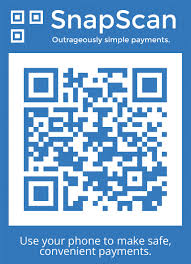
snapscan3Have you ever wondered what the cryptic image (see right) at some restaurants, coffee shops and markets is? Here’s a hint – it’s not some secret code of a society you don’t belong to. On the contrary, it’s something useful guaranteed to make your life somewhat easier.

SnapScan is a smartphone payment app developed right here in Stellenbosch by technology start-up company FireID, located in Tegnopark – Stellenbosch’s own Silicon Valley. The guys from FireID realised that a cashless society, where payments were easier and faster to make, is became a necessity.

In 2013 SnapScan won the South African App of the year and it has been featured on Business Insider’s Top 12 African Start-ups list. In May of this year it joined in partnership with Standard Bank.

SnapScan benefits both the customer and the merchant. For the customer it provides an alternative for cash and credit cards, it’s faster and is meant to be more secure.

You no longer have to wait to have a payment processed at a terminal or risk carrying a credit card with you. You simply take a picture of the merchant’s unique QR code (the cryptic image) with your phone, enter your pin and the amount you want to pay. After the transaction is completed the customer and merchant receives an SMS notification to confirm.

The merchant never handles your credit card or details. Your card details are stored securely on your phone, encrypted and protected by a pin you select yourself.

It doesn’t cost you anything, no sign-up fee, setup, installation or monthly fee. All you need to do is download the app from the Apple or Google Play store, fill in your card details and you’re good to go. The app is available for iOS, Android, and BlackBerry.

For merchants the application is easy and fast. All they need is a cell phone and they can process payments, whether it’s a coffee shop or an informal trader at a market. The Big Issue, the non-profit magazine sold at intersections, vendors have recently been enabled to use SnapScan.

Not too bad for something starting out only in a number of stores around in Stellenbosch – from 600 merchants at the end of 2013 to 12 000 at present. So what are you waiting for? Start snapping!

More info on SnapScan: 

https://www.facebook.com/SnapScanApp
http://www.getsnapscan.com/

[SOURCES: http://mybroadband.co.za, http://www.techcentral.co.za, http://www.2oceansvibe.com, http://ventureburn.com]

snapscan3Het jy al gewonder wat die kriptiese prentjie (sien regs) by sommige restaurante, koffiewinkels en markte is? Wel, dis NIE die geheime kode van een of ander organisasie waaraan jy nie behoort of `n optiese illusie nie. Inteendeel, dit eintlik iets nuttig wat gewaarborg is om jou lewe makliker te maak.

SnapScan is `n slimfoon applikasie wat net hier in Tegnopark, Stellenbosch se eie Silicon Valley, deur FireID ontwikkel is. Die ouens van FireID het besef dat `n kontantlose samelewing waar betalings vinnig en maklik gemaak kan word, binnekort `n noodsaaklikheid gaan begin word.

In 2013 het SnapScan die eerste prys gewen as Suid-Afrikaanse Toepassing van die jaar en is dit reeds gelys op Business Insider se Top 12 African Startups– lys. In Mei vanjaar het dit ook `n venootskap aangegaan met Standard Bank.

SnapScan is voordelig vir beide die kliënt en die handelaar. Vir die kliënt bied dit `n alternatief vir kontant en kredietkaarte, beloof dit om veiliger te wees en is dit vinniger as tradisionele betaalmetodes.

Jy hoef nie meer te staan en wag dat jou betaling by `n kredietkaartmasjien verwerk word of die risiko neem om `n kaart saam met jou te dra nie. Jy neem bloot `n foto van die handelaar se unieke QR-kode (die kriptiese prentjie), sleutel jou PIN-kode in en die bedrag wat jy wil betaal. Sodra die transaksie voltooi is, ontvang die handelaar en kliënt beide `n sms ter bevestiging.

Die handelaar hanteer nooit jou kredietkaart of details nie. Jou kaartinligting word veilig op jou foon gestoor, enkripteer en word beskerm deur `n PIN-nommer wat jy self gekies het.

Dit kos jou niks. Geen aansluitfooi, opstelling of maandelikse betaling nie. Jy hoef net die toepassing af te laai van die Apple of Google Play-winkel, jou kaartinligting te stoor en jy’s reg om dit te gebruik. Die toepassing is reeds beskikbaar vir iOS, Android, en BlackBerry

Vir handelaars is die aansoek vinnig en maklik. Hulle benodig slegs `n selfoon om betalings te kan verwerk – of dit nou `n koffiewinkel of `n informele handelaar by `n mark is. So gebruik verkopers van The Big Issue, `n nie-winsgewende tydskrif wat op straathoeke verkoop word, ook reeds SnapScan.

Nie sleg vir iets wat eers net in `n paar winkels in Stellenbosch gebruik is nie – van 600 handelaars aan die einde van 2013 tot die huidige 12 000.

So waarvoor wag jy? Gaan neem daai prentjie af!

Meer inligting oor SnapScan: 

https://www.facebook.com/SnapScanApp
http://www.getsnapscan.com/

[BRONNE: http://mybroadband.co.za, http://www.techcentral.co.za, http://www.2oceansvibe.com, http://ventureburn.com]

Digital calendars: handy helpersDigitale kalenders: handige helpers

Friday, July 25th, 2014

We’ve all experienced that sinking feeling sometime or another: when you realise the big interview you thought was tomorrow is actually today. Or when you have to cancel going out with your best friend because you forgot you had to be somewhere else. Or when you get a call from someone important asking why you didn’t show up for your meeting with them.

The fact of modern life is this: it’s busy. There’s a lot to keep track of:  meetings, birthdays, events and, of course, your social life, to name but a few. To try to remember all of this is a waste of mental energy – energy that you could have put to better use.

Using a paper planner is a step forward, in the sense that you don’t have to remember everything. But really, keeping track of your life can be better, easier and more fun. And that’s precisely where a digital calendar comes into the picture.

WHY USE A DIGITAL CALENDAR?

A digital calendar:

  1. Let’s you easily create events (including repeating ones) and move them around – much better than having to cross out or erase in a paper planner;
  2. Can present your schedule to you in different formats, e.g. as a list of upcoming events, a day view, week view, month view, etc. – useful in different situations;
  3. Let’s you set reminders for important events;
  4. Let’s you store additional information with an event, e.g. where it takes place, as well as a description; and
  5. Let’s you search your events – extremely handy in the rare cases when you need it.

As an added extra, a digital calendar doubles as a diary of sorts: you’ll easily be able to navigate back in time to see what you did at a specific point in the past.

THE TOOLS OF THE TRADE

There are a number of digital calendar tools available today, some as software that you install on your computer (e.g. Microsoft Outlook) and some as “cloud” calendars (i.e. where your data is securely stored online). While you can experiment with what works for you, Google Calendar – a free, cloud-based calendar – is bound to be a good choice, because it’s simple to use and easily synced with multiple devices (e.g. your phone, tablet and computer).

Google Calendar (Free)

Once you’ve signed up, you’ll get a blank calendar, ready for you to start adding events. You’ll be able to access your calendar from any computer with an internet connection by entering the above address in your web browser. If you have a smartphone or tablet, you can easily set it up to synchronise events with your Google Calendar, so you will have your schedule with you (and can add new events) wherever you go. Reading the welcoming page will get you up and running with all this and more in no time.

THE GOLDEN RULE

When it comes to entering events, it’s all or nothing.

To get the most out of your digital calendar you’ll need to commit to adding everything you want to keep track of. No more “I don’t need to add that meeting; I’m sure I’ll remember it”. If you can’t look at your calendar and trust that it’s really giving you a complete picture of your schedule, it’s really of no use.

What this means in practical terms:

  1. Whenever someone wants to schedule something with you, take a look at your calendar first. The initial comments from your friends will stop as soon as they see how much easier it makes your life.
  2. Once you have a date or time for an activity, create a new event immediately, so as to prevent forgetting to add it later. For example, the moment you hear about a test in class, you and your friend decide on a coffee date or you see a notice of your favourite band performing in Aandklas or Bohemia, quickly jot it down in your calendar.

The easiest way to accomplish both of the above is to have your calendar set up on your phone or tablet (see the previous section). While the above may sound like a cumbersome habit, you’ll get used to it very quickly. And from what you’re going to gain from it, it’s totally worth it.

OTHER HELPFUL TIPS AND TRICKS

By simply taking a look at your calendar before scheduling events and entering new ones the moment you hear about them, you’ll already be able to get a better grip on the practicalities of your daily life. To get even more from your calendar, use these pointers:

  • Create sub-calendars for different facets of your life (e.g. “Tests and exams”, “Classes and tuts”, “Projects” and “Personal and social”);
  • Add repeating events for your classes;
  • Use event descriptions to add handy information (e.g. the scope of a test or the topic of a meeting);
  • Add “TBC” (To be confirmed) or “TBD” (To be decided) after event titles to keep track of events of which the time is tentative (e.g. “John’s braai TBC”), or of events that you haven’t decided whether or not you want to go. This prevents you from accidentally scheduling events in those time slots because you didn’t see that there already was a chance of something else going on.
  • Create a daily to-do list on your calendar by adding all-day events with “[ ]” in front of the title (e.g. “[ ] Buy groceries”). Once you’ve completed the task, ‘tick’ the box by changing the text to “[X]” (e.g. “[X] Buy groceries”). It’s a simple trick, but very powerful.
A LAST NOTE

While using a digital calendar will certainly add value to your life, there’s perhaps one last, more general principle you need to bear in mind: don’t over-organise. Leave room for the unexpected, spontaneous and serendipitous; don’t be a calendar fundamentalist (“if it’s not on my calendar, it’s not happening”). At the same time, don’t lose your reins on life and allow it to run away with you. After all, a calendar is there to help simplify your life. And, if you use it well, it certainly will.

[ARTICLE BY JOHANNES JONKER]

Ons het almal reeds een of ander tyd daardie bang voorgevoel gehad: wanneer jy besef die groot onderhoud wat jy gedink het môre is, eintlik vandag is. Of wanneer jy ’n uitstappie met jou beste vriend moet kanselleer, omdat jy vergeet het jy het iets anders aan. Of wanneer jy ’n oproep kry van ’n belangrike persoon om te vra hoekom jy nie by die vergadering met hulle was nie.

Die waarheid van die moderne lewe is: dis besig. Daar is baie waarmee jy op hoogte van moet bly: vergaderings, verjaarsdae, geleenthede en, natuurlik, jou sosiale lewe – om net ’n paar te noem. Om al hierdie goed te probeer onthou is ’n gemors van geestelike energie – energie wat jy beter kan gebruik.

Om van ’n papierbeplanner te gebruik is reeds ’n goeie stap, in die sin dat jy nie meer alles hoef te probeer onthou nie. Maar werklik, om op hoogte van jou lewe te bly kan betermakliker en baie meer pret wees. En dit is presies waar ’n digitale kalender in die prentjie inkom.

HOEKOM ’n DIGITALE KALENDER?

’n Digitale kalender:

  1. Maak dit vir jou maklik om geleenthede te skep (insluitend dié wat herhalend is) en hulle rond te skuif – wat baie beter is as om goed op ’n papierbeplanner uit te krap of uit te vee;
  2. Kan jou skedule in verskillende formate aan jou wys, bv. as ’n lys opkomende geleenthede, ’n dag-sig, week-sig, maand-sig, ens. – nuttig vir verskillende situasies;
  3. Laat jou toe om herinnerings te stel vir belangrike geleenthede;
  4. Laat jou addisionele inligting stoor m.b.t. ’n geleentheid, bv. waar dit plaasvind, sowel as ’n beskrywing; en
  5. Laat jou toe om jou geleenthede te deursoek – baie nuttig in die seldsame gevalle wanneer jy dit nodig het.

As ’n bykomende ekstra dien ’n digitale kalender ook in ’n sekere mate as ’n soort dagboek: jy sal maklik terug kan navigeer om te sien wat jy op ’n spesifieke tydstip in die verlede gedoen het.

DIE GEREEDSKAP WAARMEE JY KAN WERK

Daar is ’n groot verskeidenheid digitale kalender gereedskap wat tans beskikbaar is – sommige as sagteware wat jy op jou rekenaar installeer (bv. Microsoft Outlook) en sommige as “cloud” kalenders (m.a.w. waar jou data sekuur aanlyn gestoor word). Hoewel jy natuurlik kan eksperimenteer om uit te vind wat vir jou werk, is die kanse goed dat Google Calendar – ’n gratis, cloud-gebaseerde kalender – ’n goeie keuse sal wees aangesien dit eenvoudig is om te gebruik en maklik met verskeie toestelle gesinkroniseer kan word (bv. jou foon, tablet en rekenaar).

Google Calendar

Sodra jy aangesluit het, sal jy ’n oningevulde kalender ontvang wat gereed is vir jou om te begin om geleenthede by te voeg. Jy sal vanaf enige rekenaar toegang tot jou kalender kan kry solank jy internettoegang het en die adres hierbo in jou webblaaier insleutel. Indien jy ’n slimfoon of tablet het, is dit maklik om dit op te stel om geleenthede met jou Google Calendar te sinkroniseer, wat beteken jy het jou skedule byderhand (en kan nuwe geleenthede byvoeg) waar jy ook al is. Deur die verwelkomingsblad te lees, sal jy vinnig aan die gaan kom.

DIE GOUE REëL

Wanneer jy geleenthede invoeg, is dit alles of niks.

Om die meeste uit jou digitale kalender te put, sal jy jouself daartoe moet verbind om alles in te voeg waarmee jy tred wil hou. Dis nou nie meer tyd vir “Dis nie nodig om daardie vergadering in te voeg nie; ek’s seker ek sal dit onthou”. As jy nie na jou kalender kan kyk en kan vertrou dat dit jou ’n volledige beeld van jou skedule gee nie, is dit nutteloos.

In praktiese terme beteken dit dat:

  1. Elke keer dat iemand iets met jou wil skeduleer, kyk eers na jou kalender. Die aanvanklike opmerkings deur jou vriende sal ophou sodra hulle sien hoeveel makliker dit jou lewe maak.
  2. Sodra jy ’n datum of tyd vir ’n aktiwiteit het, moet jy ’n nuwe geleentheid onmiddellik skep sodat jy nie vergeet om dit later by te voeg nie. Byvoorbeeld, die oomblik wat jy in die klas hoor van ’n toets, jy en jou vriende besluit om saam koffie te drink of jy ’n kennisgewing sien dat jou gunsteling musiekgroep in Aandklas of Bohemia optree, maak ’n vinnige nota daarvan in jou kalender.

Die maklikste manier op albei punte hierbo uit te voer, is om jou kalender op jou foon of tablet op te stel (sien vorige afdeling). Hoewel dit dalk soos ’n lastige gewoonte klink, sal jy vinnig daaraan gewoond raak. En dit is absoluut die moeite werd as jy sien wat jy daaruit sal kry.

NOG NUTTIGE WENKE EN TRUUKS

Deur eenvoudig na jou kalender te kyk voor jy geleenthede skeduleer en nuwes in te skryf sodra jy van hulle hoor, sal dit reeds vir jou moontlik wees om beter houvas te kry oor die praktiese sake betreffende jou lewe. Gebruik die volgende wysers om selfs meer uit jou kalender te put:

  • Skep subkalenders vir verskillende fasette van jou lewe (bv. “Toetse en eksamens”, “Klasse en tuts”, “Projekte” en “Persoonlik en sosiaal”);
  • Voeg herhalende geleenthede vir jou klasse by;
  • Gebruik geleentheidsbeskrywings om nuttige inligting by te voeg (bv. waaroor ’n toets gaan of die onderwerp van ’n vergadering);
  • Voeg inligting by soos “TBC” (To be confirmed) of “TBD” (To be decided) of iets soortgelyks ná geleentheidstitels om tred te hou met geleenthede waarvan die tyd tentatief is (e.g. “Jan se braai TBC”), of met geleenthede waaroor jy nog nie seker is of jy wil gaan of nie. Dit keer dat jy per ongeluk ander geleenthede in daardie tydgleuwe skeduleer omdat jy nie gesien het dat daar reeds ’n kans is dat iets ander gebeur nie.
  • Skep ’n daaglikse taaklys op jou kalender deur heeldag- geleenthede in jou kalender in te voeg met “[ ]” voor die titel (bv. “[ ] Koop kruideniersware”). Wanneer jy hierdie taak verrig het, hoef jy net die blokkie te merk deur die teks na “[X]” te verander (bv. “[X] Koop kruideniersware”). Dis ’n eenvoudige truuk maar baie kragtig.
`N FINALE PUNT

Hoewel die gebruik van ’n digitale kalender sonder twyfel waarde aan jou lewe sal voeg, is daar miskien ’n laaste, meer algemene beginsel wat jy in gedagte moet hou: moenie óór organiseer nie. Laat ruimte vir iets onverwags, spontaan en gelukkig-toevallig; moenie ’n kalender fundamentalis wees nie (“as dit nie op my kalender is nie, vergeet daarvan”). Maar jy moet terselfdertyd ook nie jou beheer oor jou lewe verloor en toelaat dat dit met jou weghol nie. ’n Kalender is tog daar om jou te help om jou lewe te vereenvoudig. En as jy dit góéd gebruik, sal dit beslis gebeur.

[ARTIKEL DEUR JOHANNES JONKER]