SEARCH
  • [:en]Recent Posts[:af]Onlangse bydraes

  • [:en]Categories[:af]Kategorieë

  • [:en]Archives[:af]Argiewe

Connectivity

Temporary backlog with network infrastructure projectsTydelike oponthoud met netwerkinfrastruktuur-projekte

Thursday, January 29th, 2015

Due to a current lack of manpower in the network infrastructure team, IT doesn’t have the capacity to deal with network infrastructure projects, as well as general KKW requests, in particular networkpoints.

The present focus has to be on Facilities management projects, rather than individual KKWs as these project has the largest financial impact on performance within Stellenbosch University. In case of urgent KKWs the network team will try their best to be accommodating or investigate temporary solution, such as a WiFi connection.

Rest assured that we are trying our utmost to rectify the situation. In the meantime, we appreciate you understanding and patience.

More information regarding network infrastructure services provided by IT, can be found in the IT Service Catalogue.


Weens `n tekort aan mannekrag in die netwerkinfrastruktuurspan, het IT nie tans voldoende kapasiteit om netwerkinfrastruktuur projekte, sowel as algemene KKW-versoeke, spesifiek KKWs vir netwerkpunte, te hanteer nie. 

Op die oomblik is die hooffokus op Fasiliteitsbestuur-projekte, eerder as individuele KKWs aangesien dit die grootste finansiële impak op die werkverrigting binne die US sal hê. In geval van dringende KKWs sal die netwerkspan hul beste poging aanwend of ondersoek instel of `n tydelike oplossing intussen gebied kan word met, byvoorbeeld, `n WiFi-konneksie.

Wees verseker dat ons alles binne ons vermoeë doen om die huidige situasie te probeer verbeter. Intussen waardeer ons al ons kliënte se geduld in hierdie tyd.

Meer inligting oor netwerkinfrastruktuur dienste wat IT bied, kan op die IT Dienskatalogus gevind word.

Microsoft Lync improves communication on campusMicrosoft Lync vergemaklik kommunikasie op kampus

Friday, December 5th, 2014

The world revolves around communication. Over the past few years our means of communication has expanded rapidly thanks to technological advances.lync

If these technologies are used cleverly they can improve communication and save you and your department money. One example of this is Microsoft Lync.

With Microsoft Lync you can chat away to your heart’s content with fellow SU colleagues – whether it’s through instant messaging, voice calls or a video conference. And because the programme uses the university’s existing network, this will won’t cost your department an arm and a leg (as long as your calls are to internal staff). In addition to this, Lync connects to your Outlook information, your Office documents and other Microsoft applications ensuring you’re up to date at all times.

Lync’s main focus is the corporate environment and this shows in it’s functionality. Functions and advantages include the following:

  • instant messaging
  • voice over ip (voice calls)
  • videoconferences
  • visibility of Outlook contacts
  • availability of global addresslist Outlook contacts
  • know when colleagues are available to chat
  • users can work on the same document simultaneously, whether it includes text or graphics and can see when someone else is working on a document
  • better tools for collaboration between staff, for example, desktop sharing, sharing documents, whiteboard, etc.
  • more secure communication since it takes places on the SU network
  • available for Windows Phone, Android en Mac’s
  • working from home more accessible
  • removes travel time between meetings
  • possibility for staff to link a phone number to a roaming laptop (at a registration fee and normal phone costs)
  • communication with other organisations using Lync

To start using Lync, contact the IT Service Centre at x4367 or help@sun.ac.za. For more information on Microsoft Lync, go to http://lync.stb.sun.ac.za

A programme will be installed on your PC and if you want to use of the VOIP function, a Lync headset is recommended.

The cost to use Lync on campus is as follows:

Lync Softclient: R150-00 per month
Users are responsible for their own headset at a cost of approximately R290-00

Lync with Polycom 600: R 200-00 per month
Users are responsible for their own headset at a cost of approximately R290-00

 Die wêreld draai rondom kommunikasie. En oor die afgelope paar jaar het die hoeveelheid kommunikasiekanale vermeerder, verander en ook verbeter te danke aan groeiende tegnologie.

As hierdie tegnologieë egter slim gebruik word, kan dit nie net kommunikasie verbeter nie, maar ook vir jou en jou afdeling geld bespaar. Een voorbeeld hiervan is Microsoft Lync.

Met Microsoft Lync kan jy as personeellid na hartelus gesels met jou mede-kollegas binne die US – of dit nou deur middel van `n gewone oproep, `n kitsboodskap of videokonferensie is. En omdat die program van die universiteit se netwerk gebruikmaak, kos dit jou department minder solank gebruik intern is. Daarmee saam, skakel dit met jou Outlook, jou dokumente en ander Microsoft programme of toepassings sodat jy te alle tye op hoogte is.

Lync is spesifiek gefokus op korporatiewe omgewings wat Microsoft gebruik. Funksies sluit die volgende in:

  •  kitsboodskappe
  • “voice over” ip, maw telefoonoproepe
  • videokonferensies
  • sigbaarheid van Outlook-kontakte
  • beskikbaarheid van Outlook-kontakte in globale adreslyste
  • weet wanneer kollegas beskikbaar is
  • gebruikers kan aan dieselfde dokument werk, hetsy dit grafies of teks is en ook sien terwyl iemand anders aan die dokument werk
  • Beter hulpmiddele vir samewerking tussen personeel, byvoorbeeld,  “desktop share”, deel van dokumente, “whiteboard”, ens.
  • kommunikasie is meer sekuur en veilig omdat dit binne die US-netwerk plaasvind
  • beskikbaar vir Windows Phone, Android en Mac’s
  • werk vanaf die huis word vergemaklik
  • verwyder reistyd tussen vergaderings
  • opsies vir personeel om `n telefoonnommer te koppel aan `n bewegende skootrekenaar (teen `n registrasiekoste en teen gewone foonkostes)
  • kommunikeer met ander buite-organisasies wat Lync gebruik

Om Lync te gebruik, kan `n versoek gerig word aan die IT Dienssentrum by x4367 of help@sun.ac.za.

`n Programmetjie sal geinstalleer word op jou rekenaar en indien jy van die VOIP-funksie gebruik wil maak, word `n Lync kopstuk/oorfone aanbeveel. Meer inligting oor kostes vir die lisensies en oorfone sal binnekort beskikbaar wees.

Vir meer inligting oor Microsoft Lync, gaan kyk gerus by http://lync.stb.sun.ac.za

Tracking your lost AndroidSpoor jou verlore Android op

Friday, December 5th, 2014

In a previous article we explained how you can track your Windows phone. This time around we look at Android tracking services

A. GOOGLE SERVICES

Requirements:

  • Your device is connected with your Google account.
  • Your device has access to the internet.
  • Allow Android Device Manager (ADM) to locate your device (turned on by default). This can changed in the Google Settings app.
  • Allow ADM to lock your device and erase its data (turned off by default).

Android Device Manager is a Google’s official and easy-to-use tool to track your Android phone or tablet. The best thing about it is that you don’t need to install an application to be able to track your devices. The only requirement is that your device is connected to your Google account, turned on and connected to the internet.

Besides tracking, letting your phone ring and wiping your phone (which has to be enabled manually), Android Device Manager doesn’t offer more options to remote control your phone. Hopefully, Google will work on that and offer more features, such as taking pictures in case it got stolen and you want to know who took it.

In case there’s no laptop around when you lose your device, you can also use someone else’s Android phone to track it. Instead of using the mobile browser, you can also use the Android Device Manager app. You can sign in using the guest mode and your Google account credentials. Now you should be able to track your lost device, let it ring or wipe its data.

  1. Activate the service on your phone
  2. Make sure Google Maps location services is enabled (www.google.com/android/devicemanager)

More information can be found here.

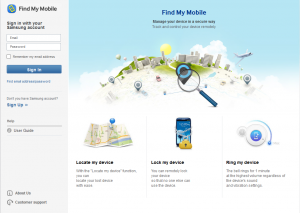
B. SAMSUNG TRACKING SERVICES 

8
C. AVAST MOBILE SECURITY

[Free]

The anti-theft feature for this antivirus is actually a hidden component which can be remotely controlled via SMS commands sent from another phone or through the Web. You can log into Web controls to perform mobile tracking and/or give your phone commands.

10

D. AVG ANTIVIRUS

[Free]

Besides protecting your devices from virus attacks, it also can locate your lost or stolen phone via Google Maps and lock your device to protect your privacy via a text message. If your phone or tablet is stolen or missing, you can also set a lock screen message to help the locator find you and make your device ring even when it’s on silent mode.

12

E. NORTON MOBILE SECURITY LITE

[Free; Pro $29.99]

This software can give you total protection for all your devices. Lost devices can be located on a map, and the Pro version gives you a scream alarm to help you find your missing device. A nifty trick it has is that the phone is automatically locked once the SIM card is removed. It also backs up your data which can be easily restored.

14

F. KASPERSKY MOBILE SECURITY

[$4.95]

This one has plenty of anti-theft protection, with remote block, remote wipe and device-tracking capabilities via GPS, Wi-Fi and Google Maps even if your SIM card has been replaced. Unwanted or unknown calls and text messages can also be blocked, and it lets you hide certain information from friends and family who borrow your phone for use.

16

G. MCAFEE ANTIVIRUS 7 SECURITY

[Free to download; $30 a year to keep]

Here’s the award-winning software that will keep your smartphone safe from the inside out. It comes as a 7-day free trial but to keep it on your phone, it’s a $30/year subscription. For that sum, you get the regular anti-theft protection, antivirus protection, plus data backup and restore functions.

18


H. LOOKOUT SECURITY 7 ANTIVIRUS

[Free; Premium: $2.99/month]

You can find your lost phone on Google Maps, sound a loud alarm (even from silent mode) and lock your phone remotely with this app. In the event that your phone has run out of battery, it will notify you of its last known location. Also has an automated backup and restore function which can be accessed from the website.

20

I. ANDROID LOST FREE

[Free]

This app is not only perfect for finding your lost phone, it will also torment the thief (something which we’re sure they fully deserve). You can activate (via SMS or the Web) the alarm to ring with a flashing screen, enable and disable the GPS, data and Wi-Fi connection, remote wipe the SD card, and get their latest call list.

22

 [Information supplied by M.Ridoh Rylands, IT HUB]


In `n vorige artikel het ons verduidelik hoe jy jou Windowsfoon kan opspoor. Dié keer kyk ons na Android opsporingsmeganismes.

A. GOOGLE SERVICES

Vereistes:

  • Jou toestel moet verbind wees aan jou Googlerekening.
  • Jou toestel moet toegang tot die internet hê.
  • Laat die Android Device Manager (ADM) toe om jou toestel op te spoor (outomaties aangeskakel). Hierdie verstelling kan verander word in die Google Settings-toepassing.
  • Laat ADM toe om jou toestel te sluit en alle data uit te vee. (outomaties afgeskakel).

Android Device Manager is Google se amptelike, maklik bruikbare hulpmiddel om jou Android foon of tablet na te speur. Die grootste voordeel daarvan is dat jy nie `n toepassing te hoef installeer om jou toestelle op te spoor nie. Die enigste vereiste is dat jou toestel gekoppel is aan jou Google-rekening en verbind is aan die internet.

Buiten dat dit jou foon kan opspoor, kan dit ook jou toestelle laat lui en data op jou foon uitvee. Ongelukkig bied dit nie meer as net dit nie, maar hopelik sal Google in die nabye toekoms nog funksionaliteit ontwikkel en byvoeg.

Indien daar nie `n rekenaar naby is wanneer jy jou toestel verloor nie, kan jy ook iemand anders se Android-foon gebruik om joune op te spoor. In plaas van om die mobiele blaaier te gebruik, kan jy ook die Android Device Manager toepassing gebruik. Teken net in met guest mode en jou Google-rekening inligting. Nou behoort jy jou toestel te kan opspoor, lui of sy data af te vee.

  1. Aktiveer die diens op jou foon
  2. Maak seker Google Maps se liggingsdienste is aangeskakel.(www.google.com/android/devicemanager)

Meer inligting kan hier verkry word.

B. SAMSUNG TRACKING SERVICES 

8 C. AVAST MOBILE SECURITY

[Gratis]

Die teendiefstal funksie van dié antivirus-sagteware is inderwaarheid `n versteekte komponent wat van `n afstand af beheer kan word deur middel van sms-instruksies vanaf `n ander foon of die web. Jy kan aanteken by die webkontrole om mobiele opsporing uit te voer en/of jou foon instruksies te gee.

10

D. AVG ANTIVIRUS

[Gratis]

Buiten die beskerming teen virus-aanvalle, kan hierdie sagteware ook jou verlore of gesteelde foon deur middel van Google Maps opspoor en jou toestel deur middel van `n teksboodskap sluit om sodoende jou privaatheid te beskerm.

As jou foon of tablet weg is, kan jy ook die skerm sluit met `n boodskap aan die persoon wat jou foon het en dit laat lui, selfs al is die klank afgeskakel.

12

E. NORTON MOBILE SECURITY LITE

[Gratis; Pro $29.99]

Hierdie sagteware gee jou omvangryke beskerming vir al jou toestelle. Verlore toestelle kan opgespoor word op `n kaart en die Pro-weergawe verskaf `n alarm wat jou kan help om jou foon op te spoor. `n Ekstra, handige funksie is dat die foon outomaties sluit die oomblik as die SIM-kaart verwyder word. Dit rugsteun ook jou data, wat dan maklik weer herstel kan word.

14

F. KASPERSKY MOBILE SECURITY

[$4.95]

Kaspersky het baie teendiefstal funksionaliteit met `n afstand-blokkeringsfunksie, sowel as uitvee- en toestelopsporingsopsies deur middel van GPS, Wi-Fi en Google Maps – selfs al is jou SIM-kaart vervang. Ongewensde en onbekende oproepe kan ook geblokkeer word en jy kan sekere inligting wegsteek van vriende en familie wat moontlik jou foon sou wou leen.

16

G. MCAFEE ANTIVIRUS 7 SECURITY

[Gratis om af te laai, $30 per jaar om te gebruik]

Hierdie alombekende sagteware sal jou foon behoorlik veilig kan jou. Dit kom met `n 7-dag gratis proeftydperk, maar as jy dit langer op jou foon wil hou, is dit `n $30 per jaar intekenfooi. Vir daardie bedrag kry jy gereelde anti-diefstal beskerming, sowel as datarugsteun en -herstelfunksies.

18


H. LOOKOUT SECURITY 7 ANTIVIRUS

[Gratis; Premium: $2.99/maand]

Met Lookout kan jy jou verlore foon kry met Google Maps, `n alarm laat afgaan (al is die klank gedeaktiveer) en jou foon sluit as jy ver weg is. Indien jou foon se batterykrag opraak, sal die toepassing die laaste beskikbare ligging van jou foon aandui. Dit het ook `n outomatiese rugsteun- en herstelfunksie wat deur middel van die webblad bereik kan word.

20

I. ANDROID LOST FREE

[Gratis]

Hierdie toepassing is nie net ideaal om jou telefoon mee op te spoor nie, maar dit sal ook die dief wat dit vasgelê het se lewe `n bietjie moeiliker maak. (wat hy natuurlik verdien!) Jy kan deur middel van SMS of die web, die alarm aktiveer en dit laat lui met `n flitsende skerm. Die GPS, data en Wi-Fi-verbinding kan ook aan- en afgeskakel word, die SD-kaart kan skoongevee word en die nuutste lys van persone wat geskakel is, kan ook bekom word.


22

 [Inligting verskaf deur M.Ridoh Rylands, IT HUB]


Become a Google search proWord `n super-Googler

Friday, December 5th, 2014

google-doodleGoogle does more than 2 million searches per second. Impressive, isn’t it? And Google’s head office do not use regular lawn mowers to keep their lawns neat and tidy. Oh no, they hire goats to do it!  (more interesting Google facts)

The word Google has become synonymous with the idea of internet searches in spite of the fact that Google is merely one of various existing search engines. That it’s by far the largest and possibly the most effective, might be a good enough reason for its preference.

But do you use Google as well and efficient as you could? Research done in 2011 at Wesleyan University in Illinois suggests that less than 25% of students can conduct a thorough search for information. Let’s hope this improved over the past three years.

Dharmesh Shah from HubSpot has a few hints:

1. Quotation marks

Instead of just typing the two words you need information on into the search box, rather put the phrase in quotation marks to narrow down Google’s search.

2. Exclude certain words

If you’re looking for info on marketing, but not on advertisements, use “-” in front of the word you want to exclude. For example “marketing -advertisements”.

3. Searches on a specific website

If you happen to know which website might contain your information, include this in your search. For example “marketing” site:www.bizcommunity.com

4. Similar words and synonyms

When you want to include a specific word in your search, but also words with a similar meaning, put “~” in front of the word.

5. Specific document types

If you already know the document you’re looking for is a pdf, you can use filetype. For example: “marketing” filetype:pdf

6. Use OR

When you carry out a search, Google includes all the words you supply. When you only want one of the two terms, use OR. Just remember to put it in caps. For example: marketing OR advertisements.

8. Phone numbers

You receive a phone call, but you have no idea who it’s from. Use Google’s phone book function. For example:  phonebook: 021-123456

9. Area code

If you have no idea for which area an area code is, add the 3 number code to the search box and you’ll immediately get the answer.

10. Numerical ranges

Do you need results falling in a certain time range? Use “..”. For example president 1940..1950.

10. Stock info 

Just add a valid ticker symbol in the search and Google will supply you with current financials and a stock chart.

11. Calculator

Next time you need to do a complicated calculation, forget about the calculator app on your PC. Just type your sum in Google. For example 48512 * 1.02

12. Word definitions

Do you quickly need a word’s definition? Just type define in front of it in Google. For example:  define:plethora

We hope these few hints help you to get answers even faster, but if you need more assistance, HackCollege compiled this handy infographic. More information can also be found on Google‘s support page.

Google-infograhic


Infographic via HackCollege

google-doodleGoogle voer meer as 2 miljoen soektogte uit per sekonde. Indrukwekkend né? Google se hoofkantoor gebruik ook nie grassnyers om hul grasperke mooi netjies te hou nie. O nee, hulle huur bokke om dit te doen! (meer interessante Google-feite)

Die woord Google het sinoniem geraak met die konsep van internetsoektogte ten spyte van die feit dat Google maar net een soekenjin is. Dat dit die grootste en waarskynlik die mees effektiewe is, mag wel `n goeie rede vir gebruikers se voorkeur wees.

Maar gebruik jy Google so goed en effektief as wat jy kan? Navorsing aan die Wesleyan Universiteit in Illinois in 2011 het bevind dat minder as 25% van studente `n behoorlike soektog na inligting kon uitvoer. Kom ons hoop dit het  intussen verbeter!

Dharmesh Shah van HubSpot het `n paar wenke voorgestel:

1. Aanhalingstekens

In plaas van bloot die twee woorde in Google in te tik, sit die frase in aanhalingstekens sodat Google die soektog beperk, byvoorbeeld “”

2. Sluit onnodige woorde uit

As jy byvoorbeeld  inligting soek oor bemarking, maar nie advertensies nie. Gebruik die “-” voor die woord wat jy wil uitsluit. Byvoorbeeld “bemarking -advertensies”.

3. Soektogte op spesifieke webwerwe

As jy reeds weet op watter webwerf jou inligting moontlik kan wees, sluit dit in by jou soektog. Byvoorbeeld: “bemarking” site:www.bizcommunity.com

4. Soortgelyke woorde en sinonieme

As jy `n spesifieke woord in jou soektog wil insluit, maar ook woorde met `n soortgelyke betekenis, sit “~” voor die woord.

5. Spesifieke dokumenttipes

As jy weet die dokument wat jy soek is `n pdf, kan jy die term filetype gebruik. Byvoorbeeld: “bemarking” filetype:pdf

6. Gebruik OR

Wanneer jy `n soektog uitvoer, soek Google al die terme wat jy insluit. Wanneer jy slegs een van die twee terme verlang, kan jy OR gebruik. Onthou net dit moet altyd in hoofletters gebruik word. Byvoorbeeld: bemaring OR advertensies

8. Telefoonnommers

Jy ontvang `n oproep op jou selfoon, maar weet nie wie se nommer dit is nie. Gebruik Google se foonboekfunksie. Byvoorbeeld: phonebook: 021-123456

9. Areakode

As jy nie weet vir watter area `n  areakode is nie, voer die 3-nommer kode in Google se soekboksie en jy sal die antwoord kry.

10. Numeriese reekse

Soek jy resultate wat net binne `n sekere tydperk val? Gebruik “..”. Byvoorbeeld president 1940..1950.

10. Aandele 

Voeg net `n geldige tikkersimbool in die soekveld en Google sal vir jou die huidige finansiële state en `n bondige aandele-tabel gee.

11. Sakrekenaar

Wanneer jy weer berekeninge moet doen, vergeet van die sakrekenaar-toepassing op jou rekenaar. Tik net jou som in Google in. Byvoorbeeld 48512 * 1.02

12. Woorddefinisies

Het jy vinnig `n woord se definisie nodig? Tik die woord met define daarvoor in Google. Byvoorbeeld:  define:plethora

Hopelik help dié paar wenke jou om nog vinniger by antwoorde uit te kom, maar as jy nog slimmer wil word, HackCollege het hierdie handige grafiese voorstelling gemaak om jou verder te help. Meer inligting kan ook op Google se ondersteuningsblad gevind word.

Google-infograhic


Infographic via HackCollege

Now you’re talkingNou praat jy

Friday, December 5th, 2014

Over the past six years Stellenbosch University had to reconsider alternatives for the existing phone system due to the unrealistically high cost of existing lines.

The main objectives were a significant and sustainable decrease in phone costs and improving the manageability of phone costs and usage. At the same time the university had to invest in technology compatible with the existing infrastructure and with a longer lifespan.

Since 2008 a new system has implemented where one network hosts all communication – data and speech. This new technological platform required more sophisticated and therefore also more expensive instruments. However, IT purchased the devices and users are only required to pay a monthly rental fee per instrument, along with actual call costs. Costs recovered will be used entirely to supply, maintain and upgrade the technology and keep it up to date with developments in the technological market.

We can now also announced that, from 1 February 2015, the overall costs of phone services will be decreased. The new tariffs are as follows:

Phone installation or moving a phone:*: R350
* Where infrastructure is available. In cases where the infrastructure in inadequate, a quotation will be provided.

New applications per month:

Siemens 40: R 260 (new installations)
R224 (existing installations)

Siemens 40 + 1 key module: R 310 (existing installations remain R224)

Siemens 40 + 2 key modules: R 360 (existing installations remain R224)

Siemens 15 and 20: R 150

All existing analogue lines from the internal PABX, for example fax machines and alarms: R1200 per month.

Rightfax: R150-00 per month for the service.

A new, additional service staff can make use of, is Lync. In order to use Lync as a telephone endpoint you will require one of the following:

  • a Lync compatible telephone
  • the Lync desktop client installed on your pc along with a Lync-certified headset
  • the Lync mobile app on your smartphone

Just keep in mind that the Lync Desktop Client is not a like-for-like replacement for a desktop telephone. There are trade-offs when opting for the Lync client as a telephone endpoint. These trade-offs include severely reduced call quality at times. For this reason the Lync client along with headset is not advised for use by personnel who rely on good audio quality at all times

Telephone calls from your Lync client using your university extension can be made from anywhere where the internet is accessible. This may lead to extremely high telephone usage.

Lync Softclient: R150 per month

When using Lync, users are required to purchase their own headsets at a cost of approximately R290-00.

Lync met Polycom 600: R200 per month

Costs stated above do not include any call costs. All costs of external outgoing calls are debited against the extension making the call. Managing private and non-work related calls still remain the responsibility of the particular environment. The phone managing system will in time will be configured to technologically enable heads of departments to monitor and manage these costs in a fair way.

For more information, send an e-mail to telecom@sun.ac.za  or contact the IT Service Desk at x4367 of helpinfo@sun.ac.za.

Sedert 2008 is die US genoop om alternatiewe telefoonstelsels in plek te stel. Die vorige stelsel was onvolhoubaar hoofsaaklik weens die onrealistiese hoë koste van bestaande bylyne.

Die hoofdoelwitte was om `n beduidende en volhoubare afname in telefoonkoste en die verbetering in die bestuurbaarheid van telefoonkoste- en gebruik te bewerkstellig, sowel as die belegging in tegnologie wat versoenbaar is met die bestaande infrastruktuur en `n langer lewensduur sal hê.

Intussen is `n nuwe stelsel in plek gestel waar een netwerk alle kommunikasie, data sowel as spraak, digitaal huisves. Die nuwe tegnologiese platform het meer gesofistikeerde en uiteraard ook duurder instrumente, vereis, maar is sentraal deur Informasietegnologie aangekoop word en alle gebruikers het bloot  ‘n maandelikse huurfooi per instrument betaal, sowel as oproepkoste. Kostes sodanig verhaal sal volledig aangewend word om die tegnologie te voorsien, in stand te hou en op te gradeer ten einde tegnologies in pas te bly by bewegings in die tegnologiese mark.

Ons kan nou aankondig dat, met ingang 1 Februarie 2015, die algehele koste van telefoondienste verlaag word. Die nuwe tariewe is as volg:

Telefooninstallasie of skuif van telefoon*: R350
*Indien infrastruktuur beskikbaar is. In gevalle van onvoldoende infrastruktuur, sal `n kwotasie voorsien word.

Nuwe aansoeke per maand

Siemens 40: R 260 (nuwe installasies)

R224 (bestaande installasies)

Siemens 40 + 1 key module: R 310 (bestaande installasies bly op R224)

Siemens 40 + 2 key modules: R 360 (bestaande installasies bly op R224)

Siemens 15 en 20: R 150

Alle  bestaande analoog lyne vanaf interne PABX, byvoorbeeld faksmasjiene en alarms: R1200 per maand.

Rightfax: R150-00 per maand vir die diens

`n Addisionele diens waarvan personeel gebruik kan maak, is Lync. Om Lync te gebruik het jy die volgende nodig:

1. `n Lync-versoenbare foon

2. die Lync-kliënt geinstalleer op jou PC

3. `n Lync-gesertifiseerde kopstuk/oorfone

4. die Lync selfoontoepassing op jou slimfoon

Lync is nie `n 100% vervanging vir `n gewone foon nie. Daar is seker aspekte wat in ag geneem moet word. Onthou dat lynkwaliteit by tye erg swak kan wees. Om hierdie rede word die Lync-kliënt en kopstuk nie aanbeveel vir personeel wat afhanklik is van goeie klankkwaliteit nie.

Kostepunbestuurders moet in ag neem dat tekefoonoproepe vanaf Lync met US telefoonuitbreidings van enige plek waar toegang tot die internet is, gemaak kan word. Dit kan geweldige hoe telefoongebruik tot gevolg he.

Lync Softclient: R150 per maand

Met die gebruik van Lync, word daar van gebruikers verwag om self hul eie oorfone aan te koop teen `n koste van ongeveer R290-00.

Lync met Polycom 600: R200 per maand

Alle pryse hier bo sluit oproepkostes uit.

Alle kostes van eksterne uitgaande oproepe word teen die kostepunt van die oproepmakende uitbreiding gedebiteer. Die bestuur van privaat en dus nie-werksverwante oproepe, is ook steeds die verantwoordelikheid van die betrokke omgewing. Die telefoonbestuurstelsel sal mettertyd gekonfigureer word sodat omgewingshoofde tegnologies bemagtig word om ook hierdie kostes billik te kan moniteer en bestuur. 

 Vir meer inligting, stuur `n e-pos aan telecom@sun.ac.za of kontak die IT Dienstoonbank by x4367 of helpinfo@sun.ac.za.