SEARCH
  • [:en]Recent Posts[:af]Onlangse bydraes

  • [:en]Categories[:af]Kategorieë

  • [:en]Archives[:af]Argiewe

Connectivity

Your conference – unpluggedGaan draadloos met jou konferensie

Friday, June 7th, 2013

As the trend to use your own, personal devices within the university environment increases, so does the need and expectation to have access to the internet at all times and wherever you are.

This is also the case when it comes to conferences and other academic events on campus. But how do you go about to make life easier for your and your conference attendees?

To apply for wireless access for your conference or event, just follow these simple instructions.

E-mail help@sun.ac.za with the following information*
 
Name of conference/visitor
Location of conference (building, room)
Start date and time
End date and time
Interdepartmental requisition (OE 6414​ for the amount of R300-00 per day)
Contact person
 

* E-mail has to be sent 14 days prior to the conference or arrival of visitor to ensure that there are existing WAPs (wireless access points ) at the location)


As soon as the request is received and after the SSID –  “service set identifier,” (username and password) is created, you will be notified by e-mail or telephonically.  When conference goers or visitors are inside the WIFI area, their equipment will pick up the WIFI  and they will be able to connect.

Soos ons nader beweeg aan die gebruik van eie, persoonlike toestelle binne die universiteitsomgewing, raak die behoefte en verwagting om oral en altyd toegang tot die internet te hê, steeds toenemend groter.

Dis ook die geval by konferensies en ander akademiese geleenthede op kampus. Maar hoe gemaak om die lewe vir jou en jou konferensiegangers makliker te maak?

Om aansoek te doen vir draadlose (wireless) toegang vir jou konferensie of geleentheid, volg bloot die onderstaande instruksies. 

Epos aan help@sun.ac.za met die volgende inligting*

  1. Konferensie se naam
  2. Plek waar konferensie gaan plaasvind
  3. Begindatum en tyd
  4. Einddatum en tyd
  5. Interdepartementele rekwisisie aan OE 6414 vir die bedrag van R300/dag
  6. Kontakpersoon 

* Epos moet asb 14 dae voor die konferensie begin aan help@sun.ac.za gestuur word, want dit mag wees dat daar nie bestaande WAPs (wireless access points ) is waar die konferensie gaan plaasvind nie. 

Sodra die versoek ontvang is, en nadat die SSID –  “service set identifier,” (gebruikersnaam en wagwoord) geskep is, sal die gebruiker per epos / telefonies in kennis gestel word wat die gebruikersnaam en wagwoord is waarmee konferensiegangers of besoekers kan konnekteer. 

Wanneer konferensiegangers / besoekers  binne die WIFI area is, sal hulle apparatuur (laptops, ens.) die WIFI optel, en kan hulle daaraan konnekteer. 

To blog or not to blog?Om te blog of nie te blog nie?

Friday, May 24th, 2013

Over the past fifteen years the word “blog” has become part of our daily vocabulary and most of us visit some form of blog on a daily basis. In some cases we’re not even aware of the fact that it’s a blog. Since the emergence of blogs in the late 1990’s their appearance and functions changed and developed.

A Blog (combination of the words “web” and “log”) is a website that contains stories and updates in reverse chronological order–the most recent entries appear at the top of the front page, and you browse backwards to move through the past articles.

A typical blog combines text, images, and links to other blogs, Web pages, and other media related to its topic. The ability of readers to leave comments in an interactive format is an important contribution to the popularity of many blogs. Through the sharing of information the blogger builds a relationship with his readers or followers and a virtual community of like minded people with similar interests is cultivated.

The emergence of blogs changed the face &  future of journalism to a large extent. Suddenly anyone with access to a pc, was able to publish their opinions and writings. Most blogging platforms are extremely user friendly and makes it easy for individuals without web design experience to have their blog at no cost whatsoever.

Initially blogs were about personal experiences and maintained by a single person as a form of self expression or commentary on certain topics. These blogs were initially made possible by sites like Open Diary, Live Journal and Blogger. By the late 2000’s the focus shifted from blogs as personal diaries to full blown, edited and moderated digital magazines. “Multi-author blogs” started developing, with posts written by large numbers of authors and professionally edited.

As the purpose of blogs shifted through the years, so did their format. Now we also have a scaled down version of the original blog format, the microblog.  Microblogs consist of short commentaries or content, and photos, videos or other multimedia. Twitter and Tumblr are two of the more popular examples of microblogging and are especially useful when it comes to realtime updates of important global events.

If you’re feeling inspired and would like to create a blog for your department, you don’t have to look far. You can host your department’s blog locally on the university’s own WordPress platform. For more information, click here.

[SOURCE: www.howtogeek.com & www.wikipedia.org]


Oor die afgelope vyftien jaar het die woord “blog” deel geword van ons daaglikse woordeskat. Jy besoek daagliks een of ander vorm van `n blog en besef dit nie eers nie! Sedert blogs of webjoernale hul verskyning gemaak het in die laat 90’s, het die formaat en funksionaliteit geleidelik verander en ontwikkel.

`n Blog (kombinasie van die woorde “web” en “log”) is `n webwerf bestaande uit artikels en stories, gelys in omgekeerde chronologiese volgorde van bo na onder. Jy kan dus blaai deur die inskrywings van nuwe artikels na oud.

`n Tipiese blog bestaan uit teks, grafika en skakels na ander blogs, webwerwe en media verwant aan die blog se gekose onderwerp. Die vermoeё van lesers om op interaktiewe wyse kommentaar  te lewer, `n belangrike faktor wat bydra tot die populariteit van blogs. Deur middel van die deel van inligting bou die blogskrywer `n verhouding op met sy lesers en `n virtuele gemeenskap met `n eendersdekende lede met dieselfde belangstellings word gekweek.

Die verskyning van blogs het die toekoms en definisie van joernalistiek op `n beduidende wyse beinvloed. Skielik kon enigiemand met toegang tot `n rekenaar sy opinies en artikels publiseer sonder om geredigeer te word. Die meeste blogplatforms is besonder gebruikersvriendelik en maak dit vir individue sonder webontwerp-ondervinding moontlik om kosteloos hul eie blog te hê. 

Aanvanklik was blogs hoofsaaklik oor persoonlike ondervindings en onderhou deur `n enkele persoon as `n vorm van selfuitdrukking of kommentaar op sekere onderwerpe. Hierdie blogs is moontlik gemaak deur webwerwe soos Open Diary, Live Journal and Blogger. Teen die laat 2000’s is die fokus verskuif van blogs as persoonlike dagboekinskrywings na volwaardig geredigeerde en gemodereerde digitale tydskrifte. “Multi-skrywer blogs” begin ontwikkel. Bloginskrywings word geskryf en professioneel geredigeer deur groot groepe skrywers.

Soos die funksie van blogs met tyd verander, pas die formaat ook aan. Bo en behalwe tradisionele blogs, ontstaan daar ook afgeskaalde weergawes van die oorspronklike formaat in die vorm van die mikroblog. 

 Mikroblogs bestaan uit korter kommentaar of inhoud, fotos, videos of ander multimedia. Twitter en Tumblr is twee van die mees populêre voorbeelde van mikroblogs en is veral nuttig vir intydse opdaterings van belangrike globale gebeure. 

As jy geinspireerd voel en `n blog vir jou departement wil begin, hoef jy nie ver te soek nie. Jy kan op die universiteit se eie WordPress-platform registreer en jou loopbaan as `n blogger begin! Vir meer inligting, kliek hier.

[SOURCE: www.howtogeek.com & www.wikipedia.org]


Still missing out on the new SU website?Sien jy nog die ou US-webwerf?

Friday, April 26th, 2013

On Monday when we browsed to www.sun.ac.za, most of us were met with a fresh new Stellenbosch University web site.  For those of you who still haven’t managed to see what the fuss is about, here’s how to fix that. (Read more on the new site)

Each time you access a page through your web browser, the browser caches (i.e., stores) it locally. The browser does this to reduce bandwidth usage, server load and also to load pages faster.

By doing this, the browser doesn’t have to newly retrieve files or images from the remote web site each time. As convenient as this is, it also means that if you do not clean your browser’s cache, you might miss out on new information and any changes on websites.

If, after Monday’s changes to the university’s homepage, you are experiencing problems accessing the new sun page or any other sun web pages, we suggest you clear your browser’s cache.

Below you’ll find instructions on how to do this, depending on the browser you use.


Internet Explorer 9 and 8

  • Click Tools, and select Delete Browsing History… .
  • Deselect Preserve Favorites website data, and select Temporary Internet filesCookies, and History.
  • Click Delete.

Internet Explorer 7

  • From the Tools menu in the upper right, select Delete Browsing History… .
  • To delete your cache, click Delete files….To delete your cookies, click Delete cookies… .

    To delete your history, click Delete history… .

  • Click Close, and then click OK to exit.

Firefox

The following instructions apply to Firefox 3.5 and later.

  • From the Tools menu, select Clear Recent History. (Alternatively, in Firefox 4 and above for Windows, you can also click the orange Firefox button, and then select Clear Recent History from the History menu.)If the menu bar is hidden, press Alt to make it visible.
  • From the Time range to clear: drop-down menu, select the desired range; to clear your entire cache, select Everything.
  • Click the down arrow next to “Details” to choose which elements of the history to clear. Click Clear Now.

Chrome

  • In the browser bar, enter: chrome://settings/clearBrowserData
  • Select the items you want to clear (e.g., Clear browsing historyClear download historyEmpty the cacheDelete cookies and other site and plug-in data).From the Obliterate the following items from: drop-down menu, you can choose the period of time for which you want to clear cached information. To clear your entire cache, select the beginning of time.
  • Click Clear browsing data.

Opera

  • From the Opera menu, select Settings, and then Delete Private Data… .
  • In the dialog box that opens, select the items you want to clear, and then click Delete.

Safari

  • From the Safari menu, select Reset Safari… .
  • From the menu, select the items you want to reset, and then click Reset. As of Safari 5.1, Remove all website data covers both cookies and cache.

Mobile Safari for iPhone OS (iPhone, iPod touch, iPad)

To clear cache and cookies:

  1. From the home screen, tap Settings, and then tap Safari.
  2. At the bottom of Safari’s settings screen, tap Clear cookies and data, or Clear Cookies and Clear Cache. Confirm when prompted.

To clear history:

  1. From the home screen, tap Safari.
  2. At the bottom of the screen, tap the Bookmarks icon.
  3. In the lower left, tap Clear.
  4. Tap Clear History.

Android

  1. Start your browser.
  2. Tap Menu, and then tap More.
  3. Select Settings.
  4. Under “Privacy settings”, select Clear cacheClear history, or Clear all cookie data as appropriate, and then tap OK to accept (or Cancel to cancel) the deletion.

(SOURCES: http://kb.iu.edu/data/ahic.html & www.wikipedia.org)

Die afgelope Maandag is ons verras deur `n splinternuwe US-tuisblad, maar sommige mense kon nie dadelik die nuwe www.sun.ac.za sien nie. (Read more on the new site) Ons verduidelik hoekom en hoe om dit reg te maak. 

Elke keer wanneer jy `n bladsy deur middel van jou webblaaier lees, stoor die webblaaier die bladsy plaaslik. Die redes hiervoor is om die gebruik van bandwydte te verminder, die lading op die bediener te verminder en ook om bladsye vinniger oop te maak. 

Jou webblaaier hoef gevolglik nie elke keer leêrs of grafika te gaan haal vanaf die bediener waarop die webwerf is nie, maar soek dit plaaslik op die hardeskyf. Alhoewel dit `n handige proses is, beteken dit ook dat, as jy nie jou blaaier se geheue gereeld skoonmaak nie, jy mag uitmis op veranderinge en nuwe inligting. 

Indien jy na Maandag se veranderinge aan die US-webwerf, toegang tot www.sun.ac.za of ander US-bladsye waarby jy voorheen kon uitkom, problematies vind, stel ons voor dat jy jou blaaier se kitsgeheue (cache) skoonmaak. 

Onder is volledige instruksies om dit te doen, kies slegs jou spesifieke blaaier en volg die stappe.


Internet Explorer 9 and 8

  • Click Tools, and select Delete Browsing History… 
  • Deselect Preserve Favorites website data, and select Temporary Internet filesCookies, and History
  • Click Delete.

Internet Explorer 7

  • From the Tools menu in the upper right, select Delete Browsing History… 
  • To delete your cache, click Delete files….

    To delete your cookies, click Delete cookies… .

    To delete your history, click Delete history… .

  • Click Close, and then click OK to exit.

Firefox

The following instructions apply to Firefox 3.5 and later.

  • From the Tools menu, select Clear Recent History. (Alternatively, in Firefox 4 and above for Windows, you can also click the orange Firefox button, and then select Clear Recent History from the History menu.)

    If the menu bar is hidden, press Alt to make it visible.

  • From the Time range to clear: drop-down menu, select the desired range; to clear your entire cache, select Everything
  • Click the down arrow next to “Details” to choose which elements of the history to clear. Click Clear Now.

Chrome

  • In the browser bar, enter: chrome://settings/clearBrowserData
  • Select the items you want to clear (e.g., Clear browsing historyClear download historyEmpty the cacheDelete cookies and other site and plug-in data).

    From the Obliterate the following items from: drop-down menu, you can choose the period of time for which you want to clear cached information. To clear your entire cache, select the beginning of time.

  • Click Clear browsing data

Opera

  • From the Opera menu, select Settings, and then Delete Private Data… 
  • In the dialog box that opens, select the items you want to clear, and then click Delete.

Safari

  • From the Safari menu, select Reset Safari… 
  • From the menu, select the items you want to reset, and then click Reset. As of Safari 5.1, Remove all website data covers both cookies and cache.

Mobile Safari for iPhone OS (iPhone, iPod touch, iPad)

To clear cache and cookies:

  1. From the home screen, tap Settings, and then tap Safari
  2. At the bottom of Safari’s settings screen, tap Clear cookies and data, or Clear Cookies and Clear Cache. Confirm when prompted.

To clear history:

  1. From the home screen, tap Safari.
  2. At the bottom of the screen, tap the Bookmarks icon.
  3. In the lower left, tap Clear.
  4. Tap Clear History.

Android

  1. Start your browser. 
  2. Tap Menu, and then tap More
  3. Select Settings
  4. Under “Privacy settings”, select Clear cacheClear history, or Clear all cookie data as appropriate, and then tap OK to accept (or Cancel to cancel) the deletion.

(SOURCES: http://kb.iu.edu/data/ahic.html & www.w

Access control on SU and private devicesToegangsbeheer op US en privaattoerusting

Friday, April 26th, 2013

With choice and freedom, inevitably comes some guidelines, rules or policies. This is also the case with the university’s  approach to the usage of electronic equipment, such as laptops, phones and tablets in the near future.

Due to our ever changing technological landscape Information Technology recently saw the need to  compile a policy to act as a guide for the use of SU and private devices. (Read our previous article on BYOD.)

Then End-user equipment and media policy establishes rules for the appropriate use of end-user equipment and media in the Stellenbosch University environment in order to protect the confidentiality and the integrity of academic and institutional information and applications as well as the availability of services at the University. It specifies the University and individual user responsibilities for processing, managing, and securing academic and institutional information on University and privately owned equipment (devices) and media.

These guidelines apply to all staff, students and associates who access the University network and information that relates to University owned or privately owned end-user equipment that will be used to connect to, access and/or process academic and institutional information.

This week we’ll look at the measures that have to be taken when it comes to access control to devices.

Prior to initial use via a physical connection to the University internal network or related infrastructure, all end-user equipment (with the exception of devices that are used to connect via Virtual Private Network (VPN)) must be registered with University Information Technology (IT) Division.

The IT Organisation reserves the right to:

– Refuse, by physical and non-physical means, the ability to connect privately owned or non-sanctioned end-user equipment to the University Network. The IT Organisation will engage in such action if it feels such equipment is being, or may be, used in a way that puts the University’s systems, information or users at risk.

– Summarily ban the use of a privately owned end-user device at any time. The IT Organisation need not provide a reason for doing so, as protection of the University Network and information is of the highest priority.

– Physically disable communication ports (such as Universal Serial Bus (USB) ports, other ports that can connect to storage devices or media) on University-owned IT assets to limit physical and virtual access to University systems and information.

– Users who wish to connect privately owned or non-sanctioned end-user equipment to the University Network to gain access to University applications or information and/or the Internet must implement, for their devices and related infrastructure, appropriate and up-to-date:

* personal firewall;

* anti-virus software;

* anti-malware software;

* any other security measure deemed necessary by the IT Organisation;

* operating systems (e.g. Microsoft Windows, Android, Apple iOS, etc.) and operating system updates.

– Users must implement physical security practices to prevent the theft or loss of end-user equipment and media, especially mobile devices, and academic and institutional information, including:

– If it is absolutely necessary to leave a portable device unattended, it should be secured with a cable lock or similar security device,

– Ensure that portable devices are not visible when left in a vehicle. If portable devices are left unattended in a vehicle it is recommended that they be locked in the boot.

– Lock portable devices away when not in use.

– Portable end-user media or devices which contain confidential academic and institutional information must be protected by an access control mechanism (e.g. password, biometric, PIN code or pattern lock, etc.). If the latter is not possible, access to data files on these devices or media, must be protected by an access control mechanism. Devices that are unprotected by an access control mechanism may not hold confidential1 academic and institutional information.

Dis onvermydelik dat, saam met keuse en vryheid, daar ongelukkig ook riglyne, reёls en beleid moet wees. Dis ook die geval met die universiteit se benadering tot die gebruik van elektroniese toerusting, byvoorbeeld skootrekenaars, selfone en tablette, in die nabye toekoms.

As gevolg van die voortdurend veranderende tegnologiese omgewing het daar`n behoefte ontstaan om `n beleid saam te stel wat as gids dien vir die gebruik van US-en privaattoerusting. (Lees ons vorige artikel oor BYOD.)

Die eindgebruikertoerusting- en mediabeleid vestig die reёls vir die toepaslike gebruik van eindgebruiker toerusting en media in die Universiteit Stellenbosch-omgewing. Die doel daarvan is hoofsaaklik om die vertroulikheid en integriteit van akademiese en institusionele inligting en toepassings, sowel as die beskikbaarheid van dienste by die universiteit, te beskerm.

Hierdie riglyne is van toepassing op alle personeel, studente en belanghebbendes wat toegang tot die universiteit se netwerk en akademiese en institusionele inligting deur middel van US-toerusting of privaattoerusting.

Die week kyk ons na die vereistes wat gestel word rakende toegangsbeheer na die toestelle. 

Voordat toegang tot die interne Universiteitsnetwerk of verwante infrastruktuur deur middel van `n fisiese verbinding bewerkstellig kan word, moet alle eindgebruikertoerusting (met die uitsondering van toestelle wat gebruik word om aan die VPN (Virtual Private Network) te verbind), registreer word by Informasietegnologie. 

Informasietegnologie behou die reg om: 

– te weier (op `n fisiese of nie-fisiese wyse) dat privaattoerusting of nie-goedgekeurde eindgebruikertoerusting aan die US-netwerk verbind word. IT sal hierdie besluit neem indien daar bepaal word dat die toerusting in so `n mate gebruik word dat dit die universiteit se stelsels, informasie of gebruikers tot nadeel strek.

– privaattoerusting te enige tyd te verban. IT hoef nie `n rede te verskaf vir die aksie nie, aangesien die universiteit se netwerk en informasie die hoogste prioriteit dra.

– fisies kommunikasiepoorte (soos USB’s of ander poorte wat kan verbind aan stoortoestelle of media) op universiteitsbates se fisiese en virtuele toegang tot universiteitstelsels en informasie te beperk. 

Gebruikers wat privaattoerusting of nie-goedgekeurde toerusting wil gebruik om toegang via die us-netwerk te kry na toepassings of informasie, se toerusting moet op datum wees met die volgende sagteware en hardeware:

* persoonlike vuurmuur;

* anti-virus sagteware;

* anti-“malware” sagteware;

* enige ander sekuriteitsmaatreels wat vereis word deur IT;

* bedryfstelsels (byvoorbeeld, Microsoft Windows, Android, Apple iOS, ens.) en bedryfstelselopdaterings.

Daar word ook van gebruikers vereis om sekuriteitsmaatreels in plek te sit om te voorkom dat toerusting, veral mobiele toestelle, media en akademiese en institusionele inligting, verlore raak of gesteel word. Hierdie maatreels sluit die volgende in:

– draagbare toestelle, indien nie onder toesig, moet beveilig word met `n kabelslot of soortgelyke toestel, 

– maak seker dat draagbare toestelle nie sigbaar is wanneer dit in `n voertuig gelos word nie. Sluit dit eerder in die kattebak toe.

– sluit draagbare toestelle indien nie in gebruik nie,

– draagbare eindgebruikertoestelle wat vertroulike akademiese en institusionele inligting bevat moet beskerm word deur `n toegangsbeheermeganisme (byvoorbeeld `n wagwoord, biometrie, PIN-kode of patroonslot, ens.) Indien laasgenoemde nie moontlik is nie, moet toegang tot data leers of media op die toestelle, beskerm word deur `n toegangsbeheermeganisme. Toestelle wat nie beskerm word deur genoemde meganisme nie, mag onder geen omstandighede vertroulike akademiese of institusionele inligting bevat nie. 



The big drive in the skyTe veel data? Bêre dit op `n wolk

Friday, April 12th, 2013

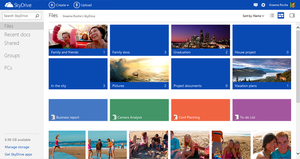
Last year we told you more about cloud storage, what it is and the multitude of options available to you. (read the articles here) If you haven’t taken the virtual leap yet, we have even more information for you to digest. This time we have a closer look at one of those options, Microsoft’s OneDrive.

What is OneDrive?

OneDrive is a file hosting service that allows users to upload and sync files to a cloud storage and then access them from a Web browser or their local device.

What does OneDrive offer me?

The service offers 7 GB of free storage and additional storage is available for purchase. Files of up to 300 MB can be uploaded via drag and drop into the web browser, or up to 2 GB via the OneDrive desktop application for Microsoft Windows and OS X.

With the OneDrive desktop application for Windows or Mac, your files on OneDrive are available online or offline and update automatically across your devices. You can also access your OneDrive using a brand new app for Android v2.3 or the updated apps for Windows Phone, iPhone, and iPad.

The Office apps (Word, Excel, etc.) let you save your documents by default into your OneDrive directory on your local computer. With the help of OneDrive, those files are synchronized with the files in your OneDrive cloud storage, letting you access them from anywhere, or edit them using the online Web version of Microsoft Office.

Online collaboration is made easy with the new  Office Web apps, including Excel forms, co-authoring in PowerPoint and embedable Word documents. Microsoft added Office Web Apps support to OneDrive allowing users to upload, create, edit, and share Microsoft Office documents directly within a Web browser.

You can share documents with other people, which provides them with a link to access the documents from their own OneDrive account. From there, the other people can make changes to the documents at the same time that you’re changing them. As you’re working, you’ll see the areas you’re changing. Then when you save, your document will receive the updates from the other person before saving. If there are any conflicts, you’ll be notified of them and given a chance to fix them.


When users delete any files on OneDrive, the service will allow the user to undo the action and restore the deleted file from the recycle bin back to the original folder.  All items stored in the recycle bin are kept for a minimum of 3 days and a maximum of 30 days.

OneDrive integrates with social networks such as Facebook, Twitter and LinkedIn to enable users to quickly share their files with their contacts on these social networks. It also supports geo-location data for photos uploaded onto the service, and will automatically display a map of the tagged location. OneDrive also allows users to tag people on the photos uploaded onto the service via the web interface or via Windows Photo Gallery.

Additionally you can sort files, change file views, view photo slide shows, and stream video.  All this functionality in one place, safe up in the clouds.

[SOURCE: Wikipedia]


Verlede jaar het ons julle meer vertel van “cloud storage”, wat dit behels en wat die opsies is as jy jou inligting erens op `n wolkie wil bêre. (lees die artikels hier) As jy nog nie die groot virtuele stap geneem het nie, het ons vandag meer inligting vir jou – die keer spesifiek oor Microsoft se Skydrive.

Wat is SkyDrive?

SkyDrive is a leêr huisvestingsdiens wat aan gebruikers die geleentheid gee om leêrs op te laai en sinkroniseer na `n wolkbergingsfasiliteit en daarna toegang daartoe te verkry deur middel van `n webblaaier of jou plaaslike toestel.

Wat bied SkyDrive my?

Die diens bied 7 GB gratis stoorspasie en ekstra spasie is te koop beskikbaar. Leêrs van tot 300 MB kan opgelaai word deur die webblaaier met `n sleep-en-los-proses of tot  2 GB deur middel van die SkyDrive gebruikskoppelvak-toepassing (desktop app) vir Microsoft Windows en OS X.

Met die SkyDrive gebruikskoppelvlak-toepassing vir Windows of Mac, is jou leêrs aanlyn of van lyn af beskikbaar en word dit outomaties oor alle toestelle opgedateer. Jy kan ook toegang tot SkyDrive verkry deur `n splinternuwe toepassing vir Androi v2.3 of die opgedateerde toepassing vir Windows Phone, iPhone, en iPad te gebruik.

Die Office toepassingss (Word, Excel, etc.) laat jou toe om jou dokumente by verstek na die SkyDrive gids op jou plaaslike rekenaar te stoor. Met die hulp van SkyDrive word daardie leêrs gesinkroniseer met jou dokumente in jou SkyDrive wolkstoorspasie – en gevolglik het jy toegang van enige plek en kan jy jou dokumente aanlyn redigeer met die webweergawe van Microsoft Office.

Aanlyn samewerking word aansienlik vergemaklik met nuwe Office Web toepassings, insluitende Excel vorms, mede-outeurskap in PowerPoint en ingebedde Word-dokumente. As jy dokumente deel met ander mense wil deel, word `n skakel outomaties aan hulle gegee waarmee hulle deur hul eie SkyDrive-rekening toegang tot die dokumente kan kry. Hulle kan veranderinge aanbring aan die dokumente terwyl jy ook daaraan werk en jy kan die veranderinge  sien soos dit verander word. Wanneer jy dus die dokument wil stoor, sal jy die opdaterings van die ander persoon ontvang. Indien daar enige konflikte is, sal jy daarvan in kennis gestel word en die geleentheid kry om dit aan te pas. Jy kan ook die geskiedenis van al die vorige weergawes nagaan.

Indien jy enige dokumente uitvee van SkyDrive, laat die diens jou toe om die aksie te herroep en die verwyderde dokument te herstel na sy oorspronklike leêr uit die Recycle bin. Alle items in die Recycle bin word vir `n minimum van 3 dae gestoor en `n maksimum van 30 dae.

SkyDrive is ten volle geintegreer met sosiale netwerke soos Facebook, Twitter en LinkedIn om aan gebruikers die geleentheid te gee om vinnig leêrs met hulle kontakte te deel op hierdie netwerke. Dit ondersteun ook geo-ligging data vir fotos wat opgelaai word en sal outomaties `n kaart wys indien `n ligging gemerk word. SkyDrive laat ook gebruikers toe om persone te merk op fotos deur middel van die webkoppelvlak of deur die Windows fotogallery. 

Addisioneel tot bogemoemde funksies kan jy ook leêrs sorteer, leêr uitlegte verander, foto skyfievertonings kyk en video stroom. Al hierdie funksionaliteit op een plek, veilig in die wolke.

[SOURCE: Wikipedia]


(more…)