SEARCH
  • [:en]Recent Posts[:af]Onlangse bydraes

  • [:en]Categories[:af]Kategorieë

  • [:en]Archives[:af]Argiewe

Connectivity

What is BYOD?Wat is BYOD?

Friday, March 8th, 2013

Since the beginning of 2011 abbreviation BYOD (Bring your own device) became more common within the IT context. The term refers to the policy which allows employees to use their own devices (smart phones, tablets and laptops) at work to access company information and applications.
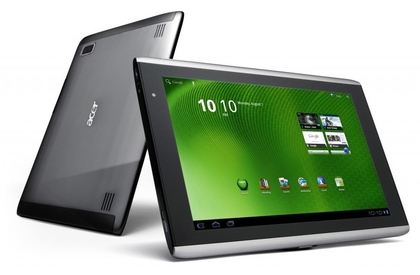
Over the past two years BYOD made considerable advances in the business world. To such an extent that at least 60% of employers are already using their own devices (even if in a limited capacity). Businesses can no longer prevent their employees from BYOD and there are various opinions on the pros and cons of BYOD within the company context. 

Also here at Stellenbosch University, we realise that there’s a growing need for staff to buy their own, specialized equipment for work purposes.  However, to succesfully implement BYOD, excellent planning and management is a necessity. Why do we need defined measures and a well formulated policy before we implement? 

To explain this, we need to have a closer look at both the advantages and disadvantages of BYOD. Let’s start with the disadvantages –  

1. In the past BYOD practices have led to data breaches within companies. If an employee uses his smartphone to gain access to the company’s network and subsequently loses the phone, another party can get hold of unsecured data on the phone.   

A security breach could also occur when an employee leaves the service of the company and he/she doesn’t have to return the device. Company applications and data remain on the phone. According to international research only 20% of employees have signed a BYOD contract. 

Companies allowing their employees to use their own devices typically implement a BYOD security policy which clearly explains the company’s position and governance policy to enable the IT department to better manage devices and ensure that network security isn’t under threat. 

2. Company information is less safe on a private device than it would have been within a controlled company environment on a company controlled device. Cost of hardware for the company decreases, but administration and administration costs are much higher. Also, hardware is not entirely controlled by the IT department and more effort is therefore required. 

BYOD can also be to the employee’s disadvantage. Due to security issues and risks, employees don’t have full control over their own devices since the company has to ensure that information is safe at all times. 

On the other side BYOD can also work to the company and employee’s advantage. 

1. A company utilising a BYOD policy, saves money on expensive devices the company would normally supply for their staff. Employees might handle their own devices with more care and at the same time companies will benefit faster from the advantage of newer technology.

2. Employees can choose for themselves which technology they prefer, rather than using the companies prescribed hardware. This freedom promotes productivity and company morale.

Whichever way you look at it, BYOD is here to stay, even within the SU context. Information Technology is currently formulating a policy which includes the usage of personal devices, Digital Rights Management and measures that will be applied. More information on this will follow in a later edition of the Bits & Bytes.

 (SOURCE: www.wikipedia.org en www.webopedia.com)


Die afkorting BYOD (Bring your own device) het sedert begin 2011 in die IT-omgewing posgevat en omvat die beleid wat werknemers toelaat om hul eie mobiele toestelle (selfone, skootrekenaars en tablette) werk toe te bring en te gebruik om toegang te verkry tot maatskappy inligting en toepassings.

BYOD het oor die afgelope twee jaar aansienlike vordering gemaak in die besigheidwêreld – in so ‘n mate dat ten minste 60% van werknemers alreeds gebruik maak van hulle eie toestelle (ten minste in ‘n beperkte kapasiteit) Besighede kan nie werknemers verhoed om gebruik te maak van BYOD nie en daar is verskeie uiteenlopende opinies oor die voor- en nadele van BYOD binne die maatskappy-konteks. 

Ook hier by die universiteit besef ons dat daar ‘n toenemende behoefte bestaan vir personeel om hul eie, gespesialiseerde toerusting aan te koop en vir werksdoeleindes te gebruik. Om BYOD egter suksesvol te implementeer is goeie beplanning en beheer ook ‘n noodsaaklikheid. Hoekom is gedefinieerde maatreёls en ‘n goed geformuleerde beleid nodig voor ons dit in werking kan stel?

Om dit te verduidelik, moet ons kyk na beide die voor- en nadele van BYOD. Kom ons begin by die nadele –

1. BYOD praktyke het in die verlede reeds gelei tot databreuke binne ‘n maatskappy. Indien ‘n werknemer sy slimfoon gebruik om toegang tot die maatskappy netwerk te verkry en die betrokke foon verloor, kan ander partye onsekure data op die telefoon in die hande kry. 

‘n Sekuriteitsbreuk vind ook plaas indien ‘n werknemer die maatskappy verlaat en hy/sy nie die toestel terug hoef te gee nie. Maatskappytoeppassings en -data bly agter op die toestel. Volgens internasionale navorsing het slegs 20% van werknemers ‘n BYOD-kontrak onderteken en bestaan daar dus ‘n beduidende risiko. 

Maatskappye wat werknemers toelaat om hul eie mobiele toestelle by die werk te gebruik implementeer ‘n BYOD sekuriteitsbeleid wat duidelik omskryf wat die maatskappy se posisie en bestuursbeleid sodat die IT-afdeling toestelle makliker kan bestuur en verseker dat netwerksekuriteit nie bedreig word nie. 

2. Maatskappyinligting is minder veilig as wat dit sou wees binne die beheerde maatskappyomgewing op ‘n toestel gekontroleer deur die maatskappy. Kostes van hardeware word wel verlaag deur BYOD, maar administrasie en administrasiekostes is aansienlik meer, omdat hardeware nie ten volle deur die IT-afdeling beheer word nie.

BYOD kan tot nadeel van die werknemer wees. As gevolg van sekuriteitskwessies en die noodsaaklikheid dat ‘n maatskappy moet verseker dat inligting te alle tye veilig is, het werknemers nie volle beheer oor eie toestelle nie.

Aan die ander kant kan BYOD voordele inhou vir beide die maatskappy en werknemer. Die maatskappy wat ‘n BYOD-beleid implementeer, bespaar geld op duur toestelle wat die normaalweg vir werknemers aangekoop sou word. Werknemers sal hul eie toestelle met meer sorg en versigtigheid hanteer en terselfdertyd sal maatskappye vinniger baat vind by die voordeel van nuwe tegnologie.

Werknemers wie se maatskappy ‘n BYOD-beleid toepas, kan self besluit watter tegnologie hulle verkies, eerder as om die maatskappy toestelle te gebruik. Hierdie vryheid van keuse bevorder produktiwiteit en maatskappygees.

Hoe dit ookal sy, BYOD is onvermydellik, ook binne die US-omgewing. Informasietegnologie is tans besig met die formulering van ‘n amptelike beleid wat ook BYOD sal omvat, die bestuur van digitale regte en strenger maatreёls vir die gebruik van persoonlike toerusting sal omskryf. Meer inligting hieroor sal in ‘n volgende uitgawe van die Bits & Bytes bekendgemaak word.


(BRON: www.wikipedia.org en www.webopedia.com)


Keep your cell phone secureHou jou selfoon veilig

Friday, February 22nd, 2013

These days your smartphone is just as powerful as your laptop or pc a few years back. You store more personal and work information on your device and it’s always connected to the internet.

It’s exactly this convenience that puts you as a smartphone user at risk. Cooltech, iAfrica’s tech section, has a few ideas to minimise risk and ensure your personal information stays, well, personal and safe from malware and cybercriminals and other security risks.

Set up a password

Your first line of defense is to simply set up a password on your phone. Most cellphone providers allow you to type in a pin number each time you switch on your phone or after a period on inactivity.

Install security software

Since smart phones are no longer just for storing phone numbers and sms’s, but also bankdetails, they’re also an easy and perfect target for cybercriminals.

Consider installing anti virus software to protect your device against malware. F-Secure, Norton and other large security software vendors each have their own version for the main smartphone platforms.

Activate the remote wipe function

The biggest risk is the the theft or loss of your device. Rather than worry about a stranger snooping through your information, activate the remore wipe function.

This function will allow you, by means of an internet connection, to delete your photos, business contacts and e-mails when you suspect you might not be able to recover your phone.

Some manufacturers like BlackBerry and Apple offer the remote wipe function and location applications for their latest devices, while third party applications are available for other platforms.

Download safe and approved applications

The temptation to download a free, unofficial application on your iPhone or Android instead of purchasing one through iStore, is big, but do you really want to take the risk and expose your phone to malware.  Rather stick legitimate sources where proper quality control is done and applications don’t come with added nasty surprises.

Backup your data

As we’ve already established, a substantial amount of your life is on your smart phone – e-mail, phone contacts, documents, photos and much more. Just as you back up your computer (hopefully!), do the same with your cell phone so you won’t lose everything if you lose your phone.  Many smartphones allow you to make a thorough backup from your device to your pc or at least sync the most important data and settings to an online service.  Many smartphones allow you to make a comprehensive backup of your device to a computer, or to sync your most critical data and settings to an online service.

Jou slimfoon is deesdae net so kragtig soos jou skoot- of tafelrekenaar van`n paar jaar gelede. Jy stoor ook meer kosbare persoonlike en werksinligting daarop en is feitlik altyd verbind aan die internet. Dit is egter ook juis hierdie gerieflikheid wat vereis dat jy net soveel sekuriteit toe pas op jou selfoon as wat jy op jou rekenaar sou gebruik.  

Cooltech, iAfrica se tegnologiese afdeling, het `n paar idees om seker te maak dat die inligting op jou foon veilig bewaar word van “malware”, kuberkriminele, toestelfoute en ander sekuriteitsrisikos.

Stel `n wagwoord op 

Die eenvoudigste en eerste stap is om doodeenvoudig `n wagwoord op jou foon te sit. Meeste slimfoonvervaardigers laat jou toe om `n pinnommer of wagwoord in te sleutel elke keer as jy jou toestel aansit of weer gebruik na `n tydperk van onbruik. 

Installeer sekuriteitsagteware

Aangesien slimfone nie meer net telefoonnommers en sms’e stoor nie, maar ook, onder andere, bankinligting, is hulle ook `n maklike en perfekte teiken vir kuberskelms. 

Oorweeg dit om antivirus-sagteware te installeer om jou toestel te beskerm teen “malware”. F-Secure, Norton, en ander groot sekuriteitsagteware-verskaffers bied elk hul eie weergawe vir die hoof slimfoon platforms. 

Aktiveer die afstanduitvee-funksie

Die grootste risiko vir jou as slimfoongebruiker is as jou toestel gesteel of verlore raak. Eerder as jou bekommer oor iemand wat deur jou belangrike inligting snuffel, aktiveer die uitveefunksie wat van `n afstand gedoen kan word. 

Hierdie funksie sal jou toelaat om jou fotos, besigheidskontakte en e-posse uit te vee met die hulp van enige internetverbinding as jou foon weg is en jy vermoed jy gaan dit nie weer terugkry nie. As jy nog nie jou foon wil opgee nie, kan sekere posisiebepalingsfunksies jou help om `n idee te kry van waar jou telefoon hom bevind. 

Sommige vervaardigers soos BlackBerry en Apple bied die afstanduitvee-funksie en opspoortoepassing vir hul nuutste toestelle, terwyl derdeparty toepassings beskikbaar is vir ander platforms.  

Laai veilige, goedgekeurde toepassings af

Die versoeking om gratis, nie-amptelike toepassings op jou iPhone of Android te probeer laai i.p.v. om dit te koop deur die iStore, is nou wel baie groot, maar jy neem `n groot risiko en stel jou foon bloot aan “malware”. Hou eerder by gemagtigde bronne wat streng kwaliteitskontrole toepas op die toepassings wat hulle verskaf en nie met nare ekstras kom nie.

Rugsteun jou data

`n Groot deel van jou lewe is op jou slimfoon – e-pos, telefoonkontakte, dokumente, fotos en baie meer. Net soos jy jou rekenaar (hopelik!) rugsteun, doen dieselfde met jou selfoon sodat alles nie verlore is as jou foon wegraak, gesteel word of beskadig word nie. Baie slimfone laat jou toe om `n deeglike rugsteun te maak na jou rekenaar of ten minste net die belangrikste data en opstellings aanlyn te stoor.

Don’t be fooled by reactivationMoenie vir die gek gehou word deur heraktivering nie

Friday, February 8th, 2013

The first of April is infamous for being the day when everyone gets caught out one way or another. But if you suddenly have no network access on the 3rd of April, it won’t be a joke. It’s more likely that you forgot to reactivate in time.

Unfortunately network reactivation is a requirement for network usage, but also a fairly fast and painless process.

All network users will receive an e-mail from helpinfo@sun.ac.za well in advance with the warning that your username will expire shortly if you do not reactivate.  To save yourself unnecessary frustration, immediately log on to http://www.sun.ac.za/useradm and select “Reactivate username for 2013”.

Make sure you select the correct option. Reactivation is not the same process as changing your password, so don’t click on “Change password”.

The moment your reactivation is submitted, your cost centre manager be e-mailed and able to approve your application. A daily e-mail will also remind the responsible manager of the request and he/she will be able to approve it by logging on at  http://www.sun.ac.za/useradm, selecting “Cost Centre Admin” and view and approve all applications.

Make sure you submit your request early as cost centre managers still have to approve it before 30 March and only then will your access be reactivated.

If you have been caught off guard and without network access on 1 April, first try the self help option at  http://www.sun.ac.za/useradm. (from someone else’s device of course!) Select “Reactivate Expired Username” and your username and ID number will be  requested to verify it’s you.

You can also contact the IT Service Centre. However, keep in mind that this is usually one of the busiest days of the year at the Service Desk so you’ll have to practice a bit of patience and wait longer than usual.

We also compiled a few FAQ’s to try and answer most of your questions (see below). For any additional enquiries, contact help@sun.ac.za

FAQ’S

 1. Why do I have to reactivate each year?
To ensure access to network services.

2. To what services will reactivation give me access?
Personal network space (H-drive), departemental shared space (G-drive), e-mail and internet

3. What is the cost of reactivation?
R177-00

4. Are the costs for the different network services billed seperately?
No, but take note that internet usage is levied as it’s generated.

5. What is the procedure for reactivation?
Log on at http://www.sun.ac.za/useradm and select “Reactivate username for 2013”, familiarise yourself with the ECP’s content, select the network services you require, make sure the cost point is correct and click on “Submit”.

6. What is the ECP and do I really have to read and understand it before I reactivate?
The Electronic Communication Policy contains important imformation regarding staff member’s responsibilities when using the SU network. It’s essential that you read and understand it’s contents before reactivation.

7. Can cost centres be changed during the reactivation process? 
Yes, changes can be made while reactivating.

8. When will my current networkreactivation expire?
30 March2013

9. I can’t reactivate! What now?
Send an e-mail to help@sun.ac.za with a clear explanation of your problem.

10. What happens after I submitted my reactivation application?
The cost centre manager receives and e-mail with the request and processes the application.

11. Should students also reactivate?
No. There are exceptions if undergraduate students have HR rolls.

12. Can postgraduate Masters and Doctoral students reactivate if they work in departments and have a roll at HR?
Yes.

13. What is the responsibility of the cost  centre manager?
Managers have to regularly log in to http://www.sun.ac.za/useradm and use the “Cost Centre Admin”-option to go through and process applications.

14. What happens if the cost  centre manager isn’t available to approve applications? 
Another temporary cost point manager can be assigned by the person responsible for the cost centre.

15. How does a cost centre manager know their are pending applications? 
Managers receive a daily e-mail reminding them or they can log in at http://www.sun.ac.za/useradm and select the “Cost Centre Admin” option.

16. What is the difference between a cost centre manager and the person responsible for the cost centre? (according to the financial system)?
The responsible person for a cost centre and the cost centre manager can both approve applications for SU network services.

17. How are staff reminded to reactivate?
E-mails are sent from helpinfo@sun.ac.za to remind staff of annual reregistration expiry dates.

18.  It’s April 1st and I have’t reactivated. Can I still reregister?
Sign on at http://www.sun.ac.za/useradm and select “Reactivate Expired Username”. Take note: The application still has to be processed by a responsible cost centre manager before network registration is activated.

19. Who can I contact to establish if my application was successful?
Your cost centre mangager.

20. What do I do if my cost centre manager rejected my application?
Log in at http://www.sun.ac.za/useradm, select “Reactivate username for 2013” and make sure you entered the correct cost centre.

INFORMATION SUPPLIED BY PETRO UYS


Die eerste April is berug as die dag waarop almal uitgevang word en jy alles met `n knippie sout moet neem. Maar as jy skielik op die derde April geen netwerktoegang  het nie, gaan dit nie `n grappie wees nie. Dis meer waarskynlik dat jy nie betyds heraktiveer het vir netwerktoegang nie.  

Heraktivering  is `n jaarlikse vereiste en `n redelike vinnige en pynlose proses. 

Alle gebruikers ontvang vroegtydig `n e-pos van helpinfo@sun.ac.za met die boodskap dat jou gebruikernaam binnekort gaan verval indien jy nie betyds heraktiveer nie. Om vir jouself onnodige frustrasie te spaar, teken dadelik aan op http://www.sun.ac.za/useradm en selekteer die “Reactivate username for 2013”.

Maak asb seker dat jy die regte opsie selekteer –  heraktivering is nie dieselfde as wagwoordverandering nie. Moenie kliek op “Change password” nie.

Sodra jou aansoek om heraktivering ingedien is, kry die betrokke kostepuntbestuurder ‘n e-pos en kan die aansoek hanteer word. Een epos word daagliks gestuur aan die kostepuntbestuurders. Kostepuntbestuurders teken aan by http://www.sun.ac.za/useradm en selekteer die “Cost Centre Admin”-opsie om aansoeke te sien en goed te keur. 

Maak asb seker dat jou  heraktivering betyds gedoen word aangesien jou kostepuntbestuurder dit nog moet goedkeur voor 30 Maart en jou toegang eers daarna heraktiveer sal word.

Indien jy onkant gevang word op 1 April en nie meer netwerktoegang het, probeer eers die selfhelp opsie by http://www.sun.ac.za/useradm. (jy sal natuurlik iemand anders se rekenaar of een van jou ander toestelle moet gebruik) Selekteer “Reactivate Expired Username” en jou gebruikersnaam en ID-nommer sal versoek word om te bevestig dis jy.

Jy kan ook die IT Dienstoonbank kontak, maar ongelukkig is dit ook een van die Dienstoonbank se besigste dae juis om hierdie rede en mag jy dalk geduldig moet wees en lank wag. 

Ons het `n paar FAQ’s saamgestel wat hopelik die meeste vrae sal beantwoord (sien onder) en enige addisionele navrae kan per epos gerig word aan help@sun.ac.za

FAQ’S

 1. Hoekom moet jaarlikse  heraktivering gedoen moet word?
Om toegang tot netwerkdienste te verseker

2. Tot watter IT-dienste gee  heraktivering toegang?
Persoonlike netwerkspasie (H-skyf), departementele deelspasie (G-skyf), epos, internet

3. Wat is die koste verbonde aan  heraktivering?
R177-00

4. Word die verskillende netwerkdienste se kostes apart gehef?
Nee, maar let wel internetgebruik word gehef soos dit genereer word.

5. Wat is die prosedure wat gevolg moet word om te  heraktiveer?
Teken aan by http://www.sun.ac.za/useradm en selekteer “Reactivate username for 2013”, vergewis jouself van die inhoud van die EKB, selekteer die netwerkdienste wat u benodig, maak seker dat die korrekte kostepunt op die skerm is, en kliek op “Submit”.

6. Wat is die EKB en moet ek die inhoud lees en verstaan voordat ek heraktiveer?
Die Elektroniese Kommunikasiebeleid bevat belangrike inligting insake personeellid se verantwoordelikheid wanneer hy/sy die US-netwerkdienste gebruik en dis noodsaaklik dat jy die eers deurlees en aanvaar voordat jy herregistreer.

7. Kan kostepunte gewysig word tydens die heraktiveringsproses?
Ja, veranderinge kan aangebring word tydens die registrasieproses.

8. Wanneer verval my netwerktoegang?
30 Maart 2013

9. Ek kry nie heraktiveer nie. Wat nou?
Stuur epos aan help@sun.ac.za met `n verduideliking van jou probleem

10. Watter proses word volg as ek die aansoek vir heraktivering afgehandel het?
Kostepuntbestuurder ontvang `n e-pos met die versoek en verwerk die versoeke.

11. Moet voorgraadse studente ook heraktiveer?
Nee. Daar is wel uitsonderings as voorgraadse studente rolle by MHB het

12. Kan nagraadse Magister en Doktorale studente heraktiveer indien hulle by departemente werksaam is en rolle by MBH het?
Ja.

13. Wat is die kostepuntbestuurder se verantwoordelikheid?
Kostepuntbestuurders moet gereeld aanteken by http://www.sun.ac.za/useradm en die “Cost Centre Admin”-opsie gebruik om aansoeke deur te gaan en te verwerk.

14. Wat gebeur as die kostepuntbestuurder nie beskikbaar is om aansoeke vir heraktivering goed te keur nie?
‘n Ander kostepuntbestuurder kan tydelik aangewys word deur die verantwoordelike persoon vir die kostepunt. 

15. Hoe weet ‘n kostepuntbestuurder dat daar aansoeke is wat goedgekeur moet word?
Kostepuntbestuurders kry een keer per dag ‘n e-pos, of die kostepuntbestuurder kan aanteken by http://www.sun.ac.za/useradm en die “Cost Centre Admin”-opsie selekteer.

16. Wat is die verskil tussen ‘n kostepuntbestuurder en die persoon wat verantwoordelik is vir ‘n kostepunt (volgens die finansiële stelsel)?
Die verantwoordelike persoon vir ‘n kostepunt, (volgens die finansiële stelsel), en die kostepuntbestuurder kan beide aansoeke vir SU netwerkdienste hanteer. 

17. Hoe word personeel op hoogte gehou van hulle aansoeke vir heraktivering?
Eposse word gestuur vanaf helpinfo@sun.ac.za om personeel te herinner aan die jaarlikse heraktivering-sperdatums.

18.  Dis 1 April 2013 en ek het nog nie herregistreer nie. Kan ek nog heraktivering?
Teken aan by http://www.sun.ac.za/useradm en selekteer “Reactivate Expired Username”. Let wel: Die aansoek moet eers deur ‘n verantwoordelike kostepuntbestuurder hanteer word voordat toegang aktiveer sal word.

19. Wie kan ek bel om uit te vind of my heraktiveringsaansoek suksesvol was?
Jou kostepuntbestuurder

20. Wat moet ek doen as die kostepuntbestuurder my aansoek afkeur?
Teken weer aan by http://www.sun.ac.za/useradm en selekteer die “Reactivate username for 2013”-opsie, maar maak seker wat die korrekte kostepunt is.

INLIGTING VERSKAF DEUR PETRO UYS


Lower internet rates and faster internetLaer internetkostes en vinniger internet

Wednesday, February 6th, 2013

Thanks to the University’s collaboration with SANREN and the implementation of the new Fortigate firewall, users on campus can now look forward to lower internet rates and faster, more stable internet. Both these projects were necessary if one takes into consideration that the university’s bandwidth usage doubled each year for the past 8 years. In spite of the increase in usage, rates were never increased.
 

RATES FOR INTERNET USAGE FROM 1 JANUARY 2013

Tariff A @R0.02/MB: Monday-Friday: 08h00-23h59

Tariff B @ R0.01/MB : Monday-Friday: 00h00-07h59, as well as Saturdays and Sundays


Take note that the relevant tariff is determined by the day and time the download process was completed.

•Example 1: If you start downloading a file of 3 MB at 16:55 on Monday and the download is completed at 17:10 (Monday), the tariff for Monday 17:10 will apply.

•Example 2: If the same file is downloaded from Monday 07:55 to Monday 08:10, the tariff for Monday 08:10 will apply.


Te danke aan die Universiteit se samewerking met SANREN en die implementasie van die Fortigate vuurmuur, kan kampusgebruikers nou uitsien na laer internetkostes en `n vinniger, meer stabiele internetverbinding. Beide hierdie projekte was nodig omdat die universiteit se verbruik van bandwydte elke jaar bykans verdubbel het vir die afgelope 8 jaar. Ten spyte van hierdie drastiese toename, is internetkostes nooit verhoog nie. 


TARIEWE VIR INTERNETGEBRUIK VANAF 1 JANUARIE 2013

Tarief A @R0.02/MB: Maandag-Vrydag: 08h00-23h59 

Tarief B @ R0.01/MB : Maandag-Vrydag: 00h00-07h59, sowel as Saterdae en Sondae 


Neem kennis dat die relevante tariewe word bepaal deur die dag en tyd wanneer die afgelaaide data proses voltooi is. 

•Voorbeeld 1: As jy Maandag 16:55 `n leêr begin aflaai van 3 MB en die proses is voltooi teen 17:10, sal die tarief vir Maandag 17:10 van toepassing wees. 

•Voorbeeld 2: Indien dieselfde leêr afgelaai word vanaf Maandag 07:55 tot 08:10, sal die tarief vir Maandag 08:10 toegepas word.

Forgot your password after the holiday?Wagwoord vergeet na die vakansie?

Friday, January 25th, 2013

Forgetting your password after the holiday only means one thing – you had a long, good rest and managed to forget about work. The only problem now is getting access to your computer …

Well, you’re not the only one. Unfortunately the IT Service Desk is inundated with calls this time of year exactly for this reason. But did you know you can save yourself the frustration and reset it yourself by using the Password Self help function online? Not only is this system fast and effective, but it’s also more secure because you’re changing your password yourself.

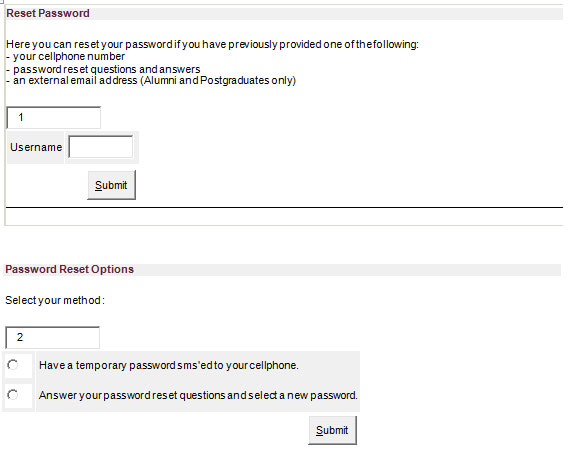
The password selfhelp function can be found on the staff portal (my.sun.ac.za) by clicking on “Forgot password”. The following prompts will appear. Just follow the two easy steps and you’ll be able to change your password.

Take note that your cellphone and other personal information has to be up to date on SUN-e-HR  to make use of this function. If you experience any problems with the system, send an e-mail to help@sun.ac.za

As jy jou wagwoord na die vakansie vergeet het, beteken dit dat jy `n lekker lang vakansie gehad het en vir `n verandering afgeskakel het. Die enigste probleem is nou om weer toegang tot jou rekenaar te kry …

Jy is nie die enigste een nie. Maar ongelukkig word die IT Dienstoonbank juis om hierdie rede dié tyd van die jaar oorval deur versoeke om wagwoorde te verander. Het jy egter geweet dat jy nie eers die dienstoonbank hoef te kontak nie, maar dit sommer self vinnig kan verander deur middel van die aanlyn Wagwoord Selfhelp-funksie? Dié funksie is nie net vinnig en effektief nie, maar ook meer sekuur omdat jy self verantwoordelik is vir jou wagwoord.

Die wagwoord selfhelpfunksie kan opgespoor word op die personeelportaal (my.sun.ac.za) deur te kliek op “Wagwoord vergeet”. Onderstaande skermpie sal verskyn en volg net die twee stappe om jou wagwoord te verander.

Om seker te maak dat jy van hierdie funksie gebruik kan maak, gaan asseblief na of jou selfoonnommer en ander persoonlike inligting op die SUN-e-HR op datum is. Indien jy enige probleme ondervind met die stelsel, stuur asseblief aan ons `n e-pos by help@sun.ac.za