SEARCH
  • [:en]Recent Posts[:af]Onlangse bydraes

  • [:en]Categories[:af]Kategorieë

  • [:en]Archives[:af]Argiewe

Connectivity

From tarred hemp and Indian rubber to optical fibreVan teer-hennep en Indiese rubber tot optiese vesel

Friday, November 20th, 2015

The internet began to emerge in the late 1980s and early 90s. However, the infrastructure supporting it has been around since 1839.

Today most of our Internet traffic is carried via submarine cable systems from Europe and the United States.

A submarine communications cable is a laid on the seabed between land-based stations to carry telecommunication signals across stretches of ocean. Before internet, however, submarine cables were used for other types of communications, for example telephones and telegraph.

After the introduction of the telegraph in 1839, establishing a submarine line across the Atlantic Ocean became the next challenge. Samuel Morse accepted this challenge and in 1842 he succeeded in sending a telegraph through a wire insulated with tarred hemp and Indian rubber, which was submerged in the water of New York Harbour.

Laying-undersea-cable-Cape-Town
Laying an undersea cable in Cape Town (Photo credit: Telkom)

The first submarine cable system in South Africa was launched in on 27 December 1879 and for the first time we were directly connected to Europe. This was done via Durban and Zanzibar to Aden with the East Coast cable of the South African Telegraph Company.

Today’s cables use optical fibre technology to carry digital data, which includes telephone, Internet and private data traffic.

“Modern cables are typically about 25 millimetres in diameter and weigh around 1.4 kilograms per metre for the deep-sea sections which comprise the majority of the run, although larger and heavier cables are used for shallow-water sections near shore.” (https://en.wikipedia.org/wiki/Submarine_communications_cable)

Over the past 15 years four submarine cable systems have been installed in South Africa for telecommunication – SAT-3/WACS, Seacom, WACS, and EASSy.

The most recent addition was made in May 2012 with the West Africa Cable System (WACS). The 17 200 km fibre optic submarine cable starts at Yzerfontein on the west coast and ends in the United Kingdom. (More about the WACS launch)

[SOURCES: www.mybroadband.co.za & https://en.wikipedia.org]

Die internet het sy opwagting gemaak in die laat 1980s en vroeë 90s. Die infrastruktuur wat dit ondersteun is egter al sedert 1839 beskikbaar.

Vandag word ons internetverkeer hoofsaaklik gefasiliteer deur ondersese kabelstelsels vanaf Europa en Amerika.

ʼn Ondersese kommunikasiekabel word op die seevloer tussen stasies op land gelê, met die doel om telekommunikasie seine oor gedeeltes van die oseaan stuur. Voor die internet is hierdie kabels gebruik vir ander tipes kommunikasie, byvoorbeeld telefone en telegramme. 

Laying-undersea-cable-Cape-Town
Lê van `n ondersee kabel in Kaapstad
(Foto krediet: Telkom)

Na die ontwikkeling van die telegraaf in 1839, het die moontlikheid van ʼn ondersese lyn oor die Atlantiese oseaan na ʼn sterk moontlikheid begin lyk. Samuel Morse het in 1842 dit reggekry om, onderwater in New York se hawe, ʼn telegram te stuur met ʼn draad geïsoleer met teer-hennep en Indiese rubber.

Die eerste ondersese kabel in Suid-Afrika is op 27 Desember 1879 van stapel laat loop en vir die eerste keer is Suid-Afrika direk verbind aan Europa. Die verbinding is moontlik gemaak deur die East Coast cable of the South African Telegraph Company via Durban en Zanzibar na Aden. 

Vandag optiese vesel tegnologie gebruik om digitale data te versend en dit sluit telefone, internet en private dataverkeer in. 

Moderne kabels is gewoonlik ongeveer 25 millimeter in deursnee en weeg ongeveer 1.4 kilogram per meter vir die gedeeltes diep onder die see, wat die grootste deel in beslag neem en groter en swaarder kabels vir die vlakwater gedeeltes naby die strand.

Die jongste toevoeging tot ons telekommunikasie infrastruktuur is gemaak in Mei 2012 met die aanlê van die West Africa Cable System (WACS). Die 17 200 kilometer vesel optiese kabel begin by Yzerfontein aan die weskus en eindig by die Verenigde Koninkryk. (Meer oor die WACS-stelsel)


[BRONNE: www.mybroadband.co.za & https://en.wikipedia.org]

You might be suffering from FOMOJy ly dalk aan FOMO

Thursday, August 6th, 2015

Are you compulsively checking your phone for e-mails, Twitter notifications or Facebook updates? You might be suffering from FOMO.

In a previous article we mentioned that the word hashtag has been added to the Oxford Dictionary last year. Believe it or not FOMO made the cut in 2013 already. Google defines FOMO as follows:

FOMO ˈfəʊməʊ/ noun informal

1. anxiety that an exciting or interesting event may currently be happening elsewhere, often aroused by posts seen on a social media website.

“I realized I was a lifelong sufferer of FOMO”

Although FOMO isn’t directly attributed to social media, it does aggravate the situation. Fear of missing out (FOMO) is merely the modern terminology for “the grass is always greener on the other side” (Psychologies magazine, 18 June 2012)

With so many options and choice available to us, it’s no wonder we feel dissatisfied with our lives. Fortunately a few years back we didn’t know we were missing out, but social platforms like Facebook, Twitter and LinkedIn make it impossible for us not to see what our peers are up to – socially and career wise.

However, social media hardly ever gives a realistic portrayal of someone’s life.  Who tweets about their sick cat, problems with plumbing or the howling dog next door? We’d rather show our extravagant holiday, meal at an upmarket restaurant or the expensive wine we’re drinking.

According to a nationwide survey done in June 2012 by a pharmaceutical firm, over 62% of about 3 000 respondents aged between 15 and 50 years said that they live in “constant fear” of missing out on something more exciting that what they are doing.

But how do we prevent ourselves from becoming swept up in the hysteria of social media and this constant nagging feeling that we’re missing something? GQ  and Nir and Far have a few ideas, but it all boils down to living and enjoying your life the way you want to and stop trying to keep up with the rest of the world. So why not rather suffer from JOMO (Joy of Missing Out)?

PS. YOLO is an acronym for “you only live once”. Similar to carpe diem, it implies that one should enjoy life, even if that entails taking risks. More on Wikipedia.

[SOURCES: www.forbes.com, www.wikipedia.org]


As jy nie kan ophou om na jou selfoon te loer vir e-posse en Twitter-kennisgewings of Facebook-opdaterings nie, ly jy waarskynlik aan FOMO.

In `n vorige artikel het ons genoem dat die woord hashtag verlede jaar bygevoeg is tot die Oxford Dictionary. FOMO is reeds gelys sedert 2013. Google definieer FOMO as volg: 

 FOMO ˈfəʊməʊ/ noun informal

1. anxiety that an exciting or interesting event may currently be happening elsewhere, often aroused by posts seen on a social media website.

“I realized I was a lifelong sufferer of FOMO”

Alhoewel FOMO nie noodwendig sy oorsprong in sosiale media gehad het nie, het die koms van sosiale netwerke mettertyd `n groot impak daarop begin maak. Fear of missing out (FOMO) is bloot die moderne terminologie vir “die gras is altyd groener aan die ander kant”. (Psychologies magazine, 18 Junie 2012)

Met soveel keuse en geleenthede tot ons beskikking deesdae, is dit geen wonder ons voel soms onvergenoegd oor ons lewens nie. Voor sosiale media was ons salig onbewus van ander se doen en late, maar Facebook, Twitter en LinkedIn herinner ons op `n daaglikse basis waarmee ons vriende, kenisse en kollegas besig is – in hul loopbane en op sosiale vlak.

Hierdie voortdurende sosiale bemarking is egter nie `n realistiese uitbeelding van iemand se lewe nie. Natuurlik sal niemand twiet oor hul siek kat, probleme met die loodgieter of die buurman se keffende hond nie. Ons wys eerder waar ons vakansie gaan hou het, watter wonderlike kos ons eet of die ekslusiewe wyn wat ons drink.

Volgens `n landwye opname deur `n farmaseutiese maatskappy, in Junie 2012, het 62% van die 3000 deelnemers tussen 15 en 50 jaar erken dat hulle in “aanhoudende vrees” leef dat hulle uitmis op iets meer opwindend as waarmee hulle besig is.

Maar hoe voorkom ons dat ons opgesweep word in die histerie van sosiale media en hierdie aanhoudende gevoel dat daar iets is wat ons mis? GQ en Nir and Far het `n paar voorstelle, maar op die ou end kom dit bloot daarop neer dat jy jou lewe moet leef en geniet soos JY wil en ophou probeer byhou met die res van die wêreld. So, hoekom nie eerder ly aan JOMO (Joy of missing out) nie?

NS. YOLO is `n akroniem vir “you only live once”. Soortgelyk aan carpe diem, gee dit te kenne dat `n mens die lewe moet geniet, selfs al is daar risikos verbonde. Lees meer op Wikipedia. 


[BRONNE: www.forbes.com, www.wikipedia.org]


Happy SysAdmin DayGelukkige SysAdmin Dag

Thursday, August 6th, 2015

sysadminIf you’re reading this on the internet, your PC is secure, without a virus and you can check your e-mail every few minutes, your sysadmin has done his job. Together with the rest of the IT department they make sure that everything’s running smoothly. Unfortunately the only time we realise how important their work is when something does NOT work.
Every year on July 31 it’s the annual System Administrator Appreciation Day when system administrators are recognised for the work they do behind the screens to keep companies up and running.

So what does a sysadmin do exactly? According to http://sysadminday.com/ –

System administrators are always on call, whether it’s updating your company’s antivirus software or repairing a corrupt SQL database. Here’s a bunch of other tasks they do:

  • A sysadmin unpacked the server for this website from its box, installed an operating system, patched it for security, made sure the power and air conditioner were working in the server room, monitored it for stability, set up the software, and kept backups in case anything went wrong. .
  • When your network connection is safe, secure, open, and working, you can thank your sysadmin.
  • A sysadmin worries about spam, viruses, spyware, as well as power outages, fires and floods.
  • When the email server goes down at 2 a.m. on a Sunday, your sysadmin is paged, wakes up, and goes to work.
  • A sysadmin plans, worries, hacks, fixes, pushes, advocates, protects and creates good computer networks. Why? To get you your data, help you do your work, and bring the potential of computing ever closer to reality.

So think about those who work behind the scenes once in a while. Not just when the internet or e-mail’s down, but also when you’re able to work seamlessly every day.

Also read 5 ways to ensure a good relationship with your systems administrator.


sysadmin

As jy hierdie artikel op die internet kan lees, jou rekenaar veilig en sonder `n virus is en jy jou e-pos elke paar minute kan nagaan het jou sysadmin sy werk gedoen. Saam met die res van die IT-afdeling maak sysadmins seker alles verloop vlot. Ongelukkig besef ons eers hoe belangrik hulle rol is as iets skielik NIE werk nie.

Elke jaar op 31 Julie is System Administrator Appreciation Day wanneer stelseladministrateurs erken word vir die werk wat hulle agter die skerms doen om seker te maak maatskappye bly aan die gang.

So wat doen `n stelseladministrateur (sysadmin) Volgens http://sysadminday.com/

Stelseladministrateurs is altyd op roep – of hulle besig is om die maatskappy se antivirus sagteware op te dateer of `n korrupte SQL-databasis reg te maak. Hier is `n paar ander take waarvoor hulle verantwoordelik is: 

  • `n Stelseladministrateur het die bediener vir hierdie webwerf uitgepak, opgestel, `n bedryfstelsel geinstalleer, sekergemaak die krag en lugreëlaar het gewerk in die bedienerkamer, dit gemonitor vir stabiliteit, sagteware opgestel en dit gerugsteun vir ingeval iets verkeerd gaan.
  • Wanneer jou netwerk veilig, sekuur en in `n werkende toestand is, is jou stelseladministrateurs. 
  • `n Stelseladministrateur bekommer hom/haar oor virusse, gemorspos, spyware, sowel as brande en vloede.
  • Wanneer die e-pos bediener afgaan 2 uur op `n Sondagoggend, kry die sysadmin `n boodskap en moet hy dit gaan oplos.
  • `n Stelseladministrateur beplan, kap, beskerm, maak reg en skep goeie rekenaarnetwerke. Hoekom? Sodat jy jou data kan kry, jou werk kan doen en jou rekenaar optimaal kan benut.

Dink dus so af en toe aan diegene agter die skerms – nie net wanneer die internet of e-pos af is nie, maar ook al die kere wat dit soomloos werk. 

Lees ook –  5 ways to ensure a good relationship with your systems administrator.


Register for Wi-Fi access Registreer vir Wi-Fi-toegang

Tuesday, July 14th, 2015

If you are required to work on more than one SU campus and need an internet connection, there’s something you have to keep in mind.

To use Wi-Fi on the Stellenbosch, Tygerberg or USB campuses you will have to register your devices separately on all three campuses. If you’re already using Wi-Fi on your home campus, it doesn’t mean you’re automatically registered for others.

To use the Secure of  MatiesWifi SSIDs elsewhere, register your device by e-mailing the following information to help@sun.ac.za:

  • Building
  • Room number
  • Username
  • Asset tag of the laptop or a description of the device
  • Network card address (also known as the MAC address)

Indien jou werk vereis dat jy op meer as een US-kampus moet werk en `n internetverbinding nodig mag hê, is daar iets wat jy in gedagte moet hou.

Om Wi-Fi te kan gebruik op Stellenbosch, USB of Tygerbergkampus moet jou rekenaar of toestel op al drie kampusse apart geregistreer wees. As jy reeds Wi-Fi op Stellenbosch-kampus gebruik beteken dit nie dat jy outomaties Wi-Fi op al die ander kampusse kan gebruik nie. 

Om dus die Secure of  MatiesWifi SSIDs elders te gebruik, registreer jou toestel deur die volgende inligting aan help@sun.ac.za te stuur:

  • Gebou
  • Kamernommer
  • US nommer
  • Gebruikersnaam
  • Batenommer van skootrekenaar of `n beskrywing van die toestel
  • Netwerkkaartadres (ook bekend as die MAC-adres)

Please switch off your deviceSkakel asb. u toestelle af

Friday, June 26th, 2015

Sounds familiar?

A few years back phones didn’t have the option to just easily switch to flight mode. You were asked to switch off your device completely. With flight mode at least you can still read your electronic copy of Grey on your tablet or compile that e-mail before you forget what you want to say (your phone will save it in your Outbox and send when it connects again). And you can do all of this during landing and take-off without being scolded at by a flight attendant.

Flight mode is a setting on your phone that turns off the mobile network, Wi-Fi, FM radio, GPS and Bluetooth connections on your phone with one click.

In other words – all the apps requiring any kind of network connection will be switched off while still permitting use of other functions that do not require signal transmission (e.g., games, built-in camera, MP3 player, etc.) Full list of functions that will work in flight mode.

Because your device will stop trying to connect to a cell phone tower or a Wi-Fi spot, you will save quite a bit of battery power. Apart from using this mode for when you’re flying, it can be very useful if you want to preserve your phone’s battery life.

To get the most from your phone’s battery life, switch to flight mode before charging – especially if you have limited time to charge. This way your phone will charge a little faster than usual.

You can also read more on other uses for flight mode on Gizmodo.

To turn flight mode on or off (Windows)

  1. On Start, flick left to the App list, and tap Settings Settings icon.

  2. Tap Flight mode, then turn it on or off

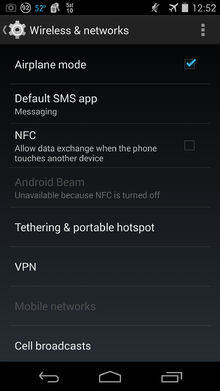
Turn flight mode on or off (Android)

  1. If your screen is dim, touch the screen to wake up the watch.
  2. Swipe down from the top of the screen.
  3. Swipe from right to left ← until you see Settings , then touch it.
  4. Scroll until you see Airplane mode.
  5. Touch Airplane mode to turn on or off.

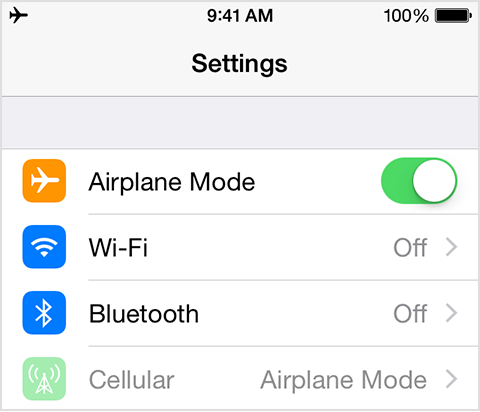
Turn on flight mode (iOS)

Go to Settings > Airplane Mode and tap the slider.

You can also swipe up from the bottom of your Home Screen to open the Control Center, and tap the airplane icon.

When airplane mode is enabled, you’ll most likely see an airplane symbol in you device’s notification bar.

Note that names might differ on phones, but include flight mode, aeroplane mode, offline mode, and standalone mode

Read more on why (and if) we need to switch off our electronic devices on Wikipedia.


Klink bekend? 

`n Paar jaar gelede het selfone nie die opsie gehad om maklik na flight mode te verander nie. Jy is gevra om jou toestel heeltemal af te skakel. Met flight mode kan jy nou nogsteeds jou elektroniese kopie van Grey op jou tablet lees of die e-pos skryf voordat jy vergeet wat jy wou sê (jou foon sal dit in jou Outbox bêre totdat jy weer aanlyn is). En jy kan dit alles doen selfs gedurende opstyg en land sonder dat `n lugwaardin met jou raas.

Flight mode is `n verstelling op jou foon wat die mobile netwerk, Wi-Fi, FM-radio, GPS en Bluetooth-verbindings op jou foon met een kliek afsit. 

Met ander woorde – al die toepassings wat enige vorm van netwerkverbinding vereis sal afgesit word, terwyl alle ander toepassing wat NIE seintransmissies nodig het nie, (byvoorbeel e-lesers, kameras, spelethies, MP3-speler, ens.) steeds kan gebruik word. Volledige lys van funksies wat steeds beskikbaar is in flight mode.

Omdat jou toestel nie meer sal probeer verbind aan `n selfoontoring of Wi-Fi punt nie, sal jy terselfdertyd jou foon se batterykrag spaar. Flight mode is dus selfs nuttig al vlieg jy nie.

Om die meeste uit jou selfoon se batterylewe te kry, skakel na flight mode voordat jy jou foon begin laai – veral as jy `n beperkte tyd het om dit te laai. Op hierdie manier sal jou foon `n klein bietjie vinniger laai.

Lees ook waarvoor flight mode nog nuttig is op Gizmodo.

Skakel flight mode aan of af (Windows)

  1. Kies Start, vee links na die App lys, en tik Settings Settings icon.

  2. Tik op Flight mode en skakel dit aan of af.

Skakel flight mode aan of af (Android)

  1. Vee af na die bokant van die skerm.
  2. Vee van regs na links ← totdat jy Settings  sien en tik daarop.
  3. Beweeg tot jy Airplane mode sien.
  4. Tik Airplane mode om dit aan of af te sit.

Skakel flight mode aan of af  (iOS)

Gaan na Settings > Airplane Mode en tik op die gly-staaf.

Jy kan ook van onder op jou skerm na bo vee om Control Center oop te maak en tik dan op die vliegtuig-simbool. 

Wanneer flight mode geaktiveer is, sal jy `n vliegtuig simbool in jou toestel se lys van kennisgewings sien. Neem kennis dat bewoording mag verskil van foon tot foon, maar dit mag insluit – flight mode, aeroplane mode, offline mode en standalone mode. 

Lees meer oor hoekom ons elektroniese toestelle moet afskakel op vlugte en of dit werklik nodig is.