
SEARCH
  • [:en]Recent Posts[:af]Onlangse bydraes

  • [:en]Categories[:af]Kategorieë

  • [:en]Archives[:af]Argiewe

E-mail

Archiving – not just for librariansArgivering – nie net vir biblioteekarisse nie

Friday, August 21st, 2015

Archiving – it doesn’t exactly sound like a fun weekend activity, does it?

But unfortunately our mailboxes can’t always deal with too many e-mails, especially those with large attachments, we receive regularly. Unless you clean up your mailbox and delete e-mails frequently, you’ll run out of mailbox space sooner than you think. This is where archiving comes in handy.

In this article we will show you how easy it is to create and maintain archives on your computer.

  1. HOW TO CREATE YOUR ARCHIVE FILE

archiving-1

Open MS Outlook

  • Select the Home tab
  • Use the dropdown menu next to New Items
  • Click on More Items
  • Select Outlook data file

archiving-2

This will create the file for your new archive.

Important:

  • Please name it properly as to prevent confusion when creating new archives later on.
  • Please do not put a password on the archive file as this causes confusion and mail loss at the end of the day when you get a new computer or if the case may be that data recovery must be done.

This also must be under “My Documents\Outlook Files”.

When clicking on OK you will return to your Outlook Home screen.

As shown below (when the mailbox is collapsed) you will be able to see your new Outlook archive.
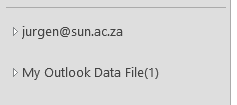
archiving 3

2. NOW FOR THE ARCHIVING

Click on File in the left top corner
Under Info you will find Cleanup Tools
When clicking on the button you will find Archive as the third option.

archiving-4

The next window you will be presented with is seen below.
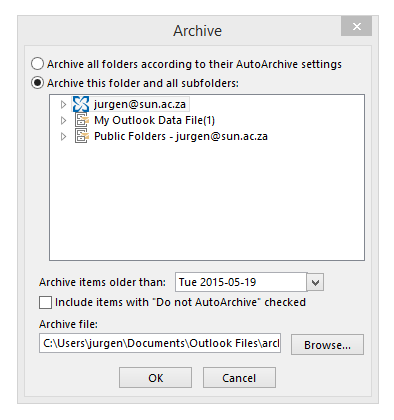
archiving 5

The most important thing you need to do now is check that the correct archive file will be used for archiving.

To check this you need to click on the browse button and make sure it is pointing to the correct file in “My Documents\Outlook Files”.

Secondly:

  • Choose a date – all e-mails before the input date will be archived to your folder. This may take a while if you have not archived before.

Thirdly:

  • Select your mailbox (not only parts of it, but the Collapsed view as seen in the screenshot) and then click on OK.

You have now successfully started your first archive!  Feel free to archive instead of delete as keeping your records is quite important.

TIPS:

  • VERY IMPORTANT – no password on the archive file.
  • Keep archives small, for example – year by year. This is to prevent them from getting too big and slowing down your machine.
  • With this way of archiving your folder structure stays the same thus making it easier to actually go back and find the files you are looking for from previous years.

For  more information on various Outlook functions, please have a look at our self help site.

Argivering. Dit klink nie besonder prettig nie, né?

Ongelukkig kan ons elektroniese posbusse nie altyd byhou by die massa e-posse waarmee hulle daagliks gebombardeer word nie – veral daai groot video leêrs en prentjies … 

As jy nie gereeld huis skoonmaak en onnodige of groot e-posse uitvee nie, gaan jy kort voor lank sonder enige spasie sit. Dis op hierdie punt wat argivering sy staal wys.

In hierdie kort artikeltjie sal ons vir jou wys hoe maklik dit is om argiewe op jou rekenaar te skep en onderhou.

  1. HOE OM JOU EIE ARGIEF-LEêR TE SKEP

archiving-1

Maak MS Outlook oop

  • Kies die Home oortjie
  • Gebruik die afrol-spyskaart langs New Items
  • Kliek op More Items
  • Kies Outlook data file

archiving-2

Hierdie aksies sal `n leêr vir jou nuwe argief skep.

Belangrik:

  • Kies die regte benaming sodat daar nie verwarring is wanneer jy later nuwe argiewe skep nie. 
  • Moenie `n wagwoord op die argief plaas nie. Dit veroorsaak onnodige verwarring en verlies van e-pos wanneer jy `n nuwe rekenaar kry of data herwin moet word. 

Dit moet ook onder  “My Documents\Outlook Files” gestoor word.

Wanneer jy op OK kliek, sal jy teruggeneem word na die Outlook Home skerm.

Soos hier onder aangedui (wanneer die posbus oopgevou is), sal jy jou nuwe Outlook-argief sien.

archiving 3

2. NOU VIR DIE ARGIVERING

Kliek op File in die linkerkantse, boonste hoek. 
Onder Info sal jy Cleanup Tools sien.
Wanneer jy op die opsie kliek, sal jy Archive as die derde opsie sien.

archiving-4

Die volgende sigbare een lyk soos die een hier onder. 

archiving 5

Die belangrikste ding wat jy moet onthou is dat jy nagaan dat die regte argief-leêr gekies word vir argivering.

Om dit na te gaan, kliek op die browse-knoppie en maak seker dit wys na die korrekte leêr in “My Documents\Outlook Files”

Tweedens:

  • Kies `n datum – alle e-posse voor die ingevoerde datum sal geargiveer word na jou leêr. Dit mag `n tydjie neem as jy nog nooit voorheen geargiveer het nie. 

Thirdly:

  • Kies jou posbus (nie net dele daarvan nie, maar gebruik die oopgevoude sig soos in die voorbeeld) en kliek op OK.

Jy het nou jou eerste suksesvolle argief geskep.  Argiveer gerus jou e-posse eerder as om dit uit te vee – dis soms belangrik om rekords te behou. 

WENKE:

  • BAIE BELANGRIK – geen wagwoord op jou argief-leêr nie.
  • Hou argiewe klein – byvoorbeeld jaar-vir-jaar. Dit voorkom dat argiewe te groot raak en jou rekenaar stadig maak.  
  • Deur op bogenoemde wyse te argiveer bly jou leêrstruktuur altyd dieselfde en is dit makliker om heen en weer te soek na e-posse van vorige jare. 

Vir meer informasie op ander Outlook-funksies, gaan kyk gerus op ons selfhelp webwerf.

Phishing scam disguised as DHL Shipping documentPhishing versteek in `n DHL-kennisgewing

Monday, May 11th, 2015

Phishing scammers and fraudsters will never give up trying to trick people into giving their personal details, passwords and bank account details. The latest scam (although by no means new) involves a DHL (courier) shipping document:

The subject will be: “Track Your Shipment DHL Shipping Document (B/L ******#####) 

The content will be:

“Good Day

Your Shipment arrived at the post office on <recent date>. Our courier was unable to deliver the Shipment to your address. 

To receive the Shipment you should go to the nearest DHL office and take your mailing label with you. The mailing label is attached. Please print it and show at the nearest DHL office to receive the Shipment.

Thank you for using DHL Service”

As you can probably see,  this is not a valid DHL notice. It is not addressed to you directly, DHL does not deliver to the post office, and will never ask you to print out a mailing label to take with you to the DHL Office.

By the way, if you did go to the attachment, it will take you to a website page where you fill in your personal details, bank account number and e-mail address (supposedly for the mailing label) and this is where you will be caught by the scammers.

DHL does not operate this way. When you receive a DHL shipment, the courier arrives at your door with your details (including your  phone number) and you have to produce your  ID document for identification. You was able to trace the parcel and DHL will phone to inform you when the courier would be due to deliver.

[ARTICLE BY DAVID WILES]


Phishing-kriminele sal nooit ophou probeer om mense om die bos te probeer lei om hul persoonlike details, wagwoorde en bankinligting in die hande te kry nie. Die nuutste poging gebruik `n DHL (koerier) verskepingsdokument:

Die onderwerp sal wees: “Track Your Shipment DHL Shipping Document (B/L ******#####) 

Die inhoud sal as volg wees: 

“Good Day

Your Shipment arrived at the post office on <recent date>. Our courier was unable to deliver the Shipment to your address. 

To receive the Shipment you should go to the nearest DHL office and take your mailing label with you. The mailing label is attached. Please print it and show at the nearest DHL office to receive the Shipment.

Thank you for using DHL Service”

Soos jy waarskynlik kan sien, is hierdie nie `n geldige DHL-kennisgewing nie. Dis nie direk aan jou gestuur nie, DHL lewer nie by die poskantoor af nie en sal jou ook nooit vra om `n etiket te druk en na `n DHL-kantoor te neem nie.

Indien jy wel op die aanhangsel gekliek het, sou dit jou neem na `n webwerf waar jy jou persoonlike inligting, bankrekeningnommer en e-posadres moes invul (klaarblyklik alles vir die etiket). Dis natuurlik hier waar hulle jou vang. 

Dis nie hoe DHL werk nie. Jy ontvang `n DHL-pakkie by jou deur met jou details (insluitende jou telefoonnommer) en jy wys jou ID-dokument as bewys. Jy kan ook die roete van die pakkie op hul webwerf naspeur en hulle sal jou telefonies laat weet wanneer aflewering sal geskied. 

[ARTIKEL DEUR DAVID WILES]


Spot malicious e-mailsHoe om verdagte e-posse uit te ken

Friday, March 27th, 2015

With the increase in viruses, ransomware, malware, spyware, phishing and cyber crime in general, it’s now more important than ever that e-mail users should be even more cautious. Although we can not warn you against each and every dangerous e-mail (they are generated too quickly), we can however, tell you their characteristics so you can recognise a potentially malicious e-mail yourself.

Think of it this way – say receiving an e-mail is equivalent to running into someone on the street on a Saturday morning. When it’s a friend, neighbour, colleague or acquaintance you’re generally quite happy to see them and have a chat, because you know them. But when a stranger suddenly comes up to you, your reaction will immediately be different. If that same person hands you a parcel, telling you to open it or says “Dear sir, I want to show you something at my home. Won’t you quickly come with me?”, would you trust them and do it?

Just because the internet creates an illusion of distance, it does not mean these two situations should be dealt with differently. On the contrary, you are much more defenceless  and your information easier to access on the internet than on a street corner.

So why would you trust and react to an e-mail that

– wasn’t addressed to you specifically or is not from someone you know,
– open an attachment (the parcel) someone sent to you and
– click on a link of this person’s website (go to his home)?

CHARACTERISTICS

  1. Attachments
    It doesn’t matter how you intrigued are about what’s in that ZIP file, do not open it! The second you open an attachment, you open up your PC for any software and files to be installed on it. In the most recent incident of the Cryptowall 3.0 ransomware, a ZIP file was sent with the subject “My resume”. When it was opened, a .js script was automatically run and this encrypted all the data on the user’s PC. (read more about it here)
  2. Spelling and language
    In most cases where phishing takes place you’ll notice that spelling and language will be exceptionally bad. Improper spelling and grammar is almost always a dead give away. Look for obvious errors.Also don’t think an e-mail in Afrikaans is necessarily trustworthy. Last year we had incidents where an Afrikaans ABSA e-mail was copied and used to phish.
  3. Faulty or unknown links
    Move your mouse over the links in the e-mail (don’t click on them). The text itself might look like a familiar address, but you’ll notice that the actual link directs to somewhere completely different. The same goes for links to e-mail addresses in the text.
  4. A generic greeting
    If an e-mail isn’t personally addressed to you, for example “Dear Mrs du Preez” or something likewise, it’s clearly not meant for you, but rather to a large group of people in an attempt to lure one of them. These e-mails are sent out to thousands of different e-mail addresses and often the person sending these e-mails has no idea who you are.
    If you have no affiliation with the company the e-mail address is supposedly coming from, it’s fake. For example, if the e-mail is coming from ABSA bank but you bank at a different bank.
  5. No personal information
    There will be no reference to your specific account information. If the company really was sending you information regarding errors to your account, they would mention your account or username in the e-mail.
  6. Due dates
    By adding a due date, the sender tries to create a sense of urgency and his hoping this will spur you on to click on the link ASAP, without too much thought, to resolve this pressing issue.

E-MAIL TOPICS/SUBJECT LINES

  1. Problems with your bank account
    Where money is considered, people listen and react. Your account has been closed, someone tried to access it, your information has been changed – all these are attempts to get you to click on a malicious link.
  2. Money has been deposited into your account
    Around tax season this is a popular choice and it’s usually “SARS” sending out this joyous news. If SARS indeed wants to give you money, they’ll SMS you. (And how often does this really happen?)
  3. Delivery of a parcel
    Someone sent you a parcel and you HAVE to click on a link to confirm, otherwise it won’t be delivered. The post office or a courier service will seldom e-mail you about this.
  4. Problems with your e-mail account
    Your password has expired or someone else has accessed your account. All communication related to your e-mail account will always be sent from IT. It will be in a specific format with characteristic graphics, the SU logo and it will also be in Afrikaans and English.
  5. Competitions
    You’ve won a competition! Or the lottery. Or you’ve inherited a huge amount of money. Did you enter this competition? Did you play the US lottery? And do you know this family member or person who decided you should be their sole heir?

If you are unsure about the validity of an e-mail, rather contact your bank or SARS directly. Anything else you can just ignore. Don’t reply to it – you’ll only confirm that your address is indeed an existing one and you’ll be getting much more e-mails in the near future.

Remember – cyber criminals know our weaknesses and that we are curious by nature. Don’t fall for it, rather outwit them.

Previous articles on phishing, malware, spyware and viruses.

Met die toename van virusse, ransomware, malware, spyware, phishing en kuberbedrog oor die algemeen, is dit belangrik dat e-posgebruikers toenemend meer op hul hoede moet wees.  Alhoewel ons jou nie teen elkeen van hierdie e-posse kan waarsku nie (hulle word eenvoudig net te vinnig gegenereer), kan ons wel vir jou sê watter kenmerke om voor uit te kyk sodat jy self `n verdagte e-pos kan identifiseer. 

Dink so daaraan – gestel om `n e-pos te ontvang is gelykstaande aan iemand wat jou op straat voorkeer op `n Saterdagoggend. Gewoonlik is jy bly om een van jou vriende, kennisse, kollegas en bure raak te loop en jy gesels graag terug met hulle, want dis mense wat jy ken. Maar as `n vreemde persoon jou uit die bloute voorkeer, sal jy anders reageer. As daardie selfde persoon vir jou `n pakkie in die hand stop en sê jy moet dit oopmaak of sê “Hallo meneer, ek wil vir jou iets wys by my huis, kom gou saam met my!”, sou jy dit doen?

Net omdat die internet die illusie van afstand skep, beteken dit nie dat die situasie verskillend benader moet word nie – inteendeel, jy is meer weerloos en jou inligting is meer bekombaar op die internet as op straat.

So hoekom sal jy op `n e-pos reageer en dit vertrou as 

– nie aan jou gerig is nie en jy nie die sender ken nie,
-`n aanhangsel (die pakkie) oopmaak wat `n onbekende persoon aan jou gestuur het en
– op `n skakel kliek wat na sy webtuiste (sy huis) gaan?

KENMERKE

  1. Aanhegsels (Attachments)
    Al is jy hoe nuuskierig oor wat in daai ZIP leêr is, moet dit nie oopmaak nie. Die oomblik as jy `n aanhangsel oopmaak, maak jy jou rekenaar oop vir sagteware of leêrs om daarop geinstalleer te word. In die mees onlangse geval met die Cryptowall 3.0 ransomware is `n ZIP-leêr gestuur met die titel “My resume”. Sodra dit oopgemaak word, laai dit `n skrip wat die data op jou rekenaar enkripteer. (lees meer daaroor hier)
  2. Spelling en taal
    Meeste gevalle waar phishing plaasvind, sal jy opmerk dat spelling en taalgebruik opmerklik swak wees. Moet egter nie dink omdat `n e-pos in Afrikaans is, dit veilig is nie. Ons het verlede jaar insidente gehad waar ABSA se Afrikaanse teks gebruik is. 
  3. Foutiewe of onbekende skakels
    Beweeg jou rekenaarmuis oor die skakels in die e-pos (moenie daarop kliek nie) – die teks lyk miskien soos `n bekende adres, maar die regte skakel is `n heeltemal onbekende webwerf. Dieselfde geld vir e-posse in die teks.
  4. `n Generiese aanhef
     As `n e-pos nie aan jou persoonlik gerig is, byvoorbeeld “Dear Mrs du Preez”, of iets soortgelyk nie, is dit duidelik nie vir jou bedoel nie en `n massa e-pos wat aan `n groot groep mense gestuur is met die doel om een van hulle uit te vang.
  5. Geen persoonlike inligting
    Daar sal nerens `n verwysing na jou rekeninginligting wees nie.
  6. Sperdatums
    Deur `n sperdatum by te sit, skep die e-pos `n dringendheid en maak jou, as e-pos gebruiker, meer haastig om, sonder om te dink, op `n skakel te kliek en die sogenaamde probleem so gou as moontlik op te los.

E-POS ONDERWERPE

  1. Probleme met jou bankrekening
    Onthou, almal luister as hulle geld moontlik ter sprake is. Jou rekening is gesluit, iemand het probeer toegang kry, inligting het verander, ens. word almal gebruik om jou aandag te trek.
  2. Geld is in jou rekening betaal
    Rondom belastingtyd is hierdie `n populêre keuse en word dit gewoonlik uitgestuur van “SARS”. SARS sal jou sms as hulle vir jou geld wil gee (en dan is jy in elk geval besonder gelukkig)
  3. Aflewering van `n pakkie
    Iemand het vir jou `n pakkie gestuur en jou moet op `n skakel kliek om dit te bevestig anders word dit nie afgelewer nie. Die poskantoor of `n koerierdiens sal selde vir jou `n e-pos stuur hieroor.
  4. Probleme met jou e-pos rekening
    Jou wagwoord het verval, iemand anders het jou e-pos gebruik,ens. Alle kommunikasie in dié verband vanaf IT, sal in `n spesifieke formaat wees, met kenmerkende grafika, die US-logo en sal altyd in Afrikaans en Engels wees.
  5. Kompetisies
    Jy het `n kompetisie gewen, of die lotery of iets geërf. Het jy ingeskryf vir hierdie kompetisie en ken jy hierdie sogenaamde familielid wat wou hê jy moet by hom erf?

As jy onseker is oor `n e-pos, kontak eerder direk die bank of vir SARS. Vir enigiets anders kan jy dit bloot ignoreer. Moet glad nie daarop reageer nie – al wat jy dan doen is om te bevestig dat die e-pos wel bestaan en jy sal voortaan vele meer van hierdie korrespondensie kry.

Onthou – kuberkrakers weet watter onderwerpe ons aandag trek en dat mense van nature maar nuuskierig is. Moenie daarvoor val nie.

Vorige artikels oor phishing, malware, spyware en virusse.

Warning: Cryptowall ransomware Waarskuwing: Cryptowall “ransomware”

Wednesday, March 25th, 2015

Incidents of the Cryptowall 3.0 ransomware are increasing on campus.

• DO NOT open .ZIP attachments. (recent incidents reported had a .ZIP attachment with the subject “my resume”)
• Stay away from unknown, suspicious or unofficial websites and torrents offering game, movie or software downloads and DO NOT click on any pop-ups.

This ransomware infects your PC when you visit lesser known websites and particularly if you download games, movies and software or click on attachments in your e-mail, for example zip files.

The ransomware copies all the data on your hard drive, encrypts and deletes it and you’re left with gibberish. A ransom fee is demanded, but the odds that you’ll get your data back at all, are slim.

Cryptowall not only infects your own hard drive data, if also targets all drives you are connected to, including your shared departmental drive. You will lose the data on your hard drive and data on the network drive might be able to be recovered up to a certain point, but unfortunately this can’t be guaranteed.

Report suspect email to sysadm@sun.ac.za. Also read more on how to spot malicious e-mails.

Insidente van die Cryptowall 3.0 virus neem tans toe op kampus.

MOENIE .ZIP aanhangsels oopmaak nie.
• Bly weg van onbekende, suspisieuse webwerwe en torrents wat speletjies, flieks of sagteware aanbied nie en MOENIE op enige pop-ups kliek nie.

Hierdie ransomware kan op verskeie maniere op jou rekenaar beland – as jy speletjies, flieks of sagteware aflaai van nie-amptelike webwerwe OF kliek op aanhegsels, byvoorbeeld .zip leêrs in `n e-pos.

Cryptowall 3.0 kopieer alle data op jou hardeskyf, enkripteer dit en laat slegs onherkenbare en onbruikbare simbole. `n Losprys word geëis as jy jou data wil terughê, maar die kans vir herwinning is skraal.

Cryptowall besmet nie net jou hardeskyf se data nie, maar alle skywe waaraan jy op daardie oomblik verbind is, insluitende jou departementele netwerkspasie en jou kollegas se data. Data op die hardeskyf is verlore en data op netwerkskywe kan tot op `n punt herstel word, maar daar is geen waarborg nie.

Meld verdagte e-posse aan by sysadm@sun.ac.za. Lees ook meer oor hoe om verdagte e-posse uit te ken.

Reactivation: pensionersHeraktivering: pensionarisse

Wednesday, March 11th, 2015

All persons using the SU network have to reactivate for network usage (e-mail, internet, etc.) on an annual basis. Pensioners still using SU facilities also have to complete this process to ensure they still have e-mail access.

Over the past few weeks all users received an e-mail notice from helpinfo@sun.ac.za indicating that their username will soon expire. Generally three warnings are sent before the deadline date on 1 April 2015.

Since pensioners pay for access themselves and not by a department, the payment method differs somewhat. Payment can occur by credit card or cash. Credit card payment can be done securely online (see below for instructions) or at the cashiers in Admin A.

However, from February 2014 all banks made an additional 3D-authentication for credit cards being used online compulsory due to security reasons. In the meantime a grace period was given to bank clients to give them enough time to register their cards for 3D-authentication. This grace period has now expired.

Due to this new built-in check by banks, pensioners might be confronted by the following error message:

“Your payment in the amount of R284.00 could not be processed successfully. | U betaling vir die bedrag van R284.00 kon nie suksesvol verwerk word nie.”

“Reason / Rede: Transaction Failed. Restricted transaction due to 3D authentication merchant risk setting. Please return to merchant website and use an alternative payment method or card. (10205)”

Unfortunately this part of the payment process falls outside Information Technology’s jurisdiction and pensioners need to resolve the issue with their relevant bank, in particular the credit card division. Bank websites should also have information on the application procedure for 3D-authentication. More information is also available on PAYGO.

Reactivation with your credit card 

  1. Open Internet Explorer, Google Chrome or Mozilla Firefox.
  2. Go to http://my.sun.ac.za
  3. Click on Staff
  4. Click on PENSIONERS
  5. Click on Reregistration

Alle gebruikers van die US-netwerk moet jaarliks heraktiveer vir netwerkgebruik (e-pos, internet, ens.) Ook pensionarisse wat steeds van US-dienste gebruikmaak moet deur die proses gaan om te verseker dat hulle steeds e-pos toegang het.

Die afgelope paar weke het alle gebruikers e-pos kennisgewings ontvang van helpinfo@sun.ac.za wat aandui dat hul gebruikersnaam gaan verval. Drie waarskuwings e-posse word normaalweg versend voor die afsnydatum op 1 April 2015.

Omdat pensionarisse se toegang deur hulself betaal word en nie deur `n departement nie, verskil die betalingsmetodes ietwat. Betaling kan geskied deur middel van kredietkaart of kontant. Die kredietkaartbetaling kan aanlyn gedoen word (sien onder vir instruksies) of by die kassiere in Admin A.

Vanaf Februarie 2014 het alle banke dit om sekuriteitsredes verpligtend gemaak dat `n addisionele 3D-verifiëring op kredietkaarte van toepassing is indien enige aanlyn aankope gemaak word. Sedertdien is `n grasietydperk aan bankkliënte gegee om hul kredietkaarte te registreer vir 3D-verifiëring. Genoemde grasietydperk het intussen verval. 

As gevolg van hierdie nuwe reëling deur banke, mag pensionarisse onderstaande foutboodskap kry:

“Your payment in the amount of R284.00 could not be processed successfully. | U betaling vir die bedrag van R284.00 kon nie suksesvol verwerk word nie.”

“Reason / Rede: Transaction Failed. Restricted transaction due to 3D authentication merchant risk setting. Please return to merchant website and use an alternative payment method or card. (10205)”

Ongelukkig is hierdie gedeelte van die betalingsproses buite die beheer van Informasietegnologie en sal pensionarisse genoodsaak wees om dit op te neem met hulle betrokke bank, spesifiek die kredietkaartafdeling. Bankwebwerwe behoort ook meer inligting te kan verskaf oor die aansoekprosedure vir die 3D-verifiëring. Meer inligting is ook op PAYGO se webwerf beskikbaar. 

Heraktivering via kredietkaart 

  1. Maak Internet Explorer, Google Chrome of Mozilla Firefox oop.
  2. Gaan na http://my.sun.ac.za
  3. Kliek op Personeel
  4. Kliek op PENSIOENARISSE
  5. Kliek op Herregistrasie
