SEARCH
  • [:en]Recent Posts[:af]Onlangse bydraes

  • [:en]Categories[:af]Kategorieë

  • [:en]Archives[:af]Argiewe

E-mail

E-mail etiquette: do’s and don’tsE-pos etiket: moets en moenies

Friday, May 9th, 2014

If there’s one area the queen of etiquette Emsie Schoeman hasn’t commented on, it’s e-mail. But don’t think that gives you any reason to escape certain guidelines just because the electronic world seems to operate on a more informal level. Even with e-mail you can land into trouble if you don’t behave properly.

You’re probably wondering why e-mail etiquette even exists, in particular within the company milieu. There are three (very important) reasons, namely professionalism, efficiency and also protection against liability.

We consulted the internet and here are a few hints for meticulous e-mail users.

1. Be concise and to the point
Long e-mails are unnecessary and difficult to read. Avoid long sentences. Sentences should contain no more than 15 to 20 words.

2. Answer all questions and anticipate further questions
This will prevent a series of follow-up e-mails to get all the information and you won’t waste your and someone else’s time.

3. Spelling and language
Bad spelling and language create a bad impression and e-mail without capital letters or punctuation marks take effort to read.

4. Layout
Reading text on a screen is harder than written text and this makes layout in e-mails even more important. Use short paragraphs and adequate space between paragraphs.

5. Use a significant subject in the Subject line
Put the appropriate subject in the Subject line in order for the receiver to immediately know what the e-mail is about. It saves time, explaining and creates context.

6. Reply promptly
Immediately replying to an e-mail is generally expected. Don’t leave correspondence unanswered in your inbox for days when you could have answered it in a minute. Standard reply time for an e-mail is 24 hours, preferably the same working day. If you don’t have an immediate answer, just confirm you received the e-mail and will reply as soon as possible.

7. No large attachments
Don’t send unnecessary large attachments with your e-mails. Some mail servers can’t handle large e-mails.

8. Capital letters
Don’t use only capital letters. This implies that you are shouting at the recipient and can be interpreted as rude.

9. Re-read before you send
Don’t send an e-mail in haste. Other than potential spelling mistakes, it’s important to make sure if you message is clear and understandable. Remember that the recipient can easily misinterpret something when you’re not speaking face-to-face.

10. Don’t answer spam
Even if a spam e-mail claims you should reply to stop from receiving them, don’t reply. By replying to a spam e-mail, you are confirming your e-mail is active and more spam will be generated. Rather just delete the mail.

11. Don’t request delivery and read receipts
You will only irritate the receiver even before he’s read your message. Rather ask the person directly if necessary.

12. Don’t request messages to be recalled
The message has probably already been read and by recalling it, you’ll appear unprofessional. Send an e-mail explaining afterwards instead of recalling it.

13. Don’t forward chain mails or virus hoaxes
Microsoft will not send you money if you send it to 20 people – and neither will any other company. Most chain mails warning against viruses are also hoaxes. Ignore and delete them.

14. Avoid the high priority option
If you use this option to often, it will lose its efficiency. Your correspondence may also come across as pushy and aggressive. The same goes for terms like “URGENT” and “IMPORTANT”.

15. Be careful with emoticons and abbreviations
Try not to use abbreviations such as LOL and BTW. Emoticons like the smiley :) are also not appropriate in business e-mails.

SOURCE: http://www.emailreplies.com en http://www.businessemailetiquette.com


As daar een area is waarop etiket-guru Emsie Schoeman nog nie oor kommentaar gelewer het nie, is dit e-pos. Maar moenie dink dat jy etiketriglyne kan ontsnap net omdat die elektroniese wêreld meer informeel is nie. Selfs met e-pos kan jy jouself lelik vasloop as jy jou nie gedra nie.

Jy wonder waarskynlik hoekom daar enigsins iets soos e-pos etiket bestaan, spesifiek binne die maatskappy-opset. Daar is drie (baie goeie) redes, naamlik professionalisme, effektiwiteit en ook beskerming teen aanspreeklikheid vanuit `n regsoogpunt.

Ons het gaan kersopsteek by die internet en hier is net `n paar wenke vir noukeurige e-posgebruikers.

1. Wees presies en tot die punt. 
Langdradige e-posse is onnodig. Wees kort en kragtig. Vermy lang sinne. Sinne behoort `n maksumum van 15 tot 20 woorde te bevat.

2. Beantwoord alle vrae en spreek ook moontlike opvolgvrae aan
Sodoende vermy jy `n string e-posse en mors jy nie jou of iemand anders se tyd nie.

3. Spelling en taalgebruik
Slegte spelling en taal skep `n swak indruk en e-posse sonder enige hoofletters of leestekens lees moeilik. Gebruik jou speltoetser ook vir e-posse, nie  net vir amptelike dokumente nie.

4. Uitleg
Teks op skerms is moeiliker om te lees en daarom is uitleg ook belangriker. Gebruik kort paragrawe en spasies tussen paragrawe.

5. Gebruik `n veelseggende onderwerp in die Subject-reël
Sit die toepaslike onderwerp waaroor die e-pos gaan in die Subject-reël, sodat die ontvanger onmiddellik weet waaroor dit gaan. Dit spaar tyd en gee konteks.

6. Antwoord vinnig
Die verwagting is dat `n e-pos vinnig beantwoord sal word. Moenie korrespondensie vir dae in jou posbus laat lê as jy dit binne `n minuut kon beantwoord nie. Die standaard is 24 uur, verkieslik nog op dieselfde werksdag. As jy nie dadelik `n antwoord het nie, laat weet dat jy die e-pos ontvang het en so gou moontlik terugvoer sal gee.

7. Groot aanhangsels
Moenie onnodige groot aanhangsels saam met jou e-pos stuur nie. Sommige e-pos bedieners kan dit nie hanteer nie.

8. Hoofletters
Moenie slegs hoofletters hoofletters gebruik nie. Hoofletters impliseer dat jy skree op die ontvanger van die e-pos en kan interpreteer word as onhoflik.

9. Lees voor jy stuur
Moenie oorhaastig `n e-pos stuur nie. Bo en behalwe spelfoute, is dit ook belangrik om seker te maak jy dat jou boodskap duidelik en verstaanbaar is. Onthou dat die ontvanger maklik iets kan misinterpreteer as hy nie van aangesig-tot-aangesig met jou praat nie.

10. Moenie antwoord op gemorspos nie
Selfs al sê dit dat jy moet antwoord as jy dit nie meer wil ontvang nie. Deur te antwoord, bevestig jy dat jou e-pos aktief is en word nog meer e-pos gegenereer. Vee eerder dadelik die e-pos uit.

11. Moenie aflewerings- en leesversoeke aanvra nie
Die kans is goed dat jy die ontvanger gaan irriteer daardeur selfs nog voordat hy jou boodskap ontvang het. Vra eerder direk vir die persoon as jy wil weet.

12. Moenie vra dat boodskappe onttrek word nie
Die boodskap is waarskynlik reeds afgelewer en gelees. So `n versoek lyk onprofessioneel en oneerlik. Stuur eerder `n opvolg e-pos om te verduidelik.

13. Moenie ketting e-posse of valse viruswaarskuwings aanstuur nie
Microsoft gaan nie vir jou geld stuur as jy `n e-pos aanstuur vir 20 mense nie – so ook geen ander maatskappy nie. Die meeste ketting e-posse wat waarsku teen virusse is ook nie geldig nie. Vee dit liewer dadelik uit.

14. Vermy die “high priority”-funksie
Indien jy dié opsie te veel gebruik, verloor dit sy effektiwiteit. Hierbenewens mag jou e-pos ook ietwat aggressief voorkom. Dieselfde geld vir die gebruik van terme soos “DRINGEND” en “BELANGRIK”.

15. Wees versigtig met emotikons en afkortings
Probeer liewer nie om afkortings soos LOL en BTW te gebruik nie. Emotikons soos die :) is ook nie vanpas in besigheid e-posse nie.

BRON: http://www.emailreplies.com en http://www.businessemailetiquette.com


Your guide to SU informationJou gids to US informasie

Friday, April 11th, 2014

Until recently it’s been relatively quick and easy to find staff’s telephone numbers. You opened Outlook’s address list and usually successfully located the number you’re looking for.
Nowadays phone numbers do not necessarily appear in Outlook’s address list. In this case we dial Client Services at 9111 for these type of queries. Unfortunately Client Services doesn’t have a switchboard functionality. The previous switchboard ceased operating at the end of 2009. Besides, did you know there’s an easier and faster way?

http://gids.sun.ac.za/ not only allows you to look up internal telephone numbers, but also email addresses. In addition to the search function, you can check your telephone and internet account, change your password and apply for a network registration.

So, for all your admin needs, consult our own local SU-guide.

Tot onlangs was dit relatief maklik en vinnig om personeel se telefoonnommers op te spoor. Jy’t net vinnig in Outlook se adreslys gaan loer en gewoonlik het jy dit gekry. 

Deesdae verskyn telefoonnommers nie noodwendig meer in Outlook se adreslys nie. Die meeste van ons wend ons dan maar tot Kliëntediens by 9111 vir die tipe navrae. Ongelukkig beskik Kliëntediens nie oor skakelbord funksionaliteit nie en bestaan die vorige skakelbord alreeds sedert 2009 nie meer nie. Buitendien, het jy geweet daar is `n baie makliker en vinniger manier?

http://gids.sun.ac.za/ laat jou nie net toe om enige interne telefoonnommer op te soek nie, maar ook e-posadresse. Bo en behalwe die soekfunksies kan jy jou telefoon- en internetrekening opsoek, jou wagwoord verander en aansoek doen vir `n netwerkregistrasie. 

So, vir al jou admin, raadleeg ons eie, plaaslike US-gids

 Unfortunately Client Services doesn’t have a switchboard functionality. The previous switchboard ceased operating at the end of 2009.

Another phishing scam – this time from an university accountNog `n strikroofpoging – dié keer vanaf `n universiteitsrekening

Tuesday, February 25th, 2014

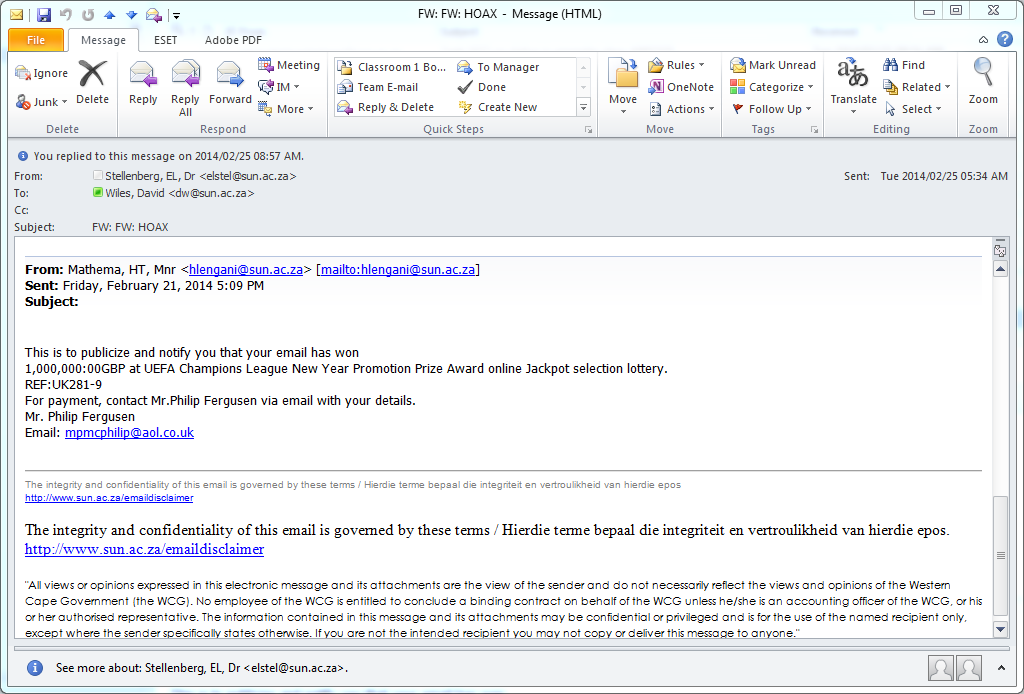
Below is an example of an phishing scam that has been sent out seemingly by a legitimate University-based e-mail account. Unfortunately this time, the e-mail message has been sent to other institution’s addresses and the university is being wrongly criticised for “allowing” this.

Remember: The only purpose of a phishing scam is to get victims to provide their personal information and thereby gain access and control of passwords, bank account numbers and personal details.

Information Technology will be investigating this incident but keep this in mind:

  1. Many times an automatic program is used to “spoof” or forge a phony e-mail address to disguise the real sender The address is often pulled from a database of “stolen addresses”.
  2. This university e-mail account owner might be a victim themselves of a phishing scam, and have provided their details to scammers, resulting in their address or computer being “hijacked” by the phishers.
  3. In some cases an e-mail address owner is employed by the phishers to operate and send out phishing mails on their behalf with the promise of earning money for their services. (Earn $10 000 per month and work from home) in this case it is unlikely, but nevertheless a risk. 

In the screen grab below note the “honeypot”:

…There is no Subject line

…It seems to come from a university employee but the reply to address is some other address

…It promises that you have won a large amount of money. That always attracts people.

spam


[ARTICLE BY DAVID WILES]


Onder is `n voorbeeld van `n nuwe strikroofpoging wat skynbaar uitgestuur is deur `n geldige Universiteit e-posadres. Ongelukkig is die e-pos boodskap ook gestuur na ander instellings se adresse en die universiteit word verkeerdelik gekritiseer omdat dit “toegelaat” is.

Onthou: Die enigste doel van hierdie lokvalle is om slagoffers so ver te kry om hul persoonlike inligting weer te gee en sodoende toegang en beheer oor wagwoorde, bankrekeninginligting en ander details te kry. 

Informasietegnologie ondersoek reeds dié spesifieke insident, maar hou die volgende in gedagte:

1. Dikwels sal `n outomatiese program gebruik word om `n onegte adres te genereer om die regte versender van die e-pos weg te steek. Die adres word gewoonlik onttrek vanuit `n databasis van “gesteelde adresse.”
2. Die universiteits e-posrekeninghouer is waarskynlik self die slagoffer van strikroof en het hul details aan kuberkriminele verskaf – wat om die beurt gelei het daartoe dat hulle adres of rekenaar ge”kaap” is deur die krininele.
3. In sommige gevalle word `n e-posadres eienaar in diens geneem deur kuberkriminele om hierdie e-posse uit te stuur met die belofte dat hulle geld sal verdien vir hul dienste. (Earn $10 000 per month and work from home).  In hierdie geval is dit natuurlik onwaarskynlik, maar dit bly steeds `n groot risiko om te reageer op sulke aanbiedinge.

Op die skermskoot onder, let op die weggeetekens:

… Daar is geen “subject line”

… Dit wil voorkom of dit van `n universiteitswerknemer gestuur is, maar die “reply to” adres is `n ander adres. 

… Jy word belowe dat jy `n groot hoeveelheid geld gewen het. Natuurlik is dit `n groot trekpleister van die meeste mense! 


spam


[ARTIKEL DEUR DAVID WILES]


Office 365 – the future for Maties e-mailOffice 365 – die toekoms vir Maties se e-pos

Thursday, January 30th, 2014

Student numbers have been increasing rapidly over the past few years and with it the need for more e-mail storage space. Up till now student mail has been hosted on the university’s mail servers, but we’re starting to run out of space.

Information Technology has been investigating all the possible solutions and came to the conclusion that Office 365 would be the best choice for student e-mail in the near future.

MS Office and Microsoft operating systems are used in student computer user areas and would integrate seamlessly with this existing technology.

This project is currently still in a planning phase, but in the near future the university will make use of Microsoft’s free Office 365 service and during 2014 all student e-mails will be moved to the “cloud.”

*Please take note that Office 365 is not yet on the cards for SU staff. Office 2010 will remain the approved software for usage on campus.*

Studentegetalle het oor die afgelope paar jare met rasse skrede toegeneem en daarmee saam die behoefte vir meer e-pos stoorspasie. Tot hede is alle studente se e-pos gehuisves op die universiteit se bedieners, maar die spasie is besig om uit te loop.

Sedert verlede jaar ondersoek Informasietegnologie moontlike oplossings vir die probleem en die gevolgtrekking is dat Office 365 die beste keuse vir studente e-posse in die nabye toekoms sal wees.

MS Office en Microsoft bedryfstelsels word reeds gebruik in studente rekenaargebruiksareas en sal gevolglik maklik kan integreer met bestaande tegnologie.

Hierdie projek is tans nog in die beplanningsfase, maar Microsoft se gratis Office 365-diens sal binnekort implementeer word en alle studente e-posse sal gedurende 2014 na die “cloud” geskuif word. 

*Neem kennis dat Office 365 op die stadium nie geinstalleer sal word op US-personeel se rekenaars nie. Office 2010 bly steeds die goedgekeurde sagteware vir gebruik op kampus.*

Need network access after 31 March?Netwerktoegang nodig na 31 Maart?

Tuesday, January 14th, 2014

It may seem far away, but in a little more than 2 months it’s April already. This also means that your network access will no longer be working if you forgot to activate it by 31 March.

Unfortunately network reactivation is a requirement for network usage, but also a fairly fast and painless process.

All network users will receive an e-mail from HELPINFO@SUN.AC.ZA well in advance with the warning that your username will expire shortly if you do not reactivate.  To save yourself unnecessary frustration, immediately log on to HTTP://WWW.SUN.AC.ZA/USERADM and reactivate your username.

Make sure you select the correct option. Reactivation is not the same process as changing your password, so don’t click on “Change password”.

The moment your reactivation is submitted, your cost centre manager be e-mailed and able to approve your application. A daily e-mail will also remind the responsible manager of the request and he/she will be able to approve it by logging on at  HTTP://WWW.SUN.AC.ZA/USERADM, selecting ”Cost Centre Admin” and view and approve all applications.

Make sure you submit your request early, as cost centre managers still have to approve it before 30 March and only then will your access be reactivated.

If you have been caught off guard and without network access on 1 April, first try the self help option at  HTTP://WWW.SUN.AC.ZA/USERADM. (from someone else’s device of course) Select “Reactivate Expired Username” and your username and ID number will be  requested to verify it’s you.

You can also contact the IT Service Centre. However, keep in mind that this is usually one of the busiest days of the year at the Service Desk so you’ll have to practice a bit of patience and wait longer than usual.

We also compiled a few FAQ’s to try and answer most of your questions (see below). For any additional enquiries, contact HELP@SUN.AC.ZA

FAQ’S

 1. Why do I have to reactivate each year?
To ensure access to network services.

2. To what services will reactivation give me access?
Personal network space (H-drive), departemental shared space (G-drive), e-mail and internet

3. What is the cost of reactivation?
R200-00

4. Are the costs for the different network services billed seperately?
No, but take note that internet usage is levied as it’s generated.

5. What is the procedure for reactivation?
Log on at HTTP://WWW.SUN.AC.ZA/USERADM and select “Reactivate username for 2015″, familiarise yourself with the ECP’s content, select the network services you require, make sure the cost point is correct and click on “Submit”.

6. What is the ECP and do I really have to read and understand it before I reactivate?
The Electronic Communication Policy contains important imformation regarding staff member’s responsibilities when using the SU network. It’s essential that you read and understand it’s contents before reactivation.

7. Can cost centres be changed during the reactivation process? 
Yes, changes can be made while reactivating.

8. When will my current network access expire?
31 March 2015

9. I can’t reactivate! What now?
Send an e-mail to HELP@SUN.AC.ZA with a clear explanation of your problem.

10. What happens after I submitted my reactivation application?
The cost centre manager receives and e-mail with the request and processes the application.

11. Should students also reactivate?
No. There are however exceptions if undergraduate students have HR rolls.

12. Can postgraduate Masters and Doctoral students reactivate if they work in departments and have a roll at HR?
Yes.

13. What is the responsibility of the cost  centre manager?
Managers have to regularly log in to HTTP://WWW.SUN.AC.ZA/USERADM and use the “Cost Centre Admin” option to go through and process applications.

14. What happens if the cost centre manager isn’t available to approve applications? 
Another temporary cost point manager can be assigned by the person responsible for the cost centre.

15. How does a cost centre manager know there are pending applications? 
Managers receive a daily e-mail reminding them or they can log in at HTTP://WWW.SUN.AC.ZA/USERADM and select the “Cost Centre Admin” option.

16. What is the difference between a cost centre manager and the person responsible for the cost centre? (according to the financial system)?
The responsible person for a cost centre and the cost centre manager can both approve applications for SU network services.

17. How are staff reminded to reactivate?
E-mails are sent from HELPINFO@SUN.AC.ZA to remind staff of annual reregistration expiry dates.

18.  It’s April 1st and I have’t reactivated. Can I still reregister?
Sign on at HTTP://WWW.SUN.AC.ZA/USERADM and select “Reactivate Expired Username”. Take note: The application still has to be processed by a responsible cost centre manager before network registration is activated.

19. Who can I contact to establish if my application was successful?
Your cost centre mangager.

20. What do I do if my cost centre manager rejected my application?
Log in at HTTP://WWW.SUN.AC.ZA/USERADM, select ”Reactivate username for 2014″ and make sure you entered the correct cost centre.


It may seem far away, but in a little more than 2 months it’s April already. This also means that your network access will no longer be working if you forgot to activate it by 31 March.

Unfortunately network reactivation is a requirement for network usage, but also a fairly fast and painless process.

All network users will receive an e-mail from HELPINFO@SUN.AC.ZA well in advance with the warning that your username will expire shortly if you do not reactivate.  To save yourself unnecessary frustration, immediately log on to HTTP://WWW.SUN.AC.ZA/USERADM and reactivate your username.

Make sure you select the correct option. Reactivation is not the same process as changing your password, so don’t click on “Change password”.

The moment your reactivation is submitted, your cost centre manager be e-mailed and able to approve your application. A daily e-mail will also remind the responsible manager of the request and he/she will be able to approve it by logging on at  HTTP://WWW.SUN.AC.ZA/USERADM, selecting ”Cost Centre Admin” and view and approve all applications.

Make sure you submit your request early, as cost centre managers still have to approve it before 30 March and only then will your access be reactivated.

If you have been caught off guard and without network access on 1 April, first try the self help option at  HTTP://WWW.SUN.AC.ZA/USERADM. (from someone else’s device of course) Select “Reactivate Expired Username” and your username and ID number will be  requested to verify it’s you.

You can also contact the IT Service Centre. However, keep in mind that this is usually one of the busiest days of the year at the Service Desk so you’ll have to practice a bit of patience and wait longer than usual.

We also compiled a few FAQ’s to try and answer most of your questions (see below). For any additional enquiries, contact HELP@SUN.AC.ZA

FAQ’S

 1. Why do I have to reactivate each year?
To ensure access to network services.

2. To what services will reactivation give me access?
Personal network space (H-drive), departemental shared space (G-drive), e-mail and internet

3. What is the cost of reactivation?
R200-00

4. Are the costs for the different network services billed seperately?
No, but take note that internet usage is levied as it’s generated.

5. What is the procedure for reactivation?
Log on at HTTP://WWW.SUN.AC.ZA/USERADM and select “Reactivate username for 2015″, familiarise yourself with the ECP’s content, select the network services you require, make sure the cost point is correct and click on “Submit”.

6. What is the ECP and do I really have to read and understand it before I reactivate?
The Electronic Communication Policy contains important imformation regarding staff member’s responsibilities when using the SU network. It’s essential that you read and understand it’s contents before reactivation.

7. Can cost centres be changed during the reactivation process? 
Yes, changes can be made while reactivating.

8. When will my current network access expire?
31 March 2015

9. I can’t reactivate! What now?
Send an e-mail to HELP@SUN.AC.ZA with a clear explanation of your problem.

10. What happens after I submitted my reactivation application?
The cost centre manager receives and e-mail with the request and processes the application.

11. Should students also reactivate?
No. There are however exceptions if undergraduate students have HR rolls.

12. Can postgraduate Masters and Doctoral students reactivate if they work in departments and have a roll at HR?
Yes.

13. What is the responsibility of the cost  centre manager?
Managers have to regularly log in to HTTP://WWW.SUN.AC.ZA/USERADM and use the “Cost Centre Admin” option to go through and process applications.

14. What happens if the cost centre manager isn’t available to approve applications? 
Another temporary cost point manager can be assigned by the person responsible for the cost centre.

15. How does a cost centre manager know there are pending applications? 
Managers receive a daily e-mail reminding them or they can log in at HTTP://WWW.SUN.AC.ZA/USERADM and select the “Cost Centre Admin” option.

16. What is the difference between a cost centre manager and the person responsible for the cost centre? (according to the financial system)?
The responsible person for a cost centre and the cost centre manager can both approve applications for SU network services.

17. How are staff reminded to reactivate?
E-mails are sent from HELPINFO@SUN.AC.ZA to remind staff of annual reregistration expiry dates.

18.  It’s April 1st and I have’t reactivated. Can I still reregister?
Sign on at HTTP://WWW.SUN.AC.ZA/USERADM and select “Reactivate Expired Username”. Take note: The application still has to be processed by a responsible cost centre manager before network registration is activated.

19. Who can I contact to establish if my application was successful?
Your cost centre mangager.

20. What do I do if my cost centre manager rejected my application?
Log in at HTTP://WWW.SUN.AC.ZA/USERADM, select ”Reactivate username for 2014″ and make sure you entered the correct cost centre.