SEARCH
  • [:en]Recent Posts[:af]Onlangse bydraes

  • [:en]Categories[:af]Kategorieë

  • [:en]Archives[:af]Argiewe

General

[:en]Apple update news[:]

Wednesday, December 2nd, 2020

[:en]

Should I upgrade to macOS Big Sur?

macOS 11 Big Sur is now available to the public and it comes with new features and changes. But you may be wondering, should I upgrade to macOS Big Sur on my Mac?

macOS 11 Big Sur has been widely seen as the least stable of the major new Apple software releases this year during the beta period.

Common issues have included graphical issues like problems with external display support, apps freezing, and random reboots. Stability has improved over the course of the beta period and Apple had postponed macOS Big Sur launching to November instead of September or October, but bugs and performance issues are not totally resolved yet.

So, the question remains, should I upgrade to macOS Big Sur?

  • if you have any concerns about app stability, performance issues, and other bugs, hold out at least for the next bug fix update before upgrading (but maybe even a later update depending on your stability tolerance).
  • If you have critical apps that must work, make sure to check for Big Sur compatibility before upgrading whenever you choose to (initial release not recommended if you have crucial apps)

[Source: https://9to5mac.com/2020/11/16/should-i-upgrade-to-big-sur-on-my-mac/] 

We at IT have received reports of issues with software like Parrallels®, Adobe Acrobat, Microsoft Office after upgrading to Big Sur. We recommend that user refrain from upgrading to Big Sur.


Apple’s M1 chipset could have some major compatibility issues

Since Apple made its reveal of the M1 chip during the ‘One More Thing’ event on November 10, everyone has been itching to get their hands on a new MacBook Air or MacBook Pro to see for themselves if this SoC (System on a chip) lives up to its hype. 

Whilst we certainly enjoyed the new machines ourselves, some prominent figures on Twitter are documenting various compatibility issues when using the new M1-powered machines.

Patrick Moorhead (@patrickmoorehead) is a well-known tech analyst, so his claims shouldn’t be dismissed. We’re also seeing other reports popping up over social media sites that reveal his problems are not isolated issues, to the point where a web service called ‘Is Apple Silicon Ready?’ has now been set up to track the compatibility of important Mac software and found around 40% had compatibility issues.

How to check your apps are silicon ready

You can check your existing applications and the Apple Silicon M1 compatible apps database for yourself using the above service, and follow along on the ‘Is Apple Silicon Ready?’ Twitter account for updates. You can also check the featured story on the Mac App Store that highlights what M1 compatible apps are readily available

Source: https://www.techradar.com/news/apples-m1-chipset-could-have-some-major-compatibility-issues

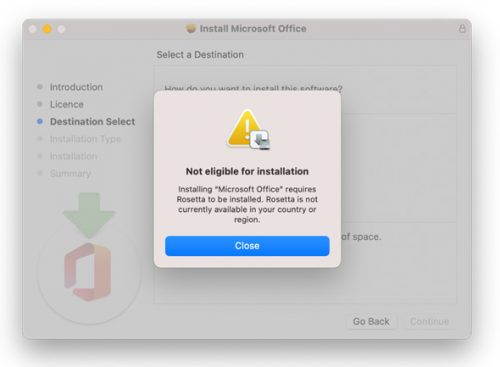
If your apps are not compatible with the new M1 chip you are likely to receive errors when installing. Applications are built to run on specific processors, and not every developer has done all the work necessary to make their apps run natively on Apple Silicon Macs. M1-powered Macs can run native, universal (in which the installer carries code for both Intel and Apple chips) and Intel apps.

Apple is encouraging developers to release universal apps where possible and is making it possible to run Intel apps on Apple silicon using emulation technology called Rosetta 2.

What is Rosetta 2?

Rosetta 2 is an emulator designed to bridge the transition between Intel and Apple processors. In short, it translates apps built for Intel so they will run on Apple Silicon.

Without Rosetta 2 you won’t be able to install applications with .pgk extensions. Rosetta 2 according to Apple is not currently available in South Africa.
[ARTICLE BY BRADLEY VAN DER VENTER]

[:]

[:en]Remember to request your Adobe license[:af]Onthou om jou Adobe-lisensie aan te vra[:]

Saturday, November 7th, 2020

[:en]

To continue using Adobe DC users had to request a license before the end of November. From 1 December your Adobe DC software will no longer work, but you can still request a license by logging a request on the ICT Partner Portal

Adobe has changed the licensing model for all their products and the new model requires staff to have an Adobe ID to use the software.

Historically, a new serial number would be built into a software installation package which would have been centrally pushed out to all Stellenbosch University asset number machines.
This process would result in uninterrupted use of the software as had been the case for the last 4 years.

The new licensing model is based on named user licenses*. The new version of Adobe DC (Document Cloud), which Stellenbosch University has licensed for 2020 is therefore no longer based on serial numbers.  Named User Licensing is a software licensing model where software is assigned to an individual instead of a serial number or a device.

What are the benefits?

Whilst this is a major change in the way access to the software is managed, the new version and license model comes with a number of advantages including a secure login feature. The new model allows IT to provide end users access to the apps and services they demand for ongoing projects, while establishing the control that IT needs to meet the requirements of the organisation. IT also benefits from a simpler method to maintain compliance as well as management of licenses and services through the Adobe Admin Console.

Who qualifies for a license?

Licenses can only be assigned to a full time university staff member according our license policy. This licensing process is only for advanced users who edit and digitally sign PDF documents.  Users will still be able to make use of Adobe Reader. Users that do not edit or digitally sign PDF documents can request the installation of Adobe Reader via the ICT Partner Portal

To request a renewal of your Adobe license, please log a request on the ICT Partner Portal and a license will be assigned to you.

Please take note:

If you have requested a license and it has been assigned to you, you might still get a pop-up from Adobe asking for a serial number. To remove this, only close and log out of Adobe and log in again.


[:af]

Om voort te gaan met die gebruik van Adobe DC moes gebruikers `n lisensie aanvra teen einde November. Vanaf 1 Desember sal jou Adobe DC sagteware nie meer werk nie. Jy kan egter steeds `n lisensie aanvra deur `n versoek aan te teken op die ICT Partner Portal.

Adobe het hulle produkte se lisensiëringsmodel verander en hierdie nuwe model vereis dat personeel oor ‘n Adobe ID te beskik om die programmatuur te kan gebruik. 

Histories sou ‘n nuwe serienommer in ‘n programmatuur-installasie pakket ingebou word en sentraal uitgerol word na alle Universiteit Stellenbosch batenommer rekenaars. Hierdie proses, wat die afgelope vier jaar gevolg is, het verseker dat die sagteware sonder onderbreking gebruik kon word.

Adobe se lisensiëringsmodel is nou gebaseer op named user lisensies. Die nuutste weergawe van Adobe DC (Document Cloud) waarvoor Universiteit Stellenbosch gelisensieërd is dus nie meer op serienommers gebaseer nie. Named User-lisensiëring is ‘n model waar programmatuur toegeken word aan ‘n individu in plaas van `n serienommer of toestel. 

Wat is die voordele?

Hoewel dit ‘n groot aanpassing beteken in die wyse waarop programmatuur bestuur word, het die nuwe weergawe en lisensiemodel etlike voordele, insluitende ‘n veilige aantekenmetode. 

Die nuwe model stel IT in staat om aan gebruikers die toegang tot toepassings en dienste te bied wat hulle vereis vir deurlopende projekte, terwyl IT steeds die beheer het om te voldoen aan die universiteit se vereistes. IT trek ook voordeel uit `n eenvoudiger manier om regulasies na te kom, sowel as die bestuur van lisensies en dienste deur middel van die Adobe Admin konsole.

Wie kwalifiseer vir `n lisensie?

Volgens ons lisensiebeleid kan lisensies kan slegs toegeken word aan voltydse universiteitspersoneel. Die lisensieproses is ook slegs van toepassing op gevorderde gebruikers wat PDF-dokumente moet redigeer en digitaal teken. Personeel kan steeds gebruikmaak van Adobe Reader. 

Om `n Adobe DC-lisensie aan te vra, teken asb. `n versoek aan op die ICT Partner Portal en `n lisensie sal aan jou toegeken word.

Neem asseblief kennis:

Indien jy `n lisensie aangevra het en dit is aan jou toegeken mag dit gebeur dat Adobe jou steeds por vir `n serienommer. Om dit te verwyder kan jy bloot afteken, Adobe toemaak en weer oopmaak. 


[:]

[:en]Skype now more limited[:af]Minder funksionaliteit vir Skype[:]

Thursday, October 8th, 2020

[:en]

In a previous article we’ve mentioned that Microsoft will no longer use TLS 1.0 and 1.1 after 15 October 2020 and that they will move over to TLS 1.2 for better security.

After the deprecation of TLS 1.0 and 1.1 on 15 October, Skype for Business will no longer show your Free/Busy presence and you will also not be able to use the address book. 

We advise that you Microsoft Teams for collaboration and chat features which were previously available in Skype for Business.

Staff who use the Skype for Business application for their office phone number will still have to use Skype for Business to make and receive external PSTN (Telkom, Cell phone) calls.  This functionality will be moved to Teams as soon as possible and users will be contacted in this regard.

[:af]

In `n vorige artikel het ons verwys na Microsoft se besluit om na 15 Oktober nie meer TLS 1.0 en 1.1 te gebruik nie, maar eerder oor sal skakel na TLS 1.2 vir beter sekuriteit.

Na die uitfasering van TLS 1.0 en 1.1 op 15 Oktober sal Skype for Business nie meer jou Free/Busy status aandui nie en jy sal ook nie meer jou adresboek kan gebruik nie. 

Ons beveel aan dat jy Microsoft Teams gebruik vir kollaborasie en vir die gespreksfunksies wat voorheen beskikbaar was met Skype for Business.

Personeel wat die Skype for Business toepassing gebruik vir hulle kantoortelefoonnommer sal steeds Skype for Business moet gebruik om eksterne PSTN (Telkom en selfoonnommers) oproepe te maak en ontvang. Hierdie funksionaliteit sal binnekort egter ook na Teams geskuif word en gebruikers van die diens sal gekontak word wanneer dit gebeur.

[:]

[:en]Error reporting FAQs[:]

Wednesday, October 7th, 2020

[:en]

How do I report an IT problem, request or enquiry?

Option 1
Log a service request on our ICT Partner Portal
 with the following information:

1. Description of problem
2. Telephone number
3. Room Number
4. Department and building
5. Asset number of computer, laptop, printer, etc.

Requests will be logged automatically and reference number sent via email.

For video instructions on how to log a request on the ICT Partner Portal, click here. More information on our Service Catalogue.

Option 2
Contact the IT Service Desk – 021 808 4367

We require username and asset number in order to assist OR leave a voicemail message.


How do I follow up on the IT request I have logged?

Whether you have called the IT Service Desk at 0218084367, sent an email to help@sun.ac.za or logged a request via the ICT Partner Portal at https://servicedesk.sun.ac.za you can do the following:

  1. Log in at https://servicedesk.sun.ac.za with your username and password.
  2. Select: Requests, My requests. The status of all the requests that you have raised will be displayed.

How do I follow up if I sent an email to help@sun.ac.za?

If you send an email to help@sun.ac.za it automatically logs a request on the IT Service Portal. You can check on the status of your request as follows:

  1. Log in at https://servicedesk.sun.ac.za with your username and password.
  2.  Select: Requests, My requests. The status of all your requests will be displayed.

How do I follow up on a request I reported by calling the IT Contact Centre?

If you call the IT Contact Centre, the service agent will log a request on your behalf on the IT Service Portal. You can check on the status of your request as follow:

  1. Log in at https://servicedesk.sun.ac.za with your username and password.
  2. Select: Requests, My requests. The status of all your requests will be displayed.

Can you follow up on a request emailing help@sun.ac.za again?

If your request have already been logged and you have a reference number, please do not send another email to help@sun.ac.za. This will log a second, duplicate request which will only clog up the system and cause confusion. The same goes for replying to emails from help@sun.ac.za. Rather click on the request number and add your comment on the system.


How do I add a comment to my request?

  1. Log in at https://servicedesk.sun.ac.za with your username and password.
  2. Select: Requests, My requestsThe status of all the requests that you have raised will be displayed.
  3. Click on the reference number of a request to see its details.
  4. Type your comment in the text box and click on Add. The comment will be added to the request. You can also add screen shots for clarification

What does the different status options mean?

WAITING ON SUPPORT =you are waiting for a response / feedback from IT regarding your request.

WAITING ON CUSTOMER =IT is waiting on a response / feedback from you regarding your request.

IN PROGRESS = your request is being attended to.

ESCALATED =your request is escalated for further investigation.

RESOLVED =your request has been resolved.

CLOSED = your request has been closed.


[:]

[:en]Outlook public folders no longer available[:af]Outlook Public folders nie meer beskikbaar nie[:]

Wednesday, October 7th, 2020

[:en]

Since the end of November last year December public folders are no longer be an available functionality for staff. If you are still using public folders in Outlook to schedule meetings, for example, we recommend that you switch to alternative solutions.

What are public folders?

Public folders are designed for shared access and provide an easy and effective way to collect, organise, and share information with other people in your work group or organisation. 

Public folders are available in the following Outlook clients:

  • Outlook on the web (formerly known as Outlook Web App) for Exchange 2016 or later

  • Supported versions of Outlook for Exchange server.

  • Outlook for Mac 2016 and Outlook for Mac for Office 365.

What does this mean for me?

Although public folders were generally used at the university we now have alternatives which fulfil the same function possibly even better. If you are still using the public folders, depending on what you use it for, we would suggest that you enquire with the IT Service Desk regarding an alternative solution.

What are the alternative solutions?

Room or venue bookings can be facilitated by requesting the creation of a Resource Mailbox. For group collaboration, a team within MS Teams would be suitable for that use case as it allows members of the team to collaborate on documents and keep track of communication within the team.

[ARTICLE BY BRADLEY VAN DER VENTER]

[:af]

Sedert einde November verlede jaar is public folders nie meer ʼn beskikbare funksie vir personeel nie. Indien jy steeds public folders in Outlook gebruik om, byvoorbeeld vergaderings te skeduleer stel ons voor dat jy alternatiewe oplossings oorweeg. 

Wat is public folders?

Public folders bied ʼn maklike en effektiewe metode om inligting te versamel, organiseer en deel met kollegas binne die universiteit. 

Public folders is beskikbaar vir die volgende Outlook-weergawes:

  • Outlook op die web (voorheen bekend as die Outlook Web App) vir Exchange 2016 en later.

  • Ondersteunde weergawes  van Outlook vir die Exchange-bediener.

  • Outlook vir Mac 2016 en Outlook vir Mac vir Office 365.

Wat beteken dit vir my?

Hoewel public folders gereeld binne die universiteit gebruik is, is daar nou ander, meer effektiewe opsies wat dieselfde, of selfs beter, funksionaliteit bied. Indien jy steeds public folders aktief gebruik, sal die IT Dienstoonbank ʼn alternatiewe oplossing kan voorstel afhangende van wat jy benodig.

Wat is die alternatiewe oplossings?

Kamer- of lokaalbesprekings kan gefasiliteer word deur ʼn resource mailbox aan te vra. Om in groepe saam te werk met kollegas, is MS Teams ideaal en laat dit lede toe om saam te werk aan dokumente en tred te hou met kommunikasie binne die span.

[ARTIKEL DEUR BRADLEY VAN DE VENTER]

[:]