SEARCH
  • [:en]Recent Posts[:af]Onlangse bydraes

  • [:en]Categories[:af]Kategorieë

  • [:en]Archives[:af]Argiewe

General

[:en]Phishing email with subject “SUNCOM”[:af]Phishing-poging met die onderwerp “SUNCOM” [:]

Wednesday, February 5th, 2020

[:en]

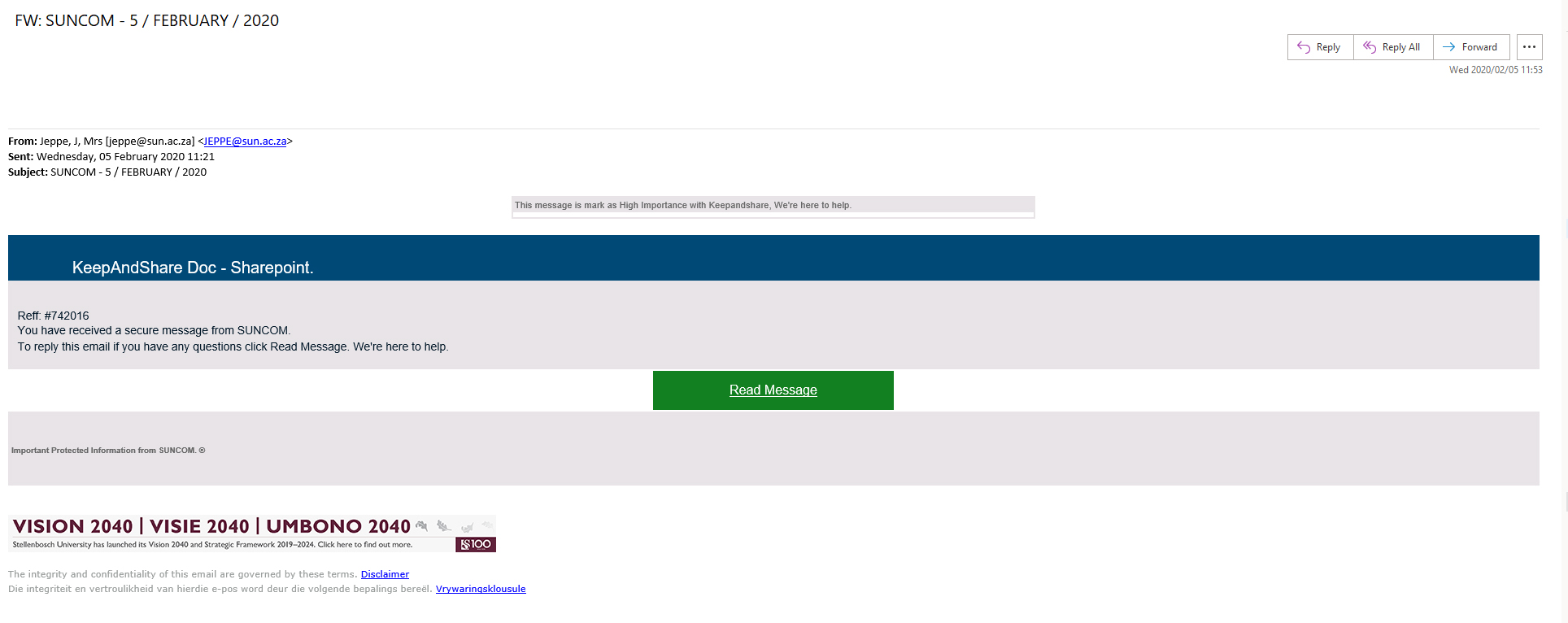
An email from a sun.ac.za address with the subject “SAFECOM – 5 / FEBRUARY / 2020” has been sent to staff and students. The email asks you to open a message received from “SUNCOM” (also see image below)

This is not a legitimate email, but a phishing attempt which will lead you to a fake website.

By clicking on links and providing your information, you give criminals access to your personal information and your accounts. If you think your account or device has been compromised or you notice suspicious activity:

  • Immediately change your password on www.sun.ac.za/password.
  • Contact the IT Service Desk by logging a request or calling 808 4367.
  • More information is available on our blog and Twitter.
[:af]

’n E-pos vanaf `n sun.ac.za adres met die onderwerp “SAFECOM – 5 / FEBRUARY / 2020” is aan personeel en studente versend. Die e-pos vra dat jy op ʼn skakel kliek om `n boodskap van “SAFECOM” te lees. (sien ook voorbeeld onder)

Hierdie is nie ’n geldige e-pos nie, maar ’n strikroofpoging wat jou sal lei na ’n vals webadres.

Deur op skakels in strikroof e-posse te kliek en jou inligting te verskaf, gee jy aan misdadigers toegang tot jou persoonlike inligting en rekeninge. Indien jy vermoed dat jou rekening of toestel gekompromitteer is of jy agterdogtige aktiwiteite oplet:

  • Verander dadelik jou wagwoord by www.sun.ac.za/password.
  • Kontak die IT Dienstoonbank deur ʼn versoek aan te meld of 808 4367 te skakel.
  • Meer inligting is beskikbaar op ons blog en Twitter.

[:]

[:en]Card access problems on campus[:af]Probleme met kaarttoegang op kampus[:]

Tuesday, February 4th, 2020

[:en]

Some students and staff might experience problems with card access on campus.

Due to a heavier load on the network in terms of traffic and potential technical glitches, card access is being denied at some doors.

The rights of valid and registered cards will automatically updated after they’ve been swiped and should work shortly afterwards. 

We realise that this is frustrating and inconvenient and are doing everything possible to address the problem. 

For further enquiries, please log a request on servicedesk.sun.ac.za.

[:af]

Enkele studente en personeel mag tans probleme ondervind met kaarttoegang op kampus. 

As gevolg van `n groter verkeerslading op die netwerk en potensiële tegniese probleme word kaart toegang by sekere deure geweier. 

Kaarte wat wel geldig en registreer is, se regte sal outomaties opdateer wanneer die kaart gebruik word en behoort kort daarna weer reg te werk.

Ons is bewus van die frustrasie en ongerief wat die probleem veroorsaak en doen alles in ons vermoë om dit aan te spreek.

Vir verdere navrae, meld asb. `n versoek aan by servicedesk.sun.ac.za.

[:]

[:en]New warning banner for your email[:af]Nuwe waarskuwingsbanier vir jou e-pos[:]

Tuesday, February 4th, 2020

[:en]

The nature of cyber-attacks is always evolving and Information Technology, with the help of staff and students, has to do everything within our power to try and prevent them.

In an attempt to tighten cyber security on campus, we will soon provide a new warning which can identify the origin of an email. By establishing the origin of email, it’s easier to protect against cyber security risks such as malware, spoofing and phishing. 

From now on, every time you receive email from outside campus a yellow banner will be displayed at the top of your email:

Click for a larger image


Click for a larger version

When staff or students receive a potentially dangerous email which seems to have been sent from a colleague with a sun.ac.za address, they will immediately be able to see that it is, in fact, not from their colleague, but from an address outside the university.

Just keep in mind that the banner does not indicate that the email is necessarily a security risk, but that the possibility exists and that you need to be extra careful when responding to it.

We will continuously assess the effectiveness of this decision and reconsider if necessary. For any additional enquiries, please send an email to help@sun.ac.za.

[:af]

Die aard van kuberaanvalle verander voortdurend en gevolglik moet Informasietegnologie, met die hulp van personeel en studente, alles in ons vermoë doen om dit te probeer bekamp.

In ’n poging om kubersekuriteit op te skerp op kampus, sal ons dus binnekort ’n nuwe waarskuwing verskaf wat die oorsprong van e-posse identifiseer. Deur die oorsprong te identifiseer is dit makliker om personeel en studente te beskerm teen kuberrisiko’s soos malware, spoofing en phishing

Voortaan sal daar elke keer as jy ’n e-pos van buite kampus ontvang ’n geel banier bo-aan jou e-pos verskyn wat soos volg lyk:

Click for a larger image

Kliek vir `n groter weergawe

Indien personeel of studente dus ’n potensieel gevaarlike e-pos ontvang wat lyk asof dit vanaf ’n kollega met ’n sun.ac.za adres gestuur word, sal die leser dadelik kan sien dat dit in werklikheid van buite die universiteit gestuur is, en dus verdag is. 

Let daarop dat die banier nie noodwendig beteken dat die e-pos `n gevaarlik is nie, maar bloot dat die moontlikheid bestaan en dat jy, as ontvanger van die e-pos, ekstra versigtig moet wees. 

Ons sal die effektiwiteit van hierdie stap deurlopend evalueer en heroorweeg soos nodig. Vir enige verdere navrae, stuur asb. `n e-pos aan help@sun.ac.za.

[:]

[:en]Important information for users of the central administration system[:af]Belangrike inligting vir gebruikers van die sentrale administratiewe stelsel[:]

Monday, February 3rd, 2020

[:en]

As many of you are aware, the current central administration system, which also includes TERATERM, has reached the end of its lifecycle and will next year be replaced by SUNFin, a modern, centralised, cloud-based finance platform. (More on SUNFin here)

The system was developed in 1989 and can no longer be adequately maintained and upgraded. In the meantime, Information Technology has to keep it functioning optimally for the next few months and you can help us achieve this by doing a few simple things:

  1. If possible, don’t open too many multiple sessions. This might overload the system and cause other users to be denied access. 
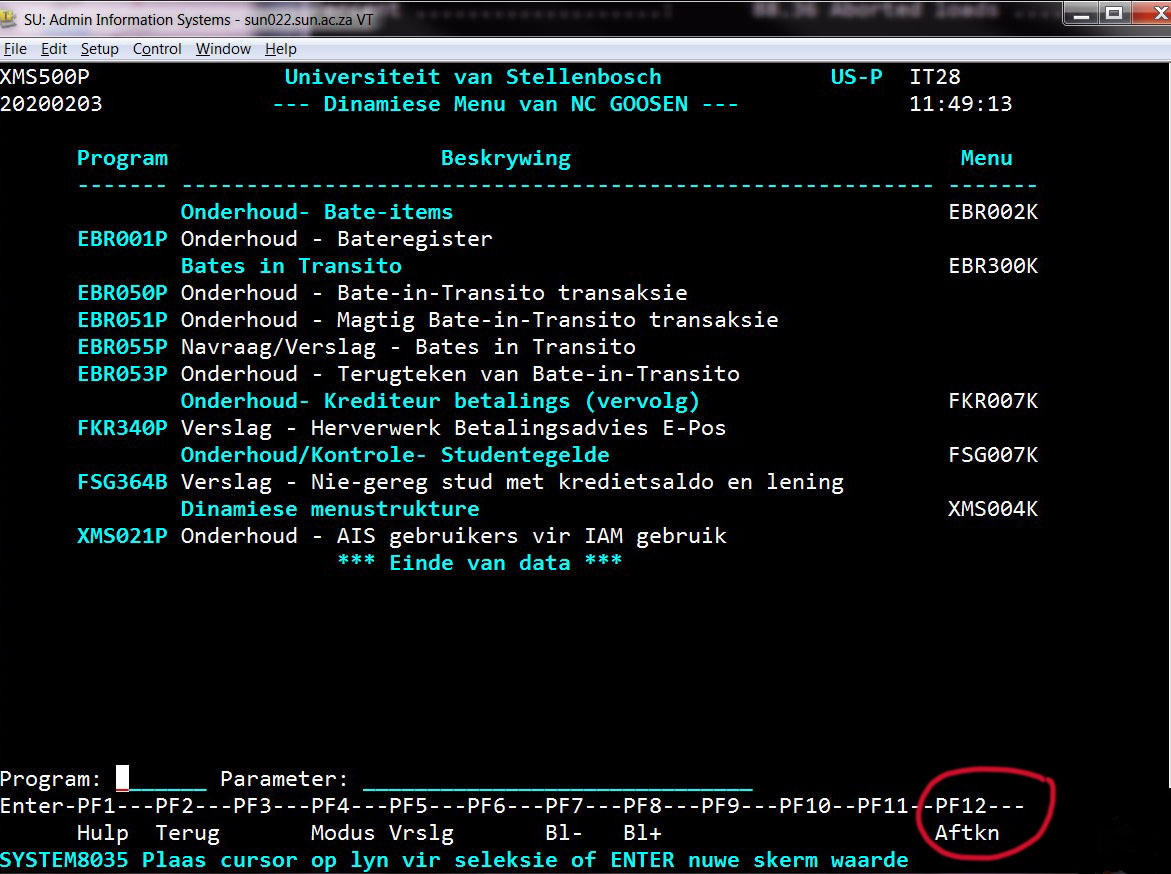
  2. If you’ve finished working for the day, don’t just close the screen by clicking on the red X. Please log off entirely by selecting PF12 and then choose option Afteken. (see below image 1)
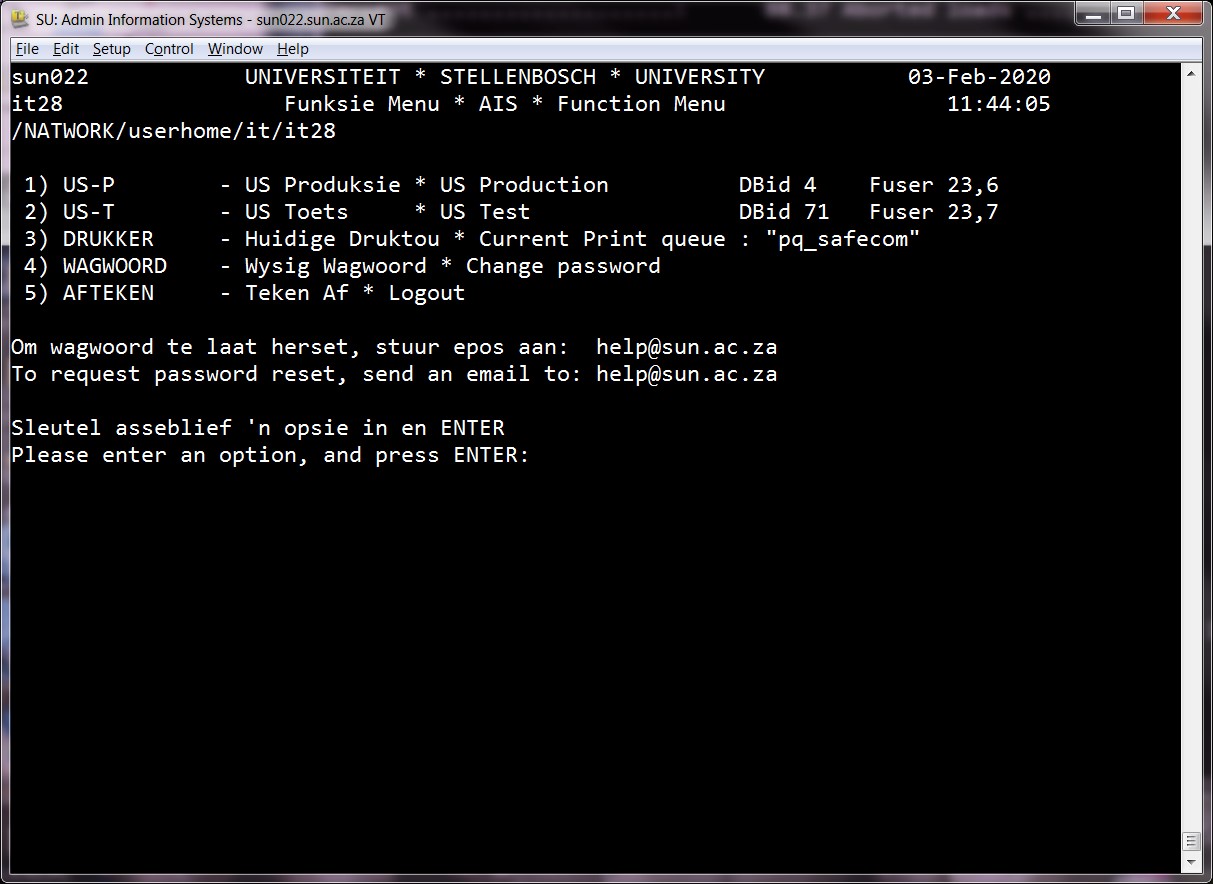
  3. If you’ve finished with a programme and you won’t be using it for at least ten minutes, use PF12 to sign off. You can keep the TeraTerm main menu (see below image 2) open in case you need to work again.
  4. If you know there will be loadshedding, PF12 and sign off from the system. Otherwise your session will stay live.


Image 1  
 
Image 2  


[:af]

Dis alombekend dat die huidige sentrale administrasiestelsel, wat ook TERATERM huisves, die einde van sy lewensiklus bereik het. As alles volgens plan verloop, word dit volgende jaar vervang deur SUNFin, `n moderne, gesentraliseerde, wolk-gebaseerde finansiële platform. (Meer oor SUNFin hier)

Die stelsel is reeds in 1989 ontwikkel en kan nie meer genoegsaam onderhou en opgradeer word nie. Intussen moet Informasietegnologie verseker dat die stelsel steeds optimaal funksioneer vir die oorblywende tydperk. Jy kan ons help deur enkele, eenvoudige stappe te neem:

  1. Indien moontlik, moenie te veel onnodige, veelvuldige sessies oopmaak nie.  Dit kan die stelsel oorlaai en veroorsaak dat ander gebruikers nie toegang kry nie. 
  2. Wanneer jy klaar gewerk het op die stelsel vir die dag, moenie net die skerm toemaak deur op die rooi X te kliek nie. Teken asseblief volledig af deur PF12 te kies en daarna die Afteken-opsie. (sien grafika onder) 
  3. Wanneer jy klaar is met `n program and dit nie vir meer as 10 minute nie gaan gebruik nie, gebruik PF12 om af te teken. Jy kan steeds die TerraTerm hoofspyskaart (sien grafika heel onder) oophou indien jy later verder wil werk.
  4. Indien jy weet wanneer daar beurtkrag gaan wees, kies PF12 en teken uit die stelsel uit. Anders sal jou sessie aktief bly.


[:]

[:en]Adobe licences update[:af]Opdatering van Adobe-lisensies[:]

Friday, November 29th, 2019

[:en]

Users of Adobe Acrobat software may have noticed a pop-up notification stating that their licence will be expiring at the end of November.

This is an administration issue on Adobe’s side and can easily be rectified for you to continue working seamlessly. If you don’t update your licence, you will no longer be able to read or edit pdf documents with the Adobe Acrobat software.

To prevent this from happening, you can do one of the following:

  • Open the following link. You will be prompted to enter your username & password and the licenceupdate.exe file will, depending on your browser, either ask you to run/save or download automatically.
    1. If your browser prompts you to run/save, click run. You might get a notification that Windows considers the file to be unsafe, but you can click more info and click run anyway. Notices will pop up on your screen. In each instance, just click on Yes. The command window will display the new date when Acrobat will expire. Click any key to close the command window.
    2. If your browser automatically downloaded the file, browse to your download folder and double click the licenceupdate.exe file. Follow the steps described above.
  • If you can’t successfully execute the instructions above, please log a request with the subject “Update Adobe licence” on the ICT Partner Portal. Keep in mind that this option will mean a delay in response time. 


[:af]

Adobe Acrobat-gebruikers mag dalk opgemerk het dat ’n kennisgewing op hulle skerms verskyn met die boodskap dat lisensies gaan verval einde November. 

Hierdie is ’n administrasie-saak aan Adobe se kant en kan maklik reggestel word sodat jy sonder te veel moeite kan werk. Indien jy nie jou lisensie opdateer word nie, sal jy nie meer pdf-dokumente kan redigeer of lees met die Adobe Acrobat programmatuur nie.

Om te voorkom dat dit gebeur kan jy een van die volgende doen:

  • Maak die volgende skakel oop. Jy sal gevra word om jou gebruikersnaam en wagwoord in te tik en die licenceupdate.exe leêr sal, afhangende van jou webblaaier, jou vra of jy dit wil run/save of outomaties aflaai.
    1. Indien jou webblaaier vra of jy wil run/save, kliek run. Jy mag moontlik ’n kennisgewing kry dat Windows die leêr as onveilig beskou, maar jy kan kliek op more info and op run anyway kliek. Verdere kennisgewings sal op jou skerm verskyn. Met elke kennisgewing, kliek bloot Yes. Die skerm sal die nuwe datum waarop Adobe verval vertoon.
    2. Indien ou webblaaier outomaties die leêr aflaai, gaan na jou Downloads-gids en dubbelkliek op die licenceupdate.exe leêr. Volg die stappe soos bo beskryf. 
  • Indien jy nie bogenoemde instruksies suksesvol kan installeer nie, meld asb. ’n versoek aan met die onderwerp “Update Adobe license” op die ICT Partner Portal. Hou in gedagte dat ons met hierdie opsie nie onmiddellike hulp kan waarborg nie.

[:]