SEARCH
  • [:en]Recent Posts[:af]Onlangse bydraes

  • [:en]Categories[:af]Kategorieë

  • [:en]Archives[:af]Argiewe

General

[:en]New IT online request service[:af]Nuwe IT aanlynversoekstelsel[:]

Thursday, October 4th, 2018

[:en]

Information Technology recently implemented a new, user-friendly request and incident logging system for staff and students. Our aim was to deploy the system in such a way that you weren’t affected and the process of logging calls remained simple. The only difference is our new, clean and user-friendly look. We would like to encourage you to make use of the online logging system, also known as the ICT Partner Portal, to ensure faster service. 

Log in on our ICT Partner Portal at servicedesk.sun.ac.za.

The ICT Portal is the central point where you can easily log your IT-related issues without calling the IT Service Desk. Here you will also be able to keep track of the progress of your requests online.

As soon as you request a service or log an incident or error, the system automatically assigns a call number. The call number will appear in future email correspondence and updates related to your call. This will ensure that calls are grouped together and the information is easier accessible and better integrated. 

Even though the platform interface looks different, you will be able to perform the same actions as before. Staff and students are automatically registered as users – you only need to log on at servicedesk.sun.ac.za with your SU username and password.

This is what the new interface looks like:
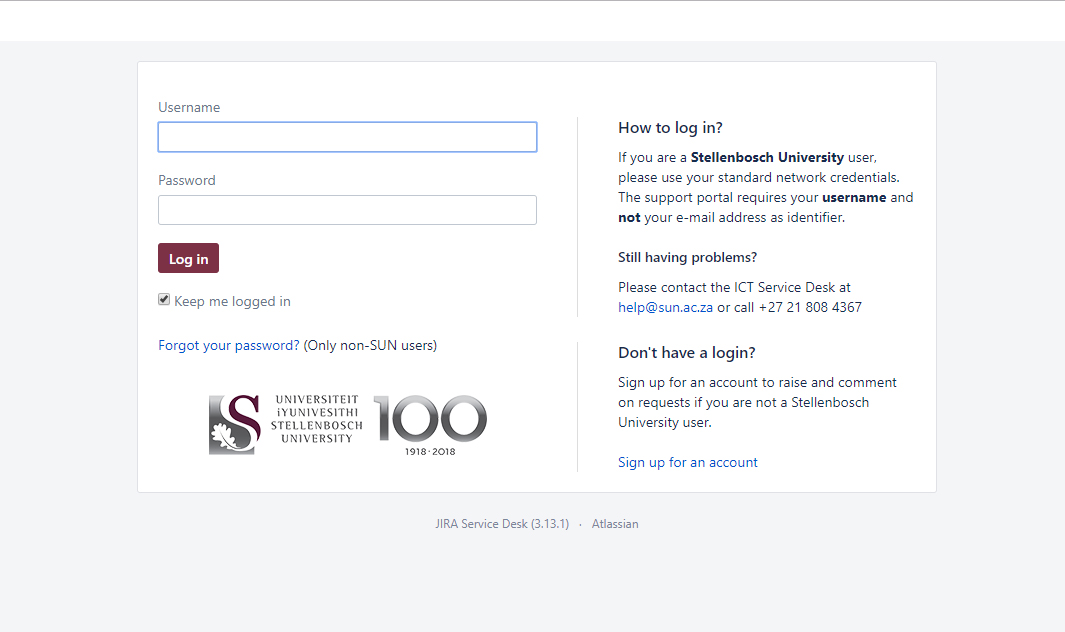
Alternatively, if you prefer not to use the online logging service, you can send an email to help@sun.ac.za. This will automatically log your request on our system. Keep in mind that if you use this method, it will take slightly longer to attend to your call as a helpdesk agent has to classify it first.

If you’ve recently requested a service by sending an email you might have noticed that the confirmation email looks slightly different. Your email will include a reference number, for example, ICT-123, your name and links to view your request. By clicking on the link, you will be diverted to the ICT portal where you can view the status of your request and leave a comment for the technician working on your request.

This is what the new email from IT will look like when you request a service:

For any additional enquiries, please contact the IT Service Desk at 021 808 4367.

[:af]

Informasietegnologie het onlangs ʼn nuwe, gebruikersvriendelike versoek en insident aanmeldingstelsel vir personeel en studente in werking gestel. Ons doelwit was om die nuwe stelsel op so ʼn manier uit te rol dat julle nie beïnvloed word nie en die proses om versoeke aan te meld eenvoudig bly. Die enigste verskil is ʼn nuwe, skoon en gebruikersvriendelike uitleg. Ons wil jou daarom ook aanmoedig om voortaan gebruik te maak van die aanlyn aanmeldingstelsel, of te wel ICT Partner Portal, om vinniger diens te verseker. 

Om dienste te versoek, teken aan op ons ICT Partner Portal by servicedesk.sun.ac.za.

Die ICT-portaal is die sentrale punt waar jy maklik al jou IT-verwante versoeke kan aanteken, sonder om die IT Dienstoonbank te kontak. Hier sal jy ook kan aanlyn kan tred hou met die vordering van jou versoeke. 

Sodra jy ʼn diens versoek of ʼn insident of fout aanmeld, sal die stelsel outomaties ʼn versoeknommer aan jou toewys. Die versoeknommer verskyn ook in alle e-pos korrespondensie en opdaterings wat verband hou met jou versoek. Dit verseker dat verwante versoeke saam gegroepeer word en jou informasie makliker toeganklik en geïntegreer word.

Alhoewel die platform se koppelvlak verskillend lyk as die vorige een, sal jy steeds dieselfde aksies kan uitvoer. Alle personeel en studente is outomaties geregistreer as gebruikers – teken net in  by servicedesk.sun.ac.za met jou US gebruikersnaam en wagwoord.

Die nuwe koppelvlak lyk so: 

Alternatiewelik, indien jy verkies om nie die ICT-portaal te gebruik nie, kan jy ʼn e-pos stuur aan help@sun.ac.za. Die stelsel sal outomaties  ʼn versoek aanteken in reaksie op die e-pos. Hou asseblief in gedagte dat hierdie metode moontlik langer kan neem omdat die versoek eers geklassifiseer moet word deur ʼn dienstoonbankagent.

Indien jy onlangs op hierdie wyse diens versoek het, sou jy opgemerk het dat die bevestiging e-pos verskillend lyk as voorheen. (sien voorbeeld onder) Jou e-pos sal ʼn verwysingsnommer, byvoorbeeld ICT-123, jou naam en ʼn skakel waarop jy kan kliek om jou versoek te sien, insluit. Deur op die skakel te kliek, sal jy herlei word na die ICT-portaal waar jy die na status van jou versoek kan kyk en ook kommentaar los vir die betrokke tegnikus.

Die nuwe bevestiging e-pos lyk as volg:


[:]

[:en]Before you resign or retire …[:af]Voor jy weggaan …[:]

Tuesday, July 31st, 2018

[:en]

You’ve packed up your office, said goodbye to your colleagues and you are ready for your new job. But what happens to your sun email address, your data or any electronic services you used while working at Stellenbosch University? We have a few tips and instructions. 

As soon as your active role as staff expires, all your electronic services also terminate. This process is necessary to maintain a healthy and secure network and to ensure that unused, dormant accounts are not used for nefarious purposes by cybercriminals.

In other words, from the date when your service at SU is terminated, you no longer have an active role at the university and you can no longer use university services. In this event, you will receive an email from helpinfo@sun.ac.za informing you that your username will expire.

To ensure that you are prepared in advance, we also suggest you do the following at least three months before you leave the university:

  1. Create a new email address for yourself (if you don’t have one already) There are various options, for example, Gmail or Yahoo.
  2. Activate your Out of Office function on you sun.ac.za Outlook mailbox and indicate in the message what your new email address is, in case someone needs to contact you. 
  3. If you use your @sun address for your banking, Facebook, DSTV or iCloud accounts or any other services or social media, change it to your new email address. We would also like to urge you to keep your work-related and private emails separate. Rather create a private email address for your personal correspondence.
  4. If you have any personal data on your electronic work devices or network storage (G: or H: drive), remove it and store it on your own external hard drive or online cloud storage, for example, Google Drive or OneDrive
  5. Make sure that your relevant work-related data is accessible for further usage by your colleagues and the university after you leave. However, do NOT give your password to colleagues when you leave the university as this poses a security risk.
  6. If you need any assistance, contact Information Technology and one of our technicians can assist you.

Students who are graduating or terminating their studies can find the necessary information on this pamphlet compiled by the IT HUB.

[:af]

Jou kantoor is leeggemaak, jou kollegas gegroet en jy is reg vir jou nuwe werk of om jou aftrede te begin. Maar wat van jou sun e-posadres, jou data en die ander elektroniese dienste wat jy gebruik het terwyl jy by die Universiteit gewerk het? Ons het `n paar wenke en instruksies.

Sodra jou aktiewe rol as personeel verval, word al jou elektroniese dienste ook beëindig. Hierdie proses is nodig om te verseker dat ons netwerk gesond en veilig bly en om te verseker dat ongebruikte, dormante rekeninge nie misbruik word vir kriminele aktiwiteite nie.

M.a.w. vanaf die datum wat jou diens by Stellenbosch Universiteit beëindig word, het jy nie meer `n aktiewe rol by die universiteit nie en kan jy ook nie meer die universiteit se dienste gebruik nie. Voordat jou gebruikersnaam verval, sal jy `n e-pos ontvang van helpinfo@sun.ac.za.

Om te verseker dat jy vroegtydig voorbereid is, stel ons voor jy doen die volgende ten minste drie maande voordat jy die universiteit verlaat:

  1. Skep vir jou `n nuwe e-posadres (as jy nog nie reeds een het nie) Daar is verskeie opsies, byvoorbeeld Gmail of Yahoo. 
  2. Stel jou Out of Office funksie vir jou sun.ac.za Outlook-posbus en dui in die boodskap aan wat jou nuwe e-posadres is indien iemand jou moet kontak. 
  3. Indien jy jou @sun e-posadres gebruik vir bankdienste, Facebook, DSTV of iCloud rekeninge of enige ander dienste of sosiale media, verander dit na jou nuwe e-posadres. Ons wil ook aanbeveel dat jy jou werksverwante en privaat e-posse apart hou. Skep eerder `n privaat e-posadres vir jou persoonlike korrespondensie. 
  4. Indien jy enige persoonlike data op jou elektroniese werktoestelle of netwerkspasie (G: or H: dryf), verwyder dit en stoor dit op jou eie eksterne hardeskyf of aanlyn stoorspasie (b.v. Google Drive of OneDrive).
  5. Maak seker dat al jou relevante werksverwante data toeganklik is vir jou kollegas vir verdere gebruik. Moet egter nie jou wagwoord vir kollegas gee wanneer jy die universiteit verlaat nie aangesien dit `n sekuriteitsrisiko is.
  6. Indien jy enige hulp benodig, kontak Informasietegnologie en een van ons tegnici sal jou bystaan.

Studente wat gradueer of hulle studies beëindig , kan die nodige inligting op hier die pamflet, saamgestel deur die IT HUB, kry.

[:]

[:en]Free Microsoft online training[:af]Gratis aanlyn Microsoft-opleiding[:]

Wednesday, February 28th, 2018

[:en]

We would like to remind staff that free online training is available via the Microsoft portal.

The following training options are available:

OneDrive Excel
Word OneNote
PowerPoint Microsoft Teams
SharePoint Access
Yammer Planner
Outlook Visio

If you want to make use of this self-help training guides and videos, you can access it on the Office support site.  


[:af]

Ons wil graag personeel herinner daaraan dat gratis aanlynopleiding beskikbaar is via die Microsoft-portaal.

Die volgende opsies vir opleiding is beskikbaar:

OneDrive Excel
Word OneNote
PowerPoint Microsoft Teams
SharePoint Access
Yammer Planner
Outlook Visio

Indien jy hierdie selfhelp opleiding gidse en video’s wil gebruik, kan jy toegang kry d.m.v. die Office ondersteuningswebwerf.  


[:]

[:en]Windows updates: for your own safety[:af]Windows opdaterings: vir jou eie veiligheid[:]

Monday, February 26th, 2018

[:en]

Due to the increasing threat of cybercrime and in an attempt to strengthen the security of our campus devices and network, Information Technology will be performing regular scans of devices on the network to identify possible weaknesses. These scans will be done after hours and will have no impact on your work during the day.

If a device presenting a potential threat is identified, a request will be logged on ServiceNow, Information Technology’s call logging system. One of our IT representatives will then contact the user of the device to establish whether the device is up to date with the latest Windows updates, antivirus updates and if the software is up to date. 

Do not be alarmed when an IT representative calls you and asks to update your SU work device. This process is for your own benefit and will not only protect our network, but also your device and your data.

We would appreciate it if you could assist us with safeguarding our network by regularly installing Windows updates and restarting your device after the updates in order to apply the updates. 

We are also attempting to upgrade PCs with Windows 10 v1511 to the latest version – Windows 10 v1709. To find out which version of Windows 10 your PC is running, press Windows logo key + R, type winver, then select OK.

If you would like to upgrade your PC, please send an e-mail to the IT Service Desk at help@sun.ac.za to log a request.

[:af]

Weens die toenemende kubermisdaadrisiko en in ʼn poging om die sekuriteit van ons kampustoestelle en netwerk te versterk, sal Informasietegnologie gereeld toestelle op die netwerk skandeer om moontlike swakplekke te identifiseer. Hierdie proses sal na-ure plaasvind en geen impak hê op werk gedurende die dag nie.

Indien ʼn toestel identifiseer word as ʼn potensiële risiko, sal ʼn versoek aangeteken word op ServiceNow, Informasietegnologie se foutrapporteringstelsel. Een van ons IT-verteenwoordigers sal daarna die eienaar kontak om vas te stel of die toestel op datum is met die nuutste Windows en antivirus opdaterings, sowel as sagteware. 

Moenie skrik as ʼn IT-verteenwoordiger jou skakel en vra om jou US-werktoestel op te dateer nie. Hierdie proses is tot jou voordeel en sal nie net ons netwerk beskerm nie, maar ook jou toestel en jou data.

Ons sal dit ook waardeer as jy ons kan help om ons netwerk te beskerm deur gereeld Windows-opdaterings te installeer en jou toestel af en aan sit sodat die nuwe opdatering toegepas kan word. 

Terselfdertyd probeer ons ook rekenaars wat Windows 10 v1511 gebruik, opgradeer na die nuutste weergawe van Windows 10 v1709. Om uit te vind watter weergawe van Windows 10 op jou rekenaar is, druk die Windows logo sleutel + R, tik winver en kies OK.

Indien jy jou rekenaar wil opgradeer, meld asb. ʼn versoek aan deur ʼn e-pos te stuur aan die IT Dienstoonbank by help@sun.ac.za.

[:]

[:en]Teach and Learn with MATLAB and Simulink[:af]Onderrig en leer met MATLAB en Simulink[:]

Wednesday, February 21st, 2018

[:en]

Where Will MATLAB Take You Today?

Stellenbosch University has a Total Academic Headcount (TAH) license for MATLAB, Simulink, and add-on products. You may use these products for teaching, research, and learning. The license allows individuals to install the products on university-owned equipment, as well as personally owned computers.

Get Access Today: http://rga.sun.ac.za/firga/matlab.html

[:af]

Wat kan jy vandag met MATLAB doen?

Universiteit Stellenbosch het ʼn Total Academic Headcount (TAH) lisensie vir MATLAB, Simulink en ander byvoegprodukte. Jy kan hierdie produkte gebruik vir onderrig, navorsing en leer. Die lisensie laat individue toe om die produkte op US batetoerusting, sowel as op persoonlike toestelle, te installeer. 

Kry toegang tot die produkte: http://rga.sun.ac.za/firga/matlab.html

[:]