SEARCH
  • [:en]Recent Posts[:af]Onlangse bydraes

  • [:en]Categories[:af]Kategorieë

  • [:en]Archives[:af]Argiewe

General

Information at your finger tipsInligting op jou vingerpunte

Friday, November 1st, 2013

Every day we’re bombarded by an enormous amount of information, of which only a small percentage is relevant to us. It’s no wonder then that we struggle to distinguish between the useful and useless.

When it comes to IT related questions, there is indeed one central place where you can find useful answers with a simple mouse click. Whether you want to apply for a telephone line or want to know how to back up your data – all the answers can be found on IT’s selfhelp wiki. 

If you don’t feel like calling the IT Service Desk or want to wait for feedback via e-mail, save yourself some time and see if your question isn’t listed already.

Can’t find your question? Just let us know, we’ll add it and you’ll help to improve our database of information. 

Ons word daagliks toegegooi met massas informasie waarvan waarskynlik net `n klein persentasie bruikbaar is. Dis geen wonder dat ons dit wat wel relevant is, nie kan opspoor tussen die res nie.

As dit by enige IT-vrae kom, is daar wel een sentrale plek waar jy met ‘n muiskliek nuttige antwoorde kan kry. Wonder jy hoe om aansoek te doen vir ‘n telefoon? Wil jy weet hoe om jou data te rugsteun voordat jou skootrekenaar se hardeskyf sy laaste asem uitblaas? Hierdie antwoorde en meer is reeds op IT se selfhelp wiki. 

Nie lus om die IT Dienstoonbank te skakel of te wag vir terugvoer via e-pos nie, gaan kyk gerus of jou vraag nie vinnig beantwoord kan word sonder die moeite van ‘n telefoonoproep nie.

Indien daar geen teken van ‘n oplossing op die wiki is nie, laat weet ons net en ons voeg dit by. Sodoende groei ons databasis en kan ons meer mense help met knellende IT-vrae.


How to safely remove mediaMediaverwydering: die regte manier

Friday, October 18th, 2013

It’s 4:32 on a Friday afternoon. You’re exhausted after a week of non-stop dramas and just want to switch off you computer, go home and enjoy the weekend. Downstairs your lift club is anxiously waiting for you to join them. You’ve been reminded of this by their persistently timed missed calls every minute.

Unfortunately at 4:31 you remembered you need to copy a specific document and it’s writing to your flash disk at the pace of a snail wading through quicksand.

Now the question is – do you just rip it out of your laptop and rush downstairs before you have to hike home? Do you wait patiently for it to finish copying? Or do you follow the prescribed, correct steps to eject a USB device? After all how dangerous can it be to remove the flash drive or external hard drive without ejecting it?

When you plug a USB device into your PC, whether it’s your camera, flash drive or external hard drive, you allow it to write and read data to the device. Some data will be cached during this process. 

When data is cached, it’s not immediately written to the USB device, but kept in the PC’s memory. If you remove the device before information is written or while it’s being written, your data will become corrupt. 

However, Windows automatically disables caching on USB devices, unless you enable the function yourself. Therefore, in most cases, you can remove a device without clicking on ‘Safely Remove Hardware’, but only when no data is being written or read by the device. If the device is flashing and data is being copied or read, you run the risk of ending up with corrupt, unusable data.

See the Safely Remove Hardware’ option as your safety net – it’s just an extra precaution to ensure you don’t damage your data. When using it, your files will close properly and all the metadata will be preserved with the file. 

For more information about safe media ejection read this thorough explanation on the How to Geek website. 

[SOURCE: www.howtogeek.com]


Dis 4:32 op `n Vrydagmiddag. Jy is gedaan na `n week vol dramas en krisisse en wil net jou rekenaar afsit en gaan naweek hou. Jou selfoon beep vir die soveelste keer met `n boodskap van die ryklub wat angstig sit en wag. 

Twee minute gelede het jy onthou van `n dokument wat jy die naweek wil lees en dit kopieer op die oomblik teen die spoed van `n slak deur dryfsand.

Die dilemma is –  gaan jy dit uittrek en hardloop voordat jy huistoe moet ryloop? Gaan jy geduldig wag tot dit klaar gekopieer is? Of gaan jy dit onderbreek en die regte, voorgeskrewe stappe neem om dit te ontkoppel? Hoe gevaarlik kan dit wees vir jou rekenaar en data as jy net vinnig jou geheuestokkie of eksterne hardeskyf uittrek?

Wanneer jy enigiets met `n USB-konneksie aan jou rekenaar koppel, kry dit die geleentheid om data te lees en skryf na die toestel – data wat soms ook elders geberg word. Met datastoring word die inligting nie onmiddellik na jou toestel geskryf nie, maar eers in jou rekenaar se geheue gebêre. 

Indien jy die USB-toestel net uitpluk voordat hierdie inligting volledig klaar geskryf is, of steeds besig is om te kopieer, kan jou data korrup word.

Die goeie nuus is dat Windows outomaties hierdie stoorfunksie vir USB-toestelle deaktiveer, tensy jy spesifiek aandui dat jy dit wil gebruik. As data nie geskryf of gelees word op daardie oomblik nie, kan jy normaalweg met `n geruste hart die “Safely Remove Hardware”-opsie ignoreer. Maar, as die geheuestokkie se liggie flikker en data gelees of gekopieer word, vat jy die kans dat jy met verlore en korrupte data gaan opeindig.

Safely Remove Hardware” is jou veiligheidsnet om te keer dat jy nie jou eie leêrs vernietig nie. As jy dit wel gebruik, verseker jy dat jou data mooi netjies verpak is en met die nodige metadata aangeheg.  

Vir meer inligting oor veilige media verwydering, lees gerus hierdie deeglike uiteensetting op How to geek se webwerf.


[BRON: www.howtogeek.com]

 

Overseas and need our help?Is jy oorsee en het ons nodig?

Friday, October 18th, 2013

Previously you could only reach us by phone or e-mail, then you could follow our blog and tweets.

Now you can contact us via Skype when you’re overseas and in dire need of some computer related assistance.

Save yourself those exorbitant international call costs and look for us on Skype by searching for helpinfo@sun.ac.za or the username itstellenuni.

`n Paar jaar gelede kon jy ons net bel of e-pos stuur, toe kon jy ons blog lees en tweets volg.

Nou kan jy selfs op ons nommer druk as jy oorsee is en sukkel met `n rekenaarverwante probleem.

Spaar jouself die buitensporige internasionale oproepkostes en kom kuier vir ons op Skype deur te soek na helpinfo@sun.ac.za of die gebruikersnaamitstellenuni.

STP celebrates October with tech festSTP vier Oktober met tegnologiefees

Friday, October 18th, 2013

Over the past year a new technology initiative aimed mainly at students, has slowly, but surely spread across campuses nationwide.
STP, or the Student Technology Programme‘s objective is to offer affordable tablets and laptops for purchase to all students of public universities across South Africa.

This Wednesday (22 October), staff and students will have the opportunity to have a look at what the programme offers in the Neelsie between  9:00 and 16:00

Devices will not only be displayed, you’ll also be able to play around with them and who knows, maybe even win a brand new toy … If you’d like to procure a nifty new piece of technology for yourself, you can also order one on this day.

If you want to win one of these new devices, you can also try your hand at entering the October Tech Fest competition – 

1. Go to www.sun.ac.za/ithub

2. Click on the link.

3. Complete the 10 competition questions.

4. Send it to student@sun.ac.za

Four tablets are up for grabs and you could be one of the lucky winners. The names of the winners will be announced on Tuesday between 13:00 and 14:00 in the Neelsie during a special events with a surprise or two – be prepared to be entertained.

Just remember, to qualify for your prize, you have to be in the Neelsie between 13:00 and 14:00 to claim your prize otherwise another name will be drawn.

More on the technology on display and the Student Technology Programme, browse to www.sun.ac.za/ithub  or  www.stp.ac.za.


Oor die afgelope jaar het `n nuwe tegnologie-inisiatief gemik op studente, sy kop stadig, maar seker uitgesteek op kampusse landswyd.

STP, of te wel, die Studente Tegnologie Program se doel is om bekostigbare tablette en skootrekenaars te verskaf aan alle studente verbonde aan openbare universiteite in Suid-Afrika.

Komende Dinsdag, 22 Oktober, sal studente en personeel ook die geleentheid kry om tussen 9:00 tot 16:00 in die Neelsie te kom kyk na die tegnologie wat die program bied. Toestelle sal nie net uitgestal word nie, maar jy sal ook daarmee kan speel en wie weet, dalk ook `n splinternuwe speelding wen … Indien jy belangstel om vir jouself `n nuwe stukkie tegnologie aan te skaf, kan jy dit ook op dié dag bestel. 

As jy een van die nuwe toestelle wil wen, kan jy ook inskryf vir die October Tech Fest-kompetisie –

1. Gaan na www.sun.ac.za/ithub

2. Kliek op die skakel.

3. Vul die 10 kompetisievrae in.

4. Stuur dit na student@sun.ac.za

Vier tablette is op die spel en jy kan een van die gelukkige wenners wees. Wenners se name word tussen 13:00 en 14:00 Dinsdag in die Neelsie getrek tydens `n spesiale program met `n verrassing of twee  – wees gereed om vermaak te word!

Onthou net, jy moet tussen 13:00 en 14:00 in die Neelsie wees om jou prys in persoon op te eis, anders word `n volgende naam getrek. 

Meer oor die tegnologie wat uitgestal gaan word en die Studente Tegnologie program, kan gevind word by www.sun.ac.za/ithub  of  www.stp.ac.za.


Confused about visitors’ activation?Verward oor besoekersaktivering?

Friday, October 4th, 2013

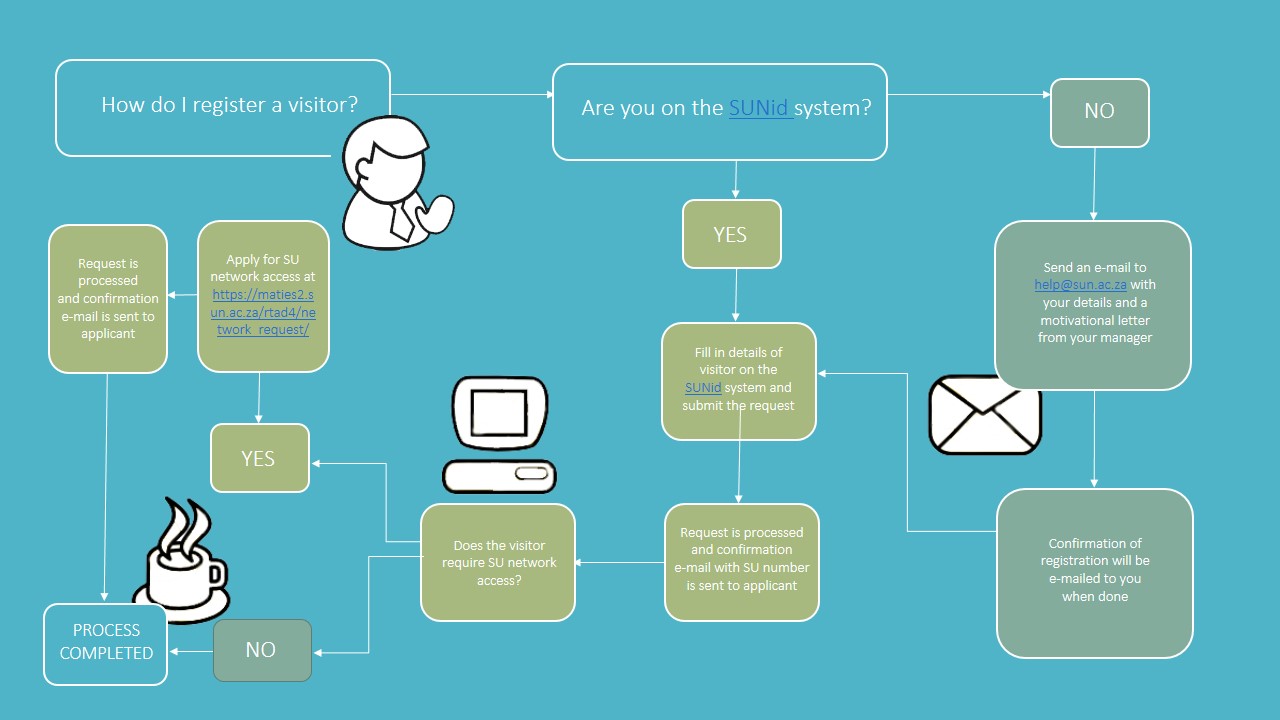
Two weeks ago we introduced a new decentralised process for activating access for vistors to the SU campus (read the article here) However, it seems that some confusion remains regarding the steps to follow and how the new process works. 

To explain this in a very simple way, we created a diagram explaining  the basics. All this information, as well as FAQs, is also available on our wiki.


kliek op die grafika vir die groter weergawe


Twee weke gelede het ons `n nuwe gedesentraliseerde proses vir die aktivering van toegang van besoekers aan die US-kampus aangekondig. (lees die artikel hier) Daar bestaan egter nog `n mate van verwarring oor die prosedures en hoe dit werk.

Om die proses eenvoudiger uit een te sit, het ons `n diagram saamgestel wat presies verduidelik hoe die stappe werk. Al dié inligting is ook in teks formaat op ons wiki beskikbaar. 


kliek op die grafika vir die groter weergawe