
SEARCH
  • [:en]Recent Posts[:af]Onlangse bydraes

  • [:en]Categories[:af]Kategorieë

  • [:en]Archives[:af]Argiewe

Internet

What can Google do for YOU today?Wat kan Google vandag vir JOU doen?

Friday, August 16th, 2013

What would we do without Google – in fact, can you imagine your life pre-Google? But did you know that you can do much more than look up random facts with Google?

In May 2012 Google announced they will be adding Knowledge Graph as an additional function to their Google search engine. Ok great, but what is  Knowledge Graph?

Knowledge Graph is  a central source of information collected from various sources, including the CIA World FactbookFreebase, and Wikipedia. This database gives structured and detailed information on a topic, together with the standard list of suggested links.

The purpose of the database is for uses to make use of the Knowledge Graph information without having to click on links which lead them to other websites.  Since 2012 this semantic network consists of more than 570 million objects and more than 10 billion facts!

Sounds quite nifty, doesn’t it? So what kind of information can you track down with this so-called Knowledge Graph?

You’ve probably already used Google translate,  an application which allows you to translate any phrase or word to another.  Google translate is part of the Knowledge Graph. Unfortunately Google’s Afrikaans skills aren’t quite up to standard yet, so don’t depend too much on it for translation to and from Afrikaans.

Apart from Google’s impressive language skills, it can also calculate the exchange rate for you when you’re going overseas. Just type in the amount and currency and the currency to which you want to convert it and you’re all set to swipe your credit card to your heart’s content in that three storey bookshop in Leuven! For example, type “10 rand to Euro” and it will instantly be converted to the right amount.

When travelling, you’ll probably be speculating about which weather to expect so you can pack the right clothes. Type in (for example)  “The weather in Antwerp” and within seconds you clothing dilemma is solved and worries about the 20 kg limit are diminished.

Are those French breakfasts too tasty for your own good and you’re starting to worry about your growing middle and cholesterol levels?  Google “How much protein is in an egg?” and you might just switch from filled omelettes to muesli.

Since you’re already worried about your health, why not look up the ailment you believe you contracted during your travels. Knowledge Graph gives you fast access to health inormation, including conditions and medication. Type in a specific ailment or medication and the explanation will be displayed.

You can even look up the sunrise and sunsets, times in various cities and specific holidays.

Having problems converting measurements – whether it’s inches, feet or other measurements, the search engine can convert height, weight, volume and temperature. Type in “2mm to inches” in the search box and press Enter. If you need more measurement options, click on the drop down list.

Speaking of numbers – for those of us who aren’t blessed with mathematical brains, Google will to the adding up for you. A dictionary function is also available for the left brainers. The dictionay can be activated by adding “define” in front of the word or just by typing it incorrectly!

Google is constantly adding new applications and extras to their search engine. Have a look at what else they have to offer at https://www.google.co.za/intl/af/help/features.html.

[SOURCE: www.cnet.com and www.wikipedia.org]


Wat sou ons tog sonder Google in ons lewens gedoen het – kan jy jouself ooit `n lewe pre-Google voorstel?! Maar het jy geweet dat jy meer met Google kan doen as net lukrake feite opsoek?

Google het in Mei 2012 aangekondig dat Knowledge Graph as addisionele funksie tot die Google soekenjin bygevoeg. Gaaf, maar wat is Knowledge Graph?

Knowledge Graph is `n sentrale bron van inligting wat versamel is van verskeie bronne soos CIA World FactbookFreebaseen WikipediaHierdie databasis verskaf gestruktureerde en gedetaileerde inligting oor `n onderwerp, saam met die standaard lys voorgestelde skakels.

Die doel hiervan is sodat gebruikers van die Knowledge Graph inligting kan gebruik sonder om verder te kliek op skakels wat hulle wegneem na ander webwerwe. Vanaf 2012 beskik hierdie semantiese netwerk oor meer as 570 miljoen objekte en meer as 10 biljoen feite!

Klink heel handig, né? So wat kan `n mens alles opspoor met hierdie sogenaamde Knowledge Graph?

Jy het waarskynlik al gebruik gemaak van Google translate, `n funksie wat jou toelaat om enige woord of frase van een taal na `n ander te vertaal. Google translate is deel van die Knowledge Graph. Ongelukkig is Google se Afrikaanse vaardighede nog nie so geslyp nie, so moet maar nie te veel daarop vertrou vir Afrikaans nie.

Maar buiten vir Google se indrukwekkende vertaalvaardighede, kan dit ook jou geldkoers vir jou bereken wanneer jy oorsee gaan. Voer bloot die bedrag en eenheid van en waarheen dit moet omgeskakel word en jy’s reg om jou kredietkaart te gaan sleep in daai winkel in Leuven met die drie verdiepings boeke! Tik byvoorbeeld “10 rand to Euro” in en dit word dadelik vir jou omgesit in die regte bedrag.

Wanneer jy aan die reis is, wonder waarskynlik ook oor die weer en wat jy moet inpak om nie die 20kg limiet te oorskry nie. Tik `n frase soos “The weather in Antwerp” en binne sekondes is jou klere-dilemma uitgesorteer.

Smaak die ontbyte in Frankryk te lekker en jy begin bekommerd raak oor die groeiende omstek van jou middellyf en cholesterolvlakke? Google net “How much protein is in an egg?” en jy sal dalk gou oorskakel na muesli ipv gevulde omelette.

Aangesien jy nou alreeds bekommerd is oor jou gesondheid – soek sommer die kwaal op wat jy vermoed jy opgedoen het in jou reise. Knowledge Graph gee jou vinnige toegang tot gesondheidsinligting, insluitende toestande of medikasie. Tik in `n spesifieke siekte of medikasie en `n verduideliking sal opkom. 

Jy kan selfs die sonopkoms en ondergange, tye in verskeie stede en spesifieke vakansiedae opsoek.

Sukkel jy met omskakeling van mates – of dit nou duime, voete of ander mates is, die soekenjin kan selfs hoogte, gewig, volume en temperatuur omskakel. Tik byvoorbeeld in e “2mm to inches” in soekboksie en druk Enter. As jy meer mates soek, kliek net op die aftuimellys. 

Gepraat van syfers – vir die van ons wat nie geseënd is met wiskundige breine nie, sal Google die optelsom vir jou doen. Ook vir die linkerbreine is daar `n woordeboek-opsie. DIt kan geaktiveer word deur “define” vooraan die woord te tik of net verkeerd te spel! 

Google voeg deurlopend allerhande nuwe toepassings en ekstras by hul soekenjin. Gaan kyk `n bietjie wat daar nog is by https://www.google.co.za/intl/af/help/features.html.

[SOURCE: www.cnet.com & www.wikipedia.com]


Your conference – unpluggedGaan draadloos met jou konferensie

Friday, June 7th, 2013

As the trend to use your own, personal devices within the university environment increases, so does the need and expectation to have access to the internet at all times and wherever you are.

This is also the case when it comes to conferences and other academic events on campus. But how do you go about to make life easier for your and your conference attendees?

To apply for wireless access for your conference or event, just follow these simple instructions.

E-mail help@sun.ac.za with the following information*
 
Name of conference/visitor
Location of conference (building, room)
Start date and time
End date and time
Interdepartmental requisition (OE 6414​ for the amount of R300-00 per day)
Contact person
 

* E-mail has to be sent 14 days prior to the conference or arrival of visitor to ensure that there are existing WAPs (wireless access points ) at the location)


As soon as the request is received and after the SSID –  “service set identifier,” (username and password) is created, you will be notified by e-mail or telephonically.  When conference goers or visitors are inside the WIFI area, their equipment will pick up the WIFI  and they will be able to connect.

Soos ons nader beweeg aan die gebruik van eie, persoonlike toestelle binne die universiteitsomgewing, raak die behoefte en verwagting om oral en altyd toegang tot die internet te hê, steeds toenemend groter.

Dis ook die geval by konferensies en ander akademiese geleenthede op kampus. Maar hoe gemaak om die lewe vir jou en jou konferensiegangers makliker te maak?

Om aansoek te doen vir draadlose (wireless) toegang vir jou konferensie of geleentheid, volg bloot die onderstaande instruksies. 

Epos aan help@sun.ac.za met die volgende inligting*

  1. Konferensie se naam
  2. Plek waar konferensie gaan plaasvind
  3. Begindatum en tyd
  4. Einddatum en tyd
  5. Interdepartementele rekwisisie aan OE 6414 vir die bedrag van R300/dag
  6. Kontakpersoon 

* Epos moet asb 14 dae voor die konferensie begin aan help@sun.ac.za gestuur word, want dit mag wees dat daar nie bestaande WAPs (wireless access points ) is waar die konferensie gaan plaasvind nie. 

Sodra die versoek ontvang is, en nadat die SSID –  “service set identifier,” (gebruikersnaam en wagwoord) geskep is, sal die gebruiker per epos / telefonies in kennis gestel word wat die gebruikersnaam en wagwoord is waarmee konferensiegangers of besoekers kan konnekteer. 

Wanneer konferensiegangers / besoekers  binne die WIFI area is, sal hulle apparatuur (laptops, ens.) die WIFI optel, en kan hulle daaraan konnekteer. 

Still missing out on the new SU website?Sien jy nog die ou US-webwerf?

Friday, April 26th, 2013

On Monday when we browsed to www.sun.ac.za, most of us were met with a fresh new Stellenbosch University web site.  For those of you who still haven’t managed to see what the fuss is about, here’s how to fix that. (Read more on the new site)
Each time you access a page through your web browser, the browser caches (i.e., stores) it locally. The browser does this to reduce bandwidth usage, server load and also to load pages faster.

By doing this, the browser doesn’t have to newly retrieve files or images from the remote web site each time. As convenient as this is, it also means that if you do not clean your browser’s cache, you might miss out on new information and any changes on websites.

If, after Monday’s changes to the university’s homepage, you are experiencing problems accessing the new sun page or any other sun web pages, we suggest you clear your browser’s cache.

Below you’ll find instructions on how to do this, depending on the browser you use.


Internet Explorer 9 and 8

  • Click Tools, and select Delete Browsing History… .
  • Deselect Preserve Favorites website data, and select Temporary Internet filesCookies, and History.
  • Click Delete.

Internet Explorer 7

  • From the Tools menu in the upper right, select Delete Browsing History… .
  • To delete your cache, click Delete files….To delete your cookies, click Delete cookies… .

    To delete your history, click Delete history… .

  • Click Close, and then click OK to exit.

Firefox

The following instructions apply to Firefox 3.5 and later.

  • From the Tools menu, select Clear Recent History. (Alternatively, in Firefox 4 and above for Windows, you can also click the orange Firefox button, and then select Clear Recent History from the History menu.)If the menu bar is hidden, press Alt to make it visible.
  • From the Time range to clear: drop-down menu, select the desired range; to clear your entire cache, select Everything.
  • Click the down arrow next to “Details” to choose which elements of the history to clear. Click Clear Now.

Chrome

  • In the browser bar, enter: chrome://settings/clearBrowserData
  • Select the items you want to clear (e.g., Clear browsing historyClear download historyEmpty the cacheDelete cookies and other site and plug-in data).From the Obliterate the following items from: drop-down menu, you can choose the period of time for which you want to clear cached information. To clear your entire cache, select the beginning of time.
  • Click Clear browsing data.

Opera

  • From the Opera menu, select Settings, and then Delete Private Data… .
  • In the dialog box that opens, select the items you want to clear, and then click Delete.

Safari

  • From the Safari menu, select Reset Safari… .
  • From the menu, select the items you want to reset, and then click Reset. As of Safari 5.1, Remove all website data covers both cookies and cache.

Mobile Safari for iPhone OS (iPhone, iPod touch, iPad)

To clear cache and cookies:

  1. From the home screen, tap Settings, and then tap Safari.
  2. At the bottom of Safari’s settings screen, tap Clear cookies and data, or Clear Cookies and Clear Cache. Confirm when prompted.

To clear history:

  1. From the home screen, tap Safari.
  2. At the bottom of the screen, tap the Bookmarks icon.
  3. In the lower left, tap Clear.
  4. Tap Clear History.

Android

  1. Start your browser.
  2. Tap Menu, and then tap More.
  3. Select Settings.
  4. Under “Privacy settings”, select Clear cacheClear history, or Clear all cookie data as appropriate, and then tap OK to accept (or Cancel to cancel) the deletion.

(SOURCES: http://kb.iu.edu/data/ahic.html & www.wikipedia.org)

Die afgelope Maandag is ons verras deur `n splinternuwe US-tuisblad, maar sommige mense kon nie dadelik die nuwe www.sun.ac.za sien nie. (Read more on the new site) Ons verduidelik hoekom en hoe om dit reg te maak. 

Elke keer wanneer jy `n bladsy deur middel van jou webblaaier lees, stoor die webblaaier die bladsy plaaslik. Die redes hiervoor is om die gebruik van bandwydte te verminder, die lading op die bediener te verminder en ook om bladsye vinniger oop te maak. 

Jou webblaaier hoef gevolglik nie elke keer leêrs of grafika te gaan haal vanaf die bediener waarop die webwerf is nie, maar soek dit plaaslik op die hardeskyf. Alhoewel dit `n handige proses is, beteken dit ook dat, as jy nie jou blaaier se geheue gereeld skoonmaak nie, jy mag uitmis op veranderinge en nuwe inligting. 

Indien jy na Maandag se veranderinge aan die US-webwerf, toegang tot www.sun.ac.za of ander US-bladsye waarby jy voorheen kon uitkom, problematies vind, stel ons voor dat jy jou blaaier se kitsgeheue (cache) skoonmaak. 

Onder is volledige instruksies om dit te doen, kies slegs jou spesifieke blaaier en volg die stappe.


Internet Explorer 9 and 8

  • Click Tools, and select Delete Browsing History… 
  • Deselect Preserve Favorites website data, and select Temporary Internet filesCookies, and History
  • Click Delete.

Internet Explorer 7

  • From the Tools menu in the upper right, select Delete Browsing History… 
  • To delete your cache, click Delete files….

    To delete your cookies, click Delete cookies… .

    To delete your history, click Delete history… .

  • Click Close, and then click OK to exit.

Firefox

The following instructions apply to Firefox 3.5 and later.

  • From the Tools menu, select Clear Recent History. (Alternatively, in Firefox 4 and above for Windows, you can also click the orange Firefox button, and then select Clear Recent History from the History menu.)

    If the menu bar is hidden, press Alt to make it visible.

  • From the Time range to clear: drop-down menu, select the desired range; to clear your entire cache, select Everything
  • Click the down arrow next to “Details” to choose which elements of the history to clear. Click Clear Now.

Chrome

  • In the browser bar, enter: chrome://settings/clearBrowserData
  • Select the items you want to clear (e.g., Clear browsing historyClear download historyEmpty the cacheDelete cookies and other site and plug-in data).

    From the Obliterate the following items from: drop-down menu, you can choose the period of time for which you want to clear cached information. To clear your entire cache, select the beginning of time.

  • Click Clear browsing data

Opera

  • From the Opera menu, select Settings, and then Delete Private Data… 
  • In the dialog box that opens, select the items you want to clear, and then click Delete.

Safari

  • From the Safari menu, select Reset Safari… 
  • From the menu, select the items you want to reset, and then click Reset. As of Safari 5.1, Remove all website data covers both cookies and cache.

Mobile Safari for iPhone OS (iPhone, iPod touch, iPad)

To clear cache and cookies:

  1. From the home screen, tap Settings, and then tap Safari
  2. At the bottom of Safari’s settings screen, tap Clear cookies and data, or Clear Cookies and Clear Cache. Confirm when prompted.

To clear history:

  1. From the home screen, tap Safari.
  2. At the bottom of the screen, tap the Bookmarks icon.
  3. In the lower left, tap Clear.
  4. Tap Clear History.

Android

  1. Start your browser. 
  2. Tap Menu, and then tap More
  3. Select Settings
  4. Under “Privacy settings”, select Clear cacheClear history, or Clear all cookie data as appropriate, and then tap OK to accept (or Cancel to cancel) the deletion.

(SOURCES: http://kb.iu.edu/data/ahic.html & www.w

The big drive in the skyTe veel data? Bêre dit op `n wolk

Friday, April 12th, 2013

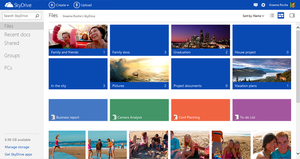
Last year we told you more about cloud storage, what it is and the multitude of options available to you. (read the articles here) If you haven’t taken the virtual leap yet, we have even more information for you to digest. This time we have a closer look at one of those options, Microsoft’s OneDrive.

What is OneDrive?

OneDrive is a file hosting service that allows users to upload and sync files to a cloud storage and then access them from a Web browser or their local device.

What does OneDrive offer me?

The service offers 7 GB of free storage and additional storage is available for purchase. Files of up to 300 MB can be uploaded via drag and drop into the web browser, or up to 2 GB via the OneDrive desktop application for Microsoft Windows and OS X.

With the OneDrive desktop application for Windows or Mac, your files on OneDrive are available online or offline and update automatically across your devices. You can also access your OneDrive using a brand new app for Android v2.3 or the updated apps for Windows Phone, iPhone, and iPad.

The Office apps (Word, Excel, etc.) let you save your documents by default into your OneDrive directory on your local computer. With the help of OneDrive, those files are synchronized with the files in your OneDrive cloud storage, letting you access them from anywhere, or edit them using the online Web version of Microsoft Office.

Online collaboration is made easy with the new  Office Web apps, including Excel forms, co-authoring in PowerPoint and embedable Word documents. Microsoft added Office Web Apps support to OneDrive allowing users to upload, create, edit, and share Microsoft Office documents directly within a Web browser.

You can share documents with other people, which provides them with a link to access the documents from their own OneDrive account. From there, the other people can make changes to the documents at the same time that you’re changing them. As you’re working, you’ll see the areas you’re changing. Then when you save, your document will receive the updates from the other person before saving. If there are any conflicts, you’ll be notified of them and given a chance to fix them.


When users delete any files on OneDrive, the service will allow the user to undo the action and restore the deleted file from the recycle bin back to the original folder.  All items stored in the recycle bin are kept for a minimum of 3 days and a maximum of 30 days.

OneDrive integrates with social networks such as Facebook, Twitter and LinkedIn to enable users to quickly share their files with their contacts on these social networks. It also supports geo-location data for photos uploaded onto the service, and will automatically display a map of the tagged location. OneDrive also allows users to tag people on the photos uploaded onto the service via the web interface or via Windows Photo Gallery.

Additionally you can sort files, change file views, view photo slide shows, and stream video.  All this functionality in one place, safe up in the clouds.

[SOURCE: Wikipedia]


Verlede jaar het ons julle meer vertel van “cloud storage”, wat dit behels en wat die opsies is as jy jou inligting erens op `n wolkie wil bêre. (lees die artikels hier) As jy nog nie die groot virtuele stap geneem het nie, het ons vandag meer inligting vir jou – die keer spesifiek oor Microsoft se Skydrive.

Wat is SkyDrive?

SkyDrive is a leêr huisvestingsdiens wat aan gebruikers die geleentheid gee om leêrs op te laai en sinkroniseer na `n wolkbergingsfasiliteit en daarna toegang daartoe te verkry deur middel van `n webblaaier of jou plaaslike toestel.

Wat bied SkyDrive my?

Die diens bied 7 GB gratis stoorspasie en ekstra spasie is te koop beskikbaar. Leêrs van tot 300 MB kan opgelaai word deur die webblaaier met `n sleep-en-los-proses of tot  2 GB deur middel van die SkyDrive gebruikskoppelvak-toepassing (desktop app) vir Microsoft Windows en OS X.

Met die SkyDrive gebruikskoppelvlak-toepassing vir Windows of Mac, is jou leêrs aanlyn of van lyn af beskikbaar en word dit outomaties oor alle toestelle opgedateer. Jy kan ook toegang tot SkyDrive verkry deur `n splinternuwe toepassing vir Androi v2.3 of die opgedateerde toepassing vir Windows Phone, iPhone, en iPad te gebruik.

Die Office toepassingss (Word, Excel, etc.) laat jou toe om jou dokumente by verstek na die SkyDrive gids op jou plaaslike rekenaar te stoor. Met die hulp van SkyDrive word daardie leêrs gesinkroniseer met jou dokumente in jou SkyDrive wolkstoorspasie – en gevolglik het jy toegang van enige plek en kan jy jou dokumente aanlyn redigeer met die webweergawe van Microsoft Office.

Aanlyn samewerking word aansienlik vergemaklik met nuwe Office Web toepassings, insluitende Excel vorms, mede-outeurskap in PowerPoint en ingebedde Word-dokumente. As jy dokumente deel met ander mense wil deel, word `n skakel outomaties aan hulle gegee waarmee hulle deur hul eie SkyDrive-rekening toegang tot die dokumente kan kry. Hulle kan veranderinge aanbring aan die dokumente terwyl jy ook daaraan werk en jy kan die veranderinge  sien soos dit verander word. Wanneer jy dus die dokument wil stoor, sal jy die opdaterings van die ander persoon ontvang. Indien daar enige konflikte is, sal jy daarvan in kennis gestel word en die geleentheid kry om dit aan te pas. Jy kan ook die geskiedenis van al die vorige weergawes nagaan.

Indien jy enige dokumente uitvee van SkyDrive, laat die diens jou toe om die aksie te herroep en die verwyderde dokument te herstel na sy oorspronklike leêr uit die Recycle bin. Alle items in die Recycle bin word vir `n minimum van 3 dae gestoor en `n maksimum van 30 dae.

SkyDrive is ten volle geintegreer met sosiale netwerke soos Facebook, Twitter en LinkedIn om aan gebruikers die geleentheid te gee om vinnig leêrs met hulle kontakte te deel op hierdie netwerke. Dit ondersteun ook geo-ligging data vir fotos wat opgelaai word en sal outomaties `n kaart wys indien `n ligging gemerk word. SkyDrive laat ook gebruikers toe om persone te merk op fotos deur middel van die webkoppelvlak of deur die Windows fotogallery. 

Addisioneel tot bogemoemde funksies kan jy ook leêrs sorteer, leêr uitlegte verander, foto skyfievertonings kyk en video stroom. Al hierdie funksionaliteit op een plek, veilig in die wolke.

[SOURCE: Wikipedia]


(more…)

It’s all about memeMemes neem oor

Friday, April 12th, 2013

Years ago it was the dancing baby, now it’s the Harlem Shake. These silly & sometimes shocking internet video clips are called meme’s and they’re just as entertaining and random as their live siblings, flashmobs.

A meme is a phenomenon spreading via the internet and can take on various forms – images (for example the Grumpy Cat and Lol cats photos), video, hashtags, websites or a simple work or phrase.

The word memes was originally coined by evolusionary biologist Richard Dawkins in his 1976 book The Selfish Gene. The word originated from the Greek word  “mimema” (which means “something imitated”). Dawkins described memes as a form of cultural propaganda, a means for people to communicate social memories and cultural ideas to each other. Memes spread organically and just like evolutionary biology, they include mutations and duplications. They spread fast and very rapidly change into different, new versions. People see the original, imitate and change it, and then distribute the new version on the internet.

Telling examples include the dancing baby, dating from 1996, and possibly also one of the first well-known memes. Recently the internet was invaded by the notorious Harlem Shake, a meme that even featuring during a Varsity Cup match.

Came across any interesting memes? Let us know!

[SOURCE: www.howtogeek.com & www.about.com]

Eers was dit die dansende baba en deesdae is die Harlem Shake die nuuste gier.  Hierdie verspotte en soms uitlokkende verskynsels word memes genoem en is net so lukraak en vermaaklik as hul lewendige flitsbende-weergawes. 

`n Meme is `n verskynsel versprei deur middel van die internet en kan in die vorm wees van `n prentjie (byvoorbeeld die Grumpy Cat en Lol-cats fotos), video, hutstekens, webwerwe of `n eenvoudige woord of frase. 

Die woord memes is ook oorspronklik geskep deur evolusie-bioloog Richard Dawkins in sy 1976 boek The Selfish Gene. Die woord “meme” is afgelei van die Grieks “mimema” (wat beteken “iets wat nageboots is”). Dawkins het memes beskryf as `n vorm van kulturele propaganda, `n wyse waarop mense sosiale herinneringe en kulturele idees aan mekaar oordra.  Memes versprei organies en net soos evolusionêre biologie, sluit hulle mutasies en dupliserings in. Hulle kan tipies daaraan herken word dat hulle vinnig ontwikkel in ander, nuwe weergawes. Internetgebruikers sien die oorspronklike, boots dit na, verander en versprei dit deur middel van die internet. 

Sprekende voorbeelde van internet memes, sluit 1996 se dansende baba, en waarskynlik een van die eerste bekende memes, in. Meer onlangs is die internet oorgeneem deur die berugte Harlem Shake wat selfs by `n Varsity Cup wedstryd sy kop uitgesteek het. 

Het jy al op interessante memes afgekom? Laat ons weet!

[SOURCE: www.howtogeek.com & www.about.com]