SEARCH
  • [:en]Recent Posts[:af]Onlangse bydraes

  • [:en]Categories[:af]Kategorieë

  • [:en]Archives[:af]Argiewe

Notices

[:en]Reactivate your username before 1 April[:af]Heraktiveer jou gebruikersnaam voor 1 April[:]

Monday, February 8th, 2021

[:en]

Network access (usernames) for staff will expire at the end of March unless you reactivate your username.

We suggest that you reactivate yours as soon as possible to ensure uninterrupted access to IT services (internet, email, SUN-e-HR etc.). Keep in mind that the cost centre manager still has to approve your request before your username is reactivated; allow sufficient time for this to be done to avoid disruption of your service.

You will receive an email from helpinfo@sun.ac.za indicating that your username (“engagement”) will expire soon. Three notifications will be sent before the end of March. Alternatively, you can go directly to the reactivation page.

Once logged into the reactivation page, you can select the services you want to reactivate.  You are encouraged to read the ECP (Electronic Communication Policy) before reactivating.

Choose the services (network / email usernames and internet usernames) you want to register for (see images below).

 

Reactivation of internet usernames is no longer necessary and can be ignored.

Make sure you select the correct cost points and if you’re unsure ask your cost centre manager. Click Accept and Reactivate.

 You will receive a notification stating that your request has been submitted, as well as a confirmation email. 

The webpage will indicate that it will be activated as soon as it has been approved by the cost centre manager. When the cost centre manager approves the reactivation request access will be extended to the end of March next year.

If you have completed these steps successfully and still receive emails from helpinfo@sun.ac.za urging you to reactivate, please go back to the reactivation page and make sure the appropriate boxes are checked: Your Network / Email usernames Your Internet usernames

 If you are still not able to reactivate, please raise a request at servicedesk.sun.ac.za

[:af]

Alle personeel se netwerktoegang en gebruikersname verval outomaties einde Maart, tensy jy dit heraktiveer.

Om te verseker dat jy ononderbroke toegang tot IT-dienste (byvoorbeeld e-pos, internet, SUN-e-HR) het, stel ons voor dat jy dit so gou as moontlik afhandel. Neem in ag dat die kostepuntbestuurder eers jou aansoek moet goedkeur voordat jou toegang heraktiveer is. Laat dus voldoende tyd toe dat die proses afgehandel kan word sodat jou diens nie onderbreek word nie. 

Jy sal ʼn e-pos van helpinfo@sun.ac.za ontvang wat aandui dat jou gebruikersnaam (“engagement”) gaan verval. Drie waarskuwings word gestuur voor einde Maart. Alternatiewelik kan jy ook  direk na die heraktiveringsblad gaan wanneer jy verkies.

Sodra jy aangeteken is op die heraktiveringsblad, kan jy kies watter dienste jy wil heraktiveer. Bo-aan die bladsy, kry jy die geleentheid om die EKB (Elektroniese Kommunikasiebeleid) te lees. Ons beveel aan dat jy dit eers lees sodat jy jouself kan vereenselwig met die voorwaardes wat verbonde is aan jou netwerkgebruik. 

Kies die dienste waarvoor jy wil heraktiveer:


Heraktivering van internet-gebruikersname is nie meer nodig nie en kan geignoreer word.

Maak seker dat die korrekte kostepunt en projek (indien van toepassing) ingevul is.

Kliek Accept and Reactivate.

Die webblad sal aandui dat jou versoek ontvang is en dat jy ʼn e-pos sal kry wanneer dit goedgekeur is. Jy sal ook dadelik ʼn e-pos kry om te bevestig dat jou versoek ontvang is. 

Die useradm webwerf sal aandui dat die aansoek nog goedgekeur moet word deur die kostepuntbestuurder. Sodra dit goedgekeur is, sal die toegang geskuif word na einde Maart volgende jaar.

Indien bogenoemde stappe suksesvol voltooi het en jy nogsteeds e-posse ontvang vanaf helpinfo@sun.ac.za  oor heraktivering, kontak asb. die IT Dienstoonbank by  021 808 4367 of stuur ʼn e-pos aan help@sun.ac.za. Die rede hiervoor mag die status van jou rol by die universiteit wees. 

[:]

[:en]Internet downtime due to firewall upgrade[:af]Internet aftyd weens firewall opgradering[:]

Thursday, February 4th, 2021

[:en]

During the weekend of 19 February the outdated firewall that we have been using for internet access from campus up till will be replaced with brand new technology. 

Due to the firewall upgrade the internet will not be available from Saturday, 20 February 2021 at 10:00 to Sunday, 21 February 2021 at 12:00. This upgrade will be taking place during the scheduled, quarterly maintenance weekend.

No internet traffic to and from campus will therefore be possible. This includes VPN-access to the SU intranet and all services hosted on the network.  

After the replacement Inetkey will no longer be used for internet access. 


[:af]

Gedurende die naweek van 19 Februarie word die verouderde firewall wat tot op hede gebruik is vir toegang vanaf kampus na die internet vervang met splinternuwe tegnologie. 

Weens die vervanging van die kampusnetwerk firewall sal die internet vanaf Saterdag, 20 Februarie 2021 om 10:00 tot Sondag, 21 Feb 2021 om 12:00 nie beskikbaar wees nie. Hierdie opgradering vind plaas tydens die geskeduleerde, kwartaalikse onderhoudsnaweek.

Vervolgens sal geen internetverkeer na of van kampus moontlik wees nie. Dit sluit VPN-toegang tot die US intranet en alle dienste wat op die netwerk gehuisves word in.  

Na die vervanging gaan Inetkey nie meer nodig wees vir internettoegang nie. 


[:]

[:en]Fortinet VPN replaced by Citrix gateway[:af]FortiClient VPN vervang met Citrix[:]

Tuesday, February 2nd, 2021

[:en]

Many of you have been using FortiClient VPN for quite some time to access internal University services i.e.

  • TeraTerm
  • SSH or remote desktop to your work computer/server, usually for access to specialist software or resources.
  • Full drive mapping (G: H: and P:) and scope of services as if you are in your office. 

However, FortiClient is built on outdated technology and from the end of February no longer be the default VPN (Virtual Private Network).

The new service has been made available by Information Technology for students and staff.  Citrix Gateway will allow you to access internal, University network-based applications from the Internet. This service, as well as the University, is protected and secured by multi-factor authentication for identity verification and requires that a device must meet specific security requirements before it is allowed on the University’s network.

Windows users:

If you are a Windows user, we recommend that you replace FortiClient with Citrix Gateway as soon as possible. 

Linux users:

Unfortunately, our Linux users can only use Citrix on the following versions: 

  • Ubuntu LTS 14.04 LTS and 16.04 LTS. (32-bit and 64-bit)  

If you are using other versions of Linux, you will still have to use FortiClient until an alternative becomes available. FortiNet installation instructions can be found here. 

Apple users:

Users with Apple devices such as MacBooks and iMacs can log a request for assistance on the ICT Partner Portal.

How to I get Citrix Gateway?

Students and permanent staff with Windows devices can migrate to the new VPN service by going to their web browser to the site https://securevpn.sun.ac.za and follow the on-screen instructions.

SunID users need to log a request on the ICT Partner Portal and select the Remote Access option right at the top. Once a technician contacts you and all required info is received, you can migrate to SU VPN MSP service by going to their web browser to the site https://suvpnmsp.sun.ac.za and follow the on-screen instructions.

Alternatively, you can log a request for assistance with the setup of VPN on the ICT Partner Portal.

[:af]

Heelwat personeel gebruik reeds vir `n geruime tyd die FortiClient VPN om toegang te kry tot die Universiteit se interne dienste, byvoorbeeld

  • TeraTerm
  • SSH of remote desktop na jou werkrekenaar of bediener vir toegang tot spesialisprogrammatuur of -bronne.
  • Drive mapping (G: H: en P:) en ander dienste asof jy in jou kantoor is. 

FortiClient is egter gebou op verouderde tegnologie en is sedert einde Februarie nie meer die verstek VPN (Virtual Private Network) diens nie.

Informasietegnologie het die nuwe diens beskikbaar gemaak vir personeel en studente. Citrix Gateway sal jou toegang gee tot interne, Universiteitsgebaseerde toepassings via die Internet. Hierdie diens, sowel as die Universiteit, word sodoende beskerm deur veelfaktorbekragtiging vir die verifikasie van identiteit en vereis ook dat `n toestel moet voldoen aan spesifieke vereistes voordat dit op die US-netwerk toegelaat word.

Windows-gebruikers:

Indien jy `n Windows-gebruiker is, stel ons voor dat jy so gou moontlik FortiClient met die Citrix Gateway programmatuur vervang.

Linux-gebruikers:

Ongelukkig kan Linux-gebruikers Citrix op slegs die volgende weergawes gebruik: 

  • Ubuntu LTS 14.04 LTS en 16.04 LTS. (32-bit en 64-bit)  

Indien jy enige ander Linux-weergawes gebruik, moet jy ongelukkig steeds FortiClient gebruik totdat `n alternatief beskikbaar is. Instruksies vir die installasie van FortiNet is hier beskikbaar. 

Apple-gebruikers:

Gebruikers met Apple-toestelle soos MacBooks en iMacs kan `n versoek aanteken op die ICT Partner Portal vir hulp met installasies.

Hoe kry ek die Citrix Gateway-programmatuur?

Studente en permanente personeel wat Windows gebruik kan migreer na die Citrix VPN-diens deur via hulle webblaaier te gaan na https://securevpn.sun.ac.za en die instruksies te volg.

SunID-gebruikers moet asb. `n versoek aanteken op die ICT Partner Portal en die Remote Access-opsie heel bo kies. Sodra `n tegnikus jou gekontak het en al die inligting is verskaf, kan jy migreer na die SU VPN MSP-dien deur na https://suvpnmsp.sun.ac.za te gaan en die instruksies op die skerm te volg.

Alternatiewelik kan jy `n versoek aanteken om hulp aan te vra met die opstelling van VPN op die ICT Partner Portal


[:]

[:en]Maintenance weekend: 19 February[:af]Onderhoudnaweek: 19 Februarie[:]

Monday, February 1st, 2021

[:en]

 Information Technology will be conducting maintenance on various components of the IT infrastructure over the weekend of 19 February and some downtime can be expected. 
Quarterly, scheduled maintenance will be taking place from Friday, 19 February at 17:00 to Monday, 22 February at 08:00. Various IT services and systems are affected by this and can become unavailable, partly or entirely.

During the maintenance weekend the current outdated firewall which provided access to off-campus internet will be upgraded to new technology. This will result in estimated internet downtime from Saturday, 20 February at 10:00 to Sunday, 21 Feb 2021 at 12:00. 

Due to the extent of this maintenance and the necessity for thorough testing of systems and services the possibility exists that some interruptions might occur into Monday.

Please rest assured that we will try our best to limit interruptions to a minimum. For inquiries please log a request on the ICT Partner Portal.

[:af]

Informasietegnologie sal gedurende die naweek van 19 Februarie onderhoud uitvoer op verskillende komponente van die IT infrastruktuur. Gevolglik sal daar tye wees wanneer stelsels nie beskikbaar is nie.

Kwartaallikse, geskeduleerde onderhoud vind plaas vanaf 17:00 Vrydag, 19 Februarie tot 08:00 Maandag, 22 Februarie. Verskeie IT dienste en stelsels word hierdeur geraak en kan gedeeltelik of in geheel nie beskikbaar wees nie.

Gedurende die onderhoudnaweek sal die huidige, verouderde firewall, wat tot op hede toegang tot internet buite kampus gebied het, opgegradeer word. Die opgradering sal lei tot beraamde  internet onbeskikbaarheid vanaf Saterdag, 20 Februarie 2021 om 10:00 tot Sondag, 21 Feb 2021 om 12:00. 

Weens die omvangryke onderhoud en die noodsaaklikheid vir deeglike toetsing van stelsels en dienste kan onderbrekings Maandag ook voortduur.

Wees verseker dat ons alles binne ons vermoë sal doen om onderbrekings tot die minimum te beperk. Vir navrae meld ʼn versoek aan op die ICT Partner Portal.

[:]

[:en]Apple update news[:]

Wednesday, December 2nd, 2020

[:en]

Should I upgrade to macOS Big Sur?

macOS 11 Big Sur is now available to the public and it comes with new features and changes. But you may be wondering, should I upgrade to macOS Big Sur on my Mac?

macOS 11 Big Sur has been widely seen as the least stable of the major new Apple software releases this year during the beta period.

Common issues have included graphical issues like problems with external display support, apps freezing, and random reboots. Stability has improved over the course of the beta period and Apple had postponed macOS Big Sur launching to November instead of September or October, but bugs and performance issues are not totally resolved yet.

So, the question remains, should I upgrade to macOS Big Sur?

  • if you have any concerns about app stability, performance issues, and other bugs, hold out at least for the next bug fix update before upgrading (but maybe even a later update depending on your stability tolerance).
  • If you have critical apps that must work, make sure to check for Big Sur compatibility before upgrading whenever you choose to (initial release not recommended if you have crucial apps)

[Source: https://9to5mac.com/2020/11/16/should-i-upgrade-to-big-sur-on-my-mac/] 

We at IT have received reports of issues with software like Parrallels®, Adobe Acrobat, Microsoft Office after upgrading to Big Sur. We recommend that user refrain from upgrading to Big Sur.


Apple’s M1 chipset could have some major compatibility issues

Since Apple made its reveal of the M1 chip during the ‘One More Thing’ event on November 10, everyone has been itching to get their hands on a new MacBook Air or MacBook Pro to see for themselves if this SoC (System on a chip) lives up to its hype. 

Whilst we certainly enjoyed the new machines ourselves, some prominent figures on Twitter are documenting various compatibility issues when using the new M1-powered machines.

Patrick Moorhead (@patrickmoorehead) is a well-known tech analyst, so his claims shouldn’t be dismissed. We’re also seeing other reports popping up over social media sites that reveal his problems are not isolated issues, to the point where a web service called ‘Is Apple Silicon Ready?’ has now been set up to track the compatibility of important Mac software and found around 40% had compatibility issues.

How to check your apps are silicon ready

You can check your existing applications and the Apple Silicon M1 compatible apps database for yourself using the above service, and follow along on the ‘Is Apple Silicon Ready?’ Twitter account for updates. You can also check the featured story on the Mac App Store that highlights what M1 compatible apps are readily available

Source: https://www.techradar.com/news/apples-m1-chipset-could-have-some-major-compatibility-issues

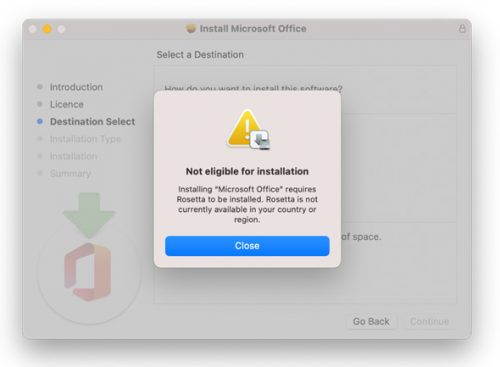
If your apps are not compatible with the new M1 chip you are likely to receive errors when installing. Applications are built to run on specific processors, and not every developer has done all the work necessary to make their apps run natively on Apple Silicon Macs. M1-powered Macs can run native, universal (in which the installer carries code for both Intel and Apple chips) and Intel apps.

Apple is encouraging developers to release universal apps where possible and is making it possible to run Intel apps on Apple silicon using emulation technology called Rosetta 2.

What is Rosetta 2?

Rosetta 2 is an emulator designed to bridge the transition between Intel and Apple processors. In short, it translates apps built for Intel so they will run on Apple Silicon.

Without Rosetta 2 you won’t be able to install applications with .pgk extensions. Rosetta 2 according to Apple is not currently available in South Africa.

[ARTICLE BY BRADLEY VAN DER VENTER]

[:]