SEARCH
  • [:en]Recent Posts[:af]Onlangse bydraes

  • [:en]Categories[:af]Kategorieë

  • [:en]Archives[:af]Argiewe

Notices

[:en]Safelinks protecting you against phishing[:af]Safelinks beskerm jou teen strikroof[:]

Thursday, October 8th, 2020

[:en]

 In January 2020 Information Technology activated a preventative security tool called Safe Links to protect all staff and students from email phishing attempts.

You might have noticed that some of the links in your emails suddenly started displaying a very long link which starts with https://eur03.safelinks.protection.outlook.com/ followed by the rest of the web link. This is an extra obstacle built in to our Microsoft security features which checks if a site has been listed as dangerous and prevents you from clicking on it. If you do click on it, you will see the following warning:
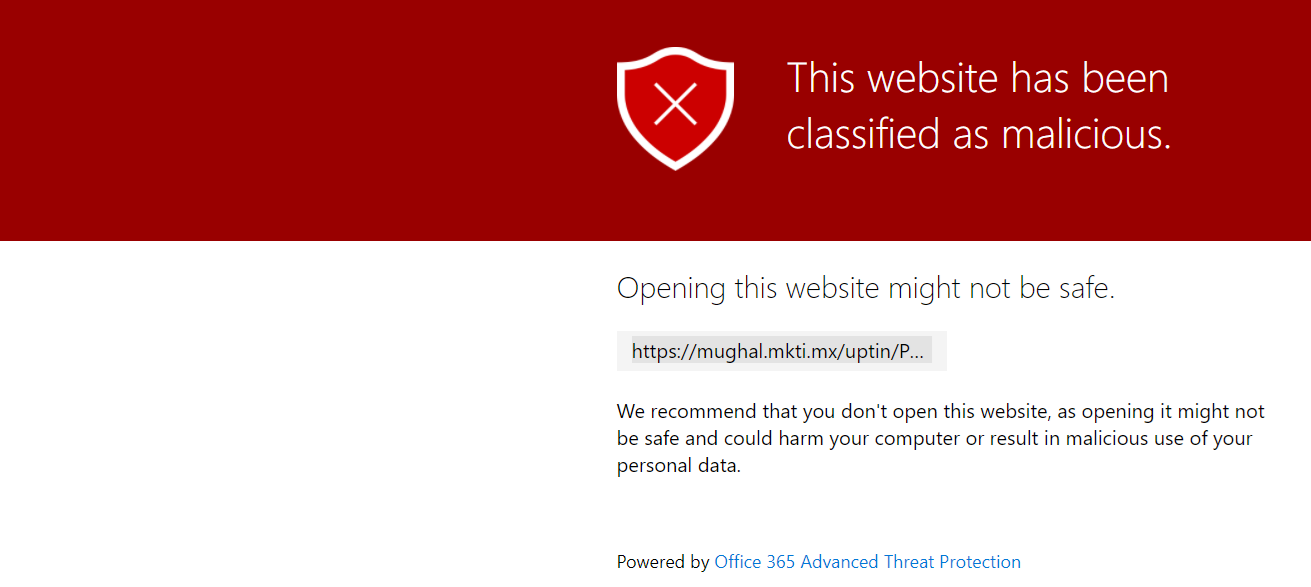
Definition of Safe Links

“Safe Links is a feature in Office 365 Advanced Threat Protection that provides URL scanning and rewriting of inbound email messages in mail flow, and time-of-click verification of URLs and links in email messages and other locations. Safe Links scanning occurs in addition to the regular anti-spam and anti-malware protection in inbound email messages in Exchange Online Protection (EOP). Safe Links scanning can help protect your organisation from malicious links that are used in phishing and other attacks.”  

With this added feature we eliminated some of the risk facing staff and students when it comes to phishing and other security attacks from hackers. However, this does not mean you shouldn’t still be vigilant when you open an email.

Familiarise yourself with the basic tell-tale signs of a phishing email. Think before you click on a link or open an attachment. Information Technology can only protect you up to a point, the rest is your responsibility – this is especially true in these times when you work from home.


[:af]

In Januarie 2020 het Informasietegnologie Safe Links,`n voorkomende sekuriteitshulpmiddel, geaktiveer om personeel en studente te beskerm teen strikroofaanvalle.

 Jy sou moontlik opgemerk het dat die skakels in jou e-posse die afgelope paar maande skielik `n ekstra lang adres wys as jy met die muis daaroor beweeg. Die skakel sal begin met https://eur03.safelinks.protection.outlook.com/ gevolg deur die webwerf se skakel. Hierdie proses is `n ekstra hekkie wat in ons Microsoft sekuriteitsfunksie gebou. Die funksionaliteit gaan na of `n webwerf as gevaarlik of hoë risiko gelys is en indien wel, keer dit dat jy op die skakel kliek. Indien jy op die skakel kliek sal die volgende waarskuwing verskyn. 

Definisie van Safe Links

“Safe Links is a feature in Office 365 Advanced Threat Protection that provides URL scanning and rewriting of inbound email messages in mail flow, and time-of-click verification of URLs and links in email messages and other locations. Safe Links scanning occurs in addition to the regular anti-spam and anti-malware protection in inbound email messages in Exchange Online Protection (EOP). Safe Links scanning can help protect your organisation from malicious links that are used in phishing and other attacks.”  

Met hierdie addisionele funksie word sommige van die strikroof- en sekuriteitsrisikos waarmee personeel en studente gekonfronteer word verminder. Dit beteken egter nie dat jy gerus moet wees wanneer jy e-posse oopmaak nie.

Maak seker jy weet wat die basiese tekens is van `n strikroof e-pos. Dink en lees voor jy op `n skakel kliek of `n aanhangsel kliek.
Informasietegnologie kan jou slegs beskerm tot op `n punt, die res is jou verantwoordelik. Dit is, in besonder, van toepassing terwyl ons tans van die huis af werk. 


[:]

[:en]Skype now more limited[:af]Minder funksionaliteit vir Skype[:]

Thursday, October 8th, 2020

[:en]

In a previous article we’ve mentioned that Microsoft will no longer use TLS 1.0 and 1.1 after 15 October 2020 and that they will move over to TLS 1.2 for better security.

After the deprecation of TLS 1.0 and 1.1 on 15 October, Skype for Business will no longer show your Free/Busy presence and you will also not be able to use the address book. 

We advise that you Microsoft Teams for collaboration and chat features which were previously available in Skype for Business.

Staff who use the Skype for Business application for their office phone number will still have to use Skype for Business to make and receive external PSTN (Telkom, Cell phone) calls.  This functionality will be moved to Teams as soon as possible and users will be contacted in this regard.

[:af]

In `n vorige artikel het ons verwys na Microsoft se besluit om na 15 Oktober nie meer TLS 1.0 en 1.1 te gebruik nie, maar eerder oor sal skakel na TLS 1.2 vir beter sekuriteit.

Na die uitfasering van TLS 1.0 en 1.1 op 15 Oktober sal Skype for Business nie meer jou Free/Busy status aandui nie en jy sal ook nie meer jou adresboek kan gebruik nie. 

Ons beveel aan dat jy Microsoft Teams gebruik vir kollaborasie en vir die gespreksfunksies wat voorheen beskikbaar was met Skype for Business.

Personeel wat die Skype for Business toepassing gebruik vir hulle kantoortelefoonnommer sal steeds Skype for Business moet gebruik om eksterne PSTN (Telkom en selfoonnommers) oproepe te maak en ontvang. Hierdie funksionaliteit sal binnekort egter ook na Teams geskuif word en gebruikers van die diens sal gekontak word wanneer dit gebeur.

[:]

[:en]Error reporting FAQs[:]

Wednesday, October 7th, 2020

[:en]

How do I report an IT problem, request or enquiry?

Option 1
Log a service request on our ICT Partner Portal
 with the following information:

1. Description of problem
2. Telephone number
3. Room Number
4. Department and building
5. Asset number of computer, laptop, printer, etc.

Requests will be logged automatically and reference number sent via email.

For video instructions on how to log a request on the ICT Partner Portal, click here. More information on our Service Catalogue.

Option 2
Contact the IT Service Desk – 021 808 4367

We require username and asset number in order to assist OR leave a voicemail message.


How do I follow up on the IT request I have logged?

Whether you have called the IT Service Desk at 0218084367, sent an email to help@sun.ac.za or logged a request via the ICT Partner Portal at https://servicedesk.sun.ac.za you can do the following:

  1. Log in at https://servicedesk.sun.ac.za with your username and password.
  2. Select: Requests, My requests. The status of all the requests that you have raised will be displayed.

How do I follow up if I sent an email to help@sun.ac.za?

If you send an email to help@sun.ac.za it automatically logs a request on the IT Service Portal. You can check on the status of your request as follows:

  1. Log in at https://servicedesk.sun.ac.za with your username and password.
  2.  Select: Requests, My requests. The status of all your requests will be displayed.

How do I follow up on a request I reported by calling the IT Contact Centre?

If you call the IT Contact Centre, the service agent will log a request on your behalf on the IT Service Portal. You can check on the status of your request as follow:

  1. Log in at https://servicedesk.sun.ac.za with your username and password.
  2. Select: Requests, My requests. The status of all your requests will be displayed.

Can you follow up on a request emailing help@sun.ac.za again?

If your request have already been logged and you have a reference number, please do not send another email to help@sun.ac.za. This will log a second, duplicate request which will only clog up the system and cause confusion. The same goes for replying to emails from help@sun.ac.za. Rather click on the request number and add your comment on the system.


How do I add a comment to my request?

  1. Log in at https://servicedesk.sun.ac.za with your username and password.
  2. Select: Requests, My requestsThe status of all the requests that you have raised will be displayed.
  3. Click on the reference number of a request to see its details.
  4. Type your comment in the text box and click on Add. The comment will be added to the request. You can also add screen shots for clarification

What does the different status options mean?

WAITING ON SUPPORT =you are waiting for a response / feedback from IT regarding your request.

WAITING ON CUSTOMER =IT is waiting on a response / feedback from you regarding your request.

IN PROGRESS = your request is being attended to.

ESCALATED =your request is escalated for further investigation.

RESOLVED =your request has been resolved.

CLOSED = your request has been closed.


[:]

[:en]Outlook public folders no longer available[:af]Outlook Public folders nie meer beskikbaar nie[:]

Wednesday, October 7th, 2020

[:en]

Since the end of November last year December public folders are no longer be an available functionality for staff. If you are still using public folders in Outlook to schedule meetings, for example, we recommend that you switch to alternative solutions.

What are public folders?

Public folders are designed for shared access and provide an easy and effective way to collect, organise, and share information with other people in your work group or organisation. 

Public folders are available in the following Outlook clients:

  • Outlook on the web (formerly known as Outlook Web App) for Exchange 2016 or later

  • Supported versions of Outlook for Exchange server.

  • Outlook for Mac 2016 and Outlook for Mac for Office 365.

What does this mean for me?

Although public folders were generally used at the university we now have alternatives which fulfil the same function possibly even better. If you are still using the public folders, depending on what you use it for, we would suggest that you enquire with the IT Service Desk regarding an alternative solution.

What are the alternative solutions?

Room or venue bookings can be facilitated by requesting the creation of a Resource Mailbox. For group collaboration, a team within MS Teams would be suitable for that use case as it allows members of the team to collaborate on documents and keep track of communication within the team.

[ARTICLE BY BRADLEY VAN DER VENTER]

[:af]

Sedert einde November verlede jaar is public folders nie meer ʼn beskikbare funksie vir personeel nie. Indien jy steeds public folders in Outlook gebruik om, byvoorbeeld vergaderings te skeduleer stel ons voor dat jy alternatiewe oplossings oorweeg. 

Wat is public folders?

Public folders bied ʼn maklike en effektiewe metode om inligting te versamel, organiseer en deel met kollegas binne die universiteit. 

Public folders is beskikbaar vir die volgende Outlook-weergawes:

  • Outlook op die web (voorheen bekend as die Outlook Web App) vir Exchange 2016 en later.

  • Ondersteunde weergawes  van Outlook vir die Exchange-bediener.

  • Outlook vir Mac 2016 en Outlook vir Mac vir Office 365.

Wat beteken dit vir my?

Hoewel public folders gereeld binne die universiteit gebruik is, is daar nou ander, meer effektiewe opsies wat dieselfde, of selfs beter, funksionaliteit bied. Indien jy steeds public folders aktief gebruik, sal die IT Dienstoonbank ʼn alternatiewe oplossing kan voorstel afhangende van wat jy benodig.

Wat is die alternatiewe oplossings?

Kamer- of lokaalbesprekings kan gefasiliteer word deur ʼn resource mailbox aan te vra. Om in groepe saam te werk met kollegas, is MS Teams ideaal en laat dit lede toe om saam te werk aan dokumente en tred te hou met kommunikasie binne die span.

[ARTIKEL DEUR BRADLEY VAN DE VENTER]

[:]

[:en]Phasing out of generic IT email addresses[:af]Uitfasering van generiese IT e-posadresse[:]

Wednesday, October 7th, 2020

[:en]

Until now we have used a selection of generic email addresses for enquiries from staff and students. In previous years these mailboxes were attended to manually, but in recent years, with the implementation of the ICT Partner Portal, they have been set up to automatically log a request.

For example, if you emailed quote@sun.ac.za to enquire about hardware components, your email would automatically log a request for information on your name on our platform. Likewise, if you emailed help@sun.ac.za to contact the IT Service Desk, it would log a request on your name. 

However, soon this will no longer be the case. These generic addresses will be phased out gradually and the only way of requesting a service or information will be to log a request on the ICT Partner Portal. (Also see our FAQs on logging a request)

Above mentioned applies to the following email addresses:

help@sun.ac.za
helpinfo@sun.ac.za
software@sun.ac.za
quote@sun.ac.za
student@sun.ac.za
telecom@sun.ac.za
students@sun.ac.za
itkursus@sun.ac.za
ittd@sun.ac.za
portalhelp@sun.ac.za
pbk@sun.ac.za
csirt@sun.ac.za
soc@sun.ac.za
ithub@sun.ac.za

If you have any enquiries please log a request on our ICT Partner Portal.

[:af]

Tot onlangs het Informasietegnologie generiese adresse gebruik vir navrae. Vorige jare is hierdie posbusse met die hand gemonitor, maar meer onlangs, met die in werking stelling van die ICT Partner Portal, is dit eerder opgestel dat ʼn versoek outomaties aangeteken word.

As voorbeeld – as jy ʼn e-pos sou stuur na quote@sun.ac.za om navraag te doen oor hardeware komponente, sou jou e-pos outomaties ʼn versoek om informasie aanteken op die platform, gekoppel aan jou naam. In ʼn soortgelyke geval, as jy aan help@sun.ac.za e-pos gestuur het omdat jy die IT Dienstoonbank wou kontak. is ʼn versoek op jou naam aangeteken op die ICT Partner Portal

Binnekort sal dit nie meer die geval wees nie. Hierdie generiese adresse sal uitfaseer word en voortaan sal die enigste manier hoe jy ʼn IT-diens of informasie kan versoek wees deur ʼn versoek aan te teken op die ICT Partner Portal. (Sien ook ons FAQs oor foutrapportering vir meer inligting)

Bogenoemde het betrekking op die volgende adresse:

help@sun.ac.za
helpinfo@sun.ac.za
software@sun.ac.za
quote@sun.ac.za
student@sun.ac.za
telecom@sun.ac.za
students@sun.ac.za
itkursus@sun.ac.za
ittd@sun.ac.za
portalhelp@sun.ac.za
pbk@sun.ac.za
csirt@sun.ac.za
soc@sun.ac.za
ithub@sun.ac.za

Indien jy enige verdere navrae het, teken asb. ʼn versoek aan op die ICT Partner Portal.

[:]