SEARCH
  • [:en]Recent Posts[:af]Onlangse bydraes

  • [:en]Categories[:af]Kategorieë

  • [:en]Archives[:af]Argiewe

Students

“Office 365 verification” phishing scam from compromised student account

Monday, September 3rd, 2018

[:en]

Please be on the lookout for the following phishing scam coming this morning from a compromised student account:

The subject will be “Office365 E-mail Verification” (or a variation) and says that “you recently made a request to terminate your Office365 mail” and to click on a link to cancel this termination.

The mail should be immediately suspicious to most people with common sense and awareness of phishing scams, but here are a few signs:

  1. Why is a student account sending you mail about your “termination” of an Office365 account?
  2. Why are they threatening you to verify or lose your account?
  3. Why does the link point to a site that is not in the university network and is in Brazil of all places?
  4. Why is something as “important” as this being sent in a non-secure email? 

Here is an example of one of these phishing emails that several observant students and colleague have sent me this morning already!
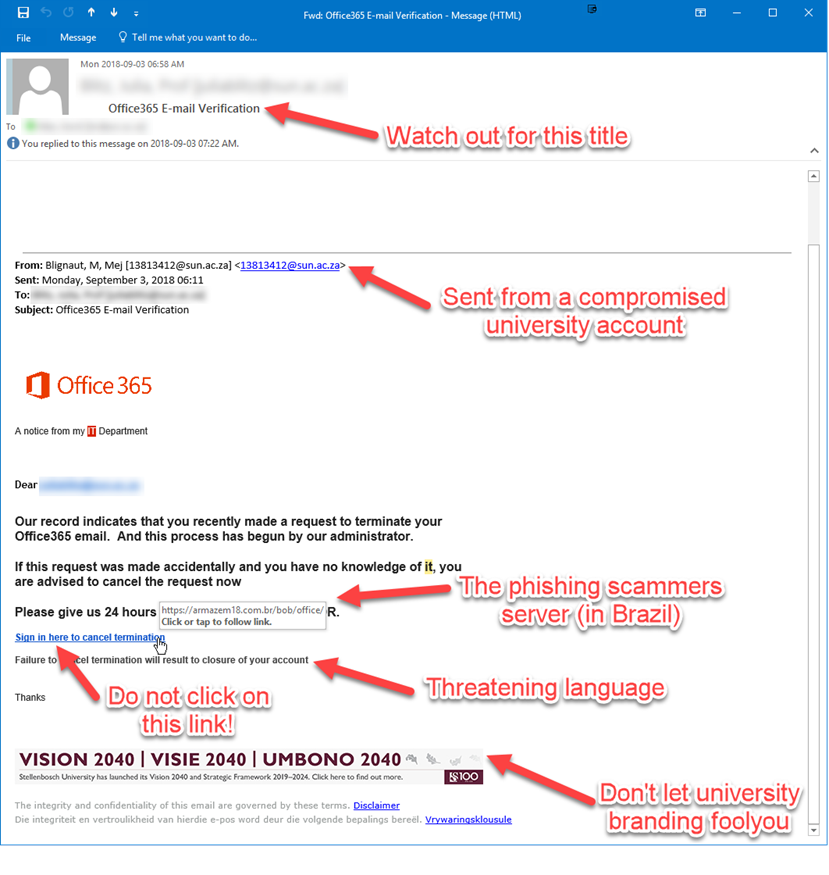
If you have accidentally clicked on the link and given your login details to the phishers it is vitally important that you immediately go to the USERADM page (either http://www.sun.ac.za/password or www.sun.ac.za/useradm and change your password immediately. (Make sure the new password is completely different and is a strong password that will not be easily guessed, as well as changing the passwords on your social media and private e-mail accounts, especially if you use the same passwords on these accounts.)

If you have received mail that looks like the one above, please immediately report it to the Information Technology Security Team using the following method: (especially if it looks like it comes from a university address) Once you have reported it, delete it immediately.

  1. Start up a new mail addressed to csirt@sun.ac.za (CC: sysadm@sun.ac.za)
  2. Use the Title “SPAM” (without quotes) in the Subject.
  3. With this New Mail window open, drag the suspicious spam/phishing mail from your Inbox into the New Mail Window. It will attach the mail as an enclosure and a small icon with a light yellow envelope will appear in the attachments section of the New Mail.
  4. Send the mail.

[ARTICLE BY DAVID WILES]


[:af]

Please be on the lookout for the following phishing scam coming this morning from a compromised student account:

The subject will be “Office365 E-mail Verification” (or a variation) and says that “you recently made a request to terminate your Office365 mail” and to click on a link to cancel this termination.

The mail should be immediately suspicious to most people with common sense and awareness of phishing scams, but here are a few signs:

  1. Why is a student account sending you mail about your “termination” of an Office365 account?
  2. Why are they threatening you to verify or lose your account?
  3. Why does the link point to a site that is not in the university network and is in Brazil of all places?
  4. Why is something as “important” as this being sent in a non-secure email? 

Here is an example of one of these phishing emails that several observant students and colleague have sent me this morning already!

If you have accidentally clicked on the link and given your login details to the phishers it is vitally important that you immediately go to the USERADM page (either http://www.sun.ac.za/password or www.sun.ac.za/useradm and change your password immediately. (Make sure the new password is completely different and is a strong password that will not be easily guessed, as well as changing the passwords on your social media and private e-mail accounts, especially if you use the same passwords on these accounts.)

If you have received mail that looks like the one above, please immediately report it to the Information Technology Security Team using the following method: (especially if it looks like it comes from a university address) Once you have reported it, delete it immediately.

  1. Start up a new mail addressed to sysadm@sun.ac.za (CC: help@sun.ac.za)
  2. Use the Title “SPAM” (without quotes) in the Subject.
  3. With this New Mail window open, drag the suspicious spam/phishing mail from your Inbox into the New Mail Window. It will attach the mail as an enclosure and a small icon with a light yellow envelope will appear in the attachments section of the New Mail.
  4. Send the mail.

[ARTICLE BY DAVID WILES]


[:]

[:en]Exam access app a resounding success[:af]Eksamentoepassing ʼn reuse sukses[:]

Thursday, August 30th, 2018

[:en]

Until recently granting access to examinations for students has been a manual and time-consuming process of checking-off access lists. However, thanks to new technology developed by Information Technology in collaboration with the Examination Office in the Registrar’s Division, this is no longer the case.    

Since June this year, the identification of students for access to examination venues has been facilitated with the use of cell phones at each venue. 

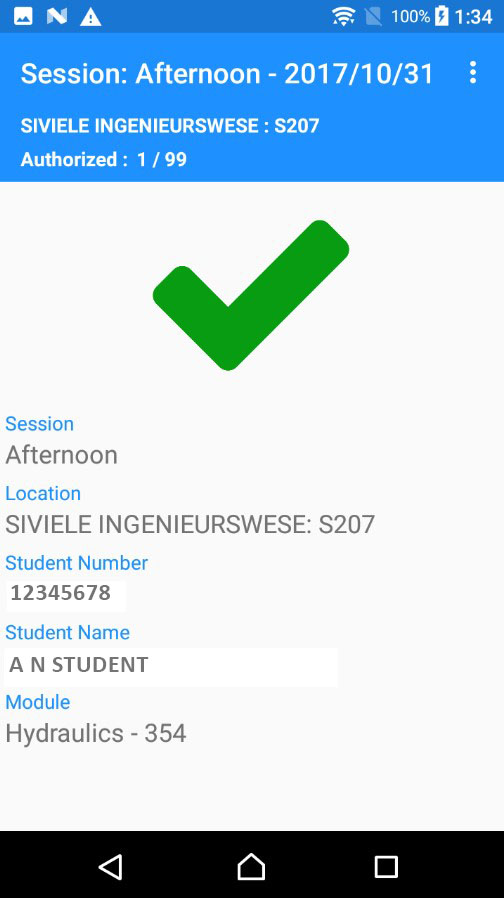
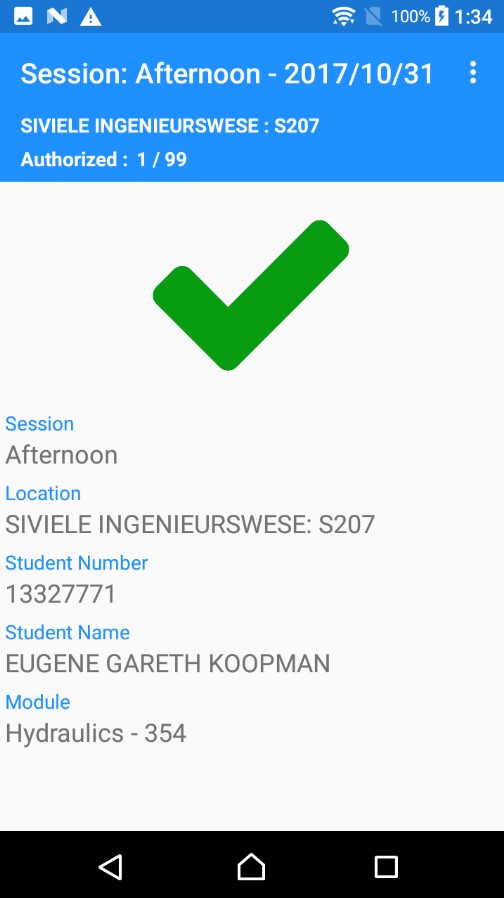
A student’s student card is held against the back of the cell phone, and on the screen, it is indicated whether the student is supposed to write the examination in the specific module in the specific venue. The screen will display a green mark if the student is at the correct exam venue (see image right) and a red cross if not. If the student is at the wrong venue, the screen will indicate where the student should be for the exam or test.  

This will result in access to examination venues being easily and swiftly controlled and will certainly simplify and improve the function of access control with regard to examination venues.  

This easier scanning process is made possible by the NFC (near-field communications) chip on Android phones which communicates with the MIFARE chip embedded in the student card,  and the identification information is then used by the phone app to look up the student’s exam venue. The exam venue and module information come from the Student Information System. 

Tests were first conducted on a small scale during the November 2017 examination and the technology was rolled out fully for the June 2018 examination. It was a resounding success.  

 Emce Louw, Head of the Exam Office experienced the impact first-hand as the process was driven from her office. This included loading the cell phones, setting up data, training the convenors responsible for scanning at the venues and collecting the phones after the exams. She received overwhelmingly positive feedback from invigilators and students alike: 


Scan van studentekaarte is fantasties! Ek het gister 4de jaar Megatronika studente gehad. Hulle was vreeslik beïndruk met die scanning!”

The development and successful completion of the technology was a cross-functional team effort. Hendrik le Roux from Information Technology’s Access Control Division was the project manager and Guzelle Hendricks was responsible for business analysis for the two three-month phases of the project which ran from the end of 2017 to June 2018.  

In addition to Hendrik and Guzelle the following staff played a key role in getting the project off the ground – Phillip Greeff (TAS), Gregory Isaacs (TAS), Anna-Mari du Toit, Marc-Allen Johnson, Jeremy van Rooyen, Charles Hopkins, who wrote the app and Elmar Matthee who was responsible for the back-end development. On the side of the functional stakeholders, besides for Emce, Neels Fourie (Deputy Registrar), and Jan du Toit and Helene Nieuwoudt (both from SISS) participated in the project.

[:af]

Tot onlangs was toegang tot eksamenlokale vir studente `n tydrowende handaksie wat uitvoer is deur inligting op toegangslyste na te gaan en af te merk. Nuwe tegnologie, ontwikkel deur Informasietegnologie, in samewerking met die Eksamenkantoor in die Registrateursafdeling, het dit egter verander. 

Die nuwe ontwikkeling gebruik selfone by elke eksamenlokaal om te identifiseer of studente toegang behoort te kry. `n Student se studentekaart word teen die agterkant van die foon gehou, waarna daar op die skerm vertoon word of die student veronderstel is om die eksamen van die spesifieke module in die spesifieke lokaal moet skryf. Die skerm sal `n groen regmerk wys as die student by die regte eksamenlokaal is (sien grafika regs) en `n rooi kruis wanneer hy/sy nie is nie. Indien die student by die verkeerde lokaal is, sal die skerm ook aandui waar die student wel moet wees vir die eksamen.

Te danke aan dié nuwe proses sal toegang tot eksamenlokale makliker en vinniger hanteer word. Die makliker skanderingsproses is moontlik as gevolg van die NFC (near-field communications) skyfie op Android-fone wat kommunikeer met die ingeboude MIFARE-skyfie in die studentekaart. Die identifikasie-inligting word dan deur die foontoepassing gebruik om die student se eksamenlokaal op te soek. Die eksamenlokaal en module-informasie word onttrek vanaf die Studente Inligtingstelsel. 

Toetse is eers op `n klein skaal verlede jaar gedurende die November eksamen uitgevoer en die tegnologie is vir die eerste keer volledig implementeer gedurende die Junie eksamen die jaar. Dit was `n reuse sukses.

Emce Louw, Hoof van die Eksamenkantoor, het die impak van die nuwe tegnologie eerstehands beleef. Sy was betrokke by die laai van die selfone, data-opstelling, oplei van die konvenors wat die skandeerwerk by die lokale moes doen en was ook verantwoordelik vir die insameling van die fone na afloop van die eksamens. Terugvoer vanaf studente en toesighouers was ewe positief:


Scan van studentekaarte is fantasties! Ek het gister 4de jaar Megatronika studente gehad. Hulle was vreeslik beïndruk met die scanning!”

Die ontwikkeling en suksesvolle voltooiing van die tegnologie was `n poging oor verskeie spanne met verskeie funksies heen. Hendrik le Roux van Informasietegnologie se Toegangsbeheerafdeling was die projekbestuurder en Guzelle Hendricks was verantwoordelik vir die besigheidanalise van die twee driemaande fases van die projek wat gestrek het van einsw 2017 tot Junie 2018.

Bo en behalwe Hendrik en Guzelle  het die volgende personeel elkeen `n belangrike rol gespeel – Phillip Greeff (TAS), Gregory Isaacs (TAS), Anna-Mari du Toit, Marc-Allen Johnson, Jeremy van Rooyen, Charles Hopkins, wat die toepassing geskryf het, en Elmar Matthee, wat verantwoordelik was vir bedienerontwikkeling. Aan die kant van die funksionele aandeelhouers het, buiten Emce, Neels Fourie (Adjunk-Registrateur), sowel as Jan du Toit en Helene Nieuwoudt (beide van SISO) aan die projek deelgeneem.


[:]

[:en]High internet costs? Here’s why.[:af]Hoë Inetkeykostes? Dìs hoekom.[:]

Monday, April 9th, 2018

[:en]

Occasionally we receive enquiries regarding seemingly high Inetkey costs, especially from students. Usually, the causes are fairly straight-forward and can be easily prevented. 

It’s very difficult to say what is causing or what the source of the traffic is without actually looking at your Inetkey logs. So, to start, before contacting us about your Inetkey usage, first look at your logs on http://www.sun.ac.za/useradm and go to the [View Internet Usage] tool and under “View Type” select “Source” and select USER to refresh the display. If you take note of all the IP addresses and see if they are in fact your devices, you will get a better idea of which device is generating the traffic and at which times.

Keep in mind that Stellenbosch University has numerous times been rated as having the fastest internet in South Africa. Current speed tests show that the download speed is 95.29 MB per second and an upload speed of 58.12 MB per second. Subsequently, you can easily run up a massive Inetkey bill within minutes.

The following are a few potential causes for high Inetkey usage:

  • Windows 10 updates that cannot easily be switched off with traditional means. However, if the device is on the SU network and set up to receive updates from IT’s WSUS server, updates will be downloaded locally and not run via Inetkey.
  • Updates stopping and restarting or not completing. Windows 10 1709 Creative Update is a little under 4Gb.
  • Inetkey being left open on a device that is unattended overnight or during classes.
  • Video streaming from sites not on the firewall exception list. Watching an HD streamed movie during the day and evening can generate 3Gb of data per hour.
  • Using a laptop as a wifi hotspot for a cell phone to save on data costs.
  • Using filesharing protocols like BitTorrent. Remember that uploads and downloads both generate traffic. If you use BitTorrent you are also seeding and will also pay for someone downloading your own files.
  • Syncing files to DropBox.
  • Weak passwords allowing neighbours and friends to share internet connections from adjacent rooms.
  • Passwords being leaked to a friend or partners and then abused at a later stage.
  • Viruses or malware included in BHO that spam and generate traffic. Often compromised e-mail accounts will cause high internet usage, because InetKey and email use the same password.
  • Inetkey accounts being used on multiple devices.

If none of these seems to be causing your high Inetkey usage, you can ask Information Technology to investigate your internet usage (or issues). If you have a query send a complaint within 14 days to helpinfo@sun.ac.za. The cost of an enquiry is R200.00 per enquiry. If an error is found, the administrative fee will not be levied.

[Information supplied by David Wiles]


[:af]

Af en toe kry ons navrae oor skynbare hoë Inetkey-rekeninge, veral van studente. Die oorsake is gewoonlik voor-die-hand-liggend en kan maklik vermy word. 

Sonder om na jou internetrekords te kyk, is dit baie moeilik om vas te stel wat die rede of bron van ‘n hoë internetrekening is. Jou eerste stap is om, voordat jy ons kontak oor jou internetverbruik, eers na jou rekords te kyk by http://www.sun.ac.za/useradm deur die [View Internet Usage] opsie te gebruik en onder “View Type” “Source” te kies en dan USER om die inligting op te dateer. Let op die IP-adresse en gaan na dat dit wel jou eie toestelle is. Sodoende kan jy alreeds ʼn beter idee kry watter toestel die internetverkeer genereer en watter tye van die dag. 

Hou in gedagte dat Universiteit Stellenbosch keer-op-keer deur MyBroadband aangewys is as instansie met die vinnigste internet in Suid-Afrika. Huidige toetse wys dat die aflaaispoed 95.29 MB per sekonde is. Gevolglik kan jy baie vinnig, baie data aflaai sonder dat jy dit besef en binne minute jou internetrekening opjaag. 

Die volgende is maar ʼn paar moontlike oorsake vir hoë internetgebruik: 

  • Windows 10 opdaterings wat nie maklik afgesit kan word nie. Indien jou rekenaar egter aan die US-netwerk verbind en opgestel is om opdaterings van IT se WSUS-bediener af te laai, sal die opdaterings plaaslik afgelaai word en die koste nie vanaf jou Inetkeyrekening gehef word nie.
  • Opdaterings wat ophou, weer begin of nie volledig aflaai nie. Windows 10 1709 Creative Update is byvoorbeeld net-net onder 4Gb.
  • Inetkey wat oopgelos word op ʼn toestel sonder toesig gedurende klasse of deur die nag.
  • Videostroom-webwerwe wat nie op die vuurmuur se oopgestelde lys is nie. Deur ʼn HD-fliek te stroom gedurende die dag en aand kan 3Gb se data per uur verbruik.
  • Gebruik van ʼn skootrekenaar as `n wifi hotspot vir ʼn selfoon met die doel om datakostes te spaar. 
  • Gebruik van lêerdeel protokolle soos BitTorrent. Onthou dat beide op en aflaai verkeer genereer. As jy BitTorrent gebruik, seed jy ook jou eie lêers en betaal jy selfs as iemand anders jou lêers aflaai.
  • Sinchronisasie van lêers na DropBox.
  • Swak wagwoorde sodat bure en vriende in die nabye omgewing internet kan deel.
  • Vriende of wederhelftes aan wie wagwoorde gegee word en dit later misbruik. 
  • Virusse of malware wat gemorspos en meer verkeer genereer.  Dikwels veroorsaak blootgestelde e-posrekeninge hoë internetgebruik, omdat Inetkey en e-pos wagwoorde deel. 
  • Inetkey-rekeninge wat op veelvuldige toestelle gebruik word. 

Indien geen van hierdie redes die oorsaak blyk te wees van jou hoë Inetkeyrekening nie, kan jy vir Informasietegnologie vra om jou internetgebruik na te gaan om vas te stel of daar iets onreëlmatig is. Stuur binne 14 dae ʼn versoek na helpinfo@sun.ac.za. Die koste per navraag is R200.00, maar indien daar `n fout gekry word, word hierdie fooi nie gehef nie. 

[Inligting verskaf deur David Wiles]

[:]

[:en]Teach and Learn with MATLAB and Simulink[:af]Onderrig en leer met MATLAB en Simulink[:]

Wednesday, February 21st, 2018

[:en]

Where Will MATLAB Take You Today?

Stellenbosch University has a Total Academic Headcount (TAH) license for MATLAB, Simulink, and add-on products. You may use these products for teaching, research, and learning. The license allows individuals to install the products on university-owned equipment, as well as personally owned computers.

Get Access Today: http://rga.sun.ac.za/firga/matlab.html

[:af]

Wat kan jy vandag met MATLAB doen?

Universiteit Stellenbosch het ʼn Total Academic Headcount (TAH) lisensie vir MATLAB, Simulink en ander byvoegprodukte. Jy kan hierdie produkte gebruik vir onderrig, navorsing en leer. Die lisensie laat individue toe om die produkte op US batetoerusting, sowel as op persoonlike toestelle, te installeer. 

Kry toegang tot die produkte: http://rga.sun.ac.za/firga/matlab.html

[:]

[:en]New SUNLearn mobile app available for download[:af]SUNLearn mobiele toepassing nou beskikbaar[:]

Wednesday, April 26th, 2017

[:en]

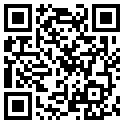
Information Technology has developed a new SUNLearn mobile app which is now available for download. The app can be downloaded for Android, as well as iOS devices. It can also be downloaded by scanning the QR code to the right.  

SUNLearn is Stellenbosch University’s blended-learning platform. It is an open source, powerful, flexible and mobile-ready blended learning platform for learning and teaching. The system is easy to learn and use for both staff and students and an extensive user guide is also available. 

The SUNLearn mobile app can be used to:

– browse the content of your courses, even when offline,
– receive instant notifications of messages and other events,
– quickly find and contact other people in your courses,
– upload images, audio, videos and other files from your mobile device,
– view your course grades, etc.

Full features can be seen here.

Students who are new to the system can go to the Student training link where they will find various resources, videos and self-help guides. Keep in mind that when you use the SUNLearn mobile app on campus via Maties WiFi or the network, you will not be charged for any data and you will not need Inetkey for access.

The SUNLearn support team can be reached at learn@sun.ac.za or 021-808 2222.

[:af]

Informasietegnologie het sopas `n nuwe SUNLearn mobiele toepassing ontwikkel en dit kan nou afgelaai word. Die toepassing is beskikbaar vir Android-, sowel as iOS-toestelle. Jy kan dit ook aflaai deur die QR-kode aan die regterkant te skandeer met jou foon.  

SUNLearn is Universiteit Stellenbosch se kragtige, oopbron platform vir gemengde leer en onderrig.  Die stelsel is maklik om te leer en kan deur beide personeel en studente gebruik word. `n Volledige gebruikersgids is ook beskikbaar. 

Die SUNLearn mobiele toepassing kan gebruik word om:

– die inhoud van jou kursusse na te gaan, selfs wanneer jy nie aanlyn is nie, 
– intydse kennisgewings van boodskappe of gebeure te ontvang,
– vinnig ander persone in jou kursusgroep op te spoor en te kontak,
– grafika, oudio, video en ander leêrs op te laai vanaf jou mobiele toestel,
– jou kursuspunte te sien, ens.

Volledige funksies kan hier gesien word.

Studente wat die stelsel vir die eerste keer gebruik, sal by die Student training skakel verskeie hulpbronne, videos en selfhelpgidse vind. Onthou dat die SUNLearn mobiele toepassing jou nie enige data gaan kos as jy op kampus d.m.v. Maties WiFi of die netwerk daarop aanteken nie. Jy het dus ook nie nodig om Inetkey oop te maak nie. 

Die SUNLearn ondersteuningspan kan bereik word by learn@sun.ac.za of 021-808 2222.

[:]