SEARCH
  • [:en]Recent Posts[:af]Onlangse bydraes

  • [:en]Categories[:af]Kategorieë

  • [:en]Archives[:af]Argiewe

Training

Archiving – not just for librariansArgivering – nie net vir biblioteekarisse nie

Friday, August 21st, 2015

Archiving – it doesn’t exactly sound like a fun weekend activity, does it?

But unfortunately our mailboxes can’t always deal with too many e-mails, especially those with large attachments, we receive regularly. Unless you clean up your mailbox and delete e-mails frequently, you’ll run out of mailbox space sooner than you think. This is where archiving comes in handy.

In this article we will show you how easy it is to create and maintain archives on your computer.

  1. HOW TO CREATE YOUR ARCHIVE FILE

archiving-1

Open MS Outlook

  • Select the Home tab
  • Use the dropdown menu next to New Items
  • Click on More Items
  • Select Outlook data file

archiving-2

This will create the file for your new archive.

Important:

  • Please name it properly as to prevent confusion when creating new archives later on.
  • Please do not put a password on the archive file as this causes confusion and mail loss at the end of the day when you get a new computer or if the case may be that data recovery must be done.

This also must be under “My Documents\Outlook Files”.

When clicking on OK you will return to your Outlook Home screen.

As shown below (when the mailbox is collapsed) you will be able to see your new Outlook archive.
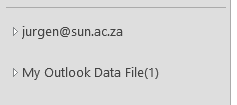
archiving 3

2. NOW FOR THE ARCHIVING

Click on File in the left top corner
Under Info you will find Cleanup Tools
When clicking on the button you will find Archive as the third option.

archiving-4

The next window you will be presented with is seen below.
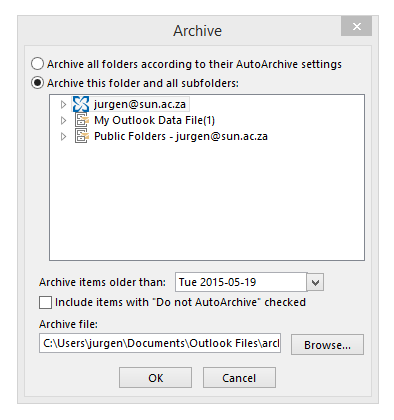
archiving 5

The most important thing you need to do now is check that the correct archive file will be used for archiving.

To check this you need to click on the browse button and make sure it is pointing to the correct file in “My Documents\Outlook Files”.

Secondly:

  • Choose a date – all e-mails before the input date will be archived to your folder. This may take a while if you have not archived before.

Thirdly:

  • Select your mailbox (not only parts of it, but the Collapsed view as seen in the screenshot) and then click on OK.

You have now successfully started your first archive!  Feel free to archive instead of delete as keeping your records is quite important.

TIPS:

  • VERY IMPORTANT – no password on the archive file.
  • Keep archives small, for example – year by year. This is to prevent them from getting too big and slowing down your machine.
  • With this way of archiving your folder structure stays the same thus making it easier to actually go back and find the files you are looking for from previous years.

For  more information on various Outlook functions, please have a look at our self help site.

Argivering. Dit klink nie besonder prettig nie, né?

Ongelukkig kan ons elektroniese posbusse nie altyd byhou by die massa e-posse waarmee hulle daagliks gebombardeer word nie – veral daai groot video leêrs en prentjies … 

As jy nie gereeld huis skoonmaak en onnodige of groot e-posse uitvee nie, gaan jy kort voor lank sonder enige spasie sit. Dis op hierdie punt wat argivering sy staal wys.

In hierdie kort artikeltjie sal ons vir jou wys hoe maklik dit is om argiewe op jou rekenaar te skep en onderhou.

  1. HOE OM JOU EIE ARGIEF-LEêR TE SKEP

archiving-1

Maak MS Outlook oop

  • Kies die Home oortjie
  • Gebruik die afrol-spyskaart langs New Items
  • Kliek op More Items
  • Kies Outlook data file

archiving-2

Hierdie aksies sal `n leêr vir jou nuwe argief skep.

Belangrik:

  • Kies die regte benaming sodat daar nie verwarring is wanneer jy later nuwe argiewe skep nie. 
  • Moenie `n wagwoord op die argief plaas nie. Dit veroorsaak onnodige verwarring en verlies van e-pos wanneer jy `n nuwe rekenaar kry of data herwin moet word. 

Dit moet ook onder  “My Documents\Outlook Files” gestoor word.

Wanneer jy op OK kliek, sal jy teruggeneem word na die Outlook Home skerm.

Soos hier onder aangedui (wanneer die posbus oopgevou is), sal jy jou nuwe Outlook-argief sien.

archiving 3

2. NOU VIR DIE ARGIVERING

Kliek op File in die linkerkantse, boonste hoek. 
Onder Info sal jy Cleanup Tools sien.
Wanneer jy op die opsie kliek, sal jy Archive as die derde opsie sien.

archiving-4

Die volgende sigbare een lyk soos die een hier onder. 

archiving 5

Die belangrikste ding wat jy moet onthou is dat jy nagaan dat die regte argief-leêr gekies word vir argivering.

Om dit na te gaan, kliek op die browse-knoppie en maak seker dit wys na die korrekte leêr in “My Documents\Outlook Files”

Tweedens:

  • Kies `n datum – alle e-posse voor die ingevoerde datum sal geargiveer word na jou leêr. Dit mag `n tydjie neem as jy nog nooit voorheen geargiveer het nie. 

Thirdly:

  • Kies jou posbus (nie net dele daarvan nie, maar gebruik die oopgevoude sig soos in die voorbeeld) en kliek op OK.

Jy het nou jou eerste suksesvolle argief geskep.  Argiveer gerus jou e-posse eerder as om dit uit te vee – dis soms belangrik om rekords te behou. 

WENKE:

  • BAIE BELANGRIK – geen wagwoord op jou argief-leêr nie.
  • Hou argiewe klein – byvoorbeeld jaar-vir-jaar. Dit voorkom dat argiewe te groot raak en jou rekenaar stadig maak.  
  • Deur op bogenoemde wyse te argiveer bly jou leêrstruktuur altyd dieselfde en is dit makliker om heen en weer te soek na e-posse van vorige jare. 

Vir meer informasie op ander Outlook-funksies, gaan kyk gerus op ons selfhelp webwerf.

Mathematica at SUMathematica by die US

Thursday, July 16th, 2015

Modern computational tools are important in diverse disciplines, and they are clearly essential in fields requiring sophisticated mathematics, complicated numerics or the processing of large amounts of data.  Over time each field has developed an array of their own specialised solutions or packages.

However, a campus-wide license has recently been obtained for the package Mathematica developed by Wolfram Research Inc. Mathematica is one of a very small group of extremely powerful, high-level software packages specialising in advanced algebraic, numerical and image processing computation.

mathematicaAt Stellenbosch University colleagues have been using it successfully in the biological, mathematical and physical sciences, and also in economic and management sciences for both teaching and research.  It is therefore really worthwhile exploring whether it is suitable for your academic work too.

In addition to its function as a high-performance research tool it is has also developed to be an efficient, user-friendly teaching device.  It is powerful beyond any other general symbolic manipulation package, and easy to use at base level.  Mathematica places the emphasis on computation of mathematical objects and comes with its own formal language.  It also interfaces with an extensive audited database, which might be known to some readers through the Wolfram Alpha website.

For a license to use the Mathematica software, please contact narga@sun.ac.za.

[Article by Kristian Muller-Nedebock]


Moderne berekeningshulpmiddels is belangrik in verskeie dissiplines, en veral noodsaaklik in studievelde waar gesofistikeerde wiskunde, komplekse getalle of die verwerking van groot hoeveelheid data vereis word. Mettertyd het elke veld sy eie versameling gespesialiseerde oplossings of pakkette ontwikkel. 

’n Kampuswye lisensie is egter onlangs verkry vir die pakket Mathematica  wat deur Wolfram Research Inc ontwikkel is. Mathematica is een van ’n baie klein groep buitengewoon kragtige, hoëvlak sagtewarepakkette wat spesialiseer in gevorderde algebra, getalle en beeldverwerkingsberekenings.

mathematicaBy die Universiteit Stellenbosch het kollegas dit reeds met welslae gebruik in die biologiese, wiskundige en fisiese wetenskappe, sowel as in die ekonomiese en bestuurswetenskappe in beide onderrig en navorsing. Dit is dus regtig die moeite werd om uit te vind of dit ook toepaslik vir jou akademiese werk kan wees. 

Bykomend tot sy funksie as ’n hoëprestasie navorsingshulpmiddel, het dit ook ontwikkel tot ’n doeltreffende, gebruikersvriendelike onderrig-instrument.  Dit is kragtiger as enige ander algemene simbool-manipulasiepakket en boonop maklik om te gebruik op basisvlak.  Mathematica plaas die klem op die berekening van wiskundige objekte en kom met sy eie formele taal. Dit is gekoppel aan ’n uitgebreide, geouditeerde databasis waarmee sommige leerders dalk al kennis gemaak het deur die Wolfram Alpha-webwerf. 

Vir `n lisensie vir die gebruik van die Mathematica sagteware, kontak narga@sun.ac.za.

[Artikel deur Kristian Muller-Nedebock]


Office Mix – PowerPoint, just betterOffice Mix – Powerpoint, net beter

Friday, April 24th, 2015

As the need for a richer educational experience increases, so does the demand for software and apps encouraging and facilitating better and more interaction and collaboration between students and their educators.

office mix2

Of course, we wouldn’t expect any less of Microsoft, who last year, launched Office Mix. According to Microsoft Office Mix was originally created to help educators implement new teaching methods, using the simplicity of PowerPoint. It brings “the same benefits to the professional e-Learning community, with support for SCORM (Sharable Content Object Reference Model), the industry standard for packaging of digital learning content.”

With functions like voice, video and digital ink, polls and interactive apps, insights and analytics and playback on any device, the PowerPoint add on promises to make is easy to turn slides “into interactive online lessons and presentations.”

Teachers can record themselves while presenting and create a video of their presentation. They can write on slides using “digital ink” and insert quizzes, polls, videos, screen captures, screen recordings and other elements. Students can view the interactive document on the Office Mix website.

For analysis after the presentation, statistics are available as well.

To use Office Mix, you will need Office 2013 or Office 365. You can now download it locally from our IT support website.

[SOURCE: www.pcworld.com; www.microsoft.com]

Soos die behoefte aan `n ryker leerondervinding toeneem, is daar ook `n beweging na sagteware, toepassings en webwerwe wat meer interaksie en samewerking tussen studente en opvoeders wil aanmoedig en bevorder.

office mix2

Daarom is dit glad nie verbasend dat Microsoft `n voorloper in die veld is en verlede jaar hul eie poging, Office Mix, bekendgestel het nie. Volgens Microsoft is Office Mix ontwikkel om opvoeders by te staan met die implementering van nuwe leermetodes met `n eenvoudige sagtewarepakket soos PowerPoint. Dit bied dieselfde voordele aan die e-Leer samelewing as die industrie-standaard verpakking van digitale leerinhoud, met die hulp van SCORM (Sharable Content Object Reference Model)

Met funksies soos stem, video, digitale ink, meningsopnames en interaktiewe toepassings, insigte en analises en terugspeelfasiliteite op enige toestel, beloof hierdie PowerPoint byvoeging om gewone skyfies te verander in interaktiewe aanlyn-lesings en aanbiedings.

Onderwysers of lektore kan hulleself opneem terwyl hulle klas gee en `n video maak van die aanbieding. Hulle kan skryf op die skyfies deur middel van “digitale ink” en vasvrae, meningspeile, video, skermgrepe, skermopnames en ander elemente byvoeg. Studente kan weer op die beurt na die interaktiewe dokument op die Office Mix webwerf gaan kyk.

Analise van die aanbieding is ook moontlik aangesien statistieke beskikbaar gestel word deur Mix.

Om Office Mix te gebruik, het jy Office 2013 of Office 365 nodig. Jy kan dit nou plaaslik aflaai van IT se ondersteuningswebwerf

[BRON: www.pcworld.com; www.microsoft.com]


MOOCs 101MOOCs 101

Monday, April 20th, 2015

MOOCGone are the days of going to class, making notes and spending hours in a library. Today you can do almost everything online – even relive your student days. MOOCs, or “massive open online courses”, have been around for a while now, but are still extremely popular – and for a reason.

A MOOC is an online course aimed at large scale, interactive participation and open access via the internet. In addition to traditional course material such as videos, reading and problem sets, a community is created for students and academics to interact be means of user forums.

Open, online courses are a fairly recent addition to the field of long distance education and offer a free or low cost alternative to conventional tertiary education – an option previously not freely available to all. Leading universities such as Stanford, MIT, Yale and Harvard offer MOOCs as part of their curriculum and these provide anyone the opportunity to study at a prominent academic institution.

MOOCs have no formal entry requirements or limits on students and millions of eager learners make use of this open platform.  Coursera, the current forerunner of MOOCs, claims they already have more than 3 million students.

If you’re interested in expanding your knowledge – whether it’s with something as random as a course on cryptography or a more practical one such as financial planning, have a look at the available courses on the websites below. You’re sure to find something that inspires you.

Also read MOOC News and Reviews’ extensive article on MOOCs, “What is a Massive Open Online Course Anyway?” and have a look at extensive TED talks also has an extensive list of talks on MOOCS.

MOOC-COURSES

https://www.coursera.org/
http://www.saylor.org
http://www.futurelearn.com
http://www.mooc-list.com/
http://www.class-central.com/
http://www.educause.edu/library/massive-open-online-course-mooc

[SOURCE: www.wikipedia.org]

MOOCKlasloop, noukeurige notas neerpen en ure in `n biblioteek spandeer is vandag nie meer vereistes as jy jou lyf student wil hou nie. MOOCs, of te wel “massive open online courses” is reeds die afgelope vyf jaar beskikbaar, maar is steeds populer en met goeie rede. 

`n MOOC is `n aanlynkursus wat gemik is op grootskaalse, interaktiewe deelname en oop toegang deur middel van die internet. Buiten tradisionele kursusmateriaal soos videos, leeswerk en vraagstukke, word `n gemeenskap gebou vir studente en akademici met die hulp van interaktiewe gebruikerforums. 

Oop, aanlyn kursusse  is `n onlangse toevoeging tot afstandsonderrig en bied `n gratis of lae koste alternatief tot konvensionele tersiêre onderrig wat voorheen nie vrylik aan almal beskikbaar was nie. Toonaangewende universiteite soos Stanford, MIT, Yale en Harvard bied reeds MOOCs aan en  gee aan enigiemand die geleentheid om te studeer aan `n voortreflike akademiese instansie.

MOOCs het geen formele toelatingsvereistes of beperking op inskrywings nie en miljoene leergieriges maak reeds gebruik van dié oop platform. Coursera, die huidige voorloper vir MOOCs, beweer dat hulle reeds meer as 3 miljoen gebruikers het.  

As jy belangstel daarin om jou kennis te verbreed – of dit nou iets lukraak is soos `n kursus oor kriptopgrafie of meer prakties soos finansiële beplanning, loer gerus na die webwerwe onder. Daar sal sonder twyfel iets wees wat jou belangstelling aanwakker.  

Lees ook MOOC News and Reviews se gedetaileerde artikel oor MOOCs, “What is a Massive Open Online Course Anyway?”. TED talks het ook `n volledige lys praatjies beskibaar oor MOOCS.

MOOC-KURSUSSE

https://www.coursera.org/
http://www.saylor.org
http://www.futurelearn.com
http://www.mooc-list.com/
http://www.class-central.com/
http://www.educause.edu/library/massive-open-online-course-mooc

[BRON: www.wikipedia.org]

All the help you needAl die hulp wat jy nodig het

Friday, November 7th, 2014

Wasting time trying to figure something out on your PC while you’re under pressure, isn’t the most pleasant experience – and not good for the blood pressure levels. And although the IT Service desk is at your disposal via phone, e-mail and Skype, you might want to try and solve a problem by yourself?

Obviously Google comes in handy for situations like these, but scrolling through Google’s results, isn’t exactly the best way to spend your time.

To help you with this, we’ve created a dedicated self-help site for our users so you can be sure the information is relevant to you and at least accurate. This site will also be updated with new guides and FAQ’s as they become available, as well as videos for step-by-step instruction.

So next time you’re stuck with a niggling Outlook issue and you just can’t figure out how to set those calendar rights, have a look at http://www.sun.ac.za/itselfhelp.

If you feel there’s any information you’d like to add to the existing guides, you’re most welcome to send your suggestions to helpinfo@sun.ac.za.

Om te sukkel met iets simpel op jou rekenaar as jy onder druk is nie, is nie die aangenaamste ervaring of goed vir die bloeddruk nie.  En hoewel die IT Dienstoonbank tot jou beskikking is via telefoon, Skype en e-pos, wil jy dalk ook kyk of jy nie vinnig jou probleem self kan oplos nie.

Natuurlik is Google handig hiervoor, maar om deur al Google se resultate te sif en die regte een te kry, is nie `n blitsige oplossing nie.

Om hierdie rede het ons `n spesiale selfhelp webwerf geskep vir al ons gebruikers. Die webwerf sal gereeld opgedateer word met nuwe gidse en FAQ’s, asook, in sommige gevalle, videos om jou stap-vir-stap te help met jou probleem.

As jy volgende keer vashaak met iets simpel in Outlook en jy net eenvoudig nie daardie kalenderregte gestel kan kry nie, gaan kyk gerus by www.sun.ac.za/itselfhelp.

Ons hoor ook graag as daar inligting is wat jy graag sou wou byvoeg by die bestaande gidse. Stuur vir ons e-pos by  helpinfo@sun.ac.za.