SEARCH
  • [:en]Recent Posts[:af]Onlangse bydraes

  • [:en]Categories[:af]Kategorieë

  • [:en]Archives[:af]Argiewe

Training

Public folders vs resource mailboxes“Public folders” vs “resource mailboxes”

Friday, October 24th, 2014

If you have been using public folders up till now to organise meetings and events in your department, there may be an easier, more practical option available to you.

By sending an email to help@sun.ac.za you can request that the public folders you are using now be converted to resource mailboxes or to request the creation of new resource mailboxes.

But why should you use resource mailboxes instead of public folders?

  • If you send a meeting request to a resource mailbox, that resource mailbox will Accept or Decline the meeting request.
  • It happens automatically without any intervention of a human being
  • You do not have to worry about double bookings for the same date and time at the same venue.
  • You’re meeting request to a resource mailbox cannot be changed or deleted.
  • Only the owner of the resource mailbox can change  or delete meeting requests.

What are public folders?

A public folder is a feature of Microsoft Exchange Server that provides an effective way to collect, organize, and share information with others in an organization. Typically, public folders are used by project teams or user groups to share information on a common area of interest. When you are connected to your Exchange server, folders labelled “Public Folders” appear in the Microsoft Outlook Folder List in the Navigation Pane. You can manage these folders from Outlook. Public folders can contain any type of Outlook folder item such as messages, appointments, contacts, tasks, journal entries, notes, forms, files, and postings. You can also add a shortcut to any public folder to the Favorites folder under Public Folders. (http://office.microsoft.com)

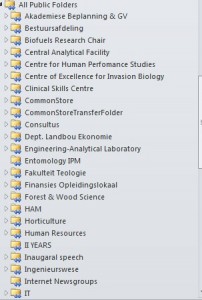
Up till now this is what public folders in Outlook looked like:
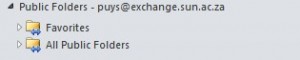
1
2
What is a resource mailbox?

A resource mailbox is a mailbox that represents conference rooms and company equipment. Resource mailboxes can be included as resources in meeting requests, providing a simple and efficient way to manage the scheduling of resources for your organization.

Room mailboxes are assigned to a meeting location such as a conference room, auditorium, or training room. Equipment mailboxes are assigned to a resource that is not location specific, such as a portable computer projector, microphone, or company car. (http://blogs.technet.com)

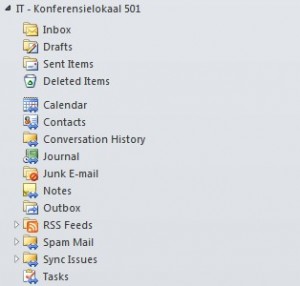
This is what the new resource mailboxes look like: 

3
How do I add a resource mailbox in MS Outlook 2010?

Send an email to help@sun.ac.za and request that the public folders be converted to resource mailboxes. When you get confirmation that it has been done, follow the next steps:

Create a new meeting request

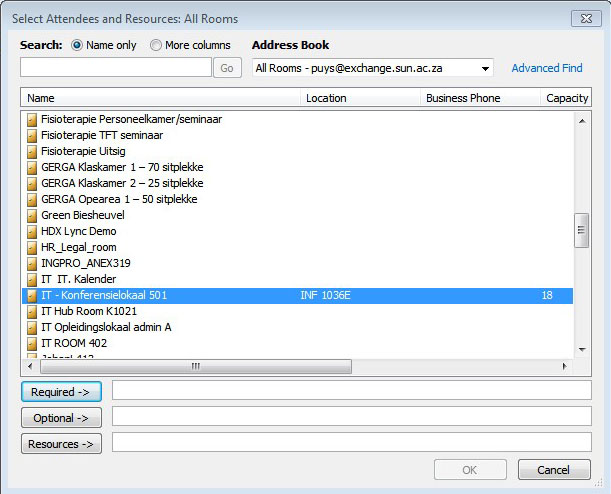
Select All Rooms in the Address Book

4
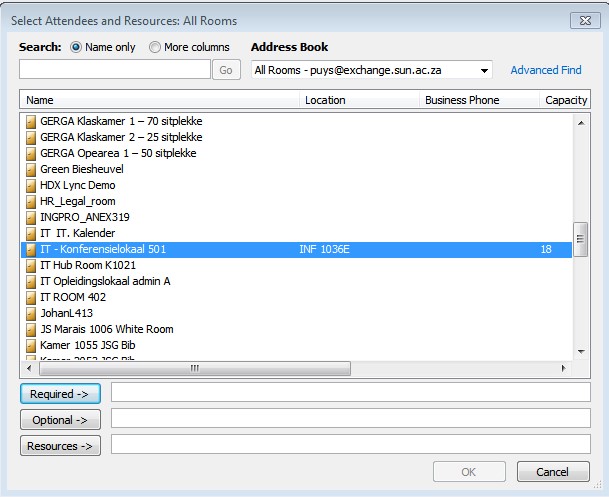
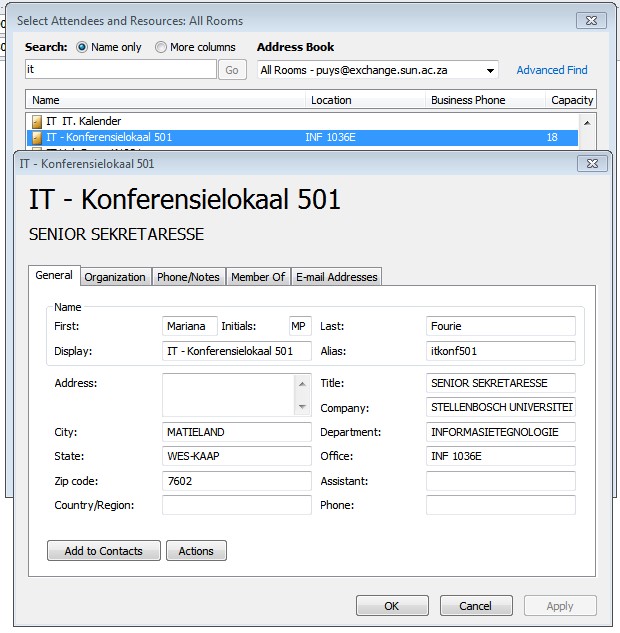
Scroll down to the Room you want to add as a resource mailbox
5
VERY IMPORTANT: Please Take note of the Alias (see the 7th step further down)
6
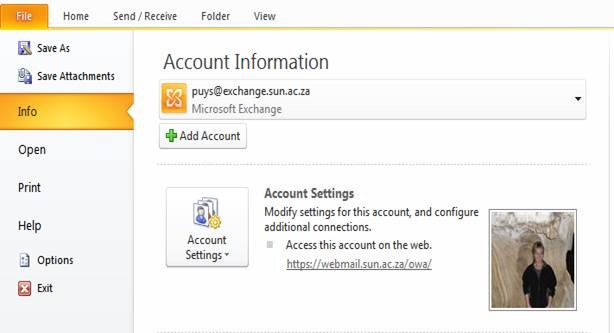
Click on File, Info, Account Settings
7
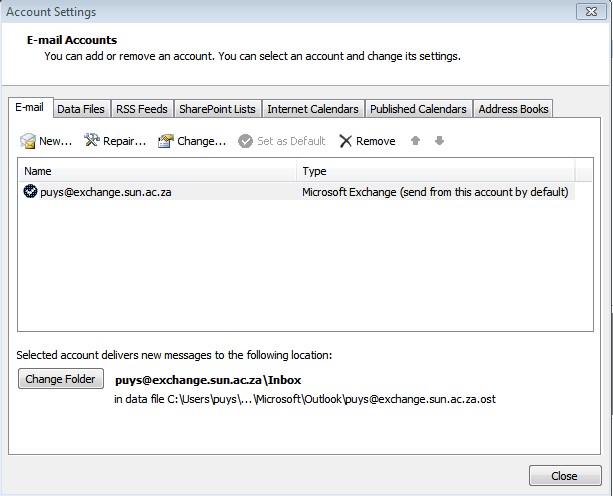
Select your email address and click on Change
8
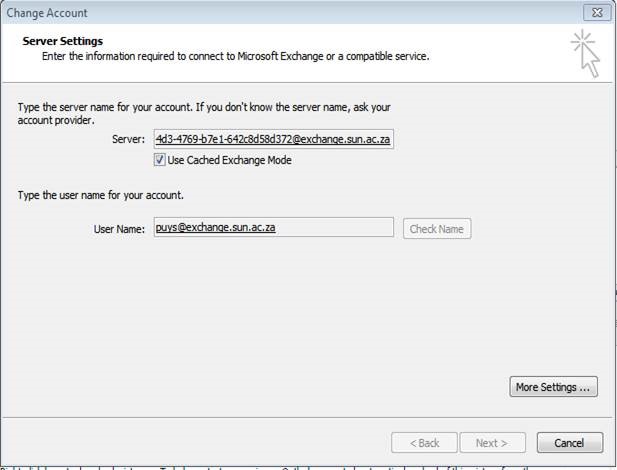
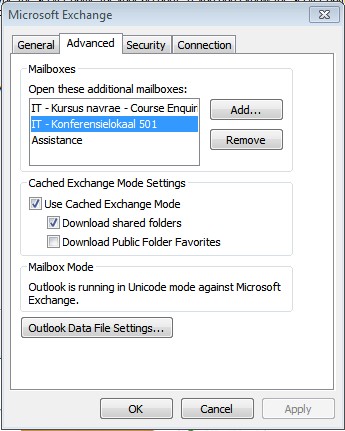
Click on More Settings
9
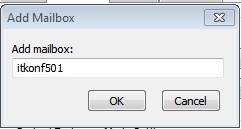
Type the name of the resource mailbox that you want to add – remember that Alias of earlier – it is the name you have to type here
10
Click Apply, OK, Next Finish
11
Go back to the Home button and click on Folder List
12
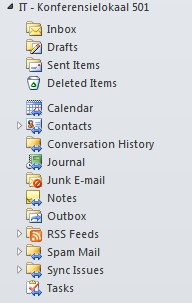
The added Resource Mailbox will display
13
Click on Calendar to view the calendar of the resource mailbox.

Indien jy tot dusver public folders gebruik het om vergaderings en geleenthede in jou departement te reël, is daar nou `n moontlik makliker en meer praktiese opsie vir jou beskikbaar.

Deur `n e-pos te stuur aan help@sun.ac.za kan jy versoek dat jou public folders omgeskakel word na “resource mailboxes” of jy kan versoek dat nuwe resource mailboxes geskep word.

Maar hoekom sou jy eerder `n resource mailbox wou gebruik i.p.v. public folders?

  • As jy `n vergaderingversoek na `n resource mailbox stuur, sal die posbus dadelik die versoek aanvaar of verwerp.
  • Dit gebeur outomaties sonder die hulp van `n persoon.
  • Jy hoef nie bekommerd te wees oor dubbele besprekings vir dieselfde dag of tyd in dieselfde lokaal nie.
  • Jou vergaderingversoek kan nie verander of verwyder word nie.
  • Slegs die eienaar van die “resource mailbox” kan vergaderingversoeke verander of verwyder.

Wat is public folders?

“A public folder is a feature of Microsoft Exchange Server that provides an effective way to collect, organize, and share information with others in an organization. Typically, public folders are used by project teams or user groups to share information on a common area of interest. When you are connected to your Exchange server, folders labelled “Public Folders” appear in the Microsoft Outlook Folder List in the Navigation Pane. You can manage these folders from Outlook. Public folders can contain any type of Outlook folder item such as messages, appointments, contacts, tasks, journal entries, notes, forms, files, and postings. You can also add a shortcut to any public folder to the Favorites folder under Public Folders.” (http://office.microsoft.com)

Tot dusver het “public folders” so gelyk:

1
2
Wat is `n resource mailbox?

“A resource mailbox is a mailbox that represents conference rooms and company equipment. Resource mailboxes can be included as resources in meeting requests, providing a simple and efficient way to manage the scheduling of resources for your organization.

Room mailboxes are assigned to a meeting location such as a conference room, auditorium, or training room. Equipment mailboxes are assigned to a resource that is not location specific, such as a portable computer projector, microphone, or company car.” (http://blogs.technet.com)

Dis hoe die nuwe resource mailboxes lyk: 

3
Hoe voeg ek `n resource mailbox in MS Outlook 2010 by?

Stuur `n e-pos aan help@sun.ac.za en versoek dat jou public folders omskep word in resource mailboxes. Indien jy bevestiging kry dat dit gedoen is, volg hierdie stappe:

Skep `n nuwe vergaderingversoek en selekteer All Rooms in die adresboek.

4
Beweeg af na die kamer wat jy wil byvoeg by die resource mailbox
5
BAIE BELANGRIK: Neem kennis wat die Alias is vir latere gebruik.
6
Kliek op File, Info, Account Settings
7
Kies jou e-posadres en kliek op Change
8
Kliek op More Settings
9
Tik die naam van die resource mailbox wat jy wil byvoeg. Onthou daai Alias van vroeër? Dis wat jy hier wil byvoeg. 
10
Kliek Apply, OK, Next, Finish
11
Gaan terug na die Home-knoppie en kliek op Folder List
12
Die bygevoegde resource mailbox sal wys
13
Kliek op Calendar om die kalender vir die resource mailbox te wys.

SUNid flash sessionsSUNid blitsessies

Friday, October 10th, 2014

Since the implementation of SUNid (Read more on SUNid here) a few months back, it’s already being used for the registration and administration of external workers and visitors by quite a few SU staff. But, as with any new system, there’s always a learning curve to adapt to and that’s why training is of utmost importance.

Hence, IT will be presenting short flash sessions of 30 minutes each for the next few months. During this 30 minutes the basics of SUNid will be demonstrated in a practical manner, after which another 30 minutes will be made available for any questions.

These sessions are a necessity if you are a SUNid user and will, in future, be compulsory for all staff requesting to be registered on the system.

The dates for training are scheduled during October and November on the Stellenbosch campus on the following days from 10h30-11h30:

16 October
22 October
28 October
6 November
13 November
20 November
27 November

Staff can register online via the SUN-e-HR option on the my.sun.ac.za. More information on training is available on the IT wiki.

IT can also facilitate one-on-one sessions with the “approvers” at departments or present information sessions at departmental meetings. To arrange this, please send us an e-mail at help@sun.ac.za .

Sedert SUNid (lees meer oor SUNid hier)`n paar maande terug in werking gestel is, word dit reeds deur heelwat US-personeel gebruik vir die registrasie van eksterne werkers en besoekers.  Soos met enige nuwe stelsel, bestaan daar egter `n skerp leerkurwe en is opleiding van kardinale belang.

IT sal gevolglik vir die volgende paar maande kort blitssessies aanbied van 30 minute per sessie waar die werking van SUNid op ‘n praktiese manier verduidelik sal word, waarna daar nog 30 minute beskikbaar gestel word vir enige vrae.

Hierdie sessies is noodsaaklik as jy `n SUNid-gebruiker is en sal vervolgens verpligtend wees vir alle personeel wat versoek om op die stelsel geregistreer te word.

Die volgende sessies vind Oktober en November op die Stellenbosch-kampus plaas van 10h30-11h30:

16 Oktober
22 Oktober
28 Oktober
6 November
13 November
20 November
27 November

Personeel kan aanlyn inskryf via die SUN-e-HR opsie op my.sun.ac.za. Meer inligting oor opleiding is beskikbaar op IT se wiki.

Indien departemente dit verkies, kan IT ook een-tot-een inligtingsessies aan “approvers” gee of sessies aanbied by departementele vergaderings. Om hierdie sessies te reël, stuur asb. vir ons e-pos by help@sun.ac.za.

Using a tablet for smarter learning (part 1)Gebruik ’n tablet om slimmer te leer (deel 1)

Friday, August 22nd, 2014

Since tablets became mainstream in 2010, more and more students have started relying on these nifty gadgets to take their learning experience to the next level.

However, many students still are unaware or unconvinced of the advantages of tablet-based learning. In the following section, we’ll look at why exactly a tablet is a fantastic investment.

Why a tablet?

In short, there are four reasons:

1. The most obvious advantage of a tablet is the level of mobility it offers. As a student, you’ll most probably carry around at least a notepad, your prescribed books and your class notes. And, for many, a calculator, dictionary and diary/calendar are also indispensable. Carrying these items around all day long can quickly become a back-breaking burden – which is why most students simply leave their heavy books at home.

With a tablet, though, you can have all of these resources compacted into the size of an A5 notepad. No more forgetting books or notes at home – everything you need is but a few finger taps away. This is a killer feature in itself.

2. However, the true academic value of a tablet becomes evident when one looks at its potential as an in-class companion. Not only does a tablet keep everything you need at hand, it also allows you to manipulate these resources in useful ways. For example, you can add bookmarks, highlights and notes to your prescribed books and class notes while the lecturer is discussing them. You can also efficiently create rich notes of your own.

You’ll be able to combine typing and drawing on the screen to capture, for example, key points in a class discussion or diagrams and charts drawn by the lecturer. You’ll be able to neatly organise these notes in subject folders for future reference.

The biggest killer feature of a tablet in class, however, is the fact that it allows you to record what is said in class so that you can listen to these recordings while preparing for an exam. While it’s not practical to record every second of every class (because –let’s be honest –you’ll never listen to all of that again), this feature is extremely handy to record important bits of a lecturer’s explanation or a class discussion.

Lastly, a tablet also gives you quick access to handy reference material. Need to quickly look up a word’s definition or do a calculation? A tablet lets you do both at lightning speed, which means that you won’t lose track of the train of thought in class.

3. Tablets don’t only shine inside the classroom. Any student who’s had to scour stacks and stacks of paper notes to review specific content before an exam will testify to how frustrating, tedious and time-wasting this can be.

Having all of your own notes –and the slideshows or hand-outs provided by the lecturer –neatly organised on a single device, where it’s accessible with a few taps of the finger, eliminates the hassles of paper-based exam preparation and gives you more time to actually study.

4. An often-missed advantage of tablet-based learning is the fact that e-book versions of prescribed books and textbooks are usually cheaper than their print counterparts. While many books are not yet available in digital format, the savings on those that are can quickly compound to a substantial amount.

And, of course, using an e-book offers all of the advantages of digital learning, including such timesavers as being able to search for words and phrases, jump to specific pages and chapters, add multi-coloured highlights and make digital annotations.

Next time : Buying a tablet: The choices

[ARTICLE BY JOHANNES JONKER]

Sedert tablette in 2010 die hoofstroom betree het, het ’n toenemende aantal studente begin om op hierdie slim toestelletjie te vertrou om hulle leerervaring na die volgende vlak te neem.

Daar is egter baie studente wat nog onbewus of onoortuig is van die voordele van tabletgebaseerde leer. In die volgende afdeling sal ons ondersoek instel na presies hoekom ’n tablet ’n fantastiese belegging is.

Hoekom ’n tablet?

Daar is basies vier redes:

1. Die mees voor-die-hand-liggende voordeel van ’n tablet is die vlak van mobiliteit wat dit bied. As ’n student sal jy heel moontlik ten minste ’n notablok, jou voorgeskrewe boeke en jou klasnotas met jou ronddra. En in sommige gevalle is ’n sakrekenaar, ’n woordeboek en ’n dagboek/kalender ook onmisbaar. Die gewig van al hierdie items word vinnig ’n uitputtende las – wat die rede is hoekom baie studente eenvoudig hulle swaar boeke by die huis los.

Met ’n tablet kan jy egter al hierdie hulpbronne kompakteer tot die grootte van ’n A5 notablok. Dan is daar nie meer ’n kans dat jy boeke of notas by die huis sal vergeet nie – alles wat jy benodig is net ’n paar vingertikke weg. Dít is ’n wenner eienskap op sigself.

2. Die ware akademiese waarde van ’n tablet word egter duidelik in sy potensiaal as ’n metgesel in die klaskamer. Nie net hou ’n tablet alles wat jy benodig byderhand nie, maar dit laat jou ook toe om hierdie hulpbronne op bruikbare wyses te manipuleer. Byvoorbeeld, jy kan boekmerke, veelkleurige onderstreping en notas by jou voorgeskrewe boeke en klasnotas voeg terwyl die dosent hulle bespreek. Jy kan ook baie doeltreffend ryk notas van jou eie skep.

Jy sal tik en teken op die skerm kan kombineer om byvoorbeeld sleutelpunte in klaskamer besprekings of diagramme en tabelle wat deur die dosent geteken word, vas te lê. Jy sal al hierdie notas netjies kan organiseer in vaklêers vir toekomstige verwysing.

Die beste wenner-eienskap van ’n tablet in die klas is egter die feit dat dit jou toelaat om op te neem wat in die klas gesê word, wat beteken dat jy na die opnames kan luister terwyl jy vir ’n eksamen voorberei. Hoewel dit nie prakties is om elke sekonde van elke klas op te neem nie (want – en laat ons nou eerlik wees – jy sal nooit weer na alles luister nie), is hierdie eienskap baie nuttig om belangrike dele van ’n dosent se verduideliking of van ’n bespreking in die klas op te neem.

Laastens, ’n tablet verskaf ook vinnige toegang tot nuttige verwysingsmateriaal. Moet jy vinnig die definisie van ’n woord naslaan of ’n berekening doen? ’n Tablet laat jou toe om albei teen die spoed van weerlig te doen, wat beteken dat jy nie jou gedagtegang in die klas sal verloor nie.

3. Tablette is nie net in die klaskamer so wonderlik nie. Enige student wat al deur hope en hope notas op papier moes swoeg om spesifieke inhoud voor ’n eksamen te hersien, sal weet hoe frustrerend, vervelig en ’n gemors van tyd dit kan wees.

Maar as al jou notas – en die skyfievertonings en uitdeelstukke wat deur die dosent verskaf is – netjies in ’n enkele toestel bymekaar is, waar dit met ’n paar tikke van die vinger toeganklik is, sal dit die gesukkel van papiergebaseerde eksamenvoorbereiding uitskakel en jou meer tyd gee om werklik te studeer.

4. Een voordeel van tabletgebaseerde leer wat gereeld misgekyk word, is die feit dat e-boek weergawes van voorgeskrewe en handboeke gewoonlik goedkoper is as hulle gedrukte weergawes.

Hoewel baie boeke nog nie in digitale formaat beskikbaar is nie, kan die besparing op dié wat wel is, vinnig ’n noemenswaardige bedrag uitmaak.En die gebruik van ’n e-boek bied natuurlik al die voordele van digitale leer, insluitend tydbesparings soos dat jy onmiddellik woorde en frases kan naslaan, na spesifieke bladsye en hoofstukke kan spring, veelkleurige onderstreping kan byvoeg en digitale notas kan maak.

Volgende keer : die keuses wanneer jy ’n tablet koop

[ARTIKEL DEUR JOHANNES JONKER]

E-mail etiquette: do’s and don’tsE-pos etiket: moets en moenies

Friday, May 9th, 2014

If there’s one area the queen of etiquette Emsie Schoeman hasn’t commented on, it’s e-mail. But don’t think that gives you any reason to escape certain guidelines just because the electronic world seems to operate on a more informal level. Even with e-mail you can land into trouble if you don’t behave properly.

You’re probably wondering why e-mail etiquette even exists, in particular within the company milieu. There are three (very important) reasons, namely professionalism, efficiency and also protection against liability.

We consulted the internet and here are a few hints for meticulous e-mail users.

1. Be concise and to the point
Long e-mails are unnecessary and difficult to read. Avoid long sentences. Sentences should contain no more than 15 to 20 words.

2. Answer all questions and anticipate further questions
This will prevent a series of follow-up e-mails to get all the information and you won’t waste your and someone else’s time.

3. Spelling and language
Bad spelling and language create a bad impression and e-mail without capital letters or punctuation marks take effort to read.

4. Layout
Reading text on a screen is harder than written text and this makes layout in e-mails even more important. Use short paragraphs and adequate space between paragraphs.

5. Use a significant subject in the Subject line
Put the appropriate subject in the Subject line in order for the receiver to immediately know what the e-mail is about. It saves time, explaining and creates context.

6. Reply promptly
Immediately replying to an e-mail is generally expected. Don’t leave correspondence unanswered in your inbox for days when you could have answered it in a minute. Standard reply time for an e-mail is 24 hours, preferably the same working day. If you don’t have an immediate answer, just confirm you received the e-mail and will reply as soon as possible.

7. No large attachments
Don’t send unnecessary large attachments with your e-mails. Some mail servers can’t handle large e-mails.

8. Capital letters
Don’t use only capital letters. This implies that you are shouting at the recipient and can be interpreted as rude.

9. Re-read before you send
Don’t send an e-mail in haste. Other than potential spelling mistakes, it’s important to make sure if you message is clear and understandable. Remember that the recipient can easily misinterpret something when you’re not speaking face-to-face.

10. Don’t answer spam
Even if a spam e-mail claims you should reply to stop from receiving them, don’t reply. By replying to a spam e-mail, you are confirming your e-mail is active and more spam will be generated. Rather just delete the mail.

11. Don’t request delivery and read receipts
You will only irritate the receiver even before he’s read your message. Rather ask the person directly if necessary.

12. Don’t request messages to be recalled
The message has probably already been read and by recalling it, you’ll appear unprofessional. Send an e-mail explaining afterwards instead of recalling it.

13. Don’t forward chain mails or virus hoaxes
Microsoft will not send you money if you send it to 20 people – and neither will any other company. Most chain mails warning against viruses are also hoaxes. Ignore and delete them.

14. Avoid the high priority option
If you use this option to often, it will lose its efficiency. Your correspondence may also come across as pushy and aggressive. The same goes for terms like “URGENT” and “IMPORTANT”.

15. Be careful with emoticons and abbreviations
Try not to use abbreviations such as LOL and BTW. Emoticons like the smiley :) are also not appropriate in business e-mails.

SOURCE: http://www.emailreplies.com en http://www.businessemailetiquette.com


As daar een area is waarop etiket-guru Emsie Schoeman nog nie oor kommentaar gelewer het nie, is dit e-pos. Maar moenie dink dat jy etiketriglyne kan ontsnap net omdat die elektroniese wêreld meer informeel is nie. Selfs met e-pos kan jy jouself lelik vasloop as jy jou nie gedra nie.

Jy wonder waarskynlik hoekom daar enigsins iets soos e-pos etiket bestaan, spesifiek binne die maatskappy-opset. Daar is drie (baie goeie) redes, naamlik professionalisme, effektiwiteit en ook beskerming teen aanspreeklikheid vanuit `n regsoogpunt.

Ons het gaan kersopsteek by die internet en hier is net `n paar wenke vir noukeurige e-posgebruikers.

1. Wees presies en tot die punt. 
Langdradige e-posse is onnodig. Wees kort en kragtig. Vermy lang sinne. Sinne behoort `n maksumum van 15 tot 20 woorde te bevat.

2. Beantwoord alle vrae en spreek ook moontlike opvolgvrae aan
Sodoende vermy jy `n string e-posse en mors jy nie jou of iemand anders se tyd nie.

3. Spelling en taalgebruik
Slegte spelling en taal skep `n swak indruk en e-posse sonder enige hoofletters of leestekens lees moeilik. Gebruik jou speltoetser ook vir e-posse, nie  net vir amptelike dokumente nie.

4. Uitleg
Teks op skerms is moeiliker om te lees en daarom is uitleg ook belangriker. Gebruik kort paragrawe en spasies tussen paragrawe.

5. Gebruik `n veelseggende onderwerp in die Subject-reël
Sit die toepaslike onderwerp waaroor die e-pos gaan in die Subject-reël, sodat die ontvanger onmiddellik weet waaroor dit gaan. Dit spaar tyd en gee konteks.

6. Antwoord vinnig
Die verwagting is dat `n e-pos vinnig beantwoord sal word. Moenie korrespondensie vir dae in jou posbus laat lê as jy dit binne `n minuut kon beantwoord nie. Die standaard is 24 uur, verkieslik nog op dieselfde werksdag. As jy nie dadelik `n antwoord het nie, laat weet dat jy die e-pos ontvang het en so gou moontlik terugvoer sal gee.

7. Groot aanhangsels
Moenie onnodige groot aanhangsels saam met jou e-pos stuur nie. Sommige e-pos bedieners kan dit nie hanteer nie.

8. Hoofletters
Moenie slegs hoofletters hoofletters gebruik nie. Hoofletters impliseer dat jy skree op die ontvanger van die e-pos en kan interpreteer word as onhoflik.

9. Lees voor jy stuur
Moenie oorhaastig `n e-pos stuur nie. Bo en behalwe spelfoute, is dit ook belangrik om seker te maak jy dat jou boodskap duidelik en verstaanbaar is. Onthou dat die ontvanger maklik iets kan misinterpreteer as hy nie van aangesig-tot-aangesig met jou praat nie.

10. Moenie antwoord op gemorspos nie
Selfs al sê dit dat jy moet antwoord as jy dit nie meer wil ontvang nie. Deur te antwoord, bevestig jy dat jou e-pos aktief is en word nog meer e-pos gegenereer. Vee eerder dadelik die e-pos uit.

11. Moenie aflewerings- en leesversoeke aanvra nie
Die kans is goed dat jy die ontvanger gaan irriteer daardeur selfs nog voordat hy jou boodskap ontvang het. Vra eerder direk vir die persoon as jy wil weet.

12. Moenie vra dat boodskappe onttrek word nie
Die boodskap is waarskynlik reeds afgelewer en gelees. So `n versoek lyk onprofessioneel en oneerlik. Stuur eerder `n opvolg e-pos om te verduidelik.

13. Moenie ketting e-posse of valse viruswaarskuwings aanstuur nie
Microsoft gaan nie vir jou geld stuur as jy `n e-pos aanstuur vir 20 mense nie – so ook geen ander maatskappy nie. Die meeste ketting e-posse wat waarsku teen virusse is ook nie geldig nie. Vee dit liewer dadelik uit.

14. Vermy die “high priority”-funksie
Indien jy dié opsie te veel gebruik, verloor dit sy effektiwiteit. Hierbenewens mag jou e-pos ook ietwat aggressief voorkom. Dieselfde geld vir die gebruik van terme soos “DRINGEND” en “BELANGRIK”.

15. Wees versigtig met emotikons en afkortings
Probeer liewer nie om afkortings soos LOL en BTW te gebruik nie. Emotikons soos die :) is ook nie vanpas in besigheid e-posse nie.

BRON: http://www.emailreplies.com en http://www.businessemailetiquette.com


School for Public Leadership takes a leap into the future with ITSkool vir Openbare Leierskap projek gee groot tree vorentoe saam met IT

Friday, April 11th, 2014

The School for Public Leadership’s mixed learning project made a leap into the future at the end of February and at the same time highlighted the important role Information Technology plays in modern education and learning.

During the new honours students’ first contact session of the year for their course, they were surprised with notebook laptops, arranged by Joe Smit, Helmi Dreijer (IT) and Ilse de Kock (NARGA). Since this group of students is largely dependent on interactive telematic education and therefore needs to have access to a computer and internet wherever they are, a prepaid data package was also negotiated for them with Cell C.

In collaboration with Teaching and Learning Enrichment Johann Kistner and Marinda van Rooyen (IT) saw to it that SUNLearn was made available to students to ensure they have access to the University’s e-learning platforms.

Furthermore an e-book platform, Vitalsource was utilised with which students can sync their prescribed textbooks to notebook computers and mobile devices. Students’ highlighted text and notes will also be synchronised between devices. Ralph Pina (IT) and Le Roux Franken (IT Bellvillepark campus) managed this initiative with the assistance of Van Schaik. Le Roux was also responsible for technical logistics.

Read more on the SPL-project and the School for Public Leadership.

Die Skool vir Openbare Leierskap se gemengde leer projek het einde Februarie `n groot hupstoot gekry en terselftertyd die bydrae wat Informasietegnologie speel met betrekking tot moderne onderrig en leer beklemtoon. 

Gedurende die nuwe honneursstudente se eerste kontaksessie vir die kursus vanjaar is hulle verras met notaboek rekenaars, gereël deur Joe Smit, Helmi Dreijer (IT) en Ilse de Kock (NARGA). Aangesien hierdie groep nagraadse studente grotendeels aangewese is op interaktiewe telematiese onderrig en gevolglik toegang tot `n rekenaar en die internet moet hê waar hulle ookal is, is voorafbetaalde datapakette van Cell C ook aan hulle verskaf. 

In samewerking met Leer en Onderrig Verryking het Johann Kistner en Marinda van Rooyen (IT) gesorg dat SUNLearn beskikbaar is vir studente om sodoende te verseker dat studente toegang tot die Universiteit se e-leer platforms het.

`n Verdere nuwe verwikkeling is die gebruik van Vitalsource, `n e-boek platform, waarmee voorgeskrewe e-handboeke aan studente se notaboek rekenaars en hulle mobiele toestelle gesinkroniseer word. Studente se gemerkte notas en aantekeninge word ook tussen alle toestelle gesinkroniseer. Ralph Pina (IT) en Le Roux Franken (IT Bellvillepark kampus)het die inisiatief bewerkstellig met die hulp van Van Schaik. Le Roux was ook verantwoordelik vir die tegniese logistiek. 

Lees meer oor die SPL-projek en oor die Skool vir Openbare Leierskap.