SEARCH
  • [:en]Recent Posts[:af]Onlangse bydraes

  • [:en]Categories[:af]Kategorieë

  • [:en]Archives[:af]Argiewe

Apps

[:en]Microsoft 365 vs. Office 365: What’s the difference?[:af]Microsoft 365 vs. Office 365: Wat is die verskil?[:]

Tuesday, June 4th, 2019

[:en]

Microsoft 365 vs. Office 365: What’s the difference?

There is a lot to be said for consistency in product names, but when you have dozens of products with multiple versions of each, similar names can get confusing fast. Yes, Microsoft we are referring to you …

Microsoft introduced Microsoft 365, a bundle of existing products under one license. The name is similar to the already existing Office 365 (and the recently renamed Dynamics 365). In fact, a lot of people already inadvertently called Office 365 by the name of Microsoft 365.

So, it’s easy to see how the two products can be confused. It gets even more confusing when you learn Microsoft 365 includes Office 365.

Let’s break down the differences:

The Short Version

Office 365 is a cloud-based suite of productivity apps like Outlook, Word, PowerPoint, and more. Microsoft 365 is a bundle of services including Office 365, plus several other services including Windows 10 Enterprise.

The Long Version

Office 365

Office 365 is a cloud-based suite of apps and services centred around business productivity. It includes some apps you’re probably already familiar with like Microsoft Outlook, Word, PowerPoint, Excel, Skype for Business, SharePoint, OneDrive and Teams, along with robust productivity, collaboration, and security features. 
Microsoft 365

Microsoft 365 is a bundle of services that includes Office 365. It also includes Windows 10 Enterprise, Enterprise Mobility + Security (EMS), and machine learning. As the title implies, it’s more geared towards larger organisations that wants a single, secure platform with which to share and collaborate. It includes strong data security features on top of Windows 10 Pro and Office 365.

What’s included in Microsoft 365 in comparison to Office 365?

Both products come with the ability to have fully installed Office applications on tablets, phones and PCs, as well as the web browser versions. You get 1TB of personal file storage, as well as business class email and calendars. You also have access to Skype for Business for instant messaging and video calling, as well as Microsoft Teams and other new tools like Delve and Planner.

The differences begin with device management. Unlike Office 365, Microsoft 365 comes with a single console to manage users and devices. You can also automatically deploy Office applications to Windows 10 PCs.

The security tools are also missing from Office 365. The alternative comes with the ability to protect data across devices and secure access. You can also protect Windows 10 devices from risks such as malware with Windows Defender.  

[ARTICLE BY MANDY WANZA]

[:af]

Microsoft 365 vs. Office 365: Wat is die verskil?

Konsekwentheid van produkname is belangrik as jy nie jou kliënte wil verwar nie, maar as jy veelvuldige produkte met verskeie weergawes het, kan dinge begin deurmekaar raak. Ja, Microsoft, ons kyk na jou…

Microsoft het Microsoft 365, ’n groep bestaande produkte, onder een lisensie bekendgestel. Die naam is soortgelyk aan die reeds bestaande Office 365 (en die onlangse naamverandering van Dynamics 365). Heelwat mense het in der waarheid alreeds Office 365 eerder Microsoft 365 begin noem.

So dis maklik om te sien hoe hierdie twee produkte verwar kan word met mekaar. Dit raak selfs meer verwarrend as jy besef dat Microsoft 365 ook Office 365 insluit.

Kom ons kyk na die verskille:

Die kort weergawe

Office 365 is ’n wolkgebaseerde stel produktiwiteitstoepassings soos Outlook, Word, PowerPoint, ens. Microsoft 365 is ’n groep dienste wat Office 365 insluit, sowel as etlike ander dienste, insluitende Windows 10 Enterprise.

Die lang weergawe

Office 365

Office 365 is ’n wolkgebaseerde stel toepassings en dienste gebou rondom produktiwiteit in besigheid. Dit sluit toepassings in wat jy waarskynlik reeds ken, soos Microsoft Outlook, Word, PowerPoint, Excel, Skype for Business, SharePoint, OneDrive en Teams, sowel as ander kragtige produktiwiteit-, saamwerk- en sekuriteitseienskappe.

Microsoft 365

Microsoft 365 is ’n groep dienste wat Office 365 insluit. Dit sluit ook Windows 10 Enterprise, Enterprise Mobility + Security (EMS) en masjienleer in. Soos die naam aandui is dit meer gerig op groter organisasies wat ’n enkele, veilige platform benodig waar daar gedeel en saamgewerk moet word. Dit sluit sterk data-eienskappe bo en behalwe Windows 10 Pro en Office 365.

Wat is ingesluit by Microsoft 365 in vergelyking met Office 365?

Beide produkte het die vermoeë om volledig geïnstalleerde Office-toepassings op fone, tablette en PCs te loop, sowel as die webblaaier weergawes. Jy kry 1TB persoonlike stoorplek vir jou lêers, besigheid e-posse en kalenders. Jy het ook toegang tot Skype for Business vir kitsboodskappe en video-oproepe, sowel as Microsoft Teams en nuwe hulpmiddels soos Delve en Planner.

Die verskil kom in by die bestuur van toestelle. Anders as Office 365, kom Microsoft 365 met ’n enkele konsole waar gebruikers en toestelle bestuur kan word. Jy kan ook outomaties Office-toepassings uitrol na Windows 10 PCs.

Office 365 het geen sekuriteitshulpmiddele nie. Die alternatief het die vermoeë om data te beskerm oor verskeie toestelle en ook veilige toegang. Jy kan ook Windows 10 toestelle beskerm teen risiko’s soos malware deur middel van Windows Defender.

[ARTIKEL DEUR MANDY WANZA]

[:]

[:en]Exam access app a resounding success[:af]Eksamentoepassing ʼn reuse sukses[:]

Thursday, August 30th, 2018

[:en]

Until recently granting access to examinations for students has been a manual and time-consuming process of checking-off access lists. However, thanks to new technology developed by Information Technology in collaboration with the Examination Office in the Registrar’s Division, this is no longer the case.    

Since June this year, the identification of students for access to examination venues has been facilitated with the use of cell phones at each venue. 

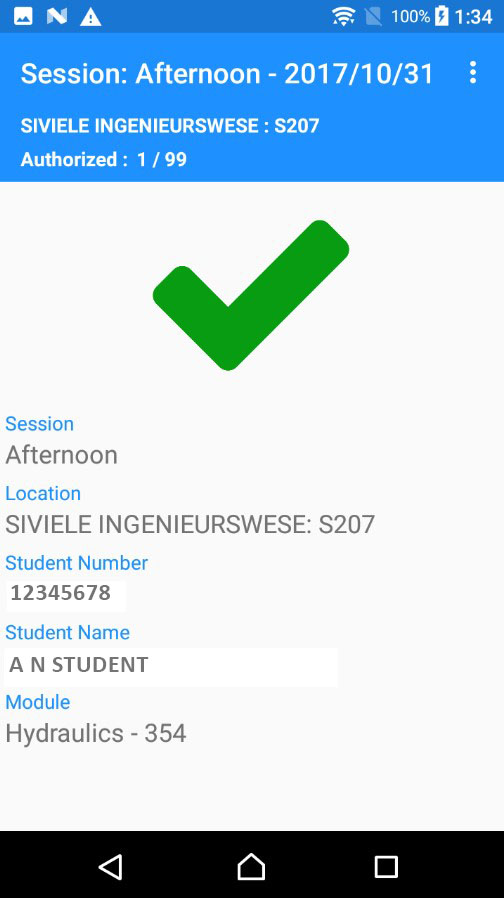
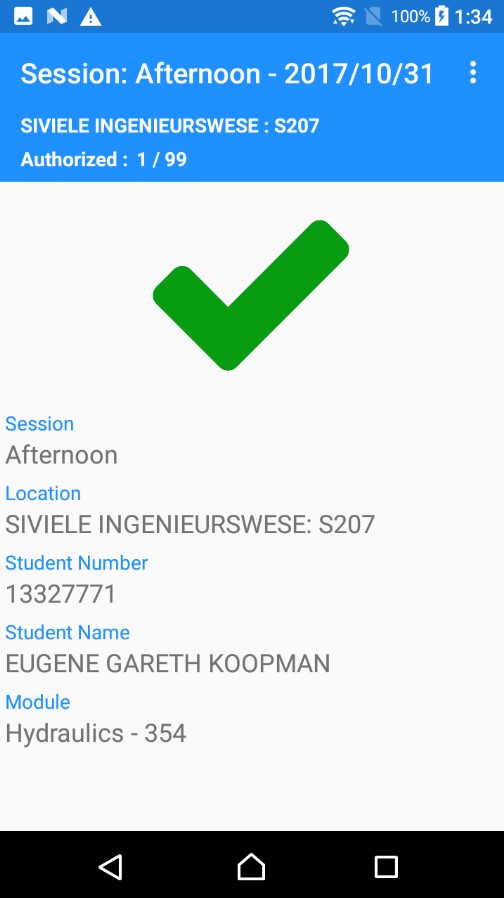
A student’s student card is held against the back of the cell phone, and on the screen, it is indicated whether the student is supposed to write the examination in the specific module in the specific venue. The screen will display a green mark if the student is at the correct exam venue (see image right) and a red cross if not. If the student is at the wrong venue, the screen will indicate where the student should be for the exam or test.  

This will result in access to examination venues being easily and swiftly controlled and will certainly simplify and improve the function of access control with regard to examination venues.  

This easier scanning process is made possible by the NFC (near-field communications) chip on Android phones which communicates with the MIFARE chip embedded in the student card,  and the identification information is then used by the phone app to look up the student’s exam venue. The exam venue and module information come from the Student Information System. 

Tests were first conducted on a small scale during the November 2017 examination and the technology was rolled out fully for the June 2018 examination. It was a resounding success.  

 Emce Louw, Head of the Exam Office experienced the impact first-hand as the process was driven from her office. This included loading the cell phones, setting up data, training the convenors responsible for scanning at the venues and collecting the phones after the exams. She received overwhelmingly positive feedback from invigilators and students alike: 


Scan van studentekaarte is fantasties! Ek het gister 4de jaar Megatronika studente gehad. Hulle was vreeslik beïndruk met die scanning!”

The development and successful completion of the technology was a cross-functional team effort. Hendrik le Roux from Information Technology’s Access Control Division was the project manager and Guzelle Hendricks was responsible for business analysis for the two three-month phases of the project which ran from the end of 2017 to June 2018.  

In addition to Hendrik and Guzelle the following staff played a key role in getting the project off the ground – Phillip Greeff (TAS), Gregory Isaacs (TAS), Anna-Mari du Toit, Marc-Allen Johnson, Jeremy van Rooyen, Charles Hopkins, who wrote the app and Elmar Matthee who was responsible for the back-end development. On the side of the functional stakeholders, besides for Emce, Neels Fourie (Deputy Registrar), and Jan du Toit and Helene Nieuwoudt (both from SISS) participated in the project.

[:af]

Tot onlangs was toegang tot eksamenlokale vir studente `n tydrowende handaksie wat uitvoer is deur inligting op toegangslyste na te gaan en af te merk. Nuwe tegnologie, ontwikkel deur Informasietegnologie, in samewerking met die Eksamenkantoor in die Registrateursafdeling, het dit egter verander. 

Die nuwe ontwikkeling gebruik selfone by elke eksamenlokaal om te identifiseer of studente toegang behoort te kry. `n Student se studentekaart word teen die agterkant van die foon gehou, waarna daar op die skerm vertoon word of die student veronderstel is om die eksamen van die spesifieke module in die spesifieke lokaal moet skryf. Die skerm sal `n groen regmerk wys as die student by die regte eksamenlokaal is (sien grafika regs) en `n rooi kruis wanneer hy/sy nie is nie. Indien die student by die verkeerde lokaal is, sal die skerm ook aandui waar die student wel moet wees vir die eksamen.

Te danke aan dié nuwe proses sal toegang tot eksamenlokale makliker en vinniger hanteer word. Die makliker skanderingsproses is moontlik as gevolg van die NFC (near-field communications) skyfie op Android-fone wat kommunikeer met die ingeboude MIFARE-skyfie in die studentekaart. Die identifikasie-inligting word dan deur die foontoepassing gebruik om die student se eksamenlokaal op te soek. Die eksamenlokaal en module-informasie word onttrek vanaf die Studente Inligtingstelsel. 

Toetse is eers op `n klein skaal verlede jaar gedurende die November eksamen uitgevoer en die tegnologie is vir die eerste keer volledig implementeer gedurende die Junie eksamen die jaar. Dit was `n reuse sukses.

Emce Louw, Hoof van die Eksamenkantoor, het die impak van die nuwe tegnologie eerstehands beleef. Sy was betrokke by die laai van die selfone, data-opstelling, oplei van die konvenors wat die skandeerwerk by die lokale moes doen en was ook verantwoordelik vir die insameling van die fone na afloop van die eksamens. Terugvoer vanaf studente en toesighouers was ewe positief:


Scan van studentekaarte is fantasties! Ek het gister 4de jaar Megatronika studente gehad. Hulle was vreeslik beïndruk met die scanning!”

Die ontwikkeling en suksesvolle voltooiing van die tegnologie was `n poging oor verskeie spanne met verskeie funksies heen. Hendrik le Roux van Informasietegnologie se Toegangsbeheerafdeling was die projekbestuurder en Guzelle Hendricks was verantwoordelik vir die besigheidanalise van die twee driemaande fases van die projek wat gestrek het van einsw 2017 tot Junie 2018.

Bo en behalwe Hendrik en Guzelle  het die volgende personeel elkeen `n belangrike rol gespeel – Phillip Greeff (TAS), Gregory Isaacs (TAS), Anna-Mari du Toit, Marc-Allen Johnson, Jeremy van Rooyen, Charles Hopkins, wat die toepassing geskryf het, en Elmar Matthee, wat verantwoordelik was vir bedienerontwikkeling. Aan die kant van die funksionele aandeelhouers het, buiten Emce, Neels Fourie (Adjunk-Registrateur), sowel as Jan du Toit en Helene Nieuwoudt (beide van SISO) aan die projek deelgeneem.


[:]

[:en]REDCap launched for researchers[:]

Tuesday, July 31st, 2018

[:en]

SU Research Support Services are pleased to announce the launch of Stellenbosch University’s Research Electronic Data Capture (REDCap) service. REDCap is a secure web application for building and managing online surveys and databases and can be configured to meet compliance standards such as HIPAA, 21 CFR Part 11, and FISMA.

REDCap is a tool for capturing confidential information. This requires planned and careful management in order to protect the participant’s personal data. For data security purposes, exporting of data from the platform is discouraged, but if necessary, security and confidentiality will depend on correct tagging of identifier fields in the data dictionary and correct assigning of user rights for export by the Data Manager.

Ethics approval is required from an appropriate Stellenbosch University REC if working with humans, human material (such as blood or tissue) or their data, including secondary use of such materials (this is defined as the reuse in a new project of previously collected data or material). Please contact your local ethics office if you have not yet applied for ethics clearance. The application will include questions related to how you manage, store and use data, including data entered into REDCap. It may also require that you submit the data dictionary and an assigned roles list. Particular attention should be paid to which identifiers you intend to collect and how you will maintain confidentiality if exporting identifiable data.

Adequate and appropriate consent is an essential requisite of REC approval. If you are collecting and storing personal identifiers, it must be reflected in the consent form. If you intend to share or reuse data or material, it must be consented to when the data or material is collected, otherwise, it cannot be used or shared in future research projects.

To access this service, register on redcap.sun.ac.za with your active SU username and password. As part of the registration process, you will receive an email verification request. This auto-generated email will include instructions on how to set up Google Authenticator. For security reasons, Google Authenticator must be used with REDCap to ensure multi-factor authentication.

A training instance of REDCap is also available on redcaptest.sun.ac.za, where you can explore REDCap functionality and present training sessions. ‘Real’ data may not be captured in the training environment. Google Authenticator has to be set up separately for the training environment and the live environment.

SU does not provide institutional support for the day-to-day operational use of REDCap. It is a researcher’s responsibility to familiarise themselves with the software, however, embedded video guidance and numerous FAQs are available online. SU-specific guidelines are available here. For fee-based REDCap advanced support, contact redcap@sun.ac.za.  For technical support (i.e. access-related or system errors), contact help@sun.ac.za.

A REDCap mobile app is also available and can be used on iPhone, iPad, or Android phone or tablet. The REDCap Mobile App adds a new dimension to REDCap’s versatility by providing users with a tool for offline data collection, particularly in environments with poor Internet connectivity. The devices (tablet or phone) must be secured. REDCap Mobile App users must report any stolen tablets or phones to SU IT and the SU REDCap Administrators.


[:]

[:en]Protect what you share[:]

Thursday, March 29th, 2018

[:en]

Last month it was revealed that a Trump data company, Cambridge Analytica, used the data of Facebook users during the American election. Security company SANS Security provided the information below to clarify the situation and provide solutions if you are concerned about your data being shared online.

“The US Federal Trade Commission is investigating whether Facebook violated terms of a 2011 settlement when data of up to 50 million users were transferred to Cambridge Analytica, a data analytics firm.  This data was originally collected from a Facebook app called “thisisyourdigitallife”.  The app not only collected extensive data from people who downloaded it, but the app connected data on their friends also.  This incident is raising a lot of questions, to include what other data has been collected by other apps, and how was that data shared.  Below are steps you can take to protect your privacy.  Note that while these steps are specific to Facebook, you should consider following the same steps for any social networking sites you use online.  In addition, Facebook will be making privacy changes in the coming months, as such, some of the links or options listed below may change. 

  1. Delete: If you are truly concerned about Facebook and no longer trust it, the most dramatic step you can take is to Delete Your Facebook Account.  If you do, your information cannot be recovered, so we recommend you download all of your past Facebook activity first from your settings page.
  2. Deactivate: The second option is to Deactivate Your Facebook Account, which is in your General Account Settings. This freezes your online activity to include disabling your profile and remove your name and photo from most things you’ve shared on Facebook.  However, you will still be able to message people.  Unlike Deletion, with Deactivation, you can Re-activate your account, which means your profile and past activity is restored.
  3. Minimize Apps: The issue is not only what data Facebook collects about your activity, but what data any third party apps that connect to your Facebook account, apps such as Clash of Clans or What is Your Inner Age.  Only install apps you need and minimize what they collect.  Why do you think there has been such an explosion of these fun and free apps?  Because they make money harvesting your information. In addition, limit what others share about you with their apps in the “Apps Others Use” section. Finally, delete an app when you no longer need it or no longer trust it.  Not sure what apps you have?  Check out your apps page and review your apps. Every app you have is just one more opportunity for others to collect information about you.  
  4. Logins: Many websites (and apps) give you the option of using your Facebook account to login.  While that is convenient, it just means more data sharing is happening between that website and your Facebook account.  Protect your privacy by using a unique login for each and every account you have.  Can’t remember all of your passwords?  Neither can we, that is why we recommend a Password Manager.
  5. Sharing: Always be careful what you share with others.  If you do not want your parents or boss to read it, you probably should not post it.  Yes, you can use privacy options to control who can read your posts, but remember those can be confusing and change often, so what you thought was privately shared can become publicly available.
  6. Two-factor Authentication: Finally, while not related to privacy, one of the best steps you can take to securing any of your online accounts is to enable two-factor authentication.  This requires a second step to logging into the site.  This very simple step is one of THE most effective ways you can secure your online accounts.

Unfortunately, these steps are not as simple as we would like.  Facebook and other sites do this on purpose, they make money by collecting your information.  We want you to be aware that information is being collected about you and the steps you can take to protect yourself.  Finally, while these steps are specific to Facebook, keep in mind many other free sites have the same issues.”

[Source: SANS Security Awareness]

[:]

[:en]All Office365 applications now available[:af] Alle Office365-toepassings nou beskikbaar[:]

Monday, June 5th, 2017

[:en]

Information Technology enabled the complete cloud-based Office365 package for all staff with an active role earlier this month.

The complete Office 365 package includes:
– Outlook mail
– OneDrive for Business (5TB for each staff member and student)
– SharePoint Online (public and team sites)
– Access to online MS Office apps (for example Word, Excel, PowerPoint, etc.)
– Five downloadable versions of Office 2016 for personal devices (for example laptops, tablets and smartphones) Take note that these Office 2016 versions are not allowed on any asset number devices, it’s only allowed on personal devices.

What is Office 365?

If you have any questions, please let us know by logging a request on ServiceNow or calling our Service Desk at 808 4367. For more information on the Office365 package, please consult our FAQs or have a look at the Office365 training videos.

IMPORTANT: When using cloud-based services, you have to keep your private and work usernames, passwords and data separate. Never use the same username for private and work email accounts, storage spaces and applications.

[:af]

Informasietegnologie het vroeër die maand die volledige wolkgebaseerde Office365 pakket vir personeel met aktiewe rolle aktiveer. 

Hierdie dienste sluit in:

– Outlook e-pos
– OneDrive for Business (5TB vir elke personeellid en student)
– SharePoint Online (publieke en spanwebwerwe)
– Aanlyntoegang tot MS Office toepassings (byvoorbeeld Word, Excel, PowerPoint, ens.)
– Vyf aflaaibare Office 2016 weergawes vir persoonlike toestelle (byvoorbeeld skootrekenaars, tablette en slimfone) Let wel, hierdie 5 Office 2016 weergawes mag op geen batenommertoestelle installeer word nie. Dit word slegs toegelaat op persoonlike toestelle.

Wat is Office 365?

Indien jy enige navrae het, laat weet ons asseblief deur `n versoek aan te meld op ServiceNow of ons Dienstoonbank te kontak by 808 4367. Vir meer inligting oor die Office365 pakket, raadpleeg asseblief ons FAQs of kyk na die Office365 opleidingsvideos.

BELANGRIK: Wanneer jy wolkgebaseerde dienste gebruik, is dit krities dat jy jou privaat- en werkgebruikersname, wagwoorde en data apart van mekaar hou. Moet nooit dieselfde gebruikersnaam vir jou privaat en werk eposrekeninge, stoorspasie en toepassings gebruik nie.

[:]