SEARCH
  • [:en]Recent Posts[:af]Onlangse bydraes

  • [:en]Categories[:af]Kategorieë

  • [:en]Archives[:af]Argiewe

Apps

Mobile payments making payment easierSelfoonbetalings maak die lewe nog makliker

Friday, May 29th, 2015

Just when you thought it was safe to leave your credit card at home, along came mobile payment facilities.

Snapscan, developed here in Stellenbosch, is the best-known mobile payment option at the moment. Apart from SnapScan, PocketPOS, FlickPay and Payment Pebble are also widely used in South Africa.

All these use your cell phone as Mobile POS (point of sale) so you don’t have to carry cash or a card on you. The assumption is that most people always carry their phones with them, but not their wallets. The mobile wallet is therefore an easy and convenient alternative. You also don’t have to queue or get for a waiter to notice you – just make the payment yourself.

You may think this is just another passing tech-fad, but according to research mobile transactions are higher in Africa than in America. Easier, cheaper internet access by cell phone when a computer isn’t available, being the main reason. In 2012 Africans spent more than 57.8 billion dollar just on mobile payments.

Although QR codes  (as used by SnapScan) are still used, new technology is already on the cards. Beacon technology uses your location for a different functions.

Snapscan recently developed Snapbeacon, a first in South Africa. Tap a button in the app and a transaction in the shop will be initiated via Bluetooth. If the function has been activated on your phone, it will automatically show a Pay here option.

Snapbeacon is only compatible with specific phones – iPhone 4S and higher and the latest smartphones with Android 4.3 and higher. At the start of April Snapbeacon was available at 30 SnapScan vendors in Cape Town and 20 in the rest of South Africa.

 [SOURCES: www.memeburn.comwww.ventureburn.com]

Net toe jy gedink het dis veilig om jou kredietkaart by die huis te los. Ons stel bekend – selfoonbetalings.

Snapscan, ontwikkel hier in Stellenbosch, is die mees bekende vorm van selfoonbetaling. Maar buiten SnapScan word PocketPOS, FlickPay en Payment Pebble ook tans in Suid-Afrika gebruik. 

Teen die tyd het ons almal al gehoor van Snapscan. Hoe anders, dit het sy oorsprong hier op Stellenbosch. Maar Snapscan is nie die enigste selfoon betaalmetode nie. Die ander drie bestaande platforms: PocketPOS, SnapScan, FlickPay en Payment Pebble gebruik ook jou selfoon as Mobile POS (point of sale) sodat jy nie kontant of `n kaart by jou hoef te hou nie.

Die veronderstelling is dat niemand ooit sonder `n foon is nie, maar nie altyd `n beursie saamdra nie. Daarom is die “mobile wallet” `n gemaklike alternatief. Jy hoef ook nie meer in rye te staan of te wag vir die kelner om jou raak te sien nie – hy betaal self vanaf jou foon.

Jy mag dink dat hierdie net nog `n verbygaande gril is, maar volgens navorsing is selfoontranssaksies in Afrika groter in Amerika. Maklike en goedkoop toegang tot selfone vir internet eerder as rekenaars is waarskynlik die rede vir hierdie statistieke. In 2012 het Afrikane meer as 57.8 biljoen dollar spandeer net op selfoonbetalings.

Alhoewel QR kodes  (soos die wat SnapScan gebruik) steeds algemeen is, is daar alreeds nuwer tegnologie beskikbaar. Beacon-tegnologie gebruik jou ligging vir verskeie funksies. 

SnapScan het onlangs Snapbeacon, `n eerste in Suid-Afrika, ontwikkel. Tik `n knoppie in die Snapscan-toepassing en `n transaksie word geaktiveer met Bluetooth. As die funksie op jou foon geaktiveer is, sal dit outomaties `n Pay here opsie wys. Jy kan dit ook deaktiveer as jy dit nie wil gebruik nie.

Snapbeacon is slegs versoenbaar met spesifieke fone – iPhone 4S en hoër en die nuutste slimfone met Android 4.3 en hoër. Aan die begin van April was Snapbeacon beskikbaar by 30 SnapScan-handelaars in Kaapstad en 20 in die res van Suid-Afrika.

[BRONNE: www.memeburn.comwww.ventureburn.com]

Whatsapp for you PCWhatsapp vir jou rekenaar

Friday, February 13th, 2015

whatsappMany of us practically break out in hives if we’re outside the cellphone or WiFi reception range, while others are at their happiest in the middle of nowhere with no cellphone tower in sight. If you fall into the first category, you’re probably a devoted WhatsApp user.

The good news is that, from the end of January, WhatsApp will not only be limited to your phone, but also on your tablet or PC. Whatsapp Web gives users the convenience of sending and receiving messages via a website.

Your chats will be automatically synchronised between your phone and PC. The only limitation at this stage is Google Chrome as prerequisite. If you’d like to use WhatsApp on your PC, you’ll find detailed instruction on Cnet, as well as an instructional video.

Unfortunately with the convenience and accessibility of WhatsApp also comes risk. If you use WhatsApp on a regular basis, look out for the following scams.

A new Wangiri campaign, where users are encouraged to make expensive international calls, is doing the rounds.  Wangiri is a type of cellphone fraud where the perpetrator randomly calls cell numbers and puts down the phone after one ring. A missed call shows on the victim’s phone and he calls back since he believes the call was intended for him. In actual fact he’s calling a very expensive premium number.

In this instance WhatsApp users receive a message with a contact card attached and the message asks the cellphone owner call back. Read more on this scam here.

A second example is an SMS campaign which could cost WhatsApp users R210-00 a month. An SMS with the following wording is received:

“You have not updated to the latest WhatsApp add-ons. Click here now [URL]. (Free MSG) 31655 optout dial 0110621424”.

A link guides users to a screen with the message “Update your wall 4 WhatsApp”. Fine print below indicates that you’re actually subscribing to a social network called Buddiechat, which will cost you R7-00 per day.

WhatsApp users unknowingly click on the link because they believe it’s legitimate  WhatsApp communication or because they’re too preoccupied to read. Read the full article on mybroadband. 


whatsappBaie van ons raak paniekbevange as ons buite selfoon of  WiF-ontvangs  is, terwyl ander op hul gelukkigste is in die middel van nerens met geen selfoontoring in sig. As jy in die eerste kategorie val, is jy waarskynlik ook `n geswore WhatsApp-gebruiker. 

Die goeie nuus is dat WhatsApp vanaf einde Januarie nie net op jou foon beskikbaar is nie, maar ook op jou tablet of rekenaar. Whatsapp Web gee aan gebruikers die gerief om gebruikers boodskappe te laat stuur en ontvang deur middel van `n webwerf.

Jou gesprekke sal ook outomaties gesinkroniseer word tussen Whatapp op jou selfoon en die toepassing op jou rekenaar.  Die enigste nadeel is dat dit slegs gebruik kan word met Google Chrome. As jy WhatsApp op jou rekenaar wil gebruik, kan jy die volledige instruksies op Cnet bekom.

Met die gemak en toeganklikheid van WhatsApp kom egter ook `n bietjie risiko. As jy gereeld Whatapp gebruik, kyk ook uit vir hierdie nuutste bedrogpogings.

 `n Nuwe WhatsApp Wangiri veldtog is tans in omloop waar gebruikers genoop word om `n internasionale oproep te maak wat gevolglik tot geweldige hoë kostes ly. 

Wangiri is `n tipe telefoonbedrog waar die skuldige lukrake nommers skakel en die foon neersit na een lui. `n Gemisde oproep wys dan op die ontvanger se foon. Die selfoongebruiker skakel terug omdat hy glo die oproep was vir hom bedoel en inderwaarheid skakel hy ‘n premium (en duur!) nommer.

WhatsApp-gebruikers kry `n boodskap met `n kontak aangeheg wat vra dat die “persoon” teruggebel word. Lees meer oor dié nuutste skema hier.

`n Tweede voorbeeld is `n SMS-veldtog kan WhatsApp-gebruikers R210-00 per maand uit die sak jaag. `n SMS word ontvang met die volgende bewoording word ontvang:

“You have not updated to the latest WhatsApp add-ons. Click here now [URL]. (Free MSG) 31655 optout dial 0110621424”. `n Skakel lei gebruikers na `n skerm met die boodskap “Update your wall 4 WhatsApp”.

Die fynskrif onderaan dui aan dat jy eintlik inskryf vir `n sosiale netwerk genaamd Buddiechat wat jou R7-00 per dag uit die sak gaan jaag. Gebruikers kliek onwetend op die skakel omdat hulle glo dis wettige WhatsApp-kommunikasie of omdat hulle in gedagte is. 

Lees die volledige artikel op mybroadband. 

Want to read a novel in 90 minutes?Wil jy `n boek binne 90 minute lees?

Friday, September 26th, 2014

Too much to do, not enough time! Sounds familiar? No wonder we feel frustrated when we have to read large amounts of material in limited time.

Due to our dwindling attention span caused by technology and the emergence of e-books, rapid serial visual presentation technology, or RSVP is becoming more popular. It’s not new technology, and in fact, has been around for almost a decade now. (*see below for alternative speed readers)

spritzThe latest of these applications is Spritz. The Boston-based company specialises in text streaming technology and how it can be integrated into our daily communication. When Samsung released the Gear S Smartwatch Spritz even came pre-installed with it.

According to Spritz, when we read, we only use 20% of our time to actually process what we’re reading. The other 80% is spent wasted moving your eyes around and scanning for the “Optimal Recognition Point” (ORP)

The ORP is a specific section of a word your brain needs to process to understand the written text. It then assembles each word into an understandable sentence. Spritz does this thinking for you by highlighting the OPR in red and aligning them all at the same place on your screen. Subsequently your eyes focus on only one spot, which in turn causes you to read faster.

Spritz allows you to choose your own reading speed ranging from 250 words per minute to 1000 words per minute. With practice your reading speed will increase and you’ll be able to not only read efficiently, but also comprehend what you’ve read.

We’ve tested Spritz and it does enable you to read much faster than you normally would. If you need to read documentation for work or research, Spritz might well be the answer. But do you really want to read a novel in an hour and a half? (Quite possible according to Spritz)

This way of reading might however be beneficial for people suffering from dyslexia, a short attention span or other reading disabilities.

Spritz is available in both an application format for your phone or e-reader, but also as an add-on called Spritzlet for your web browser. Both can be downloaded for free at www.spritzinc.com.

*Alternatively also try SpreederQuickreaderRead Quick or Firefox’s RSVP reader.

[SOURCES: www.cbsnews.com, www.time.com, www.globalnews.com, www.abcnews.com]

Te veel om te doen, te min tyd! Klink dit bekend? Dis geen wonder ons raak gefrustreerd as ons skielik opgesaal word met `n stapel leesstof waardeur ons moet werk nie.

Te danke aan die geleidelike afname van ons aandagspan te danke aan tegnologie en die toename van e-boeke, word “rapid serial visual presentation technology”, of te wel RSVP, word al meer populêr. Dis nie nuwe tegnologie nie, inteendeel, dis alreeds vir `n dekade in die rondte. (*sien onder vir alternatiewe spoedlesers)

spritzDie nuutste van hierdie toepassings, is Spritz. Die Boston-gebaseerde spesialiseer in teksstroom tegnologie en hoe dit geintegreer kan word in ons daaglikse kommunikasie. Die Samsung Gear S slimhorlosie is selfs vrygestel met Spritz reeds daarop geinstalleer.

Wanneer ons lees, gebruik ons slegs 20% van die tyd om dit wat ons lees te verwerk, beweer Spritz. Die orige 80% word vermors omdat ons oë heen-en-weer moet beweeg en soek na die “Optimale Herkenningspunt”(ORP).

Die ORP is `n spesifieke gedeelte van `n woord wat jou brein moet verwerk om die geskrewe teks te kan vertsaan. Dit voeg dan elke woord saam om `n logiese sin te vorm. Spritz doen hierdie verwerking vir jou deur die OPR in rooi uit te lig en elke keer op dieselfde plek op die skerm te posisioneer. Gevolglik fokus jou oë net op een plek en jy kan vinniger lees.

Met Spritz kan jy jou eie leesspoed kies – van 250 woorde per minuut tot 1000 woorde per minute. Met oefening kan jy jou leesspoed verhoog en sal jy nie net vinniger ees nie, maar ook meer effektief en verstaan wat jy lees.

Ons het Spritz getoets en dit laat jou wel toe om baie vinniger te lees as wat jy normaalweg sou. As jy dokumentasie vir werk of navorsing moet lees, kan Spritz moontlik jou lewe makliker maak. Maar wil jy regtig `n roman binne `n uur en `n half klaarlees? (Heeltemal moontlik volgens Spritz)

Hierdie leesmetode kan wel tot voordeel strek vir persone wat ly aan disleksie, `n kort aandagspan of enige ander leesgebreke.

Spritz is beskikbaar in beide `n toepassing vir jou foon of e-leser, maar kan ook geinstalleer word as `n webblaaier-ekstra. Beide kan gratis afgelaai word by www.spritzinc.com.

*Alternatiewelik kan jy ook SpreederQuickreaderRead Quick or Firefox se RSVP -leser, probeer.

[BRONNE: www.cbsnews.com, www.time.com, www.globalnews.com, www.abcnews.com]

So, Tom Hanks now also has an appSo, Tom Hanks het ook nou `n app

Friday, August 22nd, 2014

hanx

It seems nowadays everyone famous is getting involved with some kind of technological endeavour. The latest one to join the ranks, is Tom Hanks – yes, he of Forrest Gump fame.

Apparently Mr Hanks has a soft spot for typewriters. This sounds a bit contradictory when we’re talking about technology, but he has found a way to merge technology and old-school coolness.

Last year Hanks wrote an article in the New York Times where he sang the praises of the common old typewriter – “Everything you type on a typewriter sounds grand, the words forming in mini-explosions of SHOOK SHOOK SHOOK.” Hanks is also an avid typewriter collector, starting way back in 1978. 

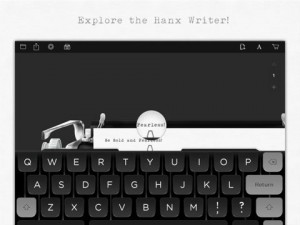
His passion has lead to a collaboration with Hitcents to develop the Hanx writer, an app simulating a typewriter.

It replicates all the sounds of a typewriter, the click of the keys and the bell at the end of a line. You can even XXX out your mistakes like in the old days.

However Hanx writer does include some more technologically advanced features such as the option to e-mail, print or share the document you typed. It can also be paired with a blue-tooth keyboard, if you happen to have one.

Unfortunately Hanks’ app is only available for iPads. There are three versions available and the basic model can be downloaded for free on Apple iTunes. Extra paid options can be downloaded if you need more choices. The app launched last week and it currently holds it’s place as the most downloaded app in iTunes.

According to Hanks the app isn’t meant for serious work, but rather as a novelty for those feeling nostalgic who share his love of the now extinct typewriter. And if you prefer something closer to the real thing – QWERKY, has developed a bluetooth iPad keyboard resembling a typewriter.

[SOURCES: www.time.com, www.theguardianwww.nytimes.com, www.mashable.com]

hanxDeesdae is al wat `n bekende is, betrokke by een of ander vorm of  van tegnologie. Die nuutste is Tom Hanks – ja, die einste een van Forest Gump.

Blykbaar het Mnr Hanks `n  sagte plekkie vir tikmasjiene. Dié stelling klink `n bietjie teenstrydig siende dat ons nou net van tegnologie gepraat het, maar Hanks het `n manier gekry om tegnologie en retro-koelheid te trou met mekaar.

Verlede jaar het hy in die New York Times in `n artikel die gewone, ou tikmasjien behoorlik die lof besing – “Everything you type on a typewriter sounds grand, the words forming in mini-explosions of SHOOK SHOOK SHOOK.”

Hanks is natuurlik ook  al sedert 1978 `n ywerige versamelaar. Hierdie passie het gelei tot samewerkingsooreenkoms met Hitcents om die  Hanx Writer, `n toepassing wat die tikmasjien probeer simuleer, te ontwikkel.

Hanx writer maak al die byklanke van `n tikmaskien na – die gekletter van die sleutels en selfs die klokkie aan die einde van `n reël. Jy kan selfs jou foute uit”XXX”, soos in die ou dae.

Die Hanx writer bevat ook meer tegnologies-gevorderde ekstras soos die opsie om jou dokument te e-pos, druk of te deel met ander. Dit kan selfs gebruik word saam met `n “blue-tooth” sleutelbord.

Ongelukkig is Hanks se toepassings slegs beskikbaar vir iPads. Daar is drie weergawes beskikbaar met betaalopsies vir meer verskeidenheid.  Die toepassing is laasweek bekendgestel, maar staan reeds stewig as mees afgelaaide toepassing op Apple iTunes.

Volgens Hanks is dit nie ideaal vir ernstige werk en dokumente nie, maar moet dit gesien word as `n nuutjie vir diegene wat nostalgies voel en sy liefde vir tikmasjiene deel. As jy verkies om nog nader aan die oorspronklike te kom – QWERKY het `n “blue-tooth” sleutelbord ontwikkel wat trek na`n tikmasjien.

[BRONNE: www.time.comwww.theguardianwww.nytimes.comwww.mashable.com]

Useful, free web apps you should know aboutNuttige, gratis web apps waarvan almal behoort te weet

Friday, August 8th, 2014

As part of the expansion of the web, the last decade has seen the rise of thousands —if not millions —of web apps: often-simple tools that allow users to complete specific tasks via a web page from any computer connected to the internet.

The possibilities are almost endless: think of a task you need to complete and you can be nearly certain that there will be a useful web app that fits the job. The key, however, is to know where to look. And that’s where this guide comes in.

Below, you’ll find a list of a few tried-and-tested web apps that —if used correctly —can make your life much, much easier. Try them. Use them. Share them.

NOTE TAKING AND STUDY AIDS

Evernote: A very popular note management solution, allowing you to pull in notes from your tablet, computer, phone and elsewhere. The web app lets you create, edit, manage and search your notes library. www.evernote.com

Mindmap: An easy-to-use tool that lets you create your own mind maps quickly and efficiently. Great for summarising course notes, articles and books. www.mindmup.com

Gliffy and LucidChart: Both great apps for illustrating a concept with diagrams. Both include many useful shapes and tools. However, both have some limits on the free account. Still, they are great for occasional diagramming. www.gliffy.com and www.lucidchart.com

Google Drive Documents: Google’s web-based word processor. It’s perfect for summaries, essays and more and you and other people can type in the same document at the same time. This makes it perfect for team planning, agendas and taking minutes in a meeting. Google Drive Documents is part of — you guessed it — Google Drive, so you’ll need to create an account there. drive.google.com

Cram: A lightweight flashcard tool that lets you create your own flashcards (having one word/phrase on the front and one on the back) and then review them alphabetically or randomly. Very useful for any content for which you have to remember a key point for a specific concept, e.g. in learning a language. www.cram.com

PRESENTATIONS

Prezi: Tired of slideshows with sparkling text and way too many bullet points? Do your next presentation with Prezi. It’s a great way to illustrate how your ideas fit into one another because all your content is displayed on a single canvas, with the ‘view’ simply panning and zooming from one area to another. www.prezi.com

Google Drive Presentations: If you prefer a more traditional ‘slideshow’, or if Prezi isn’t suitable for communicating your message, you can use Google’s PowerPoint alternative for free. While it’s not as feature-packed as PowerPoint, it’s still a great way to do presentations if you don’t want to dish out money for the aforementioned duo. drive.google.com

 RESEARCH

Google Scholar: This app brings the power of Google search to research. By letting you search thousands of academic databases (including those used by EBSCOHost, JSTOR, etc.) quickly and easily, it cuts down the time necessary to find the articles you need for projects, essays and theses. As a bonus, it also lets you import article metadata into a citation manager (see Zotero below) directly from the search results page. When accessing Google Scholar from outside the Stellenbosch University, use scholar.google.com.ez.sun.ac.za to get access to the journals to which the university subscribes. Otherwise: scholar.google.com

[Special mention] Zotero: While Zotero isn’t strictly speaking a web app (although it also runs in your browser), it’s just too good and relevant not to include here. For a full Zotero guide, check out the previous article  in this series.

ORGANISATION AND COMMUNICATION

Google Calendar: This app is the gold standard in free calendar tools. It helps you keep track of your appointments, events, deadlines and general planning — all while still being very easy to use. It can also keep in sync with all your devices, so that you can have access to your calendar on your tablet, phone and computer. calendar.google.com

Gmail: This e-mail service has ever-expanding storage space and great search functionality. Gmail is different from Microsoft Outlook, Yahoo Mail and other services, in that it uses ‘labels’ instead of traditional folders. You can tag any e-mail with one or more labels and subsequently search by that label. Also, because you have such a large amount of space (15 GB as of early 2014), you never have to delete e-mails and lose them forever. Consequently, because you have access to all e-mails you ever sent or received, Gmail includes powerful searching capabilities (think: Google for your inbox) that allow you to delve into your tons and tons of messages effortlessly. www.gmail.com

Wunderlist: task management made easy — and beautiful. Keep track of your daily to-do list, priorities, shopping list and more. You can also share task lists with friends — a great tool for group projects. www.wunderlist.com

FILE SHARING

Google Drive: Install Google Drive on your computer and then simply drop a file in the assigned folder to upload it. Once uploaded, you can share files with friends. Google Drive has a range of web-based editors that are included by default —two of which were previously mentioned —that make collaboration easy. You can also share specific folders in your Drive with your friends, which works really well to keep all the files for a group project stored in one place. drive.google.com

Dropbox: simple and easy file sharing. While it works in the same way as Google Drive, it doesn’t include the online editors built into the latter. However, Dropbox remains one of the simplest ways to share files between devices and people. Dropbox is particularly useful when you need to send a large file via e-mail and don’t want to clog up the recipient’s mail storage: simply upload the file to your Dropbox and then share the link in an e-mail. www.dropbox.com

[ARTICLE BY JOHANNES JONKER]

As deel van die uitbreiding van die web het die afgelope dekade die opkoms van duisende – indien nie miljoene nie – web apps gesien: in baie gevalle eenvoudige gereedskap wat gebruikers toelaat om spesifieke take via ’n webblad te voltooi, vanaf enige rekenaar wat aan die internet gekoppel is. Dit is egter belangrik om te weet waar om te kyk. En dít is waar hierdie gids jou kan help. Hieronder sal jy ’n lys vind van ’n paar bewese webtoepassings (apps) wat – indien hulle reg gebruik word – jou lewe baie makliker kan maak. Probeer hulle. Gebruik hulle. Deel hulle.

AANTEKENINGE NEEM EN STUDIEHULPMIDDELS

Evernote: ’n Baie gewilde nota-bestuurstelsel, wat jou toelaat om notas van jou tablet, rekenaar, foon en elders in te trek. Die web app laat jou toe om ’n nota-biblioteek te skep, verander, bestuur en te deursoek. www.evernote.com

Mindmap: ’n Stuk gereedskap wat maklik is om te gebruik en jou toelaat om jou eie breinkaarte vinnig en doeltreffend te skep. Wonderlik om kursusnotas, artikels en boeke op te som. www.mindmup.com

Gliffy en LucidChart: Albei wonderlike apps om ’n konsep d.m.v. diagramme te illustreer. Albei sluit baie bruikbare vorms en gereedskap in. Albei het egter ’n paar beperkings op die gratis rekening. Tog is hulle goed as jy net nou en dan diagramme wil skep. www.gliffy.com en www.lucidchart.com

Google Drive Documents: Google se webgebaseerde woordverwerker. Dis perfek vir opsommings, opstelle en dies meer en jy en ander mense kan terselfdertyd in dieselfde dokument tik. Dít maak hierdie eienskap dus perfek vir beplanning in spanverband, agendas en om die notule in ’n vergadering te neem. Google Drive Documents is deel van – ja, jy’t reg geraai – Google Drive, dus is dit nie nodig om ’n nuwe rekening daar te skep nie. drive.google.com

Cram: ’n Liggewig flitskaart hulpmiddel wat jou toelaat om jou eie flitskaarte te skep (met een woord/frase voorop en een agterop) en hulle dan alfabeties of lukraak te hersien. Baie nuttig vir enige inhoud m.b.t. waarmee jy ’n spesifieke sleutelpunt vir ’n spesifieke konsep moet onthou, bv. wanneer jy ’n taal aanleer. www.cram.com

AANBIEDINGS

Prezi: Moeg van skyfievertonings met flitsende teks of te veel kollyste (bullet lists)? Berei jou volgende aanbieding voor met Prezi. Dis ’n wonderlike manier om te illustreer hoe jou idees met mekaar verband hou omdat al jou inhoud op ’n enkele skerm vertoon word, met die ‘gesigspunt’ wat eenvoudig van een area na ’n ander swaai en inzoem. www.prezi.com

Google Drive Presentations: Indien jy ’n meer tradisionele ‘skyfievertoning’ verkies, of as Prezi nie gepas is om jou boodskap te kommunikeer nie, kan jy Google se PowerPoint alternatief gratis gebruik. Hoewel dit nie so vol eienskappe soos PowerPoint is nie, is dit nog steeds ’n goeie manier om aanbiedings te doen as jy nie geld op die voorgenoemde kombinasie wil uitgee nie. drive.google.com

NAVORSING

Google Scholar: Bring die krag van ’n Google soektog na navorsing. Deur jou toe te laat om vinnig en maklik duisende akademiese databasisse te deursoek (insluitend dié wat deur EBSCOHost, JSTOR, ens.) gebruik word, verminder dit die tyd wat jy benodig om artikels vir jou projekte, opstelle en tesisse te soek. ’n Bonus is dat dit jou ook toelaat om belangrike metadata van die artikels in ’n aanhalingsbestuurder (sien Zotero hieronder) direk van die blad met die soekresultate in te voer. Wanneer jy van buite die Universiteit Stellenbosch toegang tot Google Scholar wil verkry, moet jy scholar.google.com.ez.sun.ac.za gebruik om toegang te kry tot die vaktydskrifte waarvoor die Universiteit inteken. Andersins: scholar.google.com

[Spesiale vermelding] Zotero: Hoewel Zotero nie streng gesproke ’n web app is nie (ten spyte daarvan dat dit ook in jou blaaier loop), is dit net té goed en té relevant om nie hier ingesluit te word nie. Meer oor Zotero in `n vorige artikel.

ORGANISERING EN KOMMUNIKASIE

Google Calendar: Die goue standaard van gratis kalender gereedskap. Dit help jou om op hoogte te bly van jou afsprake, geleenthede, sperdatums en algemene beplanning — maar bly tog baie maklik om te gebruik. Dit kan ook op al jou toestelle sinkroniseer sodat jy toegang tot jou kalender het op jou tablet, foon en rekenaar. calendar.google.com

Gmail: Hierdie e-posdiens met immer groeiende stoorruimte en ongelooflike soekfunksionaliteit. Gmail verskil van Microsoft Outlook, Yahoo Mail en ander dienste omdat dit ‘etikette’ in plaas van tradisionele lêers gebruik. Jy kan enige e-pos met een of meer etikette merk en gevolglik volgens daardie etiket soek. Omdat jy ook so ’n groot hoeveelheid ruimte het (15 GB vroeg in 2014), hoef jy nooit e-posse uit te vee en hulle vir ewig te verloor nie. Omdat jy gevolglik toegang het tot al die e-posse wat jy al ooit gestuur of ontvang het, sluit Gmail kragtige soekvermoë in (dink: Google vir jou e-pos) wat dit vir jou moontlik maak om met gemak deur tonne en tonne boodskappe te soek. www.gmail.com

Wunderlist: Taakbestuur vergemaklik – en pragtig. Bly op hoogte van jou daaglikse taaklys, prioriteite, inkopielys en meer. Jy kan ook taaklyste met jou vriende deel – ’n wonderlike stuk gereedskap vir groepprojekte. www.wunderlist.com

LÊERS DEEL

Google Drive:  Installeer Google Drive op jou rekenaar en plaas dan eenvoudig ’n lêer in die toegewese vouer om dit op te laai. Sodra dit opgelaai is, kan jy die lêer met vriende deel. ’n Wenner eienskap van Google Drive is die verskeidenheid webgebaseerde wysigers wat by verstek ingesluit word – twee waarvan ons reeds vroeër na verwys het – wat samewerking so maklik maak. Jy kan ook spesifieke vouers in jou Drive met jou vriende deel, wat goed werk as jy al die lêers vir ’n groepprojek op een plek wil stoor. drive.google.com

Dropbox: Eenvoudig en maklik om lêers te deel. Hoewel dit soortgelyk aan Google Drive funksioneer, sluit dit nie die aanlyn wysigers in wat in laasgenoemde ingebou is nie. Dropbox is egter steeds een van die eenvoudigste maniere om lêers tussen toestelle en mense te deel. Dit is veral nuttig wanneer jy ’n groot dokument per e-pos moet stuur en nie die ontvanger se posbus wil oorlaai nie: laai die lêer eenvoudig op na jou Dropbox en deel dan die skakel in ’n e-pos. www.dropbox.com

[ARTIKEL DEUR JOHANNES JONKER]