SEARCH
  • [:en]Recent Posts[:af]Onlangse bydraes

  • [:en]Categories[:af]Kategorieë

  • [:en]Archives[:af]Argiewe

Communication

Plugged or unplugged?In- of uitgeprop?

Friday, April 11th, 2014

Until recently our area of work was determined by the length of the cable connecting our computer to the network point. This was before Wi-fi  became the norm in our lives.

Wi-Fi services provide staff and students with wireless connection to the US network. Unfortunately, with wi-fi, the expectation is created that it will always work perfectly and be accessible. Expectation and reality don’t necessarily correspond and this leads to frustration amongst users.

Realistically speaking Wi-fi  is a best effort and various factors such as your physical distance from the wireless access point (WAP), WAPs influencing each other and structures in the way of the signal, play a large role.
Let’s look at the technical details –

Wi-fi networks have a limited range. The standard WAP uses 802.11b or 802.11g and with a standard antenna it will cover a range of 35 metres indoors and 100 metres outside. Reception can be improved by installing a higher gain antenna and adapting the antenna’s direction.

Due to the complex nature of radio propagation at typical wi-fi frequencies, especially the effect of signals bouncing off trees and buildings, algorithms can only approximately predict Wi-Fi signal strength for any given area in relation to a transmitter.

Wi-fi connections can also be interrupted or slowed down due to other devices in the environment. Wi-fi pollution or too many access points can prevent access and interfere with other devices’ use of other access points. This is caused by overlapping channels on the 802.11g/b spectrum and can lead to a problem in densely populated areas or office buildings with many Wi-fi access points.

On our campuses the maximum connections to a hotspot (or WAP) are limited to 25 to 35 and the rest are denied access. The devices connected to a hotspot at a given moment have to share the output and the higher the number of devices, the less efficient the communications.

Other devices such as microwave ovens, ISM band devices, security cameras, cordless phones, baby monitors and amateur radios also use the 2.4 GHz band and this can cause significant interference.

Given all these factors, it is clear that Wi-fi  isn’t always the best option for a stable, dependable network connection. If you are working from your office, rather plug your computer in at the network point and use Wi-fi  only for emergencies or when you move around on campus.


If you want to register for use of Wi-fi on campus, contact the IT Service desk at +27 21 808 4367 or send an e-mail to help@sun.ac.za with the following information: 

  • Building
  • Room number
  • US number
  • Username
  • Asset number of device or description of the device
  • Network card address (also known as the MAC address)

Access to Wi-fi services on campus take place via the Secure or MatiesWifi SSIDs. Devices with asset numbers are generally registered on Secure, where they have access to all network services. Other devices are registered on MatiesWifi with limited access to services. Both these SSIDs provide a speed of up to 54 Mbps.

For more information, contact the IT Service Desk or telecom@sun.ac.za

[SOURCE: www.wikipedia.org]

Tot nie te lank gelede nie was ons area van werk ingeperk deur die lengte van die kabel wat die netwerkpunt aan ons rekenaar verbind. Dit was voordat wi-fi `n gegewe in ons lewens geword het. 

WI-FI op die US-kampus is ‘n kabellose verbinding aan die netwerk vir studente en personeel. Met wi-fi word die verwagting dikwels geskep dat dit oral 100% reg gaan werk en altyd beskikbaar sal wees. Wat verwag word en die werklike aanbod, stem ongelukkig nie ooreen nie en kan lei tot frustrasie by gebruikers.

Die realiteit is dat wi-fi `n beste poging is en faktore soos fisiese afstand vanaf die WAPs, WAPs wat mekaar beinvloed en fisiese strukture is in die pad van die sein is, speel `n groot rol. 

Kom ons kyk na die tegniese details – 

Wi-Fi netwerke het `n beperkte sendbereik. Die standaard WAP (wireless access point) gebruik 802.11b of 802.11g en met `n gewone antenna sal dit `n ontvangsgebied van 35 meter binneshuis en 100 meter buite kan dek.  Ontvangs kan wel verbeter word met `n sterker antenna en deur die antenna-rigting aan te pas. 

Weens die komplekse aard van radioverspreiding op tipiese Wi-fi frekwensies, veral die effek van seine wat weerkaats teen bome en geboue, kan algoritmes net `n beraamde seinsterkte voorspel vir `n area in verhouding tot `n sender. 

Wi-Fi verbindings kan onderbreek word of die internet spoed verlaag word weens ander toestelle in die omgewing. Wi-fi besoedeling of `n oormatige hoeveelheid toegangspunte kan toegang belemmer en inmeng met ander toestelle se toegang. Dit word veroorsaak deur oorvleueling op die 802.11g/b spektrum en kan `n probleem word in digbevolkte areas soos groot woonstelblokke of kantoorgeboue met baie wi-fi toegangspunte. 

Op ons kampus word die maksimum verbindings na `n “hotspot” beperk tot 25 tot 35 en die res word toegang geweier. Die hoeveelheid toestelle wat op een oomblik aan `n “hotspot” gekoppel word moet dus die deurset deel en verlaag effektiwiteit.  

Boonop gebruik ander toestelle ook die 2.4 GHz band, insluitende mikrogolfoonde, ISM band toestelle, sekuriteitskameras, koordlose telefone, babamonitors en amateur-radios en dit kan beduidende steurings veroorsaak. 

Met bogenoemde in ag geneem, is dit duidelik dat wi-fi nie altyd die beste opsie is vir `n stabiele, betroubare netwerkkonneksie nie. As jy in jou kantoor is, prop eerder jou rekenaar by die netwerkpunt in en gebruik wi-fi slegs vir noodgevalle of wanneer jy rondbeweeg op kampus. 


As jy wil registreer vir die gebruik van wi-fi op kampus, kontak die IT Dienstoonbank by +27 21 808 4367 of stuur `n e-pos na help@sun.ac.za met die volgende informasie: 

  • Gebou
  • Kamer
  • US nommer
  • Gebruikersnaam
  • Batenommer van toestel of beskrywing van die toestel
  • Netwerkkaartadres (of te wel die MAC-adres) 

Toegang tot Wi-fi dienste op kampus kan verkry word deur die Secure of MatiesWifi SSIDs. Toestelle met batenommers word normaalweg op Secure geregistreer met toegang tot alle netwerkdienste, terwyl alle ander toestelle op MatiesWifi geregistreer word met beperkte toegang tot dienste. Beide hierdie wifi-verbindings gee `n spoed van tot 54 Mbps.

Vir verdere navrae kontak die IT Dienstoonbank of telecom@sun.ac.za

[BRON: www.wikipedia.org]

MTN warns of new sim swap scamMTN waarsku teen nuwe simkaart skelmstreek

Tuesday, April 8th, 2014

MTN South Africa has warned clients of a new sim card swap scam doing the rounds at the moment. This scam makes use of warning sms’s sent by MTN to their clients.

The syndicate attempts to get their hands on MTN clients’ personal banking details by sending an e-mail similar to the one below:

“Dear Client, We have discovered a suspected Sim swap attempt on your no. The swap will be processed within the next hour. If you did not initiate this Sim swap, please Cancel here.”

The “cancel” link diverts the user to a website where he submits his banking details. This harvested information can then be used to commit fraud from the account.

MTN warns cellphone users not to adhere to these e-mails. If a sim card switch takes place, communication will not take place by e-mail. MTN has blocked access to the site on their network, but clients of other providers should also look out for this scam.

If you are a MTN user, you can report incidents like these at 083 123 7867.

[SOURCE: www.techcentral.co.za]

MTN in Suid-Afrika het pas sy kliënte gewaarsku dat `n nuwe simkaart skelmstreek tans die rondtes doen. Dié swendelary maak misbruik van die waarskuwing-sms’e wat MTN aan sy kliënte stuur.

Die sindikaat poog om MTN-kliënte se persoonlike bankdetails te bekom deur `n e-pos, soortgelyk aan onderstaande te stuur:

“Dear Client, We have discovered a suspected Sim swap attempt on your no. The swap will be processed within the next hour. If you did not initiate this Sim swap, please Cancel here.” 

Die “cancel”-skakel lei die gebruiker na `n webwerf waar hy/sy bankdetails moet invul. Vanselfsprekend kan kuberkriminele dan hierdie inligting gebruik om bedrog te pleeg vanaf die rekening.

MTN waarsku selfoongebruikers om nie op hierdie e-posse te reageer nie. Indien `n simkaart-omruiling sou plaasvind, sal daar nie d.m.v. e-pos gekommunikeer word nie. MTN het toegang tot die webwerf geblokkeer op sy netwerk, maar neem ook kennis van soortgelyke e-posse as jy op ander selfoonnetwerke is. 

Indien jy `n MTN-gebruiker is, rapporteer insidente by  083 123 7867.

[BRON: www.techcentral.co.za]


Telkom data deals for staff introducedTelkom data-aanbiedinge vir personeel aangebied

Wednesday, February 26th, 2014

A few weeks back we told you about a newly launched promotion by Cell C where staff and students could buy data packages at a special price.

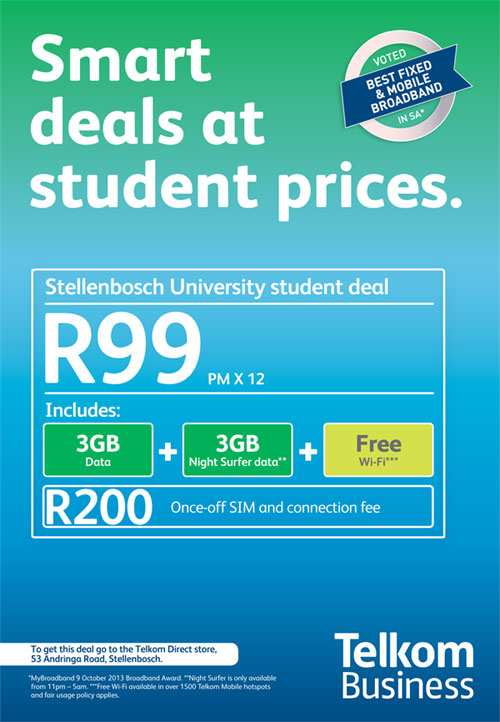
The Cell C offer has come and gone, but luckily Telkom has their own one on offer. For R99-00 per month you can now get 6 gigs  of data and this offer is open to staff as well. (Don’t be deceived by the ad!)

Read more about this offer.

`n Paar weke gelede het ons julle vertel van `n pasbekendgestelde Cell C-promosie waar personeel en studente datapakkette kon koop teen `n spesiale prys. 

Die Cell C-promosie is intussen iets van die verlede, maar Telkom het pas met hul eie weergawe vorendag gekom. Vir R99-00 per maand kan jy nou 6 gig se data kry en dis nie net beskikbaar vir studente nie. (Moenie dat die advertensie jou om die bos lei nie)

Lees meer oor hierdie aanbod.

Another phishing scam – this time from an university accountNog `n strikroofpoging – dié keer vanaf `n universiteitsrekening

Tuesday, February 25th, 2014

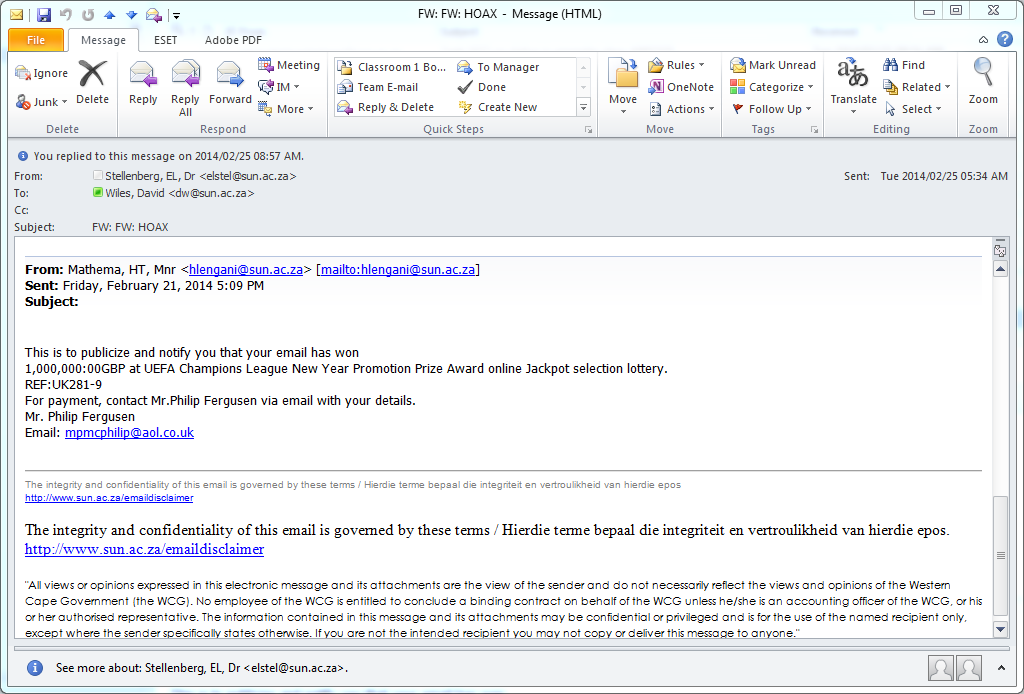
Below is an example of an phishing scam that has been sent out seemingly by a legitimate University-based e-mail account. Unfortunately this time, the e-mail message has been sent to other institution’s addresses and the university is being wrongly criticised for “allowing” this.

Remember: The only purpose of a phishing scam is to get victims to provide their personal information and thereby gain access and control of passwords, bank account numbers and personal details.

Information Technology will be investigating this incident but keep this in mind:

  1. Many times an automatic program is used to “spoof” or forge a phony e-mail address to disguise the real sender The address is often pulled from a database of “stolen addresses”.
  2. This university e-mail account owner might be a victim themselves of a phishing scam, and have provided their details to scammers, resulting in their address or computer being “hijacked” by the phishers.
  3. In some cases an e-mail address owner is employed by the phishers to operate and send out phishing mails on their behalf with the promise of earning money for their services. (Earn $10 000 per month and work from home) in this case it is unlikely, but nevertheless a risk. 

In the screen grab below note the “honeypot”:

…There is no Subject line

…It seems to come from a university employee but the reply to address is some other address

…It promises that you have won a large amount of money. That always attracts people.

spam


[ARTICLE BY DAVID WILES]


Onder is `n voorbeeld van `n nuwe strikroofpoging wat skynbaar uitgestuur is deur `n geldige Universiteit e-posadres. Ongelukkig is die e-pos boodskap ook gestuur na ander instellings se adresse en die universiteit word verkeerdelik gekritiseer omdat dit “toegelaat” is.

Onthou: Die enigste doel van hierdie lokvalle is om slagoffers so ver te kry om hul persoonlike inligting weer te gee en sodoende toegang en beheer oor wagwoorde, bankrekeninginligting en ander details te kry. 

Informasietegnologie ondersoek reeds dié spesifieke insident, maar hou die volgende in gedagte:

1. Dikwels sal `n outomatiese program gebruik word om `n onegte adres te genereer om die regte versender van die e-pos weg te steek. Die adres word gewoonlik onttrek vanuit `n databasis van “gesteelde adresse.”
2. Die universiteits e-posrekeninghouer is waarskynlik self die slagoffer van strikroof en het hul details aan kuberkriminele verskaf – wat om die beurt gelei het daartoe dat hulle adres of rekenaar ge”kaap” is deur die krininele.
3. In sommige gevalle word `n e-posadres eienaar in diens geneem deur kuberkriminele om hierdie e-posse uit te stuur met die belofte dat hulle geld sal verdien vir hul dienste. (Earn $10 000 per month and work from home).  In hierdie geval is dit natuurlik onwaarskynlik, maar dit bly steeds `n groot risiko om te reageer op sulke aanbiedinge.

Op die skermskoot onder, let op die weggeetekens:

… Daar is geen “subject line”

… Dit wil voorkom of dit van `n universiteitswerknemer gestuur is, maar die “reply to” adres is `n ander adres. 

… Jy word belowe dat jy `n groot hoeveelheid geld gewen het. Natuurlik is dit `n groot trekpleister van die meeste mense! 


spam


[ARTIKEL DEUR DAVID WILES]


Need network access after 31 March?Netwerktoegang nodig na 31 Maart?

Tuesday, January 14th, 2014

It may seem far away, but in a little more than 2 months it’s April already. This also means that your network access will no longer be working if you forgot to activate it by 31 March.

Unfortunately network reactivation is a requirement for network usage, but also a fairly fast and painless process.

All network users will receive an e-mail from HELPINFO@SUN.AC.ZA well in advance with the warning that your username will expire shortly if you do not reactivate.  To save yourself unnecessary frustration, immediately log on to HTTP://WWW.SUN.AC.ZA/USERADM and reactivate your username.

Make sure you select the correct option. Reactivation is not the same process as changing your password, so don’t click on “Change password”.

The moment your reactivation is submitted, your cost centre manager be e-mailed and able to approve your application. A daily e-mail will also remind the responsible manager of the request and he/she will be able to approve it by logging on at  HTTP://WWW.SUN.AC.ZA/USERADM, selecting ”Cost Centre Admin” and view and approve all applications.

Make sure you submit your request early, as cost centre managers still have to approve it before 30 March and only then will your access be reactivated.

If you have been caught off guard and without network access on 1 April, first try the self help option at  HTTP://WWW.SUN.AC.ZA/USERADM. (from someone else’s device of course) Select “Reactivate Expired Username” and your username and ID number will be  requested to verify it’s you.

You can also contact the IT Service Centre. However, keep in mind that this is usually one of the busiest days of the year at the Service Desk so you’ll have to practice a bit of patience and wait longer than usual.

We also compiled a few FAQ’s to try and answer most of your questions (see below). For any additional enquiries, contact HELP@SUN.AC.ZA

FAQ’S

 1. Why do I have to reactivate each year?
To ensure access to network services.

2. To what services will reactivation give me access?
Personal network space (H-drive), departemental shared space (G-drive), e-mail and internet

3. What is the cost of reactivation?
R200-00

4. Are the costs for the different network services billed seperately?
No, but take note that internet usage is levied as it’s generated.

5. What is the procedure for reactivation?
Log on at HTTP://WWW.SUN.AC.ZA/USERADM and select “Reactivate username for 2015″, familiarise yourself with the ECP’s content, select the network services you require, make sure the cost point is correct and click on “Submit”.

6. What is the ECP and do I really have to read and understand it before I reactivate?
The Electronic Communication Policy contains important imformation regarding staff member’s responsibilities when using the SU network. It’s essential that you read and understand it’s contents before reactivation.

7. Can cost centres be changed during the reactivation process? 
Yes, changes can be made while reactivating.

8. When will my current network access expire?
31 March 2015

9. I can’t reactivate! What now?
Send an e-mail to HELP@SUN.AC.ZA with a clear explanation of your problem.

10. What happens after I submitted my reactivation application?
The cost centre manager receives and e-mail with the request and processes the application.

11. Should students also reactivate?
No. There are however exceptions if undergraduate students have HR rolls.

12. Can postgraduate Masters and Doctoral students reactivate if they work in departments and have a roll at HR?
Yes.

13. What is the responsibility of the cost  centre manager?
Managers have to regularly log in to HTTP://WWW.SUN.AC.ZA/USERADM and use the “Cost Centre Admin” option to go through and process applications.

14. What happens if the cost centre manager isn’t available to approve applications? 
Another temporary cost point manager can be assigned by the person responsible for the cost centre.

15. How does a cost centre manager know there are pending applications? 
Managers receive a daily e-mail reminding them or they can log in at HTTP://WWW.SUN.AC.ZA/USERADM and select the “Cost Centre Admin” option.

16. What is the difference between a cost centre manager and the person responsible for the cost centre? (according to the financial system)?
The responsible person for a cost centre and the cost centre manager can both approve applications for SU network services.

17. How are staff reminded to reactivate?
E-mails are sent from HELPINFO@SUN.AC.ZA to remind staff of annual reregistration expiry dates.

18.  It’s April 1st and I have’t reactivated. Can I still reregister?
Sign on at HTTP://WWW.SUN.AC.ZA/USERADM and select “Reactivate Expired Username”. Take note: The application still has to be processed by a responsible cost centre manager before network registration is activated.

19. Who can I contact to establish if my application was successful?
Your cost centre mangager.

20. What do I do if my cost centre manager rejected my application?
Log in at HTTP://WWW.SUN.AC.ZA/USERADM, select ”Reactivate username for 2014″ and make sure you entered the correct cost centre.


It may seem far away, but in a little more than 2 months it’s April already. This also means that your network access will no longer be working if you forgot to activate it by 31 March.

Unfortunately network reactivation is a requirement for network usage, but also a fairly fast and painless process.

All network users will receive an e-mail from HELPINFO@SUN.AC.ZA well in advance with the warning that your username will expire shortly if you do not reactivate.  To save yourself unnecessary frustration, immediately log on to HTTP://WWW.SUN.AC.ZA/USERADM and reactivate your username.

Make sure you select the correct option. Reactivation is not the same process as changing your password, so don’t click on “Change password”.

The moment your reactivation is submitted, your cost centre manager be e-mailed and able to approve your application. A daily e-mail will also remind the responsible manager of the request and he/she will be able to approve it by logging on at  HTTP://WWW.SUN.AC.ZA/USERADM, selecting ”Cost Centre Admin” and view and approve all applications.

Make sure you submit your request early, as cost centre managers still have to approve it before 30 March and only then will your access be reactivated.

If you have been caught off guard and without network access on 1 April, first try the self help option at  HTTP://WWW.SUN.AC.ZA/USERADM. (from someone else’s device of course) Select “Reactivate Expired Username” and your username and ID number will be  requested to verify it’s you.

You can also contact the IT Service Centre. However, keep in mind that this is usually one of the busiest days of the year at the Service Desk so you’ll have to practice a bit of patience and wait longer than usual.

We also compiled a few FAQ’s to try and answer most of your questions (see below). For any additional enquiries, contact HELP@SUN.AC.ZA

FAQ’S

 1. Why do I have to reactivate each year?
To ensure access to network services.

2. To what services will reactivation give me access?
Personal network space (H-drive), departemental shared space (G-drive), e-mail and internet

3. What is the cost of reactivation?
R200-00

4. Are the costs for the different network services billed seperately?
No, but take note that internet usage is levied as it’s generated.

5. What is the procedure for reactivation?
Log on at HTTP://WWW.SUN.AC.ZA/USERADM and select “Reactivate username for 2015″, familiarise yourself with the ECP’s content, select the network services you require, make sure the cost point is correct and click on “Submit”.

6. What is the ECP and do I really have to read and understand it before I reactivate?
The Electronic Communication Policy contains important imformation regarding staff member’s responsibilities when using the SU network. It’s essential that you read and understand it’s contents before reactivation.

7. Can cost centres be changed during the reactivation process? 
Yes, changes can be made while reactivating.

8. When will my current network access expire?
31 March 2015

9. I can’t reactivate! What now?
Send an e-mail to HELP@SUN.AC.ZA with a clear explanation of your problem.

10. What happens after I submitted my reactivation application?
The cost centre manager receives and e-mail with the request and processes the application.

11. Should students also reactivate?
No. There are however exceptions if undergraduate students have HR rolls.

12. Can postgraduate Masters and Doctoral students reactivate if they work in departments and have a roll at HR?
Yes.

13. What is the responsibility of the cost  centre manager?
Managers have to regularly log in to HTTP://WWW.SUN.AC.ZA/USERADM and use the “Cost Centre Admin” option to go through and process applications.

14. What happens if the cost centre manager isn’t available to approve applications? 
Another temporary cost point manager can be assigned by the person responsible for the cost centre.

15. How does a cost centre manager know there are pending applications? 
Managers receive a daily e-mail reminding them or they can log in at HTTP://WWW.SUN.AC.ZA/USERADM and select the “Cost Centre Admin” option.

16. What is the difference between a cost centre manager and the person responsible for the cost centre? (according to the financial system)?
The responsible person for a cost centre and the cost centre manager can both approve applications for SU network services.

17. How are staff reminded to reactivate?
E-mails are sent from HELPINFO@SUN.AC.ZA to remind staff of annual reregistration expiry dates.

18.  It’s April 1st and I have’t reactivated. Can I still reregister?
Sign on at HTTP://WWW.SUN.AC.ZA/USERADM and select “Reactivate Expired Username”. Take note: The application still has to be processed by a responsible cost centre manager before network registration is activated.

19. Who can I contact to establish if my application was successful?
Your cost centre mangager.

20. What do I do if my cost centre manager rejected my application?
Log in at HTTP://WWW.SUN.AC.ZA/USERADM, select ”Reactivate username for 2014″ and make sure you entered the correct cost centre.