SEARCH
  • [:en]Recent Posts[:af]Onlangse bydraes

  • [:en]Categories[:af]Kategorieë

  • [:en]Archives[:af]Argiewe

Connectivity

[:en]OneDrive: 5TB just for you[:af]OneDrive: 5TB net vir jou[:]

Monday, July 31st, 2017

[:en]

Since June staff members have full access to the online Office365 applications. Besides Outlook email, SharePoint Online, access to the MS Office apps (for example Word, Excel, PowerPoint, etc.) and being able to download Office 2016, there is one significant advantage of using the Office365 suite – OneDrive.

OneDrive provides 5TB of cloud storage space for each staff member and student. This means you now have ample space to store your documents and your data will be available from anywhere, anytime, on any device with an internet connection.

What are the advantages of cloud services? 

  • More storage space available, up to 5TB on OneDrive and 50GB on Outlook.
  • Your data is available from anywhere, anytime, on any device. You’ll always have access to your data if you have an internet connection.
  • Your information is also safely stored, even if you lose one of your devices.  

What are the disadvantages of cloud services?  

  • Familiarise yourself with copyright regulations. Make sure you know what you are allowed to store and share online.  SU copyright agreements do not extend to storing of documents protected under the copyright law on OneDrive for business or any other public store space.
  • You are entirely responsible for your own information. Be careful who you give rights and access to, as it will compromise your information if it’s visible to other people.
  • You are responsible for synchronisation between online and local data. Synchronisation between online and local information needs to be set up correctly and done on a regular basis.
  • Keep in mind that access to cloud services when on campus will not incur any costs, but if you work from home your own data will be utilised.
  • It is very important that you keep your private usernames, passwords and information separate from your official work, to prevent your data from getting mixed up.
  • Having access to the cloud from any computer makes your digital identification vulnerable, do not use computers you do not trust to access your cloud services.

What if I have been using OneDrive personal, Dropbox and other cloud storage options? 

You can keep on using them, but it is very important that you only use these storage options for your personal data.

OneDrive for business and SharePoint online are available under the US MS Licence agreement for storage and sharing of institutional data. The storage and sharing of institutional data are not allowed on Dropbox, OneDrive personal or any other cloud storage. 

How do I get access to my OneDrive storage space?

All staff automatically has access to OneDrive. Log on to Office365 with your email address and password. OneDrive is also accessible via the portal by clicking on the Office365 link or searching for Office365 in the search field.

IMPORTANT:

  • When using cloud-based services, you have to keep your private and work usernames, passwords and data separate. Never use the same username for private and work email accounts, storage spaces and applications.
  • SU copyright agreements do not extend to storing and sharing of documents protected under the copyright law on OneDrive for business, SharePoint online or any other public store spaces.


If you have any questions, please let us know by logging a request on ServiceNow or calling our Service Desk at 808 4367. For more information on the Office365 package, please consult our FAQs or have a look at the Office365 training videos.

[:af]

Sedert Junie vanjaar het alle personeel volledige toegang tot die aanlyn Office65-toepassings. Buiten Outlook e-pos, toegang tot die MS-toepassings (byvoorbeeld Word, Excel, PowerPoint, ens.) en die aflaaibare Office 2016 programmatuur, is daar een voordeel wat uitstaan bo die res – OneDrive. 

OneDrive gee vir elke personeellid en student 5TB se wolkstoorspasie. Dit beteken dat jy nou oorgenoeg spasie het om jou dokumente te stoor. Jou data sal ook beskikbaar wees vanaf enige plek, enige tyd en met enige toestel wat aan die internet verbind is. 

Wat is die voordele van wolkdienste?

  • Meer stoorspasie beskikbaar – tot 5TB op OneDrive en 50GB op Outlook.
  • Jou data is beskikbaar vanaf enige plek, enige tyd en op enige toestel. Jy sal altyd toegang tot jou data hê as jy `ʼn internetverbinding het. 
  • Jou inligting word veilig gestoor, selfs al verloor jy een van jou toestelle. 

Wat is die nadele van wolkdienste? 

  • Raak vertroud met kopiereg-regulasies. Maak seker jy weet wat jy aanlyn mag stoor en deel. US kopiereg-ooreenkomste sluit nie die stoor en deel van dokumente wat beskerm word onder kopiereg op OneDrive for businessSharePoint online of enige ander publieke stoorspasies in nie.
  • Jy is volledig verantwoordelik vir jou eie inligting.  Wees versigtig vir wie jy regte en toegang gee, aangesien dit jou inligting in gevaar mag stel as dit sigbaar is vir ander mense. 
  • Jy is verantwoordelik vir die sinkronisasie tussen aanlyn en plaaslike data. Sinkronisasie tussen aanlyn en plaaslike data moet korrek opgestel word en op `ʼn gereelde basis uitgevoer word. 
  • Hou in gedagte dat die gebruik van wolkdienste terwyl jy op kampus is, nie enigiets sal kos nie, maar as jy tuis werk sal jou eie datakostes gehef word. 
  • Dit is baie belangrik dat jy jou privaat gebruikersname, wagwoorde en inligting apart hou van jou amptelike werk om te voorkom dat jou data deurmekaar raak. 
  • Digitale identifikasie is kwesbaar as jy toegang tot die wolk het vanaf enige rekenaar. Moenie rekenaars of toestelle wat jy nie vertrou nie, toelaat om jou wolkdienste te gebruik nie. 

Wat as ek OneDrive personal, Dropbox of ander wolkopsies gebruik? 

Jy kan aanhou om dit te gebruik, maar dis baie belangrik dat jy hierdie opsies slegs vir persoonlike data gebruik.

OneDrive for business en SharePoint online is beskikbaar onder die US MS lisensieooreenkoms vir stoor en deel van institusionele data. Stoor en deel van institusionele data word nie toegelaat op Dropbox, OneDrive personal of enige ander wolkstoorspasie nie. 

Hoe kry ek toegang tot my OneDrive spasie?

Alle personeel het reeds outomaties toegang tot OneDrive. Jy hoef net op Office365 aan te teken met jou e-posadres en wagwoord. Dis ook beskikbaar op die portaal deur op die Office365 skakel te kliek of Office365 in die soekveld in te tik.

BELANGRIK:

  • Wanneer jy wolkgebaseerde dienste gebruik, is dit geweldig belangrik dat jy jou privaat-gebruikersname en werk-gebruikersname, wagwoorde en data apart van mekaar gehou word. Moet nooit dieselfde gebruikersnaam vir jou privaat en werk-eposrekeninge, -stoorspasie en -toepassings gebruik nie.
  • US kopiereg-ooreenkomste sluit nie die stoor en deel van dokumente beskerm onder kopiereg op OneDrive for businessSharePoint online of enige ander publieke stoorspasies in nie.

Indien jy enige navrae het, laat weet ons asseblief deur `n versoek aan te meld op ServiceNow of ons Dienstoonbank te kontak by 808 4367. Vir meer inligting oor die Office365 pakket, raadpleeg asseblief ons FAQs of kyk na die Office365 opleidingsvideos.

[:]

[:en]Network access problems: update[:af]Probleme met netwerktoegang: nuutste[:]

Thursday, July 13th, 2017

[:en]

On Tuesday, during an update of PCs on our network, contradictory instructions were sent to devices, which caused some users’ network access to be blocked.

Regular updates ensure that all PCs adhere to the necessary security requirements and are vital in our fight against cybercrime.

We apologise for the inconvenience and assure you that necessary measures will be put in place to prevent any similar occurrences. A big thank you to staff in the various departments who assisted us in correcting the problem.

If you have any enquiries, please let us know by logging a request on ServiceNow or calling our Service Desk at 808 4367.


[:af]

Op Dinsdag, gedurende ʼn opdatering van rekenaars op ons netwerk, is teenstrydige instruksies na rekenaars gestuur wat veroorsaak het dat sommige gebruikers se netwerktoegang geblok is.

Gereelde opdaterings verseker dat alle rekenaars op die netwerk voldoen aan die nodige sekuriteitsvereistes en is noodsaaklik in ons geveg teen kubermisdaad.

Ons vra om verskoning vir die ongerief en verseker u dat ons maatreëls in plek sit om te verseker dat ʼn soortgelyke insident nie weer plaasvind nie. Dankie aan personeel in die verskeie departemente wat ons gehelp het om die probleem reg te stel.

Indien jy enige probleme ondervind, laat weet ons asseblief deur ʼn versoek aan te meld op ServiceNow of ons Dienstoonbank te kontak by 808 4367.

[:]

[:en]Fix for network access problem[:]

Wednesday, July 12th, 2017

[:en]

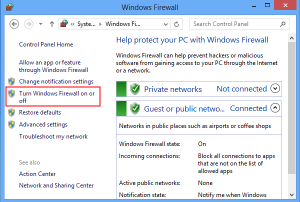
Some users will experience network problems since yesterday afternoon. Outlined below, is the easiest way to fix the problem.

STEPS:

1.       Click Start menu button

2.       Type “firewall.cpl” , then enter – this open the firewall options.

3.       Click on “Turn Windows Firewall on or off”

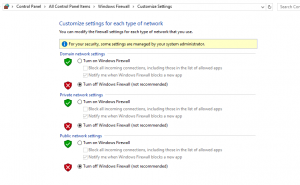
4.       Then Click “Turn off Windows Firewall” at every options


5.       Click “OK” to set these options.

6.       Now you should see your network return.

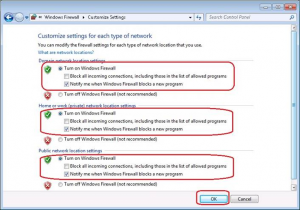
7.       Restart your PC, after which you have to go back to your firewall, and turn it on

8.       Click “Turn on Windows Firewall” at every option

9.       Click “OK” to set option.

[:]

[:en]Microsoft updates via VPN and data costs[:af]Microsoft-opdaterings d.m.v. VPN en datakostes[:]

Tuesday, June 6th, 2017

[:en]

Did you know that your university PC always stays up to date with the latest software and you don’t have to lift a finger? 

One of the main reasons for this is that PCs without the latest software, in particular, Microsoft software, pose a high-security threat if they are connected to the SUN network without being adequately protected. Therefore, it’s extremely important that all network users’ devices are up to date at all times. The same goes for antivirus software. Recently this policy also protected SU staff against the WannaCry ransomware when it wreaked havoc around the rest of the world.

The updates are set up so that Microsoft updates will be done when you connect your device to the SUN network. Updates via the SUN network are free when you are on campus, but it could happen that updates are available for download when you are off-campus.

If you use VPN* at home to connect to the SUN network from off campus, be aware that updates may load in the background. Since they are usually quite large, this could cause unusually high traffic and/or large expenses. Microsoft updates are usually released monthly on the every second Tuesday of the month. If you have limited or use expensive data at home, keep an eye on your data usage during that week. 

*VPN (Virtual Private Network) is  a connection to the SUN-network which gives a user the same access as when he/she is on campus.  Take note that most SUN services, for example email, Sun-e-HR, my.sun.ac.za, the Useradm administration page, etc, are all directly available from the internet without a VPN connection. 

[:af]

Het jy geweet dat jou universiteitsrekenaar outomaties op datum bly met sagteware-opdaterings, sonder dat jy enigiets hoef te doen?

Een van die hoofredes hiervoor is dat rekenaars wat nie die nuutste sagteware, spesifiek Microsoft-sagteware installeer het nie, `n hoë sekuriteitsrisiko is indien dit aan die SUN-netwerk verbind sonder die nodige beskerming. Gevolglik is dit belangrik dat alle netwerkgebruikers se toestelle altyd op datum is. Dieselfde geld vir anti-virus sagteware. Dis juis hierdie beleid wat ons US-personeel onlangs beskerm het teen die WannaCry ransomware.

As gevolg van die beleid word Microsoft opdaterings ook gedoen sodra jou toestel aan die SUN-netwerk verbind. Opdaterings op die SUN-netwerk wanneer jy op kampus is, is gratis, maar dit kan gebeur dat opdaterings beskikbaar is en wil aflaai as jou rekenaar nie by die kantoor aan die netwerk verbind is nie.

Indien jy d.m.v. VPN* aan die SUN-netwerk verbind wanneer jy af van kampus werk, wees bewus daarvan dat opdaterings in die agtergrond kan laai. Aangesien dit in baie gevalle groot is, kan dit ongewone hoë verkeer en/of ook hoë kostes genereer. Microsoft-opdaterings word normaalweg maandeliks op die tweede Dinsdag van die maand vrygestel. Indien jy dus beperkte of duur data gebruik, hou veral gedurende daardie week jou dataverbruik dop.

*VPN (Virtual Private Network) is `n verbinding van elders na die SUN-netwerk wat die gebruiker dieselfde toegang gee as wanneer hy/sy op kampus is. Let op dat meeste algemene SUN dienste (bv. e-pos, Sun-e-HR, my.sun.ac.za, Useradm-administrasieblad, ens.) direk vanaf die internet beskikbaar is sonder `n VPN verbinding.

[:]

[:en]All Office365 applications now available[:af] Alle Office365-toepassings nou beskikbaar[:]

Monday, June 5th, 2017

[:en]

Information Technology enabled the complete cloud-based Office365 package for all staff with an active role earlier this month.

The complete Office 365 package includes:
– Outlook mail
– OneDrive for Business (5TB for each staff member and student)
– SharePoint Online (public and team sites)
– Access to online MS Office apps (for example Word, Excel, PowerPoint, etc.)
– Five downloadable versions of Office 2016 for personal devices (for example laptops, tablets and smartphones) Take note that these Office 2016 versions are not allowed on any asset number devices, it’s only allowed on personal devices.

What is Office 365?

If you have any questions, please let us know by logging a request on ServiceNow or calling our Service Desk at 808 4367. For more information on the Office365 package, please consult our FAQs or have a look at the Office365 training videos.

IMPORTANT: When using cloud-based services, you have to keep your private and work usernames, passwords and data separate. Never use the same username for private and work email accounts, storage spaces and applications.

[:af]

Informasietegnologie het vroeër die maand die volledige wolkgebaseerde Office365 pakket vir personeel met aktiewe rolle aktiveer. 

Hierdie dienste sluit in:

– Outlook e-pos
– OneDrive for Business (5TB vir elke personeellid en student)
– SharePoint Online (publieke en spanwebwerwe)
– Aanlyntoegang tot MS Office toepassings (byvoorbeeld Word, Excel, PowerPoint, ens.)
– Vyf aflaaibare Office 2016 weergawes vir persoonlike toestelle (byvoorbeeld skootrekenaars, tablette en slimfone) Let wel, hierdie 5 Office 2016 weergawes mag op geen batenommertoestelle installeer word nie. Dit word slegs toegelaat op persoonlike toestelle.

Wat is Office 365?

Indien jy enige navrae het, laat weet ons asseblief deur `n versoek aan te meld op ServiceNow of ons Dienstoonbank te kontak by 808 4367. Vir meer inligting oor die Office365 pakket, raadpleeg asseblief ons FAQs of kyk na die Office365 opleidingsvideos.

BELANGRIK: Wanneer jy wolkgebaseerde dienste gebruik, is dit krities dat jy jou privaat- en werkgebruikersname, wagwoorde en data apart van mekaar hou. Moet nooit dieselfde gebruikersnaam vir jou privaat en werk eposrekeninge, stoorspasie en toepassings gebruik nie.

[:]