SEARCH
  • [:en]Recent Posts[:af]Onlangse bydraes

  • [:en]Categories[:af]Kategorieë

  • [:en]Archives[:af]Argiewe

General

Free upgrade to Windows 7Gratis opgradering na Windows 7

Thursday, March 28th, 2013

Are you still stuck with an outdated pc running Windows XP? We have some good news for you! From now until 15 December 2013 upgrades from Windows XP to Windows 7 will be done for free!

All you have to do, is send us an email to help@sun.ac.za to request the upgrade. Please include the following information in the e-mail:

–  the work station’s asset number

–  contact telephone number

–  building name

–  room number

An IT technician will contact you as soon as the work station’s specifications have been checked. Older workstaions may need components for the upgrade and this will be for the account of the department.

IT will do the following without charge:

  1. Upgrade the operating system from Windows XP to Windows 7

You will have to pay for:

  1. Backups of work related data (including MS Office extensions, .pst files)
  2. The backup of personal data such as music files, video files and movies
  3. Hardware components necessary for the upgrade to Windows 7

If IT is requested to backup data, the cost will be as follow:

Less than 15GB – R950-00

More than 15GB – R1650-00


Sit jy nog opgeskeep met `n verouderde rekenaar met Windows XP? Ons het goeie nuus vir jou! Tot die 15 Desember sal IT jou rekenaar gratis opgradeer van Windows XP na Windows 7.

Al wat jy moet doen, is om `n e-pos te stuur na help@sun.ac.za om `n opgradering te versoek. Sluit asseblief die volgende inligting in:

–  die werkstasie se batenommer

–  kontaktelefoonnommer

–  gebounaam

–  kamernommer

‘n IT tegnikus sal u kontak sodra die werkstasie se spesifikasies nagegaan is. Ouer werkstasies mag komponente benodig en hierdie uitgawe sal vir  die departement se koste wees.

IT sal die volgende gratis doen:

  1. Opgradering van XP na Windows 7

Jy sal moet betaal vir:

  1. Rugsteun van jou werksverwante data.
  2. Rugsteun van persoonlike data soos musiek, video en flieks.
  3. Hardeware benodig vir die opgradering na Windows 7

Indien IT versoek word om data te rugsteun, sal die koste as volg wees:

Minder as 15GB – R950-00
Meer as 15GB – R1650-00


SafeCom vs PhonetSafecom vs Phonenet

Friday, March 8th, 2013

When it comes to technology Stellenbosch University is at the forefront and we can safely say we’re often first with new developments. Although this is to our advantage, it also means we’re regularly faced with unexpected challenges. The past two years we put a new printing system into action. Safecom currently manages a large amount of printing done on campus, and in spite of occassional problems, it holds many advantages for it’s users.

Of which the largest is the issue of privacy. With Safecom your sensitive and/or personal documents will no longer lie around for all to see at the printer. You print the document from the printer and immediately receive your print-out. Less paper is wasted. Often documents end up between someone else’s printing and you have to reprint   everything or you print too many copies, but can’t stop the print job in time. This is no longer an issue with Safecom.

To print you select the SecurePrint option on your pc, hold your card against the reader at the nearest printer and choose Pull Print on the touch screen. You can pick up your printing at any Safecom printer on campus. 

The printing ques are automatically set up from the server side on each computer on campus. You don’t have to wait for an IT technician to set up your printer if you received a new pc. You can start printing immediately.

At the opposite side of the spectrum we still have older technology which fulfills a similar function. And of course, causes some confusion.

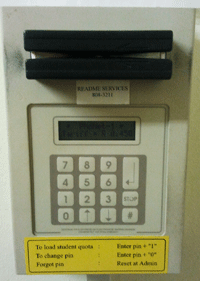
Many of you might recognise the card reader on the right. This is an example of the reader used for printers and photocopiers still running on the Phonenet system, for example in the Photocopy Centre in the Neelsie and JS Gericke Library.

With Phonenet each staff member and student’s UT number is linked to their personal account. Departments use departmental accounts linked to cost points. Each time the relevant person uses his card at a card reader, copy credits are subtracted from his account.  

This is the only existing system still utilising the staff or student card’s magnetic strip. Other systems on campus already use the card’s chip to read credits. Eventually Phonenet has to be phased out since it cannot be upgraded. There are currenly 117 machines still operating on the Phonenet system and the aim is to phase out these machines by 2014. 

More on Safecom printers on campus

More on Safecom SmartPrint


(Information supplied by Ronel Reynecke and Hendrik le Roux)


As dit kom by tegnologie staan Universiteit Stellenbosch aan die voorpunt en kan ons met trots se dat ons gereeld eerste is met nuwe verwikkelinge. Hoewel dit tot ons voordeel strek, beteken dit ook dat ons soms groot uitdagings teёkom. Die afgelope twee jaar  is  ‘n nuwe drukkerstelsel in werking gestel. Safecom hanteer tans reeds ‘n groot volume drukwerk op kampus en ten spyte van sporadiese probleme, hou dit tog ook voordele in vir gebruikers. 

Die grootste voordeel van die stelsel is dat sensitiewe of persoonlike dokumente nie sigbaar by ‘n drukker lê  totdat dit gaan haal word nie. Minder papier word vermors deurdat kollegas nie jou drukstuk per ongeluk tussen hulle dokumentasie neem en jy dit weer moet druk, of per ongeluk te veel kopieё  na die drukker stuur en nie kan kanselleer voor dit te laat is nie.

Met ‘n Safecom-drukker selekteer jy bloot die SecurePrint opsie op jou rekenaar, hou jou kaart op die kaartleser van die naaste drukker en kies Pull Print op die raakskerm. Jy kan jou drukstuk by enige Safecom drukker op kampus gaan optel.

Die drukkertou word outomaties op elke kampusrekenaar opgestel van die bediener kant af en dit is nie nodig om te wag dat ‘n IT tegnikus ‘n afspraak met jou maak vir die opstel van jou drukker indien jy ‘n nuwe rekenaar gekry het nie – dus kan jy dadelik jou werk begin druk wanneer die rekenaar in gebruik geneem word.

Aan die ander kant van die spektrum bestaan daar egter ouer tegnologie wat ‘n soortgelyke funksie vervul. En natuurlik soms verwarring veroorsaak.

Menige van julle sal waarskynlik die leser op die foto regs herken. Hierdie is ‘n voorbeeld van die kaartleser wat gebruik word vir drukkers en fotokopieermasjiene wat nog op die Phonenet-stelsel funskioneer, byvoorbeeld by die fotokopieersentrum in die Neelsie en JS Gericke Biblioteek.

Met die Phonenet-stelsel word elke personeellid en student op kampus se UT-nommer gekoppel aan ‘n persoonlike rekening. Departemente maak gebruik van departementele rekeninge wat aan kostepunte gekopppel word. Elke keer as die betrokke persoon sy kaart gebruik by ‘n kaartleser word daar kopieerkrediete van sy rekening afgetrek. 

Hierdie is die enigste stelsel wat nog van die magneetstrook op die personeelkaart gebruik maak. Ander stelsels op kampus maak reeds gebruik van die skyfie op die personeelkaart om krediete te lees. Phonenet moet mettertyd uitfasseer word aangesien opgradering nie moontlik is nie en tans word beoog om hierdie doelwit teen 2014 te bereik. Daar is op die oomblik ongeveer 117 masjiene is wat nog die verouderde kaartlesers gebruik. 

Meer oor Safecom drukkers op kampus

Meer oor Safecom SmartPrint


(Inligting verskaf deur Ronel Reynecke en Hendrik le Roux)


MS Project for a more organised officeMS Project vir `n meer georganiseerde kantoor

Friday, March 8th, 2013

Does a large portion of your day consist of managing projects and seeing to it that everything runs smoothly? Whether you are a project manager or just closely involved with projects within your department, MS Project could make your task easier.

Microsoft Project (MSP, MSOP or WinProj) is a project management software program, developed and sold by Microsoft, which is designed to assist a project manager in developing aplan, assigning resources to tasks, tracking progress, managing the budget, and analyzing workloads. (SOURCE: Wikipedia)

Information Technology offers free MS Project 2010 Level 1 and 2 courses to staff.  But you’ll have to jump at the opportunity!  

Only two dates are available – 

Microsoft Project Level 1: Stellenbosch –  19 & 20 March

Microsoft Project Level 2: Stellenbosch – 8 & 9 April


COURSE INFORMATION

MS Project Level 1

Getting started with Microsoft Project

Creating a Project Plan

Managing Tasks in a Project Plan

Managing Resources in a Project Plan

Finalising a project Plan

   
Ms Project Level 2

Exchanging Project Plan Data with Other Applications

Updating a Project Plan

Managing Project Costs

Reporting Project Data Visually

Reusing Project Plan Information

Enrolling can be done online by signing on at the staff portal and selecting the SUN-e-HR option. E-mail us at itkursus@sun.ac.za for more information. See IT’s selfhelp-wiki for more information.

Bestaan `n groot gedeelte van jou dag daaruit om projekte te bestuur en te sorg dat alles glad verloop? Of jy nou amptelik `n projekbestuurder is of nou betrokke is by verskeie van jou afdeling se projekte, MS Project kan moontlik jou dagtaak vergemaklik.

Microsoft Project (MSP, MSOP of WinProj) is `n projekbestuur sagteware program, ontwikkel en verkoop deur Microsoft. Die sagteware is ontwerp om projekbestuurders te help om `n plan te ontwikkel, hulpbronne toe te ken aan take, vordering te volg, begrotings te bestuur en werksladings te analiseer.  (BRON: Wikipedia) Informasietegnologie bied gratis MS Project 2010 Vlak 1 en ook 2 kursusse aan. Maar jy sal gou moet spring!

Daar is nog net twee datums beskikbaar: 

Microsoft Project Level 1: Stellenbosch –  19 & 20 Maart

Microsoft Project Level 2: Stellenbosch – 8 & 9 April


KURSUSINLIGTING

MS Project Level 1

Getting started with Microsoft Project

Creating a Project Plan

Managing Tasks in a Project Plan

Managing Resources in a Project Plan

Finalising a project Plan

   
Ms Project Level 2

Exchanging Project Plan Data with Other Applications

Updating a Project Plan

Managing Project Costs

Reporting Project Data Visually

Reusing Project Plan Information


Stuur dus asseblief vir ons e-pos by itkursus@sun.ac.za indien jy enige verdere inligting benodig. Inskrywing  kan aanlyn gedoen word deur aan te teken op die personeelportaal en die SUN-e-HR opsie te selekteer. Sien ook IT se selfhelp-wiki vir meer besonderhede.

Don’t be fooled by reactivationMoenie vir die gek gehou word deur heraktivering nie

Friday, February 8th, 2013

The first of April is infamous for being the day when everyone gets caught out one way or another. But if you suddenly have no network access on the 3rd of April, it won’t be a joke. It’s more likely that you forgot to reactivate in time.

Unfortunately network reactivation is a requirement for network usage, but also a fairly fast and painless process.

All network users will receive an e-mail from helpinfo@sun.ac.za well in advance with the warning that your username will expire shortly if you do not reactivate.  To save yourself unnecessary frustration, immediately log on to http://www.sun.ac.za/useradm and select “Reactivate username for 2013”.

Make sure you select the correct option. Reactivation is not the same process as changing your password, so don’t click on “Change password”.

The moment your reactivation is submitted, your cost centre manager be e-mailed and able to approve your application. A daily e-mail will also remind the responsible manager of the request and he/she will be able to approve it by logging on at  http://www.sun.ac.za/useradm, selecting “Cost Centre Admin” and view and approve all applications.

Make sure you submit your request early as cost centre managers still have to approve it before 30 March and only then will your access be reactivated.

If you have been caught off guard and without network access on 1 April, first try the self help option at  http://www.sun.ac.za/useradm. (from someone else’s device of course!) Select “Reactivate Expired Username” and your username and ID number will be  requested to verify it’s you.

You can also contact the IT Service Centre. However, keep in mind that this is usually one of the busiest days of the year at the Service Desk so you’ll have to practice a bit of patience and wait longer than usual.

We also compiled a few FAQ’s to try and answer most of your questions (see below). For any additional enquiries, contact help@sun.ac.za

FAQ’S

 1. Why do I have to reactivate each year?
To ensure access to network services.

2. To what services will reactivation give me access?
Personal network space (H-drive), departemental shared space (G-drive), e-mail and internet

3. What is the cost of reactivation?
R177-00

4. Are the costs for the different network services billed seperately?
No, but take note that internet usage is levied as it’s generated.

5. What is the procedure for reactivation?
Log on at http://www.sun.ac.za/useradm and select “Reactivate username for 2013”, familiarise yourself with the ECP’s content, select the network services you require, make sure the cost point is correct and click on “Submit”.

6. What is the ECP and do I really have to read and understand it before I reactivate?
The Electronic Communication Policy contains important imformation regarding staff member’s responsibilities when using the SU network. It’s essential that you read and understand it’s contents before reactivation.

7. Can cost centres be changed during the reactivation process? 
Yes, changes can be made while reactivating.

8. When will my current networkreactivation expire?
30 March2013

9. I can’t reactivate! What now?
Send an e-mail to help@sun.ac.za with a clear explanation of your problem.

10. What happens after I submitted my reactivation application?
The cost centre manager receives and e-mail with the request and processes the application.

11. Should students also reactivate?
No. There are exceptions if undergraduate students have HR rolls.

12. Can postgraduate Masters and Doctoral students reactivate if they work in departments and have a roll at HR?
Yes.

13. What is the responsibility of the cost  centre manager?
Managers have to regularly log in to http://www.sun.ac.za/useradm and use the “Cost Centre Admin”-option to go through and process applications.

14. What happens if the cost  centre manager isn’t available to approve applications? 
Another temporary cost point manager can be assigned by the person responsible for the cost centre.

15. How does a cost centre manager know their are pending applications? 
Managers receive a daily e-mail reminding them or they can log in at http://www.sun.ac.za/useradm and select the “Cost Centre Admin” option.

16. What is the difference between a cost centre manager and the person responsible for the cost centre? (according to the financial system)?
The responsible person for a cost centre and the cost centre manager can both approve applications for SU network services.

17. How are staff reminded to reactivate?
E-mails are sent from helpinfo@sun.ac.za to remind staff of annual reregistration expiry dates.

18.  It’s April 1st and I have’t reactivated. Can I still reregister?
Sign on at http://www.sun.ac.za/useradm and select “Reactivate Expired Username”. Take note: The application still has to be processed by a responsible cost centre manager before network registration is activated.

19. Who can I contact to establish if my application was successful?
Your cost centre mangager.

20. What do I do if my cost centre manager rejected my application?
Log in at http://www.sun.ac.za/useradm, select “Reactivate username for 2013” and make sure you entered the correct cost centre.

INFORMATION SUPPLIED BY PETRO UYS


Die eerste April is berug as die dag waarop almal uitgevang word en jy alles met `n knippie sout moet neem. Maar as jy skielik op die derde April geen netwerktoegang  het nie, gaan dit nie `n grappie wees nie. Dis meer waarskynlik dat jy nie betyds heraktiveer het vir netwerktoegang nie.  

Heraktivering  is `n jaarlikse vereiste en `n redelike vinnige en pynlose proses. 

Alle gebruikers ontvang vroegtydig `n e-pos van helpinfo@sun.ac.za met die boodskap dat jou gebruikernaam binnekort gaan verval indien jy nie betyds heraktiveer nie. Om vir jouself onnodige frustrasie te spaar, teken dadelik aan op http://www.sun.ac.za/useradm en selekteer die “Reactivate username for 2013”.

Maak asb seker dat jy die regte opsie selekteer –  heraktivering is nie dieselfde as wagwoordverandering nie. Moenie kliek op “Change password” nie.

Sodra jou aansoek om heraktivering ingedien is, kry die betrokke kostepuntbestuurder ‘n e-pos en kan die aansoek hanteer word. Een epos word daagliks gestuur aan die kostepuntbestuurders. Kostepuntbestuurders teken aan by http://www.sun.ac.za/useradm en selekteer die “Cost Centre Admin”-opsie om aansoeke te sien en goed te keur. 

Maak asb seker dat jou  heraktivering betyds gedoen word aangesien jou kostepuntbestuurder dit nog moet goedkeur voor 30 Maart en jou toegang eers daarna heraktiveer sal word.

Indien jy onkant gevang word op 1 April en nie meer netwerktoegang het, probeer eers die selfhelp opsie by http://www.sun.ac.za/useradm. (jy sal natuurlik iemand anders se rekenaar of een van jou ander toestelle moet gebruik) Selekteer “Reactivate Expired Username” en jou gebruikersnaam en ID-nommer sal versoek word om te bevestig dis jy.

Jy kan ook die IT Dienstoonbank kontak, maar ongelukkig is dit ook een van die Dienstoonbank se besigste dae juis om hierdie rede en mag jy dalk geduldig moet wees en lank wag. 

Ons het `n paar FAQ’s saamgestel wat hopelik die meeste vrae sal beantwoord (sien onder) en enige addisionele navrae kan per epos gerig word aan help@sun.ac.za

FAQ’S

 1. Hoekom moet jaarlikse  heraktivering gedoen moet word?
Om toegang tot netwerkdienste te verseker

2. Tot watter IT-dienste gee  heraktivering toegang?
Persoonlike netwerkspasie (H-skyf), departementele deelspasie (G-skyf), epos, internet

3. Wat is die koste verbonde aan  heraktivering?
R177-00

4. Word die verskillende netwerkdienste se kostes apart gehef?
Nee, maar let wel internetgebruik word gehef soos dit genereer word.

5. Wat is die prosedure wat gevolg moet word om te  heraktiveer?
Teken aan by http://www.sun.ac.za/useradm en selekteer “Reactivate username for 2013”, vergewis jouself van die inhoud van die EKB, selekteer die netwerkdienste wat u benodig, maak seker dat die korrekte kostepunt op die skerm is, en kliek op “Submit”.

6. Wat is die EKB en moet ek die inhoud lees en verstaan voordat ek heraktiveer?
Die Elektroniese Kommunikasiebeleid bevat belangrike inligting insake personeellid se verantwoordelikheid wanneer hy/sy die US-netwerkdienste gebruik en dis noodsaaklik dat jy die eers deurlees en aanvaar voordat jy herregistreer.

7. Kan kostepunte gewysig word tydens die heraktiveringsproses?
Ja, veranderinge kan aangebring word tydens die registrasieproses.

8. Wanneer verval my netwerktoegang?
30 Maart 2013

9. Ek kry nie heraktiveer nie. Wat nou?
Stuur epos aan help@sun.ac.za met `n verduideliking van jou probleem

10. Watter proses word volg as ek die aansoek vir heraktivering afgehandel het?
Kostepuntbestuurder ontvang `n e-pos met die versoek en verwerk die versoeke.

11. Moet voorgraadse studente ook heraktiveer?
Nee. Daar is wel uitsonderings as voorgraadse studente rolle by MHB het

12. Kan nagraadse Magister en Doktorale studente heraktiveer indien hulle by departemente werksaam is en rolle by MBH het?
Ja.

13. Wat is die kostepuntbestuurder se verantwoordelikheid?
Kostepuntbestuurders moet gereeld aanteken by http://www.sun.ac.za/useradm en die “Cost Centre Admin”-opsie gebruik om aansoeke deur te gaan en te verwerk.

14. Wat gebeur as die kostepuntbestuurder nie beskikbaar is om aansoeke vir heraktivering goed te keur nie?
‘n Ander kostepuntbestuurder kan tydelik aangewys word deur die verantwoordelike persoon vir die kostepunt. 

15. Hoe weet ‘n kostepuntbestuurder dat daar aansoeke is wat goedgekeur moet word?
Kostepuntbestuurders kry een keer per dag ‘n e-pos, of die kostepuntbestuurder kan aanteken by http://www.sun.ac.za/useradm en die “Cost Centre Admin”-opsie selekteer.

16. Wat is die verskil tussen ‘n kostepuntbestuurder en die persoon wat verantwoordelik is vir ‘n kostepunt (volgens die finansiële stelsel)?
Die verantwoordelike persoon vir ‘n kostepunt, (volgens die finansiële stelsel), en die kostepuntbestuurder kan beide aansoeke vir SU netwerkdienste hanteer. 

17. Hoe word personeel op hoogte gehou van hulle aansoeke vir heraktivering?
Eposse word gestuur vanaf helpinfo@sun.ac.za om personeel te herinner aan die jaarlikse heraktivering-sperdatums.

18.  Dis 1 April 2013 en ek het nog nie herregistreer nie. Kan ek nog heraktivering?
Teken aan by http://www.sun.ac.za/useradm en selekteer “Reactivate Expired Username”. Let wel: Die aansoek moet eers deur ‘n verantwoordelike kostepuntbestuurder hanteer word voordat toegang aktiveer sal word.

19. Wie kan ek bel om uit te vind of my heraktiveringsaansoek suksesvol was?
Jou kostepuntbestuurder

20. Wat moet ek doen as die kostepuntbestuurder my aansoek afkeur?
Teken weer aan by http://www.sun.ac.za/useradm en selekteer die “Reactivate username for 2013”-opsie, maar maak seker wat die korrekte kostepunt is.

INLIGTING VERSKAF DEUR PETRO UYS



No, SARS doesn’t really want to give you a refund and other phishing talesNee, SARS wil jou nie regtig betaal nie en ander skelmstories

Wednesday, February 6th, 2013

Every year we send out literally dozens of warning e-mails, and continue to do so, because despite the frequent warnings, people  still get caught falling for these tricks. 

Take note of the following scam from fraudsters claiming to be from SARS.
 
Emails are going out to university (and private addresses) seemingly coming from “SARS” informing them that they have a refund waiting for them.  (Wow! a tax refund) Clicking on the hyperlink in the email takes you to a fake “e-filing” site that has hyperlinks for the four big South African banks and instructions to log on to your Internet banking site for “confirmation of your details”.  When you follow the Nedbank link (as an example), you are taken to a copy of the Nedbank internet banking site that asks for profile, pin and password.  Supplying these takes you to a second page that asks you for your mobile number.  Submitting information on this page takes you to a page that requests the reference number sent to your cellphone.
 
Do not authorise any cellphone message that comes through if you end up in the above situation.  Furthermore, do not click on any hyperlinks in emails or divulge your account or mobile number details to anyone over the phone or via email.  Banks will never ask you to access internet banking through a link in an email, neither will banks ever ask for your mobile number when you access internet banking.

Another particulary sneaky phishing attack surfaced today. 

It comes from “Linda Perez” and has a subject line of “Administrator (Sorry for the inconvenience)” 

It asks you to contact the “sender” with your username and password so they can “expand your mailbox manually” 

Of course this is a phishing attack, and you should never respond to such mails. 

Do not respond, flag the sender as Junk Mail and delete the message.

ARTICLE BY DAVID WILES

Dwarsdeur die jaar stuur ons deurlopend waarskuwings aan personeel teen “phishing” e-posse en ongelukkig sal ons moet aanhou om dit te doen, aangesien vele personeel steeds, ten spyte van hierdie waarskuwings, telkens byt aan kuberkriminele se lokaas. 

Een hiervan is `n e-pos wat voorgee om van SARS te wees. 
 
E-posse wat lyk of dit vanaf SARS versend word, word gestuur aan universiteit  (en privaat) e-posse en beweer dat die ontvanger `n terugbetaling gaan kry. As jy kliek op die skakel, neem die e-pos jou na `n vals “e-filing” webwerf wat skakels het na vier groot Suid-Afrikaanse banke en instruksies om aan te teken op deur middel van internet bankdienste om jou details te “bevestig”.

As jy (byvoorbeeld) die Nedbank-skakel volg, word jy geneem na `n kopie van nie Nedbank internetdienste webwerf wat vra vir jou profiel, pin en wagwoord.  As jy hierdie inligting verskaf, word jy geneem na `n tweede blad waar daar vir jou selnommer gevra word. Deur die inligting te verskaf, word jy weereens na `n volgende blad geneem wat versoek dat die verwysingsnommer na jou selfoon gestuur word.   

Moet onder geen omstandighede enige magtiging gee per selfoonboodskap as jy in bogenoemde situasie beland nie. Moet ook nie kliek op enige skakels in e-posse of rekeningbesonderhede of selfoonnommer-details aan enigiemand verskaf per e-pos of telefonies nie.

Banke sal jou nooit versoek om hulle internetdienste deur middel van `n e-pos skakel te bereik nie en sal jou ook nie vra vir jou selnommer as jy internetbankdienste wil gebruik nie.  

`n Tweede “phishing”-aanval is ook tans in omloop. 

Dit kom van “Linda Perez” met die onderwerp “Administrator (Sorry for the inconvenience)” 

Die e-pos versoek dat jy bogenoemde persoon kontak met jou gebruikersnaam en wagwoord sodat hulle jou e-posbus “met die hand” kan vergroot.  Natuurlik is hierdie `n “phishing”-geval en jy moet nooit reageer op hierdie tipe e-posse nie. 

Moenie reageer nie, “flag” die versender as gemorspos en verwyder die boodskap. 

ARTIKEL DEUR DAVID WILES