SEARCH
  • [:en]Recent Posts[:af]Onlangse bydraes

  • [:en]Categories[:af]Kategorieë

  • [:en]Archives[:af]Argiewe

Internet

[:en]Forgot to reactivate?[:af]Vergeet om te heraktiveer?[:]

Tuesday, April 3rd, 2018

[:en]

To have access to internet, email and any other network service, you need to reactivate your username annually. If you haven’t reactivated for 2018, your access will have expired on 4 April. What do you do now?

  1. You will not be able to access the network from your devices. In order to reactivate, use a colleague’s PC or laptop.
  2. Browse to the following address: www.sun.ac.za/useradm.
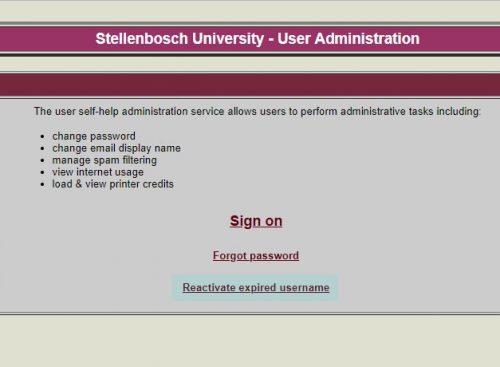
  3. You will see three options:
    Sign on 
    Forgot password
    Reactivate expired username

    Select Reactivate expired username.

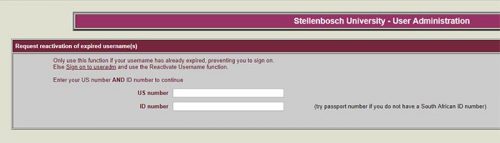
4. You will be asked to sign in with your username and ID number or Passport number. See example below.

5. After signing in, you will see a list of options for your username, as well as the appropriate cost points options. 

6. Select the usernames you want to activate and fill in the correct cost point. This is very important. Rather make sure which cost point you should use from your department’s financial officer. If it’s incorrect it will result in a delay of your activation. 

7. Your request for activation will be forwarded to your cost centre manager. 

8. As soon as they approve it, you will have access to the SU network again.


[:af]

Indien internet, e-pos en ander netwerkdienste gebruik, moet jy jaarliks jou gebruikersnaam heraktiveer. Indien jy nie vir 2018 heraktiveer het nie, het jou toegang op 4 April verval. Hoe nou gemaak?

  1. Jy sal nie toegang hê tot die netwerk vanaf enige van jou toestelle nie. Om te kan heraktiveer, sal jy `n kollega se PC of skootrekenaar moet gebruik. 
  2. Gaan na die volgende adres: www.sun.ac.za/useradm.
  3. Jy sal drie opsies sien:
    Sign on 
    Forgot password
    Reactivate expired username

    Kies Reactivate expired username.

4. Jy sal gevra word om aan te teken met jou gebruikersnaam en ID-nommer of pasportnommer. Sien voorbeeld onder.\

5. Nadat jy aangeteken het, sal jy `n lys opsies sien vir jou gebruikersnaam, sowel as die toepaslike kostepuntopsies. 

6. Kies die gebruikersnaam en diens wat jy wil heraktiveer en vul die korrekte kostepunt in. Die korrekte kostepunt is van uiterste belang. Indien jy onseker is watter kostepunt jy moet gebruik, maak eerder seker by jou departement se finansiële beampte. Indien jy die verkeerde kostepunt invul, sal dit veroorsaak dat jou aktivering vertraag word. 

7. Jou versoek vir heraktivering sal aangestuur word na jou kostepuntbestuurder. 

8. Sodra dit deur die kostepuntbestuurder goedgekeur word, sal jy weer toegang tot die US-netwerk hê. 


[:]

[:en]OneDrive for Business: Anonymous file sharing[:af]OneDrive for Business: Anonieme deel van lêers    [:]

Monday, January 22nd, 2018

[:en]

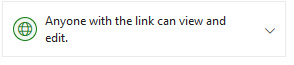
Information Technology recently assessed our OneDrive for Business platform to ensure that no security risks exist for our users and network. During this assessment we identified a number of users who are currently using the anonymous sharing function (“Anyone with the link can view and edit”) on OneDrive.

With anonymous file sharing there is no control or record of who has access to the shared files. Anybody who has the link can access and/or edit the files. This poses a security risk for the University and our users. For this reason we are compelled to switch off anonymous usage.

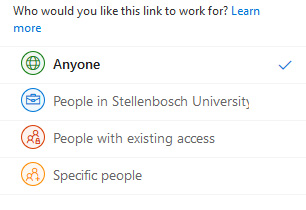
From Thursday, 1 February 2018 you will no longer be able to share files anonymously on OneDrive. Sharing will still be possible with internal and external users, but at a higher security level.

Guides on best practices for sharing files on OneDrive is available www.sun.ac.za/itselfhelp under the Office365 section or directly on this page. If you are have any enquiries, please contact the IT Service Desk by emailing help@sun.ac.za or calling our Service Desk at 808 4367.

[:af]

Informasietegnologie het onlangs ons OneDrive for Businessplatform herevalueer om te verseker dat daar nie enige sekuriteitsrisiko’s vir ons gebruikers en netwerk is nie. Na aanleiding van die evaluering het ons ʼn aantal gebruikers geïdentifiseer wat die anonieme funksie (“Anyone with the link can view and edit”) op OneDrive gebruik om lêers te deel.

Indien lêers anoniem gedeel word, is daar geen beheer of rekord van wie toegang tot die gedeelde lêers het nie. Enige persoon met die skakel het toegang en kan inhoud verander. Dit bied ʼn hoë sekuriteitsrisiko vir die Universiteit en ons gebruikers. Gevolglik is ons verplig om die anonieme deel van lêers af te skakel.

Vanaf Donderdag, 1 Februarie 2018 sal jy nie meer lêers anoniem kan deel op OneDrive nie. Dit sal steeds moontlik wees om inligting te deel met interne en eksterne gebruikers, maar met ʼn strenger vlak van sekuriteit.

Handleidings vir die beste praktyk vir deel van lêers op OneDrive is beskikbaar by www.sun.ac.za/itselfhelp onder die Office365 afdeling of direk op hierdie bladsy. Indien jy enige navrae het, kontak asb. die IT Dienstoonbank deur e-pos te stuur aan help@sun.ac.za of 808 4367 te skakel.

[:]

[:en]OneDrive: 5TB just for you[:af]OneDrive: 5TB net vir jou[:]

Monday, July 31st, 2017

[:en]

Since June staff members have full access to the online Office365 applications. Besides Outlook email, SharePoint Online, access to the MS Office apps (for example Word, Excel, PowerPoint, etc.) and being able to download Office 2016, there is one significant advantage of using the Office365 suite – OneDrive.

OneDrive provides 5TB of cloud storage space for each staff member and student. This means you now have ample space to store your documents and your data will be available from anywhere, anytime, on any device with an internet connection.

What are the advantages of cloud services? 

  • More storage space available, up to 5TB on OneDrive and 50GB on Outlook.
  • Your data is available from anywhere, anytime, on any device. You’ll always have access to your data if you have an internet connection.
  • Your information is also safely stored, even if you lose one of your devices.  

What are the disadvantages of cloud services?  

  • Familiarise yourself with copyright regulations. Make sure you know what you are allowed to store and share online.  SU copyright agreements do not extend to storing of documents protected under the copyright law on OneDrive for business or any other public store space.
  • You are entirely responsible for your own information. Be careful who you give rights and access to, as it will compromise your information if it’s visible to other people.
  • You are responsible for synchronisation between online and local data. Synchronisation between online and local information needs to be set up correctly and done on a regular basis.
  • Keep in mind that access to cloud services when on campus will not incur any costs, but if you work from home your own data will be utilised.
  • It is very important that you keep your private usernames, passwords and information separate from your official work, to prevent your data from getting mixed up.
  • Having access to the cloud from any computer makes your digital identification vulnerable, do not use computers you do not trust to access your cloud services.

What if I have been using OneDrive personal, Dropbox and other cloud storage options? 

You can keep on using them, but it is very important that you only use these storage options for your personal data.

OneDrive for business and SharePoint online are available under the US MS Licence agreement for storage and sharing of institutional data. The storage and sharing of institutional data are not allowed on Dropbox, OneDrive personal or any other cloud storage. 

How do I get access to my OneDrive storage space?

All staff automatically has access to OneDrive. Log on to Office365 with your email address and password. OneDrive is also accessible via the portal by clicking on the Office365 link or searching for Office365 in the search field.

IMPORTANT:

  • When using cloud-based services, you have to keep your private and work usernames, passwords and data separate. Never use the same username for private and work email accounts, storage spaces and applications.
  • SU copyright agreements do not extend to storing and sharing of documents protected under the copyright law on OneDrive for business, SharePoint online or any other public store spaces.


If you have any questions, please let us know by logging a request on ServiceNow or calling our Service Desk at 808 4367. For more information on the Office365 package, please consult our FAQs or have a look at the Office365 training videos.

[:af]

Sedert Junie vanjaar het alle personeel volledige toegang tot die aanlyn Office65-toepassings. Buiten Outlook e-pos, toegang tot die MS-toepassings (byvoorbeeld Word, Excel, PowerPoint, ens.) en die aflaaibare Office 2016 programmatuur, is daar een voordeel wat uitstaan bo die res – OneDrive. 

OneDrive gee vir elke personeellid en student 5TB se wolkstoorspasie. Dit beteken dat jy nou oorgenoeg spasie het om jou dokumente te stoor. Jou data sal ook beskikbaar wees vanaf enige plek, enige tyd en met enige toestel wat aan die internet verbind is. 

Wat is die voordele van wolkdienste?

  • Meer stoorspasie beskikbaar – tot 5TB op OneDrive en 50GB op Outlook.
  • Jou data is beskikbaar vanaf enige plek, enige tyd en op enige toestel. Jy sal altyd toegang tot jou data hê as jy `ʼn internetverbinding het. 
  • Jou inligting word veilig gestoor, selfs al verloor jy een van jou toestelle. 

Wat is die nadele van wolkdienste? 

  • Raak vertroud met kopiereg-regulasies. Maak seker jy weet wat jy aanlyn mag stoor en deel. US kopiereg-ooreenkomste sluit nie die stoor en deel van dokumente wat beskerm word onder kopiereg op OneDrive for businessSharePoint online of enige ander publieke stoorspasies in nie.
  • Jy is volledig verantwoordelik vir jou eie inligting.  Wees versigtig vir wie jy regte en toegang gee, aangesien dit jou inligting in gevaar mag stel as dit sigbaar is vir ander mense. 
  • Jy is verantwoordelik vir die sinkronisasie tussen aanlyn en plaaslike data. Sinkronisasie tussen aanlyn en plaaslike data moet korrek opgestel word en op `ʼn gereelde basis uitgevoer word. 
  • Hou in gedagte dat die gebruik van wolkdienste terwyl jy op kampus is, nie enigiets sal kos nie, maar as jy tuis werk sal jou eie datakostes gehef word. 
  • Dit is baie belangrik dat jy jou privaat gebruikersname, wagwoorde en inligting apart hou van jou amptelike werk om te voorkom dat jou data deurmekaar raak. 
  • Digitale identifikasie is kwesbaar as jy toegang tot die wolk het vanaf enige rekenaar. Moenie rekenaars of toestelle wat jy nie vertrou nie, toelaat om jou wolkdienste te gebruik nie. 

Wat as ek OneDrive personal, Dropbox of ander wolkopsies gebruik? 

Jy kan aanhou om dit te gebruik, maar dis baie belangrik dat jy hierdie opsies slegs vir persoonlike data gebruik.

OneDrive for business en SharePoint online is beskikbaar onder die US MS lisensieooreenkoms vir stoor en deel van institusionele data. Stoor en deel van institusionele data word nie toegelaat op Dropbox, OneDrive personal of enige ander wolkstoorspasie nie. 

Hoe kry ek toegang tot my OneDrive spasie?

Alle personeel het reeds outomaties toegang tot OneDrive. Jy hoef net op Office365 aan te teken met jou e-posadres en wagwoord. Dis ook beskikbaar op die portaal deur op die Office365 skakel te kliek of Office365 in die soekveld in te tik.

BELANGRIK:

  • Wanneer jy wolkgebaseerde dienste gebruik, is dit geweldig belangrik dat jy jou privaat-gebruikersname en werk-gebruikersname, wagwoorde en data apart van mekaar gehou word. Moet nooit dieselfde gebruikersnaam vir jou privaat en werk-eposrekeninge, -stoorspasie en -toepassings gebruik nie.
  • US kopiereg-ooreenkomste sluit nie die stoor en deel van dokumente beskerm onder kopiereg op OneDrive for businessSharePoint online of enige ander publieke stoorspasies in nie.

Indien jy enige navrae het, laat weet ons asseblief deur `n versoek aan te meld op ServiceNow of ons Dienstoonbank te kontak by 808 4367. Vir meer inligting oor die Office365 pakket, raadpleeg asseblief ons FAQs of kyk na die Office365 opleidingsvideos.

[:]

[:en]Alternative facts, fake news or lies?[:]

Wednesday, March 1st, 2017

[:en]

If there’s one thing the US election taught us, it’s that “alternative facts” exist and any news which puts Trump in a negative light is, apparently, “fake news”. Fake news does exist, but it’s not what Trump wants it to be.

“Fake news, or hoax news, refers to false information or propaganda published under the guise of being authentic news. Fake news websites and channels push their fake news content in an attempt to mislead consumers of the content and spread misinformation via social networks.” (http://www.webopedia.com/TERM/F/fake-news.html)

During the US election, it became clear that most of the fake news generated, including sites that improved Donald Trump’s chances as a candidate, originated from outside the United States. In Macedonia, one teenager started a lucrative business spreading the pro-Trump fake news. Whether this played any role in Trump’s presidential win, we’ll never know. Speaking of Trump – Did you hear he signed a visa-free travel policy for South Africa? Not true! Fake news! Sad! Even in South Africa, it was suggested that the ANC used fake news to try and influence the local elections. 

It’s easy to get swept up when you read something upsetting or ludicrous and of course, your first instinct is “I have to tell someone!” So you share it on Twitter, you send it via e-mail and you post it on Facebook and you feel like you are involved in spreading the news. And so something that’s not true spreads like wildfire and fake news peddlers are laughing all the way to the bank.

The increase of fake news means that we have to be more careful and even suspicious of what we read on the internet. If it looks like a news website, it doesn’t mean it is. On the contrary, it’s remarkably easy to create fake websites. There are ways to spot fake news, but it will require you to be more vigilant and above all, read more critically. Local (real) news website EWN lists a few tips to help you to distinguish between the real and the ridiculous. Mybroadband goes into even more detail with their article “How to stop falling for fake news on Facebook.”

Fake news characteristics are easily recognisable if you take the time to read the article before sharing it. By reading, you will notice details which don’t fit. If a headline sounds sensationalistic, it’s probably a fake article attempting to lure you into clicking.  Remember Google is your friend and can indicate whether the same news is shared by legitimate news sources or if this is the only one. It will also show if the article is an old one recycled to generate new clicks.

Avoid getting trapped in an echo chamber. We prefer to only read information and opinions we agree with and inevitably search engines only suggest similar articles with similar views. Try to read a bit wider – even articles covering topics that don’t necessarily interest you or you don’t agree with. Challenge your own viewpoints. 


More articles on fake news: 

We can’t talk about ‘fake news’ if we can’t agree what it means
Google and Facebook partner for anti-fake news drive during French election
Fake news website (Wikipedia)
List of fake news websites
List of satirical websites


[SOURCES: http://ewn.co.za; https://mybroadband.co.za/]

[:]

[:en]Inetkey for staff and students[:]

Friday, February 24th, 2017

[:en]


 For detailed information on Inetkey for staff, please look at our SERVICE CATALOGUE.

For information on Inetkey/Internet for students, have a look at the information on www.sun.ac.za/ithub.

[:]