SEARCH
  • [:en]Recent Posts[:af]Onlangse bydraes

  • [:en]Categories[:af]Kategorieë

  • [:en]Archives[:af]Argiewe

Apps

[:en]Good news for the super organisers[:af]Goeie nuus vir die super-organiseerders

Friday, April 15th, 2016

[:en]

Imagine one platform where you can make notes, drawings, lists and post links, neatly organised in workbooks and share this with friends, family or colleagues. Sounds rather nifty, doesn’t it? 
onenoteMicrosoft OneNote is software for “free-form information gathering and multi-user collaboration”. (Wikipedia)

It provides a digital, shareable notebook where users can perform various actions, even post screen clippings and audio and video recordings.  The software saves large amounts of information in pages, organised into sections within notebooks and has the appearance of a ring-binder in which you can save anything you write or material from other applications or websites.

This information is also searchable, can be stored in the cloud in Onedrive and is, therefore, accessible on other devices.

But what’s the difference between OneNote and a word processing programme like Word? With OneNote you can write or post anywhere on the document space by just clicking. Also, you don’t have to remember to regularly save files. OneNote saves as you work.

OneNote is available as a part of Microsoft Office and Windows 10. It is also available as a free, standalone application for Windows OS X, Windows RT, Windows Phone, iOS, and Android. A web-based version of OneNote is provided as part of OneDrive or Office Online and enables users to edit notes via a web browser.  

The good news for university staff is that you don’t have to buy or install the software. It’s most likely already on your work PC. Click on the Windows button in the far left corner of your screen and type “OneNote” into the search bar. 

If you would also like to use OneNote on your phone, you can download it on Google Play. You will then be able to access your notebooks from anywhere if you sync them to OneDrive.

Want to learn how to use OneNote? Here’s a handy OneNote tutorial on Youtube. 

[SOURCES: http://www.pcworld.comhttp://www.wikipedia.org/]

[:af]

Verbeel jou daar is een platform waar jy notas, tekeninge en lysies kan maak of skakels plaas – netjies versamel in notaboeke met toegang vir vriende, kollegas of familie. Klink heel handig, né?

onenoteMicrosoft OneNote is sagteware wat ontwerp is om informeel informasie te versamel en ook verskeie persone in staat stel om saam te werk aan een projek. 

Die sagteware kan groot hoeveelhede informasie organiseer op bladsye en seksies binne-in notebooks en lyk soos ʼn ring-leêr waarin jy enigiets kan bêre. Jy kan maar sê dis ʼn digitale notaboek waar jy dit wat jy saamgestel of gekry het op ander toepassings, selfs skermskote en klank- en videogrepe, kan oplaai.

Al hierdie inligting is soekbaar, kan gestoor word in die wolk in OneDrive en is daarom ook beskikbaar op jou ander toestelle.

Maar wat is die verskil tussen OneNote en ʼn woordverwerkingsprogram soos Word? Met OneNote kan jy enige plek op die dokument-ruimte skryf of iets plaas deur daarop te kliek. Jy hoef ook nie te onthou om gereeld te stoor nie. OneNote stoor data soos jy werk. 

OneNote is beskikbaar as deel van Microsoft Office en Windows 10. Dis ook beskikbaar as ʼn gratis, losstaande toepassing vir Windows OS X, Windows RT, Windows Phone, iOS en Android. ʼn Webgebaseerde weergawe van OneNote word ook verskaf as deel van OneDrive of Office Online en stel gebruikers in staat om notas aan te pas deur middel van hul webblaaier.

Die goeie nuus vir US-personeel is dat jy nie die sagteware hoef te koop of installeer nie. Dis waarskynlik reeds op jou werkrekenaar. Kliek op die Windows knoppie heel links in die hoek van jou skerm en tik “OneNote” in die soekveld.

Indien jy OneNote op jou foon wil gebruik, kan jy dit aflaai op Google Play. Jy sal sodoende, van enige plek, toegang tot jou notaboeke hê as jy dit sinchroniseer na OneDrive.

Wil jy leer hoe om OneNote te gebruik? Hier is ʼn OneNote instruksie-video op Youtube. 

[BRONNE: http://www.pcworld.comhttp://www.wikipedia.org/]


[:en]Meet your digital cheerleader[:af]Ontmoet jou digitale rasieleier

Friday, April 15th, 2016

goals[:en]

It’s easy to find excuses not to exercise, complete a course or clean up the garage. We all procrastinate and busy schedules cause us to neglect tasks we need, and also want, to do.

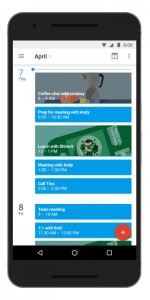
Calendar Goals was developed by Google to be our cheerleader and personal assistant.

The software uses machine learning to help you allocate time on your Google Calendar to complete your chosen goals, whether it’s an exercise regime or merely spending more time reading. Goals pinpoints gaps in your schedule fit your needs. 

To use Calendar Goals, you need to be a Gmail user and use the Calendar app. After adding “Goal”, Google will ask you a few questions to establish what you want to do and which times of day would suit your best.

It has options, like Exercise, Build a Skill and Me Time,  available, but you can also add your own. After entering your information, you can leave it to Google to schedule a few time slots and remind you to keep to them.

If it happens that something else is scheduled during Google’s suggested times, it will allocate another time and keep trying until it suits you. Of course, if you are a serial procrastinator, you will find a way around this, but the software will try its best to make it difficult for you to do so. 

How to use Google Calendar Goals on Android and iOS

The new feature is available from this week for users on Android and iPhone, but not yet for the web-based Gmail calendar.

Google Calendar | Google Play Store via Google Blog


[SOURCES: http://gadgets.ndtv.comhttp://techcrunch.comhttp://www.idigitaltimes.com]

[:af]

Dis maklik om redes uit te dink om nie te oefen, jou studies te voltooi of die motorhuis reg te pak nie. Ons stel graag uit en gebruik tyd as ʼn verskoning om dit wat ons moet en soms ook wil doen, af te skeep.

Google het Calendar Goals ontwikkel om ons persoonlike assistent en rasieleier te wees.

Deur middel van sy masjienleervermoeë bepaal die sagteware waar op jou Google kalender jy tyd kan afknyp om jou doelwitte te bereik. Of dit nou oefening is of net meer tyd om te lees. Dit wys uit waar gapings in jou skedule is wat jou behoeftes sal vervul.

Om Calendar Goals te gebruik, moet jy ʼn Gmail-gebruiker wees en die kalendertoepassing gebruik. Voeg net jou “Goal” by en Google sal vir jou ʼn paar vrae vra om vas te stel wat jy wil doen en watter tye jou die beste sal pas.

Daar is  ʼn paar opsies beskikbaar soos Exercise, Build a Skill en Me Time, maar jy kan jou eie byvoeg. Daarna kan jy dit aan Google oorlaat om tydgleuwe te skeduleer en gereeld daaraan te herinner.

Indien dit gebeur dat ʼn ander afspraak skeduleer word in die voorgestelde tye, sal Google dit aanskuif na ʼn volgende beskikbare tyd. As jy ʼn chroniese uitsteller is, sal jy natuurlik maniere kry om Goals te omseil, maar die sagteware sal probeer om dit vir jou moeilik te maak. 

Hoe om Google Calendar Goals op Android en iOS te gebruik.

Dié nuwe funksie is die week beskikbaar op Android en iPhone, maar nog nie op die webgebaseerde Gmail kalender nie.

Google Calendar | Google Play Store via Google Blog


[BRONNE: http://gadgets.ndtv.comhttp://techcrunch.comhttp://www.idigitaltimes.com]


[:en]A companion for peace of mind[:af]`n Virtuele metgesel vir jou gemoedsrus[:]

Thursday, March 31st, 2016

[:en]

companion2We can’t do much about the crime and violence in our country, but we can utilise technology to try and improve our safety.
One example of this is an app created by five University of Michigan students who were concerned about safety on their campus – something we can identify with after recent incidents on our own campus. 

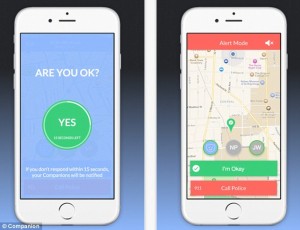
The Companion app tracks your route as you head home and allows you to add a virtual companion, one of your contact, whether it’s a friend, family member or boyfriend/girlfriend. The concept is that this will make you feel a bit safer and less anxious while walking alone. 

The apps allows the other person to monitor your route by GPS and also provides the means to raise an alarm if something should happen. Apart from tracking you via GPS, it also occasionally asks you whether you are ok. If you don’t reply, it will then notify your contact. The same action is executed when a trip is taking longer than the expected time, you start running or your earphones are pulled from the device. You then have 15 seconds to respond before an alert is send. 

Companion also has two alert buttons. One reading “I Feel Nervous”, which will contact your companion and “Call the Police”, which will alert emergency services. One of the biggest advantages of the app is it’s ability to show exactly where a user is, so he/she can easily be located by GPS coordinates.

Users of Companion type in the address of the destination on the app and click “Start a Trip”. You are then prompted to “Add Companions” from your contacts. The contact receives a text to download the app, but can also just click a link to track the route on a live map.

Once you are home safe, the app will send a message to your companion. 

Companion can be downloaded for free on iOS and Android.


[SOURCES: http://gadgets.ndtv.com, http://www.theguardian.com, http://fortune.com]


[:af]

companion2

Ons kan nie veel doen aan die geweld en misdaad in ons land nie. Maar ons kan wel tegnologie inspan om dit te bestuur.

Een voorbeeld hiervan is `n toepassing wat vyf studente ontwerp het, omdat hulle bekommerd was oor veiligheid op hulle die Universiteit van Michigan-kampus.

Die Companion-toepassing volg jou roete soos jy huistoe beweeg en laat jou  ʼn virtuele metgesel, jou wederhelfte, `n vriend of vriendin of ʼn familielid is, byvoeg op jou roete. Die idee is dat dit jou veiliger en minder onrustig sal laat voel wanneer jy alleen moet stap.

Die toepassing laat jou metgesel jou roete via GPS monitor volg en bied ook die platform om iemand vinnig in kennis te stel in geval van ʼn noodgeval . Behalwe vir GPS sporing, vra die toepassing ook sporadies of jy nog ok is. Indien jy nie vinnig genoeg reageer nie, word jou virtuele metgesel in kennis gestel.

Dieselfde aksie word uitgevoer wanneer die roete ongewoon langer neem, jy begin hardloop of as jou oorfone skielik uitgeruk word. Jy kry 15 sekondes om te reageer voordat die alarm aktiveer word.

Companion het twee alarmknoppies. “I Feel Nervous” kontak jou metgesel en “Call the Police” bel outomaties nooddienste. Een van die grootste voordele van die toepassing is sy vermoeë om aan te dui waar jy is, sodat jy maklik deur middel van GPS koördinate opgespoor kan word.

Om Companion te begin gebruik, tik jou eindbestemming se adres in en kliek op “Start a Trip”. Jy sal gevra word om ʼn persoon by te voeg uit jou kontaklys. Die persoon ontvang ʼn SMS waarmee die toepassing afgelaai kan word of kliek net op ʼn skakel om die roete in werklike tyd op ʼn kaart te volg.

Sodra jy veilig tuis is, sal  ʼn boodskap na jou kontakpersoon gestuur word.

Companion kan gratis afgelaai word vir iOS en Android.


[BRONNE: http://gadgets.ndtv.com, http://www.theguardian.com, http://fortune.com]

[:]

[:en]Periscope: News as it happens[:af]Periscope: Nuus, soos dit gebeur[:]

Friday, February 5th, 2016

[:en]

Twitter has the reputation for being the fastest unofficial real-time news update service. But what if reading about what’s happening in the world is not enough? What if you want to witness events as they happen?

Periscope is a live video streaming app for iOS and Android developed by Kayvon Beykpour and Joe Bernstein.

periscope

“… we became fascinated by the idea of discovering the world through someone else’s eyes. What if you could see through the eyes of a protester in Ukraine? Or watch the sunrise from a hot air balloon in Cappadocia? It may sound crazy, but we wanted to build the closest thing to teleportation. While there are many ways to discover events and places, we realized there is no better way to experience a place right now than through live video. A picture may be worth a thousand words, but live video can take you someplace and show you around.”

Periscope gives ordinary people another platform to become citizen journalists. Now everyone can broadcast news and you don’t have to depend on television stations for your world-wide news update. Of course Periscope isn’t used only for news events. As with other social media platforms, the range of topics is wide and sometimes border on the ridiculous.

Scopers (Periscope’s nickname for their users) can broadcast anything they want – whether it’s a trip to the beach or making dinner. Their scope is broadcasted in real-time and remains available for 24 hours. However, you can save streams to view later – an advantage Periscope holds over their competitor, Meerkat. Viewers can comment in real-time and messages scroll on the broadcasted video, visible to other viewers. If you enjoy the broadcast, you can throw hearts at it. (yes really) Read more on The Verge.

Beykpour and Bernstein started their company in February 2014. Just over a year later, in January 2015, before it was officially launched, Twitter bought the app. On 12 January Twitter integrated Periscope into its timeline, enabling you to watch and broadcast videos via your own Twitter timeline.

In another ground-breaking move Periscope is now compatible with the GoPro hero 4. Once a GoPro is connected to your phone, Periscope automatically activates and GoPro footage is streamed directly to Periscope. 

You can either download the Periscope app from the Google Play store or browse to their TV channel, PeriscopeTV.  Watch Kayvon Beykpour explain Periscope to talk-show host Stephen Colbert below or read Socialmediaweek’s beginners guide.

[SOURCES: www.wikipedia.org, www.theverge.com]


[:af]

Twitter is alombekend as die vinnigste direkte manier om op hoogte te bly van nuus van regoor die wêreld. Maar gestel jy wil nie net lees nie, maar ook sien hoe gebeure ontvou? 

Periscope is ʼn lewendige videostroom toepassing wat ontwikkel is vir iOS en Android deur Kayvon Beykpour en Joe Bernstein.

periscope

“… we became fascinated by the idea of discovering the world through someone else’s eyes. What if you could see through the eyes of a protester in Ukraine? Or watch the sunrise from a hot air balloon in Cappadocia? It may sound crazy, but we wanted to build the closest thing to teleportation. While there are many ways to discover events and places, we realized there is no better way to experience a place right now than through live video. A picture may be worth a thousand words, but live video can take you someplace and show you around.”

Periscope gee aan gewone mense ʼn addisionele platform om nuus mee te rapporteer. Feitlik enigiemand kan nou nuus uitsaai en jy hoef nie meer op televisiestasies te vertrou vir wêreldnuus nie. Natuurlik word Periscope nie net vir nuus gebruik nie.  Net soos met ander sosiale netwerke is die verskeidenheid wyd en kan dit ook grens aan belaglik. 

Scopers (Periscope se noemnaam vir hulle gebruikers) kan enigiets uitsaai wat hulle wil – of dit ʼn uitstappie strand toe is of ʼn kosmaakdemonstrasie. Deel van die kritiek op Periscope is ook dat daar geen sensuur toegepas word nie en kopiereg het vroeg reeds kop uitgesteek as ʼn potensiële probleem. 

Die scope word lewendig uitgesaai en bly beskikbaar vir 24 uur. Uitsendings kan gebêre word sodat jy dit later kan kyk, ʼn voordeel wat Periscope bo Meerkat, sy kompetisie, het. Kykers kan tydens uitsendings kommentaar lewer en boodskappe verskyn op die skerm tydens die uitsending sodat almal dit kan sien. Die scoper kan ook met hartjies gooi word as sy uitsending populêr is. (ja regtig) Lees meer op The Verge.

Beykpour en Bernstein het hulle maatskappy in Februarie 2014 begin en skaars ʼn jaar later, in Januarie 2015 – selfs voordat dit bekendgestel is – het Twitter die toepassing gekoop. Op 12 Januarie vanjaar het Twitter Periscope integreer in sy tydlyn , sodat jy nou direk vanaf Twitter uitsendings kan maak en kyk. 

Verlede week is Periscope se baanbreker-status nog meer verstewig, toe aangekondig is dat dit nou ook versoenbaar is met die GoPro hero 4. Sodra ʼn GoPro gekoppel word aan jou foon, word Periscope outomaties aktiveer en die GoPro se beeldmateriaal word direk na Periscope versend. 

Jy kan die Periscope toepassing aflaai op die Google Play store of rondkyk op hul tv-kanaal, PeriscopeTV.  Kyk ook onder hoe Kayvon Beykpour Periscope aan kletsprogram-aanbieder Stephen Colbert verduidelik hoe dit werk of, as jy ʼn scoper wil word, bestudeer Socialmediaweek se beginnersgids.

[SOURCES: www.wikipedia.org, www.theverge.com]

[:]

Life in 3DLewe in 3D

Friday, November 20th, 2015

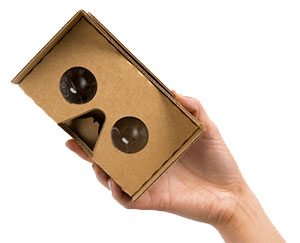
“No, really?!” would be a valid first reaction to Google’s latest innovation. Made from cardboard, it looks a lot like the toys you played with in primary school.

cardboardGoogle Cardboard doesn’t bring anything revolutionary to the table. It’s a virtual reality headset which enables you to watch 3D images and videos with your smart phone.

What makes it different is its simplicity and accessibility.

The headset consists of corrugated cardboard, Velcro and a pair of cheap plastic lenses – the most essential part as they transform flat images on your phone into 3D ones.

Although Cardboard was developed by Google, there is no official manufacturer or vendor for the device. A list of the parts and instructions is available on the Google website. With a few basics you can assemble your own VR viewer. Add your cell phone, download the Google Cardboard app and you’re good to go 3D.

The app splits the smartphone image into two and applies “barrel distortion to each image to counter pincushion distortion from the lenses. The result is a stereoscopic (“3D”) image with a wide field of view.” (https://en.wikipedia.org/wiki/Google_Cardboard)

More info is available on https://developers.google.com/cardboard/


[SOURCES: http://www.wired.com; www.wikipedia.org]

cardboard“Kom nou, regtig?” sou ʼn geldige eerste reaksie wees op Google se jongste uitvindsel. Grotendeels gemaak uit karton, lyk dit soos iets waarmee jy gespeel het op laerskool.

Google Cardboard beloof nie enigiets revolusionêr nie. Dis ʼn virtuele realiteit kopstuk wat jou in staat stel om 3D beelde en video’s met jou slimfoon te kyk.

Die eenvoud en toeganklikheid van hierdie stukkie karton is egter die groot pluspunt.

Die kopstuk is gemaak van riffelkarton, Velcro en ʼn paar goedkoop, plastiek lense – die belangrikste part aangesien hulle gaan help om die plat beeld op jou foon in 3D om te tower. 

Hoewel Cardboard deur Google ontwikkel is, is daar nie ʼn amptelike vervaardiger of verkoper nie. ʼn Lys van die parte en instruksies is beskikbaar op Google se webwerf. Met ʼn paar basiese items kan jy jou eie VR-kyker saamflans. Voeg jou selfoon by, laai die Google Cardboard toepassing en jy is reg vir 3D-aksie.

Die toepassing deel die selfoon se beeld in twee en pas tonneldistorsie toe op beide beelde sodat daar nie stippelvervorming op die lense voorkom nie. Die uitkoms is ʼn stereoskopiese (“3D”) beeld met ʼn wye veld van sig. 

Meer inligting is beskikbaar op https://developers.google.com/cardboard/


[BRONNE: http://www.wired.com; www.wikipedia.org]