
SEARCH
  • [:en]Recent Posts[:af]Onlangse bydraes

  • [:en]Categories[:af]Kategorieë

  • [:en]Archives[:af]Argiewe

General

[:en]Navigating Microsoft 365 changes[:]

Friday, July 19th, 2024

[:en]

Changes to Microsoft 365 storage plans from 1 August 2025 

Globally, Microsoft announced a change in their storage plans for the Enrollment for Education Solutions (ESS) upon contract renewal. This includes Stellenbosch University (SU). Similar to Google’s recent storage updates, these changes are designed to enhance security, minimise environmental impact and promote educational innovation. 

These changes were initially set to take effect on 1 August 2024. However, following a successful business case presentation, SU has received an extension until 1 August 2025. This means the changes will not immediately impact you as a user, but we would like to encourage you to collaborate with IT to manage your storage efficiently in the interim.

Please see the guide: Microsoft 365: Use your storage effectively  


OneDrive and SharePoint file versions

File versioning in SharePoint and OneDrive keeps a detailed history of changes, including the date/time and the user who made the change. Users with appropriate permissions can view, delete and restore specific versions if they have the correct permissions. SharePoint automatically saves versions when you click “Save” or autosave every few minutes. 

Your files are automatically saved as versions, allowing you to track changes and revert to older versions if needed. 

For security reasons, file versioning for OneDrive and SharePoint will be limited to five versions (to restrict access to a limited number of files). You will be notified when this limit is reached

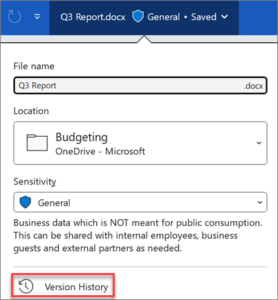
How to view previous versions of a file

  1. Open the file you want to view.

  2. Click the title of your file and select Version history

  3. Select a version to open it in a separate window.

  4. If you want to restore a previous version you’ve opened, select Restore.
*Source: Microsoft Support



MS Teams recordings

MS Teams recordings will now be retained for 60 days by default. After this period, recordings will automatically be deleted. We recommend that minutes be taken as soon as possible after the meeting and that recordings be deleted as soon as the minutes have been approved.

Other things to note:

  • When a recording is deleted due to the expiration setting, you will receive a notification on the recording:
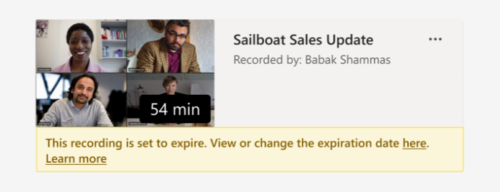
           

  • Watching the recording won’t affect the expiration date.
  • The person who initiates the recording is the owner. Only the owner can delete the recording.



Outlook online archiving

An Outlook online archive mailbox can store older email messages where they won’t occupy space in your primary mailbox. This specialised mailbox appears alongside your other mailbox folders in Outlook. Emails older than one year will be moved automatically to Outlook’s Online Archive (no user action is required).

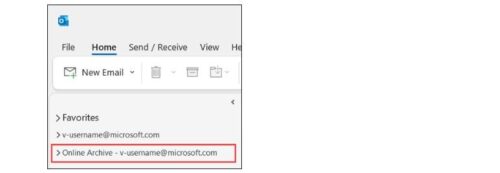
Operating system: Outlook for Windows

  1. Open your Windows Outlook mail. 
  2. In the folder list panel, locate the Online Archive folder. 
  3. Optionally, explore existing Online Archive folder contents. 
  4. Drag and drop email messages to and from your archive folder as needed. 
Operating system: Outlook for Mac 

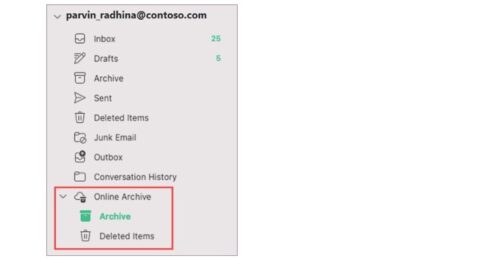
 Your Online Archive folder will appear in Outlook for Mac if you have a Microsoft 365 account. 

  1. Open Outlook for Mac. 
  2. Find and expand your Online Archive folder in the folder list to see its contents. 
  3. Drag and drop email messages to and from your archive folder as needed. 
Note: New Outlook for Mac supports only the mail module. If you moved folders, calendar items, contacts, tasks, or notes to your archive in any other version of Outlook, such as Outlook for Windows, you won’t be able to view them in the online archive mailbox using the new Outlook for Mac. 

[:]

[:en]NAVIGATING MICROSOFT 365 CHANGES: OneDrive and SharePoint file versions[:]

Wednesday, April 24th, 2024

[:en]

Exciting updates are on the horizon for Microsoft 365 users, bringing improvements to enhance your digital workspace experience. In this blog post we delve into the recent changes impacting the number of file versions that are automatically stored.

File versioning in SharePoint and OneDrive keeps a detailed history of changes, including the date/time and the user who made the change. Users with appropriate permissions can view, delete and restore specific versions if they have the correct permissions. SharePoint automatically saves versions when you click “Save” or with autosave every few minutes. 

Your files are automatically saved as versions, allowing you to track changes and revert to older versions if needed. 

For security reasons, file versioning for OneDrive and SharePoint will be limited to ten versions (to restrict access to a limited number of files). You will be notified when this limit is reached

How to view previous versions of a file

  1. Open the file you want to view.

  2. Click the title of your file and select Version history

  3. Select a version to open it in a separate window.

  4. If you want to restore a previous version you’ve opened, select Restore.

*Source: Microsoft Support

Refer to the infographic below for more information on navigating these changes. Stay informed and connected with Microsoft 365’s evolving landscape.

M365 Changes to look out for

[:]

[:en]Navigating Microsoft 365 changes: MS Teams recordings[:]

Tuesday, April 23rd, 2024

[:en]

Microsoft 365 users are about to experience changes that will enhance their digital workspace. In this blog post, we explore the recent improvements to MS Teams recordings that are designed to streamline your workflow and enhance your meeting experience.

MS Teams recordings will now be retained for 12 months by default. After this period, recordings will automatically be deleted. We recommend that minutes be taken as soon as possible after the meeting and that recordings be deleted as soon as the minutes have been approved.

Other things to note:

  • When a recording is deleted due to the expiration setting, you will receive a notification on the recording:


  • Watching the recording won’t affect the expiration date.
  • The person who initiates the recording is the owner. Only the owner can delete the recording.

Refer to the infographic below for more information on navigating these changes. Stay informed and connected with Microsoft 365’s evolving landscape.

M365 Changes to look out for

[:]

[:en]Navigating Microsoft 365 changes: Outlook online archiving[:]

Tuesday, April 23rd, 2024

[:en]

Exciting updates are on the horizon for Microsoft 365 users, bringing improvements to enhance your digital workspace experience. This blog post explores the recent changes impacting Outlook archiving that you should look out for. 

An Outlook online archive mailbox can store older email messages where they won’t occupy space in your primary mailbox. This specialised mailbox appears alongside your other mailbox folders in Outlook. Emails older than one year will be moved automatically to Outlook’s Online Archive (no user action is required).

Operating system: Outlook for Windows

  1. Open your Windows Outlook mail. 
  2. In the folder list panel, locate the Online Archive folder. 
  3. Optionally, explore existing Online Archive folder contents. 
  4. Drag and drop email messages to and from your archive folder as needed. 

Operating system: Outlook for Mac 

 Your Online Archive folder will appear in Outlook for Mac if you have a Microsoft 365 account. 

  1. Open Outlook for Mac. 
  2. Find and expand your Online Archive folder in the folder list to see its contents. 
  3. Drag and drop email messages to and from your archive folder as needed. 

Note: New Outlook for Mac supports only the mail module. If you moved folders, calendar items, contacts, tasks, or notes to your archive in any other version of Outlook, such as Outlook for Windows, you won’t be able to view them in the online archive mailbox using the new Outlook for Mac. 

Refer to the below infographic for more information on how to navigate these changes. Stay informed and connected with Microsoft 365’s evolving landscape.

M365 Changes to look out for

[:]

[:en]50 tips on staying safe online during the silly season[:]

Tuesday, November 28th, 2023

[:en]

Shopping online

As we gear up for the summer holiday season, more people have been driven to do their holiday shopping online. However, shoppers should exercise extreme caution when doing so and be on the lookout for potential scams.

This PDF contains 50 tips to help you stay safe online.

50 tips to protect yourself online

[:]