[:en]
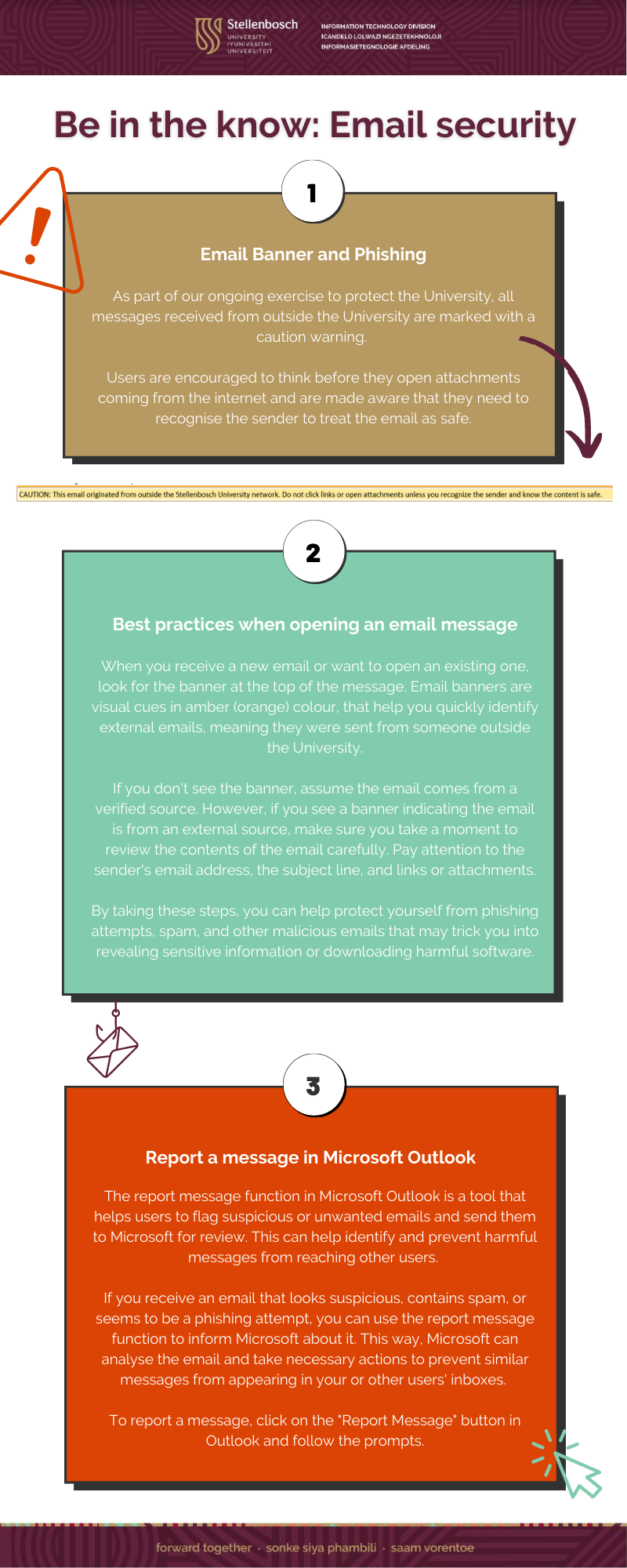
View a PDF here: Phishing and Report Message Infographic
[:]

[:en]
 With a fast internet connection and unlimited, “free” internet, it’s possible to download movies and series to your heart’s content. Unless you use a pay streaming platform it’s also illegal. Additionally, if you use the university’s network and/or devices it’s also a breach of the university’s Electronic Communications Policy – a policy all students and staff agree to when they annually activate their network access. Therefore your network access can be revoked if you are caught downloading and hosting illegal content.
Up to a few years back television networks and film companies weren’t geared to trace and stop downloading and distribution of illegal movies. It was just too difficult and not cost-effective. This is no longer the case – even in South Africa. Everything you do online can be tracked and traced.
Information Technology receive regular notifications from companies such as Warner Bros. and Columbia Pictures indicating that illegal, copyrighted material is being downloaded and seeded (distributed) from IP addresses within the university’s network. These emails include the specific IP address which we can trace to the user, the material downloaded and distributed and at which times. When we receive these notifications, we immediately send an email to the user of the address with a written warning. If they do not comply, these companies will take legal action.
The distribution or seeding of copyrighted material without a licence is both a criminal and civil offence in South Africa, even if distribution takes place from BitTorrent. Just because it’s available via a torrent, it doesn’t mean it’s legal.
In South Africa, under the Copyright Law of 1978, you can be sentenced for up to 5 years in prison and a fine of up to R10,000 for each item you distribute. Between 2010 and 2012, 200,000 people have been sued for uploading and downloading copyright material via BitTorrent.
So before you download the latest episode of your favourite series or stream movies from an illegal file sharing site, consider the consequences. There are many legal options to watch media online, from Netflix to Showmax, so rather be safe and legal.
MORE INFORMATION:
How does BitTorrent and seeding work?
http://en.wikipedia.org/wiki/BitTorrent
http://www.bittorrent.com/help/guides/beginners-guide
Example of a warning letter:
We are writing this letter on behalf of Columbia Pictures Industries, Inc. (“Rights Holder”) who own certain rights under copyright law in the title White House Down.
You are receiving this notice because your Internet account was identified as having been used recently to copy and/or distribute illegally the copyrighted motion pictures and/or television shows listed at the bottom of this notice. This notice provides you with the information you need in order to take immediate action that can prevent serious legal and other consequences. These actions include:
1. Stop downloading or uploading without authorization any motion pictures or TV shows owned or distributed by Rights Holder; and
2. Permanently delete from your computer(s) all unauthorized copies you may have already made of these movies and TV shows.
If this notice is being received by an Internet Service Provider (ISP), please forward the notice to the individual associated with the activities.
The unauthorized distribution or public performance of copyrighted works constitutes copyright infringement under the Copyright Act, Title 17 U.S Code Section 106(3)-(4). This conduct may also violate the Berne Convention for the Protection of Literary and Artistic Works and The Universal Copyright Convention, as well as bilateral treaties with other countries that allow for protection of Rights Holder copyrighted works even beyond U.S borders.
Below is the detail for your reference:
– ————- Infringement Details ———————————-
Title: White House Down
Timestamp: 2013-09-19T23:18:28Z
IP Address: 146.232.***.**
Port: *****
Type: BitTorrent
Torrent Hash: *************************************
[SOURCE: http://mybroadband.co.za]
[:af]
Met `n vinnige internetkonneksie en onbeperkte, “gratis” internet is dit vandag moontlik om die nuutste flieks en reekse af te laai. Indien jy nie `n betaal stroomplatform gebruik nie, is dit ook onwettig. Verder, as jy die universiteit se toerusting en/of netwerk gebruik, is dit `n oortreding van die Elektroniese Kommunikasiebeleid – `n beleid wat elke student en personeellid onderteken wanneer hulle jaarliks netwerktoegang heraktiveer word. Gevolglik kan jou netwerktoegang ook opgehef word as jy onwettige materiaal aflaai en aan ander gebruikers verskaf.
Tot `n paar jaar gelede het TV-netwerke en filmmaatskappye nie te veel moeite gedoen om die aflaai en verspreiding van onwettige flieks en reeks te kniehalter nie. Dit was eenvoudig te moeilik en nie koste-effektief nie. Dis egter nie meer die geval nie.
Informasietegnologie ontvang gereeld e-posse van maatskappye soos Warner Bros. en Columbia Pictures wat aandui dat onwettige, kopiereg materiaal afgelaai en versprei word vanaf IP-adresse binne die universiteit se netwerk. Hierdie e-posse sluit die presiese IP-adres wat die onwettige materiaal afgelaai het, sowel as die naam van die materiaal wat afgelaai en versprei is, in. IT word gevolglik genoodsaak om die persoon aan wie die adres behoort te kontak en `n skriftelike waarskuwing te gee.
Die verspreiding (seeding) van kopieregmateriaal sonder `n lisensie is beide `n kriminele en siviele oortreding in Suid-Afrika, selfs al is die verspreiding oor BitTorrent. In Suid-Afrika, onder die Kopiereg Wet van 1978, kan dié oortreding jou in die tronk laat beland vir tot 5 jaar en `n boete van tot R10,000 vir elke item wat jy versprei.
Tussen 2010 en 2012, is 200,000 mense gedagvaar vir die oplaai en aflaai van kopieregmateriaal deur BitTorrent.
So, voordat jy die nuutste episode van jou gunsteling reeks gou aflaai, oorweeg eers mooi of jy die kans wil waag. Dis dalk veiliger om van `n wettige diens soos Netflix of Showmax gebruik te maak.
MEER INLIGTING:
Hoe werk BitTorrent en “seeding”?
http://en.wikipedia.org/wiki/BitTorrent
http://www.bittorrent.com/help/guides/beginners-guide
[:]
[:en]
Since the beginning of this year the MatiesWiFi service is no longer available for any staff or students for access to WiFi on campus. Instead you will be required to use eduroam for wireless connections. This change was mainly made to ensure better security. More information.
To further improve security and comply to eduroam’s GEANT guidelines we had to implement a new security certificate. This certificate will lead to better performance and speed up the sign-on process in future.
If you connect and sign on to eduroam on a Windows device, depending on the versions, you will be prompted with a messages This will happen only once. Click on Connect and continue working as usual. Similar messages will appear if you work on devices with Linux or Apple operating systems.
NB. Please take note that you need to enter your full sun email address when signing on to eduroam.
[:af]
Sedert die begin van die jaar is MatiesWifi nie meer beskikbaar aan personeel en studente vir toegang tot WiFi op kampus nie. In plaas van MatiesWiFi moet gebruik gemaak word van eduroam vir enige WiFi-verbinding. Hierdie verandering is hoofsaaklik gemaak om sekuriteitsredes. Meer inligting.
Om sekuriteit verder te verbeter, asook om te voldoen aan eduroam se GEANT-riglyne, was dit nodig dat ons `n nuwe sekuriteitsertifikaat implementeer. Hierdie sertifikaat sal lei tot beter werkverrigting en voortaan ook die aantekenproses bespoedig.
Wanneer jy verbind aan eduroam met `n Windows-toestel (afhangende van die weergawe) sal jy `n kennisgewing kry kry. Dit sal slegs eenmalig gebeur. Kliek op Connect en gaan voort soos gewoon. Soortgelyke boodskappe sal ook verskyn as jy op toestelle werk met Linux of Apple bedryfstelsels.
NB. Neem kennis dat jy jou volle sun e-posadres moet gebruik wanneer jy aanteken op eduroam.
[:]
[:en]
Until recently staff and students of Stellenbosch University had to use Inetkey to gain access to the internet. This tool acted both as a security gatekeeper and as a billing system for internet usage.
At the end of 2019 when the Council of Stellenbosch University approved the budget for 2020, it included the introduction to a a new internet model. This decision also kicked off the project to phase out Inetkey. The Finance Committee decided to levy an annual, once-off fee and for 2021 a once-off fee of R674.00 (R57.83 per month) was agreed on. Subsequently staff’s internet fee will in future be included in the annual username registration fee.
The discontinuation of Inetkey also included the replacement of an outdated firewall. During the weekend of 19 February the outdated firewall that we have been using for internet access from campus was replaced and subsequently the necessity for Inetkey fell away.
After the replacement Inetkey is no longer necessary for internet access and from 15 March the application will give an error message if you use it. You can therefore remove and/or uninstall the Inetkey app from all your devices.
[:af]
Tot onlangs moes US-personeel en -studente Inetkey gebruik om toegang tot die internet te verkry. Hierdie toepassing het opgetree as beide hekwagter en verrekeningstelsel vir internetgebruik.
Aan die einde van 2019 het die US Raad saam met die jaarlikse begroting, ook ʼn nuwe internetmodel goedgekeur. Hierdie besluit het die projek vir die uitfasering van Inetkey afgeskop.
Die Finansies-komitee het besluit op die heffing van ʼn jaarlikse fooi en op R674.00 (R57.83 per maand) vir 2021. Dit behels dat personeel se internetkostes voortaan ingesluit word in die jaarlikse gebruikersnaam-aktiveringsfooi.
Die Inetkey-projek het ook die vervanging van die ou firewall ingesluit. Gedurende die naweek van 19 Februarie is die verouderde firewall, wat ons reeds vir dekades gebruik vir toegang na die internet, vervang en gevolglik het die nut vir Inetkey ook verval.
Sedertdien is Inetkey nie meer nodig vir toegang na die internet nie en vanaf 15 Maart sal dit ook ʼn foutboodskap wys indien jy dit probeer gebruik. Jy kan dus die Inetkey-toepassing van jou toestelle verwyder.
[:]
[:en]
In the past, the IT Service Desk was your first stop when you forgot your password (we know, it happens to us too!) or had to change your password. Unfortunately, due to various security risks, as well as the very strict new data protection acts, the Service Desk is no longer allowed to change or reset your password for you. (You can read more about the university’s own Data Privacy Regulation here)
We would like to encourage staff and students to use the Password Selfhelp website in future. We realise that this might be inconvenient, but for your and our own protection, we will have to follow this procedure.
The Password Selfhelp website (www.sun.ac.za/password) offers two options:
To use the online Password Selfhelp, your cellphone number or an alternative email address has to be on the HR records, otherwise, you will not be able to change your password. You can update this information by logging onto SUN-e-HR though the staff portal, http://my.sun.ac.za or contacting your department’s HR contact person.
Select the My Profile link – Personal Information
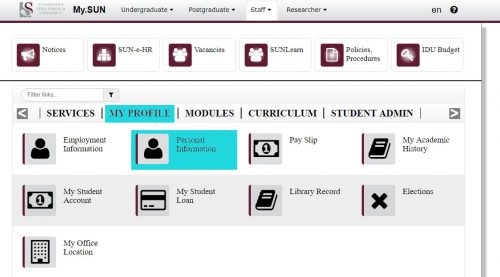
Log on to SUN-e-HR.
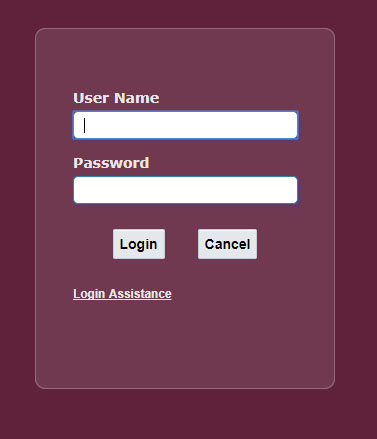
Select Basic Details – Update, Other, Personal Email Address
or
Select Phone Numbers – Update
During the password change process a PIN code, consisting of 8 numbers, will be SMSed or emailed to the user (depending on which option he/she selected) Please use this PIN to change your password on the self help website. As soon as the password has been changed, the user will be notified by means of SMS or email.
If you have not requested a password change, please notify the IT Service Desk immediately at 808 4367.
|
IMPORTANT! If you are working from home you will also need to follow these instructions after you’ve changed your password to ensure that it sync properly across devices and accounts. |
[:af]
In die verlede was die IT Dienstoonbank die eerste plek wat jy gekontak het as jy jou wagwoord vergeet het (ons weet, dit gebeur met ons ook!) of as jy dit sommer net wil verander. Deesdae kan die Dienstoonbank ongelukkig nie meer wagwoorde verander nie weens sekuriteitsrisikos en baie streng data beskermingswette. (Jy kan hier meer lees oor die universiteit se eie Dataprivaatheidsregulasie)
Ons wil graag personeel en studente aanmoedig om voortaan van die Wagwoord Selfhelp webwerf gebruik te maak. Ons besef dat dit ongerieflik mag wees, maar dis belangrik dat ons hierdie prosedure volg vir beide julle en ons beskerming.
Die Wagwoord Selfhelp webwerf (www.sun.ac.za/password) bied twee opsies:
Om die aanlyn Wagwoord Selfhelp funksie te gebruik, is dit belangrik dat jou selfoonnommer of `n alternatiewe e-posadres op Menslike Hulpbronne se rekords is. Daarsonder sal jy nie jou wagwoord kan verander nie. Hierdie inligting kan jy opdateer deur aan te teken op SUN-e-HR via die personeelportaal, http://my.sun.ac.za. of deur jou Menslike Hulpbronne kontakpersoon te vra.
Kies die My Profile skakel en dan Personal Information
Teken aan by SUN-e-HR.
Kies Basic Details – Update, Other, Personal Email Address
of
Kies Phone Numbers – Update
Tydens die wagwoord veranderingsproses word ‘n pinkode, bestaande uit 8 syfers, aan die persoon geSMS of met e-pos gestuur is (afhangende van die opsie wat gekies is). Die pinkode moet gebruik word op die wagwoord selfhelp webbladsy voordat ‘n nuwe wagwoord gekies kan word. Sodra ‘n wagwoord verander is, word die persoon per epos en sms daarvan in kennis gestel.
Indien die persoon nie die wagwoord verandering versoek het nie, moet hulle dadelik die IT Dienstoonbank kontak by 021 8084367.
|
BELANGRIK! Indien jy tuis werk sal jy ook die volgende instruksies moet volg nadat jy jou wagwoord verander het om te verseker dat jou wagwoord op al jou toestelle en rekeninge gesinkroniseer is. |
[:]
