
Mar
18
Filed Under (Tips) by dw on 18-03-2013

chainAll software has defects (known as bugs) and bad design — which make computers vulnerable to attack. The Windows operating system, Office suites, media players, browsers and browser plug-ins are just a few examples of software that are open to attack.

An Attack vector (or just vector) is a specific computer-system vulnerability, along with the path and method that exploits it. It’s just a particular way to gain access to a computer in order to install malware, gain external control, or extract user data. (You might have a state-of-the-art burglar alarm at home, but if you leave the back door unlocked to let the cat in, you have created an attack vector)

There are other places to attack computer systems besides the software. The human element — the component between the chair and the keyboard — is often the most vulnerable part of a computer system. In humorous terms, this is known to computer geeks as a PEBKAC error. (Problem Exists Between Keyboard And Chair)

Email attachments have been the classic vector to use against humans. Email messages entice or alarm users, to open malicious attachments. Once opened, these attachment do the dirty work, often with the willing permission and participation of the victim. These attacks rely on deception to get past defense systems.

Along with attachments, email messages, downloaded files, infected webpages, videos, popup windows, instant messages, and social media (blogs, Facebook, Twitter) are vehicles for many popular attack vectors.

One Ring to rule them all! This saying comes from the “Lord of the Rings”. Often people become victims of online fraud by using the same password  or usernames on multiple sites, including social media sites and Internet banking sites. Your online banking site and Facebook profile should never have the same password. Facebook is easily compromised, opening up a vulnerability to your Internet banking security.

Take a look at your online presence. How much information is out there about you that could be pieced together to scam you? Your name? Email address? Friends’ names? Their email addresses? Are you on, for example, any of the popular social networking sites? Take a look at your posts. Anything there you don’t want a scammer to know? Or have you posted something on a friend’s page that might reveal too much?

Passwords: Do you use just one password or easy-to-figure-out variations on just one? If you do either, you should not. You are making it easy for a phishing scammer to get access to your personal financial information. Every password for every site you visit should be different. Random letters and numbers work best. Change them frequently.


nessieWhat is a Virus/E-Mail Hoax?

Have you ever received an e-mail message that includes something like the following:

  •  A warning of a new virus that you should send on to everyone you know.
  • A warning of a scam that you should send on to everyone you know.
  • A petition to help the needy or some cause that wants you to forward it on to those who might be interested.
  • A get-rich-quick scheme that claims if you forward on the message you’ll receive money for each time it’s forwarded.
  • A claim that for each email sent someone in need will be helped by another organization.
  • A warning of a new virus or a scam that was sent out apparently by an organisation that is perceived as being legitimate and informed – like the South African Police.

These 6 scenarios account for almost all the virus and e-mail hoaxes you will see, and in almost all cases anything that follows any of these guidelines is a hoax, false, or an outdated petition that is just “floating” around the Internet. Before you consider forwarding any email that asks you to forward it to anyone else you should be able to do the following:

  •  Check the original date the message was created and sent.
  • Check the original sender of the message.
  • Check how many times the mail has been forwarded (Several FWD: Or Forwarded: in the subject line will be a clue)
  • Check any quotes made by any organizations mentioned with specific URL’s (web addresses) that backup the claims made in the message.
  • If the e-mail is for a cause, check the date of any action mentioned and/or the specific piece of legislation that is mentioned.

In general it is considered very bad manners  to forward a message on to a large number of people.

Why these Hoaxes Cause Problems?

Imagine if someone receives a message that tells them to forward it on to “everyone they know.” If  this person forwards the message on to 100 people, (which is not uncommon) and just a few people forward this message onto to another large group, the message will be duplicated thousands of times in a short period of time, often just hours.

A few thousand extra e-mails result in a bunch of wasted disk space, clogging of network bandwidth, and most importantly the complete waste of time for many professionals and, possibly, your friends all over the world. This simple e-mail hoax may cost thousands of dollars in wasted time by everyone involved. Consider the man hours wasted in dealing with these hoaxes and what is costing the organisation.

Furthermore the organisation is employing people to do a job and if these employees waste time sending out mail instead of doing their work, they are essentially robbing the organisation

What is equally disconcerting is that there might be a message that is true, or contains some important information, that is ignored because most of the previous e-mail have been hoaxes. (The old fairy tale of “The boy who cried wolf” is a good example)

 How to Tell if a Message is a Hoax?

Below is a message about a supposed screen saver that will wipe out your hard drive and “steal your password.” You can read about this virus hoax at http://www.symantec.com/avcenter/venc/data/buddylst.zip.html

Read after the message for some tips on how you can tell this is obviously a hoax.

 Subject: [Fwd: Beware of the Budweiser virus--really!]

 This information came from Microsoft yesterday morning. Please pass it on to anyone you know who has access to the Internet. You may receive an apparently harmless Budweiser Screensaver, If you do, DO NOT OPEN IT UNDER ANY CIRCUMSTANCES, but delete it immediately. Once opened, you will lose EVERYTHING on your PC. Your hard disk will be completely destroyed and the person who sent you the message will have access to your name and password via the Internet.

 As far as we know, the virus was circulated yesterday morning. It’s a new virus, and extremely dangerous. Please copy this information and e-mail it to everyone in your address book. We need to do all we can to block his virus. AOL has confirmed how dangerous it is, and there is no Antivirus program as yet which is capable of destroying it.

Please take all the necessary precautions, and pass this information on to your friends, acquaintances and work colleagues.

End of message.

EMAILCHIEF

 First, take look at the following text:

“This information came from Microsoft yesterday morning.”

The words “yesterday morning” are quite a clue. When was yesterday morning? Obviously not yesterday. What about Microsoft? If they are making some sort of announcement where is the web site address with this announcement? Why would Microsoft make an announcement about some random virus that has nothing to do with their company?

Please pass it on to anyone you know who has access to the Internet.

Anything that asks you to “pass it on to anyone you know who has access to the Internet” is a big flag. Any official group (Microsoft, AOL, etc.) are the last ones to ask you to forward e-mail to everyone you know. This goes against standard Internet policies and good etiquette. It just clogs up disks, networks and wastes everyone’s time.

“AOL has confirmed how dangerous it is…”

If AOL had confirmed anything they would certainly have a URL with this statement. Furthermore, what does AOL have to do with this? Finally, AOL is not an official virus reporting agency. You want to see things like CERT, Symantec (they make Norton AntiVirus), McAfee, F-PROT (they make F-PROT F-Secure), etc.

The following statement is a big sign:

“…and there is no Antivirus program as yet which is capable of destroying it.”

By the time the message gets to anyone, if the virus was for real, all the major antivirus programs would already have a check for this. Generally it takes just one or two days for a big company like Symantec, McAfee, or F-PROT to come up with a check for such a virus.

Finally, we have this:

“…the person who sent you the message will have access to your name and password via the Internet.”

What password? What do they mean by “via the Internet”? If you do store any of your passwords on your machine (e.g. dialup, in Eudora, etc.) it’s encrypted. Furthermore, suppose it’s some super virus and it can decrypt your passwords in certain circumstances, then what? Is it going to mail the password back to its creator? Now the South African Police can track them down easily and arrest them? None of this makes much sense. Many e-mail hoaxes make ridiculous statements such as this.

Where to Check if a Message is a Hoax

Before you consider forwarding a message about a “virus” or a petition, always check your sources, just because your elderly mother sent it from her computer, or the e-mail has a South African Police or SARS logo on it, doesn’t necessarily tell you that it is legitimate or true. Sometime a simple Google search with key terms will immediately give you an answer, often within a couple of seconds.

To check if a message is a hoax you can try out the following sites:

Snopes Urban Legends Reference Pages

http://www.snopes.com/

Symantec’s AntiVirus Research Center Virus Hoax Page

http://www.symantec.com/avcenter/hoax.html


Mar
08
Filed Under (Tips) by dw on 08-03-2012

Each day, almost 3,000 laptop computers are stolen. Many of these thefts could be prevented. Here are some practical steps you can take to prevent your portable notebook computer from becoming a police statistic.

  • Lock your notebook in your office during off-hours.
  • Whenever possible, take your laptop home with you so you always know where it is.
  • Review and understand the laptop insurance coverage included in your business and homeowners’ policies to ensure that you have coverage for theft.
  • Keep only the most necessary proprietary information on the laptop.
  • Do not load passwords on the laptop, particularly those allowing remote and email communication with clients or the office.
  • Never leave your laptop unattended in a public place, even for a moment!
  • Consider installing a boot-up password, available on most laptops, so only users with your password can access the hard drive.
  • Back up your files and store them in some place other than the laptop carrying case.
  • Consider engraving the company name or some other identification on the laptop cover.
  • Be especially cautious about installing software from unknown sources—it may contain a virus.
  • Pay attention to where you use your laptop. Be aware that someone behind or next to you can see your computer screen. This is especially true on an airplane.

When Traveling

  • Carry your notebook in a strong, padded,nondescript bag. Do not use a carrying case that advertises there’s a computer inside.
  • Never leave a laptop in full view in your car, and never check the computer as luggage at airports.Do not leave your laptop unattended.
  • At airport checkpoints, be observant. Don’t place the laptop on a conveyor belt until you are ready to walk through the checkpoint.

Laptop & Data Security Tools

Several effective laptop and data security options are available to protect your equipment from theft:

  • IBM has “secure” notebooks that are equipped with Asset ID, a radiofrequency-based security and asset-tracking technology.
  • Automatic online backups by Toshiba prevent anyone from reading the data your computer sends without your pass phrase. Information is encrypted before your PC transmits it.
  • Track-it is a product that blasts a sonic alarm if you get more than 40 feet from your laptop to alert you that it has been left behind.
  • A software program, CompuTrace, calls in with its location to a Central Monitoring System. These calls are made at regular intervals, providing the electronic serial number, phone number (from which it is calling) and other traceable information.
  • For some inexpensive ways of reducing laptop theft, try security cables, stands, AnchorPads and boxes that offer good protection.
Nov
15
Filed Under (Editorial, Tips) by dw on 15-11-2011

Jerry Bryan immediately knew there was something wrong at his church. He knew it the second he opened up the email from the pastor. As a highly respected member of his church and a known technophile, Jerry was often consulted by the pastor concerning technical matters. In this case, however, the pastor was passing along a serious warning.

A secretary at his church had received an email from a friend that scared her:

I have some bad news. I was just informed that my address book has been infected with a virus. As a result, so has yours because your address is in my book. The virus is called jdbgmgr.exe. It cannot be detected by Norton or McAfee anti-virus programs. It sits quietly for about 14 days before damaging the system. It is sent automatically by messenger and address book, whether or not you send email. The good news is that it is easy to get rid of!

Just follow these simple steps and you should have no problem.

  1. Go to Start, then Find or Search
  2. In files/folders, write the name jdbgmgr.exe
  3. Be sure to search in you “C” drive
  4. Click Find or Search
  5. The virus has a teddy bear logo with the name jdbgmgr.exe – DO NOT OPEN!!
  6. RIGHT click and delete it
  7. Go to the recycle bin and delete it there also

IF YOU FIND THE VIRUS, YOU MUST CONTACT EVERYONE IN YOUR ADDRESS BOOK
Sorry for the trouble, but this is something I had no control over. I received it from someone else’s address book.

After receiving the email, the secretary looked, and sure enough, jdbgmgr.exe was sitting on her hard drive! She had a virus! She put in a call for the church’s tech people and then began to check other computers in the building. They all had the virus! jdbgmgr.exe was everywhere! A mass program of cleansing was about to begin, but Jerry got back to the pastor just in time with some good news. The church was not the victim of a virus. It was the victim of a hoax: the jdbgmgr.exe virus hoax.

After arising among Spanish-speaking Net users in early April 2002, the hoax quickly spread to English-speakers by mid-April. No one knows how many people fell for it, but it continues to this day, as the story above proves. Unfortunately, when people delete jdbgmgr.exe, they are not deleting a malicious virus; instead, they are deleting a system file placed on their computer by Microsoft.

Microsoft explains in its Knowledge Base article that jdbgmgr.exe is the “Microsoft Debugger Registrar for Java”. Fortunately, if you delete the file, you’re not really affected unless you use Microsoft Visual J++ 1.1 to develop programs written in the Java programming language. If you are such a developer, then you need to follow the instructions Microsoft gives on its Web page.

A Brief History of Hoaxes

The jdbgmgr.exe virus hoax is by no means an isolated incident. Indeed, there has been a rash of virus hoaxes in recent years. For instance, there was the “Budweiser Frogs screensaver” hoax in 1997. This email warned folks that a “creepoid scam-artist” was sending “a very desirable screen-saver (the Bud frogs)” that would, if downloaded, cause you to “lose everything!!!!”, while at the same time, “someone from the Internet will get your screen name and password!”. Of course, nothing of the sort would occur if you loaded the screensaver. Granted, you might find yourself thinking about enjoying a cold one, but you certainly wouldn’t find your computer affected. The logical impossibility of hard drive failure at the same time your username and password are not only saved but sent to “someone from the Internet” never seemed to cross the minds of this hoax’s victims.

Another hoax that frightened people was the so-called ” Virtual Card for You” virus of 2000. Victims were warned, via email, that a “new virus has just been discovered that has been classified by Microsoft (www.microsoft.com) and by McAfee (www.mcafee.com) as the most destructive ever!”. Details continued:

This virus acts in the following manner: It sends itself automatically to all contacts on your list with the title “A Virtual Card for You”.

As soon as the supposed virtual card is opened, the computer freezes so that the user has to reboot. When the ctrl+alt+del keys or the reset button are pressed, the virus destroys Sector Zero, thus permanently destroying the hard disk.

Please distribute this message to the greatest number of people possible. Yesterday in just a few hours this virus caused panic in New York, according to news broadcast by CNN (www.cnn.com).

There was no truth to the statements in this email. There was no virus, CNN didn’t broadcast a warning, and there was certainly no panic in New York (Like a little computer virus would panic New Yorkers! It takes something serious to get New Yorkers to panic — like a shortage of cream cheese at Zabar’s, or a gigantic gorilla on top of the Empire State Building.). Nonetheless, thousands of people fell for it, and the email continues to make the rounds.

Although virus hoaxes have been circulating since 1988, the granddaddy of them all is the supposed Good Times virus, the first really successful virus hoax. It started life on AOL in 1994, and it still pops up today. Its descendants are legion, as many other virus hoaxes have copied some aspect of Good Times. In that sense, it can be said to be the most influential virus hoax of all. The virus read as follows:

Some miscreant is sending email under the title “Good Times” nationwide, if you get anything like this, DON’T DOWN LOAD THE FILE!

It has a virus that rewrites your hard drive, obliterating anything on it. Please be careful and forward this mail to anyone you care about. The FCC released a warning last Wednesday concerning a matter of major importance to any regular user of the Internet. Apparently a new computer virus has been engineered by a user of AMERICA ON LINE that is unparalleled in its destructive capability. … What makes this virus so terrifying, said the FCC, is the fact that no program needs to be exchanged for a new computer to be infected. It can be spread through the existing email systems of the Internet.

Once a Computer is infected, one of several things can happen. If the computer contains a hard drive, that will most likely be destroyed. If the program is not stopped, the computer’s processor will be placed in an nth-complexity infinite binary loop – which can severely damage the processor if left running that way too long. Unfortunately, most novice computer users will not realize what is happening until it is far too late. Luckily, there is one sure means of detecting what is now known as the “Good Times” virus. It always travels to new computers the same way in a text email message with the subject line reading “Good Times”. Avoiding infection is easy once the file has been received simply by NOT READING IT! The act of loading the file into the mail server’s ASCII buffer causes the “Good Times” mainline program to initialize and execute.

The program is highly intelligent – it will send copies of itself to everyone whose email address is contained in a receive-mail file or a sent-mail file, if it can find one. It will then proceed to trash the computer it is running on.

The bottom line is: – if you receive a file with the subject line “Good Times”, delete it immediately! Do not read it. Rest assured that whoever’s name was on the “From” line was surely struck by the virus. Warn your friends and local system users of this newest threat to the Internet! It could save them a lot of time and money.

********IMPORTANT******* PLEASE SEND TO PEOPLE YOU CARE ABOUT OR JUST PEOPLE ONLINE

As with the other hoaxes we have looked at, this “warning” was full of lies and misconceptions. There is no way that simply viewing a plain-text email could infect someone’s machine with a virus (unfortunately, the same is not true for folks that use Outlook to view HTML-formatted email, as my SecurityFocus articles on Outlook security discussed). It used fancy-sounding “techie” words that sound impressive to non-technical people, but actually mean nothing at all, like the “nth-complexity infinite binary loop”, whatever that is. And finally, do you really think that a user of America OnLine could create anything like a virus this technically complex?

The Good Times hoax was fairly ironic. Often, system administrators would get the email and immediately forward it to everyone in their companies, warning employees not to open any email with “Good Times” in the subject. Of course, the email warning people not to open any email with “Good Times” in the subject HAD the words “Good Times” in the subject! This didn’t damage any computers, but it did produce severe cases of cognitive dissonance in irony-impaired workers all across America.

There’s One Born Every Minute – Or is There?

So why do people fall for these hoaxes? A lot of it goes back to the noble desire to help others. Who wouldn’t want to warn others about a disaster? And it’s so easy to send the warning to hundreds of people at one time: with just a click, you’ve saved your friends from a virus!

Another consideration is the uncertainty that people feel in dealing with computers. Look at the jdbgmgr.exe hoax, which is actually quite ingenious in its fashion. By asking users to confirm that the file is on their computer, it makes people feel like they are participating in their own computer security. Most computer users typically can’t “see” a virus, just the aftermath. This, coupled with the anxiety many people feel about their computers — these large, complicated machines that they really don’t understand — leads to a feeling of certainty when the jdbgmgr.exe file is found on their machines. “Aha!” they think, “Caught one! And there’s the proof — right in front of my eyes!”

It’s funny, but most people would never fall for such a trick in real life. Let’s say I walked up to the same people that fell for the jdbgmgr.exe trick and said, “There are terrorists in this neighborhood. If you see a man in a black hat, call the police, because he’s a terrorist!” Minutes later, a man in a black hat walks by. Would these people call the police? Probably not. They would use their common-sense, their experience of the normal everyday rhythms of life, to judge whether or not someone is a threat.

Computers, however, are the equivalent of a foreign country for many people. When someone is in a country with which they are not familiar, perhaps feeling anxiety because they don’t understand the language (“nth-complexity infinite binary loop”, anyone?), they are more likely to grab onto signposts that will help them. In such a situation, they might be far more likely to fall for my false warning about terrorists.

And if the warning came not from a stranger, but from a friend or acquaintance, as happened when jdbgmgr.exe warnings arrived in email inboxes, then the likelihood of falling victim to a hoax skyrockets. After all, in a foreign country, isn’t the sight of a fellow countryperson always welcome?

Another reason people fall for hoaxes is because they know that anti-virus programs, unfortunately, do not always work. Many viruses spread so quickly that they overwhelm users before anti-virus vendors can update their software. The “Melissa” and “I love you” viruses are good examples of this phenomena. So when users “see” — or think they see, a la jdbgmgr.exe — evidence of the “virus” on their computers, but their anti-virus software says there is no virus, many users are going to believe their eyes and not their software.

Even worse, many users pay no attention to the neccessity of updating their anti-virus software. I have seen office computers with anti-virus databases that are years out of date. When I ask these users why they haven’t updated their software, they typically respond with a blank stare and a plaintive but accurate excuse: “I didn’t know I needed to do that.”

Not Just Harmless Fun – The Real Dangers of Hoaxes

Virus hoaxes are not real viruses, by definition, but that doesn’t mean they don’t have negative effects. In fact, virus hoaxes can be quite damaging in a number of different ways.

First, it is quite possible that a hoax may end up damaging your computer. The email itself won’t have caused the damage. Instead, the email will have convinced you to damage your own computer, as my story about the the jdbgmgr.exe email demonstrates. The folks in Jerry Bryan’s church were ready to remove files from their computer that they in fact did not need to remove. They were fortunate that they really didn’t need the file in question, but what about next time? What if the hoax author had more malicious intentions and had instructed gullible recipients to remove a key system file or directory?

Second, a virus hoax results in a waste of resources. The victim wastes valuable time dealing with garbage, and time, after all, is money. People sending the message to friends, family, and colleagues waste bandwidth on the Internet and mail servers. Since these emails usually arrive chock-full of email addresses in the “To” and “CC” fields, spammers treat such warnings as a free gift full of new, valid email addresses they can exploit, further compounding the problem of wasted resources. So remember: if you forward that virus warning, you’ve just multiplied all of the losses above to include everyone else in your address book.

A virus hoax can damage your reputation, or at least make you the butt of jokes. When I receive an email from an acquaintance warning me about jdbgmgr.exe and its dangers, I just shake my head and think “Newbie!” … before I help them. If you forward that email along to 100 folks thinking you’ve done your duty, you’re going to feel pretty sheepish having to send another email letting them know you just made a foolish mistake — and a mistake that could have been prevented with just a little bit of checking on your part first.

Finally, virus hoaxes can have a corrosive effect on security. How? Consider the story of the boy who cried wolf. Similarly, virus hoaxes can undermine the attention that end users pay to rigorous security measures. As a result, users may fall into lax security habits, underestimating the dangers of real viruses because of the frequency of false alarms represented by hoaxes.

How to Spot a Virus

There are definite signs that indicate when a virus warning is in fact a hoax. With common sense and a healthy dose of skepticism, you can help make the Internet a better place by helping stop hoaxes before they spread.

First, don’t fall for a warning just because it “sounds” technical. As we have seen above (remember our friend the “nth-complexity infinite binary loop”?), technical-sounding language means nothing. In fact, most real virus warnings from real organizations don’t use a lot of technical language. They try to explain the problem and the solution in language that is simple and direct.

Just because the email came from your friend the computer nerd doesn’t mean it’s correct. Even if he works at Microsoft. And just because the email claims to be reporting the words of the FCC, or the FBI, or a respected anti-virus vendor, or some other government agency or company doesn’t make it more likely to be true. Search the Web sites of the organizations that are mentioned in the email before believing what you read. Further, do a Google search on the virus name: that may produce immediate results indicating whether the virus is real or a hoax.

If the email has a lot of exclamation points or words or phrases written in CAPITAL LETTERS, it is more than likely false. Real security alerts from reputable organizations don’t use such techniques. However, the creators of virus hoaxes do use such techniques, because they know that people are influenced by their emotions. If the email pushes emotional buttons, but doesn’t offer much in the way of verifiable fact, it’s a hoax.

The worse the virus sounds, the less likely its existence. Sure, some viruses do destructive things, but most do not. And the effects attributed to viruses in hoax emails are usually nothing short of apocalyptic: erased hard drives, destroyed systems, and panic in the streets. Be especially suspicious anytime a virus is described using a superlative, as in “most destructive”, “worst ever”, and so on.

Finally, if the “warning” says to pass it along to everyone you know, it is without doubt a fake. In effect, if you pass along warnings, then YOU become the means by which the virus hoax propagates. Real virus warnings never encourage you to forward them; instead, they direct you to a Web site for further information. Break the chain! Don’t forward emails warning about viruses!

But what if you do get an email that seems real? Don’t panic. And don’t forward it to everyone on God’s green earth. Check it out first. Ask the technical department at your company. If they’re not available, there are some excellent resources on the Web that can help you verify the truth of a virus warning.

The major anti-virus vendors all have pages about hoaxes. In particular, Symantec, makers of Norton Anti-Virus, and McAfee have in-depth and timely information that can help you sort truth from fiction. Two outstanding sites that cover these hoaxes in depth are at Vmyths.com: Hoaxes A-Z and Snopes.com. Finally, I have a page on my Web site that gathers together these and other resources.

A Last Desparate Warning

In conclusion, I have some bad news. I need to warn my readers about a terrible new virus that’s going around. Seriously! This one is real, and I urge you to watch for it and take the appropriate measures. I received the following dire warning in an email today that I must pass along to you, so you can protect yourself. Forward it to all your friends, so we can all help stop this hideous scourge before it brings the world to its knees!

If you receive an Email with the subject line “Badtimes” delete it IMMEDIATELY, WITHOUT READING it. This is the most dangerous Email virus yet.

Not only will it completely rewrite your hard drive, but it will scramble any disks that are even close to your computer. It also demagnetises the strips on your credit cards. It reprograms your ATM access code, screws up the tracking on your VCR and uses subspace field harmonics to scratch any CD’s you try to play. It will recalibrate your refrigerator’s coolness settings so all your ice cream melts and your milk curdles. It will give your ex-boy/girlfriend your new phone number. This virus will mix antifreeze into your fish tank. It will drink all your beer. It will even leave dirty socks on the coffee table when you are expecting company.

It will hide your car keys when you are late for work and interfere with your car radio reception so you hear only static while stuck in traffic. When executed “Badtimes” will give you nightmares about circus midgets. It will replace your shampoo with Nair and deodorant with Surface Spray. It will give you Dutch Elm Disease and Tinea. If the “Badtimes” message is opened in a Windows95 environment, it will leave the toilet seat up and leave your hairdryer plugged in dangerously close to a full bathtub.

It will not only remove the forbidden tags from your mattresses and pillows, but it will refill your skim milk with whole milk. It has been known to disregard ‘Open This End’ labels and can make you ‘Push’ a door that says ‘Pull’ and vice versa. It is insidious and subtle. It is dangerous and terrifying to behold. It is also a rather interesting shade of mauve. These are just a few signs.

You have been warned!

by Scott Granneman

Oct
07
Filed Under (Tips) by dw on 07-10-2011

There are many virusses on the Internet. When I started working at the university in late 1988, there were only 4 computer virusses in the entire world. In April 2008, the “1 million” mark for virusses was passed, and we are fast approaching the 2 million mark in October 2011.

With that sort of threat hanging over every computer user’s head, scammers play on the resulting paranoia and general ignorance of the average computer user and have created what we call “scareware”.

Scareware is when a programmer or company creates a substandard antivirus program, (for example WinAntiVirus) and then create websites that bring up  fake pop-up ads that show fake alerts about problems on users’ hard drives – for example, “You have 284 severe system threats.”  These ads prompt customers to download a free trial of this software or pay a fee for the software. Once installed, the trial versions pump yet more ads into the user’s web browser, pestering people to shell out the full price. It is very ironic, scareware exploits consumer fears of viruses in order to spread what was, in effect, another virus – and the victims pay for the privilege.

Scareware, has become the Internet’s most virulent scourge. By 2009, an average of 35 million computers were being infected by scareware every month, according to a study by software developer Panda Security. “Scareware is still the most promising way of turning compromised machines into cash,” says Dirk Kollberg, a senior threat researcher at security firm Sophos. The problem is this method is very effective. IMI a clandestine operation that creates a lot of scareware is rumoured to have made upwards of $3.96 million per year in pure profit!

So, how do you know the difference between your legitimate anti-virus application and scareware? After all, you don’t want to ignore a legitimate warning message.

First and foremost, get back to basics…

Know what anti-virus or protection software you have installed on your computer.

The scam artists are counting on you not remembering what protection you’ve installed on your computer. Know the name of the software manufacturer (Symantec, TrendMicro, McAfee, etc.) and know the name of the product (Norton Internet Security, PC-cillin, Total Protection, etc). These products also come with a subscription for updates. Know how to find the subscription information so you can verify when the subscription expires.

Some of the scareware pop-up messages appear to be generated from the Windows Security Center. The Windows Security Center is part of Windows. Its purpose is to monitor the status of the presence of an anti-virus application or when the Windows Firewall is turned off. Essentially, the only legitimate messages you will receive from the Windows Security Center are warnings as to the absence of an anti-virus application or warning that your Windows Firewall has been turned off. You can recognize any fake “Windows Security Center” pop-up messages if there is a warning stating that there are infections on the system or if there is an inducement to download or purchase a product.

Unfortunately, if these scareware messages start popping up on your computer it means that your computer is already infected. If you click the pop-up message to purchase the software, a form to collect payment information for the bogus product launches allowing you to download and purchase the fake anti-virus product. But, that is not when your computer gets infected. In most instances, the scareware installed malicious code onto your computer before you saw any pop-up messages… whether you click the warning message, the purchase pop-up form, or not.

Criminals have gotten pretty good at making fake Web sites (for PayPal, eBay, Facebook, etc.) look like the real thing. But what they can’t fake quite as easily is the location of the Web server that’s hosting their fraudulent site. You might be looking at a perfect replica of, say, Bank of America, but if the site is hosted in Uzbekistan, it’s a good bet you shouldn’t input your password.

Flagfox for Firefox makes this kind of detective work simple: it determines the Web server’s physical location and pastes the corresponding country’s flag at the end of the address bar. Clever!

If you’re wondering how it works, Flagfox bases its flag choice on the actual location of the server you’re connected to, rather than just the nationality of the domain name–which may be different.

After installing the plug-in and restarting Firefox, just head to any site and you’ll see the flag at the right end of the address bar. If you click the flag, you’ll get a new tab containing detailed geographic information about the site.

If you right-click the flag, Flagfox pops up a list of other handy tools, including Whois, SiteAdvisor, Web of Trust, and URL-shortener bit.ly. Head to the settings (via Tools, Add-ons) for the plug-in and you’ll find a dozen or so other options you can add to the list.

This is a great little addition to Firefox, one that combines convenience with added security. What’s not to like?

By Rick Broida, PCWorld

May
19

An excellent article on phishing scams from HP Small & Medium Business

You’ve just received an email from the bank, telling you that there was an error in your favour in your last bank statement, and that you should “click here” to claim what’s owing to you.

Fantastic news! Isn’t it?

No: you’re about to become a victim of a type of cybercrime called “phishing”.

Baiting the hook

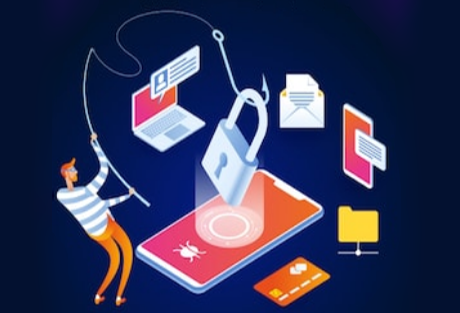
First given the name in 1996, “phishing” describes a scam which is designed to trick you into giving away your online passwords. The hook is often an e-mail from an apparently trustworthy source, with a link to a website that looks exactly like one you are familiar with. There you’ll be asked to provide details which would enable scammers to obtain money, take out credit card loans in your name or commit other crimes. And as soon as you’ve clicked on the link or opened the attachment, you’ve exposed yourself to computer viruses that can detect your keystrokes when you log on to your accounts.

Phishers are always coming up with new ways to target people or organisations; with smartphones and the use of social media on the rise, opportunities are ever greater for these attacks. “Vishers” (voice phishing) try to obtain information by phone; “smishers” send text messages (SMS); and spear phishers target corporate employees. All of them want to take your money; all are committing criminal acts.

Typical scams

  • An email comes from your bank, claiming to have found an error in your favour. “Click here to claim your money!”
  • Someone from the bank phones because a large amount has been deducted from your account. “Before we can check it, I need a few details from you.”
  • Your friend, or a work colleague, tells you in an e-mail that they’ve discovered a brilliant scheme to get rich. “Click on the attachment!”
  • A message comes from a famous online auction website, asking you to confirm account details. “Click here.”

These are all typical scams; people become victims every day.

Play safe
So remember these three rules:

1. Check the URL.
If an email comes from your bank, look carefully at the URL.

First comes http:// or https://

Next comes the host name, for example xxbank.com

But check it carefully! Scammers often include your bank’s name in front of their own website name. For example, if your bank’s address is xxbank.com, a scammer called badbank.com might use xxbank.badbank.com, or even xxbank.com.badbank.com.  They own the website “badbank.com”, so they can put whatever they want in front of it.

Something else to watch out for: sometimes, scammers insert hyperlinks to their own websites, hidden behind innocent-looking text. For example, the hyperlinked text says: http://www.xxbank.com, but the actual hyperlink is to http://www.badbank.com  Again, the only sensible thing to do is NOT TO CLICK. Banks and other financial institutions do not send e-mails about important issues.

2. Don’t trust strange emails or phone calls.

Remember that banks, credit card issuers and similar institutions would never e-mail or phone customers with important information; they would send a letter. So no matter how pleasant or convincing the “bank employee” on the phone is, end the conversation quickly without giving any information. If you aren’t sure whether an e-mail or phone call is genuine, phone your bank yourself or write them a letter.

3. Use up-to-date software.
The best thing you can do: install the latest software to protect your computer from malware (malicious software).

Is it too late?

  • If you have already revealed bank account or credit card information, report your suspicions immediately to the bank or credit card issuer, and then preferably cancel your account and open a new one. Whether or not you are liable to pay what is owed on your account depends on how quickly the theft is reported and also on the laws in the country you live in.
  • If someone else is using your online auction website account, contact the auction house, where there is a link for “hijacked accounts”. They will probably suspend your account while they investigate.
  • If you’ve downloaded a virus, install anti-virus and personal firewall software, update all virus definitions, run a full scan and confirm every connection your firewall allows. Change all your passwords and check all your online accounts, especially bank accounts, auction website accounts, email, online trading accounts and anything else for which you have an online password.

Once you’ve got your anti-virus software and personal firewall installed, you should be safe – but it’s still wise to remember what they told you when you were a child: “Don’t talk to strangers.” At least, don’t tell them your passwords.

“Why do I have to change my password every 3 months? It’s so unnecessary, who would want to get into my account?”

“Why is ’123456′ not a good password? It is easy to remember!”

“Why all these capital letters and numbers and stuff mixed up in passwords? It is so difficult to remember them!”

“My password is ‘password’, nobody will guess that!”

Believe it or not, these are the sorts of comments that we encounter almost on a daily basis at the FHSCUA Help Desk. You would think that these would come from highschool children, but these are Medical student undergraduates, and one comment (I won’t say which one) came from a department head!

The aim of this article is to help you better understand the security of your own passwords and how to boost that security, and it centres around the premise that if I asked you the following question, what the answer would be?

“If you invited me to try and crack your password – you know the one that you use over and over for everything, how many guesses would it take before I got it?”

Here is my top 10 list. I can obtain most of this information much easier than you think, then I might just be able to get into your e-mail, computer, or online banking. After all, if I get into one I’ll probably get into all of them.

  1. Your partner, child, or pet’s name, possibly followed by a 0 or 1 (because they’re always making you use a number, aren’t they?)
  2. The last 8 digits of your ID number.
  3. 12345678.
  4. “password”
  5. Your city, or university, rugby team name. (Sun123456, Bloubulle1 sound familiar?)
  6. Date of birth – yours, your partner’s or your child’s.
  7. “wagwoord”
  8. “letmein”
  9. “qwertyuiop”
  10. Your girlfriend or boyfriend’s name (a favourite amongst students)

Statistically speaking that should probably cover about 20% of you. But don’t worry. If I didn’t get it yet it will probably only take a few more minutes before I do…

Hackers have developed a whole range of tools to get at your personal data. And the main obstacle standing between your information remaining safe, or leaking out, is the password you choose. (Ludicrous but true, the best protection people have is usually the one they take least seriously.)

One of the simplest ways to gain access to your information is through the use of a Brute Force Attack. This is accomplished when a hacker uses a specially written piece of software to attempt to log into a site using your credentials.

So, how would one use this process to actually breach your personal security? Simple. Follow my logic:

  • You probably use the same password for lots of stuff right?
  • Some sites you access such as your Bank or work network probably have pretty decent security, so I’m not going to attack them.
  • However, other sites like the Hallmark e-mail greeting cards site, an online forum you frequent, or an e-commerce site you’ve shopped at might not be as well prepared. So those are the ones I’d work on.
  • So, all I have to do now is to use the “bruteforce” software on their server with instructions to try say 10,000 (or 100,000 – whatever makes you happy) different usernames and passwords as fast as possible.
  • Once we’ve got several login+password pairings we can then go back and test them on targeted sites.
  • But wait… How do I know which bank you use and what your login ID is for the sites you frequent? All those cookies are simply stored, unencrypted and nicely named, in your Web browser’s cache.

And how fast could this be done? Well, that depends on three main things, the length and complexity of your password, the speed of my hacking computer, and the speed of my Internet connection.

For instance, adding just one capital letter and one asterisk would change the processing time for an 8 character password from 2.4 days to 2.1 centuries.

Believe me, I understand the need to choose passwords that are memorable. But if you’re going to do that, how about using something that no one is ever going to guess AND doesn’t contain any common word or phrase in it.

Here are some password tips:

  1. Randomly substitute numbers for letters that look similar. The letter ‘o’ becomes the number ‘0′, or even better an ‘@’ or ‘*’. (i.e. – m0d3ltf0rd… like modelTford)
  2. Randomly throw in capital letters (i.e. – Mod3lTF0rd)
  3. Think of something you were attached to when you were younger, but DON’T CHOOSE A PERSON’S NAME! Every name plus every word in the dictionary will fail under a simple brute force attack.
  4. Maybe a place you loved, or a specific car, an attraction from a vacation, or a favorite restaurant?
  5. You really need to have different username / password combinations for everything. Remember, the technique is to break into anything you access just to figure out your standard password, then compromise everything else. This doesn’t work if you don’t use the same password everywhere.
  6. Since it can be difficult to remember a ton of passwords, I recommend using Roboform for Windows users. It will store all of your passwords in an encrypted format and allow you to use just one master password to access all of them. It will also automatically fill in forms on Web pages, and you can even get versions that allow you to take your password list with you on your PDA, phone or a USB key. There is also a free, open-source program, KeePass that works very well, while others swear by the cross-platform, browser-based LastPass.)
  7. Once you’ve thought of a password, try Microsoft’s password strength tester to find out how secure it is.

Another thing to keep in mind is that some of the passwords you think matter least actually matter most. For example, some people think that the password to their e-mail box isn’t important because “I don’t get anything sensitive there.” Well, that e-mail box is probably connected to your online banking account. If I can compromise it then I can log into the Bank’s Web site and tell it I’ve forgotten my password to have it e-mailed to me. Now, what were you saying about it not being important?

Often times people also reason that all of their passwords and logins are stored on their computer at home, which is safe behind a router or firewall device. Of course, they’ve never bothered to change the default password on that device, so someone could drive up and park near the house, use a laptop to breach the wireless network and then try passwords from this list until they gain control of your network — after which time they will own you!

I also realize that most people just don’t care about all this until it’s too late and they’ve learned a very hard lesson. But why don’t you do me, and yourself, a favor and take a little action to strengthen your passwords and let me know that all the time I spent on this article wasn’t completely in vain.

Please, be safe. It’s a jungle out there.

Some extracts from John Pozadzides’ Onemanblog

Jun
04
Filed Under (Editorial, Tips) by dw on 04-06-2009

achoo There doesn’t have to be a flu pandemic for Health Science employees to remember to protect their health and safety while on the job. Every day we face health risks in the workplace, whether it’s infection, heavy lifting, repetitive motion, or plain old stress.

I might only be an technical person, but I would like to remind you of some common sense tips you can use every day to stay healthy at work.

First, let’s take a look at your personal workspace. Being tied to a desk has its own health risks, and if you are constantly sitting, typing, or mouse-clicking, you could be in for an array of aches and pains. At the very least, make sure your chair, your keyboard, your mouse, and your monitor are positioned for your greatest comfort.

There is little or no skills at the university to provide workplace health or ergonomics advise, but be sure to take advantage of it and request ergonomically designed equipment for your particular needs. It might not seem like a big change, but over time, those little adjustments can greatly reduce physical strain. In addition to optimizing your physical environment, remember to get up every few minutes to stretch, walk around, and rest your eyes. Budget constraints or a scrooge for a department head should never stop you from requesting equipment that will keep you healthy and productive. Remember “Goedkoop is duurkoop” and in the end the university will end up paying for not looking after the occupational health of its employees.

Lastly, unless you work in a lab, don’t let your workspace become a breading ground for germs, insects, or other health hazards.  You might not have that much control over others’ hygiene, but try to keep your own equipment and workspace reasonably clean. Alcohol swabs or a spray bottle with some form of disinfectant will help keep your work area clean.

A bit of Dettol mixed with water in a spray bottle can go a long way to keeping your area germ free.

Ensure your rubbish bins are kept clean of food scraps, used tissues and at least have some form of cover to prevent flies and other insects from breeding.

Furthermore, if you have or have recently had a cold, periodically wipe down your monitor, keyboard, and phone. And, use tissues and dispose of them properly.

Everyone who works with computers knows how dirty PCs and components can get, particularly keyboards and mice – and we have noticed in the FHSCUA (GERGA) that there are a lot of hygienically-challenged individuals out there.

Since germs can live on surfaces for anywhere from a few minutes to several hours, make sure you regularly wash your hands or use liberal applications of hand sanitizers (with at least 60% alcohol). This will help keep you healthy as you travel around the cube farm or from office to office, touching potentially infected keyboards, desks, and other equipment.

Dis-Chem and Clicks sell hygienic handwash or “waterless” hand sanitizer in handy bottles to keep on your desk.

Most importantly, avoid touching your face or eyes, until you’ve had a chance to wash or disinfect them.

Keeping yourself healthy and safe at work is mostly common sense, but we tend to get so busy and stressed out that we sometimes forget to take the basic precautions.

Remind yourself that no matter how busy you are – if you get sick or become injured, you’ll only make things worse. This also goes for those times when you realize you’re already ill. If you are – stay home and avoid spreading it to more of your co-workers. You’ll recover more quickly and do everyone in the office a big favour!

These aren’t the only health risks for university workers – after all, we frequently have to negotiate tight spaces, lift and carry heavy equipment, and work with electricity or other harmful materials. But the most common culprits are also the most mundane, so always be on the alert.

Perhaps this posting is not what you might consider an e-Learning matter, but I hope you see its benefit for you as a university employee.

Keep healthy and happy,

David Wiles

May
25
Filed Under (Tips) by dw on 25-05-2009

overtype User Question: I’m using Word 2003. How can I stop letters disappearing after I make corrections?

When this happens, text just keeps disappearing as I type, meaning that I have to redo whole paragraphs. Is there a setting that needs changing? Any help with this problem would be appreciated.

Helpdesk Answer: It sounds like you’re accidentally putting Word in overtype mode. In Word 2003 you can see this in the status bar. There are four usually-grey mini-panes labeled REC, TRC, EXT and OVR. If OVR is black rather than grey you’re in overtype mode. Tap the Insert key a few times and watch it change.

You’re not the only one who’s had this problem. It was enough of a big deal that Microsoft disabled Overtype mode by default in Word 2007. Those who actually want to use Overtype mode need to change a setting to make it available.

Maybe it’s enough to know that you should watch for that OVR marker to appear. But if you want, you can take it a step further and disconnect the Insert key from that command:

  • Select Tools | Customize from the menu.
  • Click the Keyboard button on the Options tab
  • In the Categories list select All commands
  • In the Commands list select Overtype
  • In the Current keys list click Insert
  • Click the Remove button
  • Close the Customize Keyboard dialog
  • Close the Customize dialog

If the problem was due to accidentally hitting the Insert key, thereby toggling Overtype mode, this will solve it. You can still toggle that mode by double-clicking the OVR marker.

Neil Rubenking